crxMouse Download, Features, Setup, and Alternatives
If you’ve ever wished you could go back a page, close a tab, or open a new window without reaching for the keyboard, that’s exactly the gap crxMouse was built to fill. It’s one of the most downloaded mouse gesture extensions for Chrome, letting you control your browser with simple mouse movements instead of clicks and shortcuts.
Before you install it, though, it’s worth understanding both what it does well and a few things worth knowing about its permissions and privacy history. This guide covers the features, setup, real-world usage, and importantly honest alternatives, so you can decide if it’s the right fit for you, rather than just installing whatever shows up first in a search result.
What Is crxMouse and How Does It Work?
crxMouse is a free Chrome extension that adds mouse gesture controls to your browser, letting you navigate, switch tabs, and manage windows by drawing simple movements with your mouse instead of clicking buttons or memorizing keyboard shortcuts.
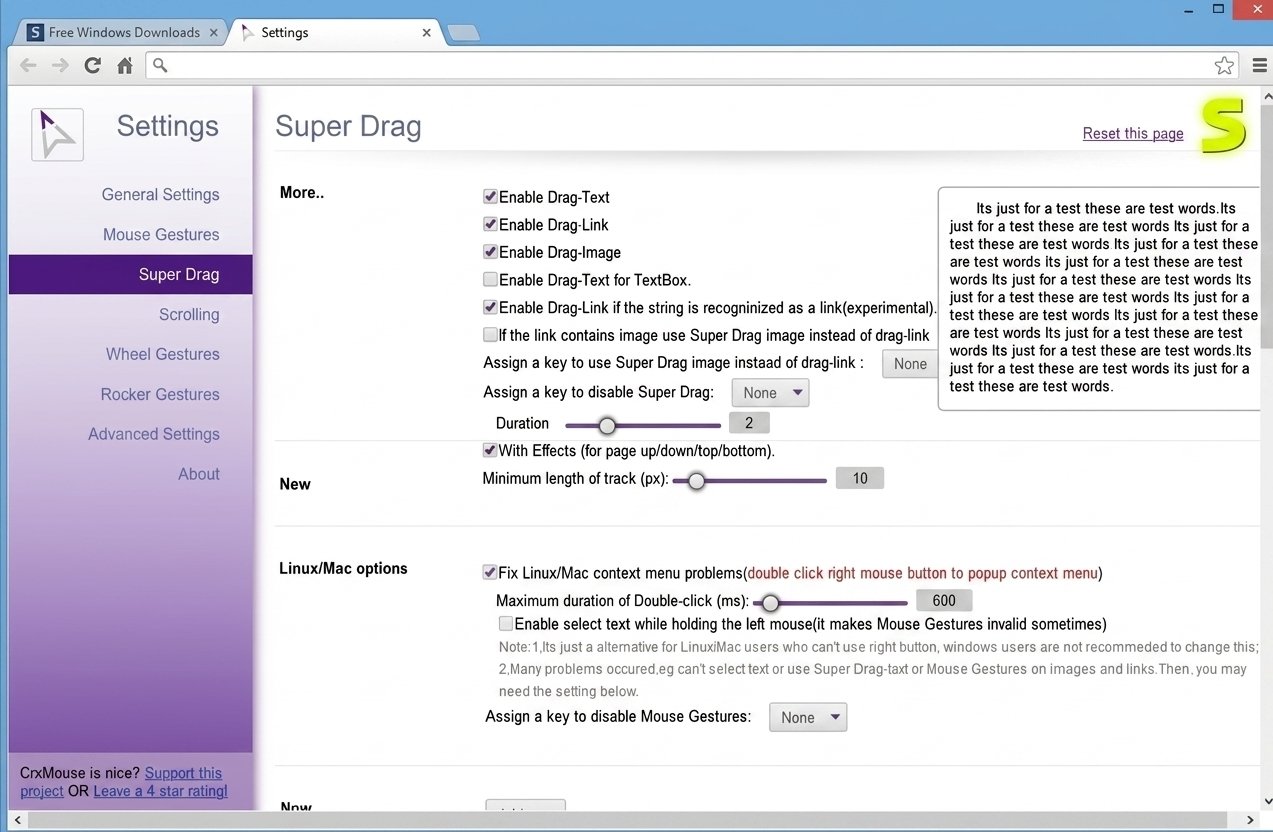
The extension works in the background once installed, watching for a specific trigger, usually holding the right mouse button, and then interpreting the direction you drag as a command.
What Are Mouse Gestures?
A mouse gesture is a recognized pattern of cursor movement, like dragging left, right, up, or in an L-shape, that’s mapped to a browser action such as “go back” or “close tab.”
How Chrome Mouse Gestures Work
Chrome doesn’t support mouse gestures natively, so any gesture functionality you see in the browser comes from an extension like crxMouse translating your mouse movement into a command through its own tracking layer.
crxMouse vs Standard Chrome Shortcuts
Keyboard shortcuts require you to move a hand off the mouse; gestures let you keep both hands where they already are. For heavy multitaskers, that small difference adds up over a full day of browsing.
Who Should Use the crxMouse Extension?
crxMouse tends to appeal to:
- People who browse with a mouse or trackpad far more than a keyboard
- Users managing lots of open tabs who want faster tab switching
- Anyone who frequently drags links or text to search or open new tabs
- Users comfortable reviewing and managing browser extension permissions
It’s less suited to anyone who’s cautious about installing permission-heavy extensions without reading the fine print first, a point worth taking seriously, which we’ll come back to in the privacy section below. If that describes you, it doesn’t mean skip crxMouse entirely; it just means spend the extra two minutes checking its settings before you forget about it and move on with your day.
crxMouse Features
crxMouse packs in more functionality than most people expect from a browsing convenience tool.
Chrome Mouse Gestures
The core feature set covers navigation basics: back, forward, refresh, close tab, and open new tab, all triggered by drawing a direction with the mouse.
Mouse Shortcuts and Commands
Beyond navigation, gestures can be mapped to commands like duplicating a tab, muting audio, or reopening the last closed tab.
Chrome Tab Navigation With Mouse Gestures
Switching between tabs, closing the current one, or reopening a tab you just closed can all be done without touching the tab bar.
Custom Mouse Gestures and Gesture Customization
You’re not limited to the built-in set. crxMouse lets you draw and save your own gesture patterns and assign them to whichever action you use most.
Mouse Wheel Gestures
Holding a trigger key while scrolling can be mapped to actions like zooming, switching tabs, or scrolling to the top or bottom of a page instantly.
Super Drag and Drop
Super Drag is one of crxMouse’s standout features: dragging a link opens it in a new tab, and dragging selected text lets you search it, copy it, or open it as a URL, all without right-clicking through a menu. It’s the kind of feature that feels unremarkable in a demo but genuinely saves time once it becomes muscle memory, especially for anyone who regularly researches across dozens of open tabs.
Smooth Mouse Scrolling
The extension also offers smoother, animated scrolling behavior as an alternative to Chrome’s default scroll response.
crxMouse for Chrome
crxMouse Chrome Extension / Browser Extension
crxMouse is built specifically as a Chrome extension, though it’s also compatible with other Chromium-based browsers, including Microsoft Edge and Yandex Browser.
Chrome Mouse Gesture Extension Landscape
It’s not the only gesture extension for Chrome, but it’s consistently one of the most installed, with hundreds of thousands of active users according to Chrome Web Store listings.
Chrome Mouse Shortcuts
Because gestures replace many multi-click actions, regular users often describe the learning curve as quick: most people pick up the handful of gestures they actually use within a day or two.
crxMouse Download and Installation
crxMouse is available for free through the official Chrome Web Store listing, which is the safest place to install it from, since it avoids third-party download sites that sometimes bundle unrelated software.
crxMouse Latest Version
The extension is actively maintained, with the current release in the 6.x version line, receiving periodic updates for compatibility and bug fixes.
How to Install crxMouse in Chrome
- Go to the Chrome Web Store and search for “CrxMouse: Mouse Gestures.”
- Click “Add to Chrome.”
- Review the requested permissions before confirming.
- Once installed, the crxMouse icon appears in your extensions toolbar.
Installation note
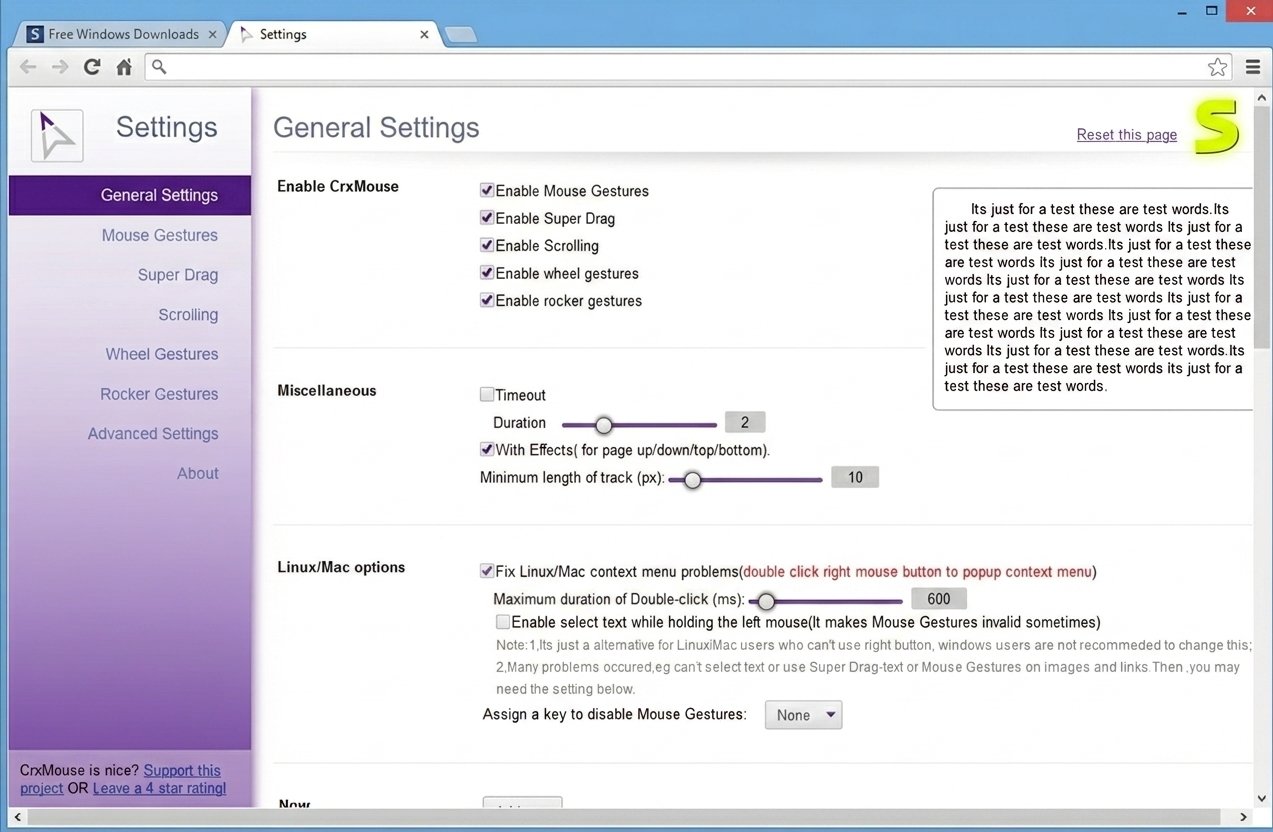
After installation, take a minute to open the settings panel. There’s more to configure than the default setup suggests, and a few defaults (like anonymous data collection) are worth reviewing right away.
How to Set Up and Configure crxMouse
crxMouse Settings and Options
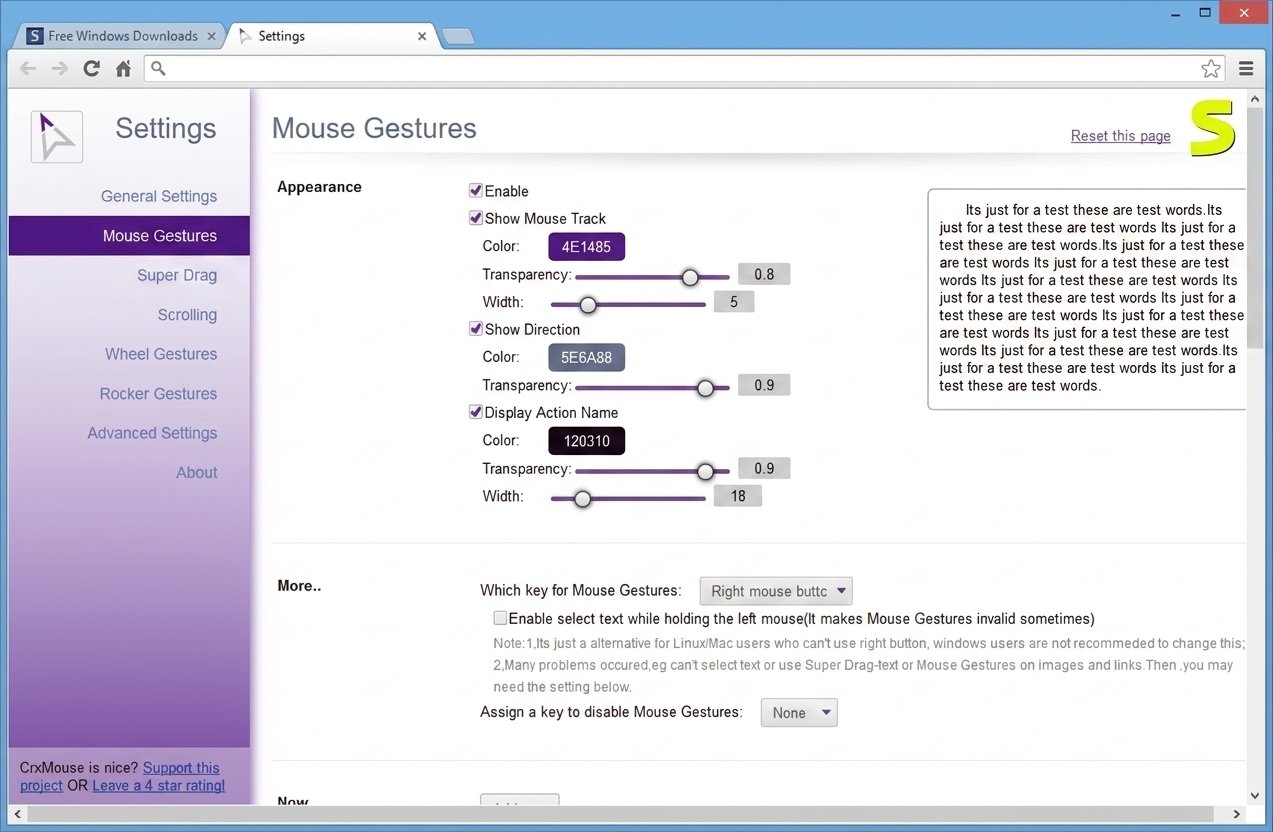
The settings panel is where you’ll spend most of your setup time, covering gesture mapping, sensitivity, visual trail display, and data preferences.
How to Customize crxMouse Gestures
- Open crxMouse settings from the extension icon.
- Go to the “Mouse Gestures” section.
- Select an existing gesture to edit, or create a new one.
- Draw your custom pattern and assign an action to it.
Assign Mouse Gestures to Commands
Each gesture can be linked to virtually any built-in browser command, from opening a new window to muting a tab.
Import and Export crxMouse Settings
If you set up crxMouse the way you like it on one computer, you can export your configuration and import it on another, saving you from rebuilding your gesture set from scratch.
Back Up Your crxMouse Gesture Configuration
It’s worth exporting your settings occasionally, especially after customizing gestures. A browser reset or extension reinstall can otherwise wipe your preferences.
crxMouse Mouse Gestures and Navigation
Chrome Back and Forward Mouse Gestures
The most commonly used gestures are simple: drag left to go back, drag right to go forward, both triggered by holding the right mouse button and dragging.
Right-Click Drag Back and Forward
This right-click-and-drag pattern is the default trigger method, though it can be changed in settings if it conflicts with a website’s own right-click menu.
Chrome Tab Mouse Gestures
| Gesture Direction | Default Action |
|---|---|
| Drag left | Go back |
| Drag right | Go forward |
| Drag down | Close current tab |
| Drag up then down | Reopen closed tab |
| Drag up | Open new tab |
| Diagonal up-right | Open new window |
Switch, Close, and Reopen Chrome Tabs With Mouse Gestures
These tab-management gestures are often the biggest time-saver for people managing a dozen or more open tabs at once.
crxMouse Super Drag
What Is crxMouse Super Drag?
Super Drag turns your mouse into a shortcut for actions that normally require a right-click menu, dragging instead of clicking through several menu options.
Drag Links to Open a New Tab
Dragging a hyperlink slightly and releasing it opens that link in a new tab automatically.
Drag Text to Search in Chrome
Highlighting and dragging a piece of text triggers a quick search for that text in a new tab, using your default search engine.
How to Configure Super Drag in crxMouse
Super Drag settings live in its own section of the crxMouse options panel, where you can toggle which drag actions are active and adjust the drag sensitivity.
If Super Drag stops working
This is usually because a website’s own drag-and-drop scripts are intercepting the action. This is common on sites with heavy JavaScript, like web-based editors.
crxMouse Scrolling and Wheel Gestures
Chrome Mouse Scrolling and Wheel Gestures
Wheel gestures let you hold a trigger (often the right mouse button) and scroll to trigger an action, rather than scrolling the page itself.
Smooth Scrolling With crxMouse
crxMouse’s smooth scrolling adds animated easing to normal scroll behavior, which some users find more comfortable on long pages.
Scroll to the Top or Bottom With a Mouse Gesture
A quick wheel gesture can jump you straight to the top or bottom of a page, saving repeated scrolling on long articles.
Advanced crxMouse Customization
Custom Chrome Mouse Commands
Power users can go beyond the default gesture set entirely, remapping nearly every available browser action to a gesture of their choosing.
Change Default Mouse Gesture Commands
If a default gesture doesn’t match your habits, say, you’d rather close tabs with a different motion, it can be reassigned in a couple of clicks.
Gesture Actions for Tabs, Windows, and Pages
Beyond tabs, gestures can control window-level actions like minimizing, maximizing, or opening a new incognito window.
How to Use crxMouse
How to Use crxMouse Mouse Gestures
Hold the right mouse button anywhere on a page, drag in the direction of the action you want, then release. The gesture executes as soon as you let go.
How to Restore crxMouse Settings
If your configuration gets messy, the settings panel includes a reset option that restores all gestures to their original defaults.
crxMouse Privacy, Permissions, and Security
This is the section worth reading carefully before you install crxMouse, not after.
What Permissions Does crxMouse Need?
To function, crxMouse requests fairly broad permissions, since gesture detection needs to work across every page you visit. Security scanners and reviewers have flagged crxMouse in the past as a permission-heavy extension relative to what a gesture tool strictly needs.
Is crxMouse Safe to Use?
Here’s the direct answer: crxMouse is a legitimate, widely used extension, but it has a documented history of privacy concerns. Tech outlets have previously reported that the extension collects anonymous usage data by default, and some third-party security reviews have flagged its permission scope as a concern worth understanding before installing.
Worth knowing
None of this means crxMouse is malicious. Millions of installs and years of active maintenance point the other way. It does mean “safe” isn’t a simple yes or no here; it depends on how comfortable you are granting broad site-access permissions in exchange for the convenience it offers, and whether you take the small step of adjusting its data-collection setting.
crxMouse Privacy Considerations
The developer’s privacy policy states that only aggregate, anonymous data is collected, and the extension includes an opt-out toggle for this in settings, but it’s not off by default, so it’s worth switching off manually if you’d rather not share usage data at all.
What Websites Can crxMouse Access?
Because gestures need to work on any page you’re browsing, crxMouse requests access to data on all websites you visit, a permission level that’s common for gesture and productivity extensions, but one you should knowingly accept rather than click past.
Browser Extension Permissions Explained
As a general rule, it’s smart to periodically review what permissions your installed extensions hold, via chrome://extensions, and remove anything you no longer actively use.
crxMouse Review
crxMouse Features and Ease of Use
The feature set is genuinely strong for a free tool: gestures, Super Drag, wheel controls, and full customization cover most of what a power browser user would want. Independent tech coverage, including a detailed writeup from gHacks Technology News, has echoed both the strong feature set and the privacy caveats discussed above, worth a read if you want a second opinion beyond this guide.
Mouse Gesture Accuracy and Responsiveness
In everyday use, gesture recognition is generally fast and accurate, though gestures on some sites with custom right-click menus can occasionally conflict.
Pros and Cons of crxMouse
Pros
- Free with no ads or paid tier
- Deep gesture customization
- Super Drag saves repetitive clicks
- Works across Chromium browsers
Cons
- Broad permissions required
- Past reports of default data collection
- Occasional conflicts with site-specific right-click menus
- Not available for Firefox
Is crxMouse Worth Using?
If you value the productivity gain and are comfortable reviewing its permissions and privacy settings, crxMouse is a capable, free option. If browser privacy is your top priority, it’s worth weighing the open-source alternatives covered below first.
crxMouse Not Working? Common Problems and Fixes
Most crxMouse issues trace back to a handful of predictable causes, and nearly all of them are fixable in a couple of minutes without needing to contact support.
| Problem | Likely Cause | Fix |
|---|---|---|
| Gestures not responding | Extension disabled or conflicting extension | Check it’s enabled in chrome://extensions |
| Not working on some websites | Chrome blocks extensions on internal pages | Gestures won’t work on chrome:// pages by design |
| Super Drag not working | Site’s own drag scripts intercepting the action | Try on a different page to confirm; some sites can’t support it |
| Gestures stopped working after update | Settings reset during update | Re-import your saved settings backup |
| Extension not loading | Corrupted install | Remove and reinstall from the Chrome Web Store |
| Settings not saving | Sync conflict across devices | Sign out and back into Chrome sync, then reconfigure |
crxMouse Alternatives
If you’d rather explore other options, whether for privacy reasons or just personal preference, a few solid alternatives exist, and it’s genuinely worth comparing them rather than assuming the most popular extension is automatically the best fit for you:
- Gesturefy — free and open-source, supporting over 40 gesture actions, generally regarded as a more privacy-transparent choice
- FireGestures — a long-standing gesture extension, though now discontinued and Firefox-only
- X-Mouse Button Control — a Windows-level tool (not a browser extension) that remaps mouse buttons system-wide, useful beyond just the browser
crxMouse vs Gesturefy: Gesturefy’s open-source code can be audited by anyone, which appeals to privacy-conscious users, while crxMouse offers a more polished settings interface and Super Drag, which Gesturefy doesn’t include.
crxMouse vs Keyboard Shortcuts: Shortcuts require memorization and keyboard access; gestures keep everything mouse-driven, which suits users who rarely leave the trackpad or mouse.
If your Chrome setup is mostly about streamlining everyday tasks, it’s also worth checking out this Bullzip PDF Printer overview, which covers a free tool for creating PDFs directly from any browser or app, a handy companion for anyone building out a leaner, faster desktop workflow.
crxMouse FAQs
Yes, crxMouse is completely free to install and use, with no paid tier or in-app purchases.
It’s a legitimate, actively maintained extension, but it has a history of broad permissions and default data collection worth reviewing before you install it.
Search for it on the Chrome Web Store, click “Add to Chrome,” and review the permissions before confirming.
Yes, crxMouse lets you draw and save your own custom gestures and assign them to any supported browser action.
Hold the right mouse button and drag left to go back, or drag right to go forward, these are crxMouse’s default gestures.
Yes, tab management is one of crxMouse’s core features, covering switching, closing, and reopening tabs entirely through gestures.
Gesturefy is generally considered the top alternative, mainly because it’s open-source and more transparent about data handling.
Final Verdict: Is crxMouse Worth Using?
crxMouse genuinely delivers on its core promise: once you learn a handful of gestures, navigating Chrome does feel faster and less click-heavy, especially if you’re the kind of person who keeps a dozen tabs open at once. That said, its permission scope and past data-collection defaults mean it’s not a “just install and forget it” extension; it deserves five minutes of settings review the first time you use it.
For most casual users who take that small step, crxMouse ends up being a genuinely useful addition to daily browsing. If privacy is your absolute top concern, though, an open-source alternative like Gesturefy may let you sleep a little easier, and either way, the goal is the same: a browser that finally moves at the speed you think.