ClipClip Download, Features, Setup, and Alternatives
We’ve all done it: copied something important, copied something else five minutes later, and watched the first thing vanish forever. That’s the exact frustration ClipClip was built to fix — a free Windows clipboard manager that remembers everything you copy, not just the last thing.
If you’ve never used a clipboard manager before, the idea can feel unnecessary right up until the moment it saves you from retyping a paragraph you thought was gone for good. This guide walks through what ClipClip actually does, how to set it up, and a few honest alternatives worth knowing about so you can decide whether it fits into how you actually work before installing anything.
What Is ClipClip and How Does It Work?
ClipClip is a free clipboard management tool for Windows that stores a history of everything you copy — text, images, links, and files — so you can access, search, and reuse past clips instead of losing them the moment you copy something new.
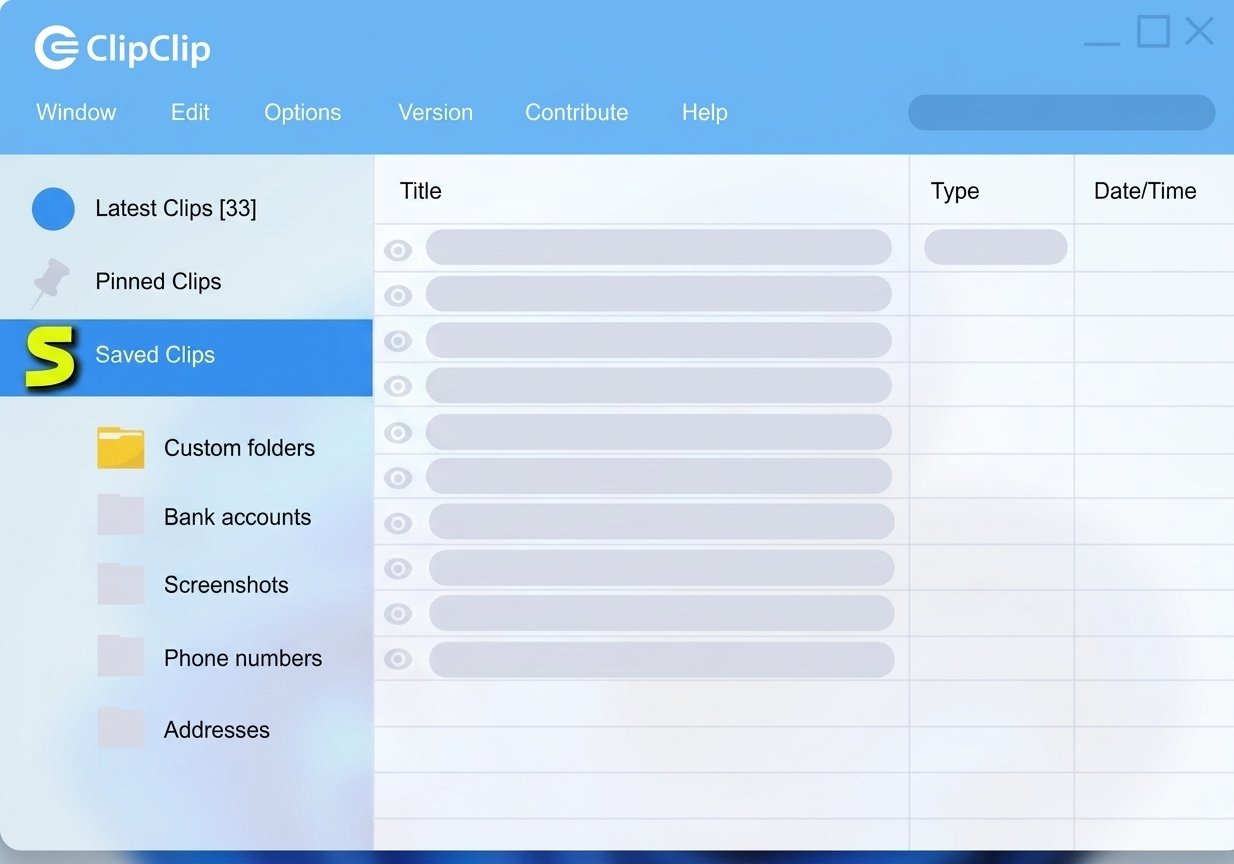
ClipClip Clipboard Manager Overview
Once running, ClipClip sits quietly in the background and captures every copy action automatically. There’s no extra step involved; you keep copying and pasting exactly as before, except now nothing gets overwritten and lost.
What Is a Clipboard Manager?
A clipboard manager is a small utility that extends your operating system’s built-in clipboard — which normally holds only one item at a time — into a searchable history of many past copies.
How ClipClip Works With Windows Clipboard History
Windows 10 and 11 already include a basic clipboard history (accessible via Windows key + V), but ClipClip goes further, adding folders, permanent saved clips, editing tools, and full-text search that the built-in feature doesn’t offer.
ClipClip as a Copy and Paste Productivity Tool
Beyond just storing clips, ClipClip lets you edit saved text, organize clips into folders, and paste multiple items in sequence — turning copy-paste from a one-item-at-a-time task into something closer to a personal content library.
Who Should Use ClipClip?
ClipClip tends to be most useful for:
- Writers and editors reusing snippets of text across documents
- Developers pasting code blocks or commands repeatedly
- Customer support agents sending the same responses throughout the day
- Data entry and admin staff copying information between spreadsheets and forms
- Anyone who’s ever lost something important by copying over it accidentally
A quick, relatable example: imagine you’re filling out a long online form and you copy your address, then a moment later copy your phone number to paste into the next field — only to realize you actually needed the address again three fields later. Without a clipboard manager, that address is simply gone. With ClipClip, it’s still sitting right there in your history.
ClipClip Features
ClipClip’s feature set goes well beyond a simple copy-paste history — it’s closer to a lightweight personal content manager than a basic clipboard extender.
Clipboard History and Multiple Clipboard Items
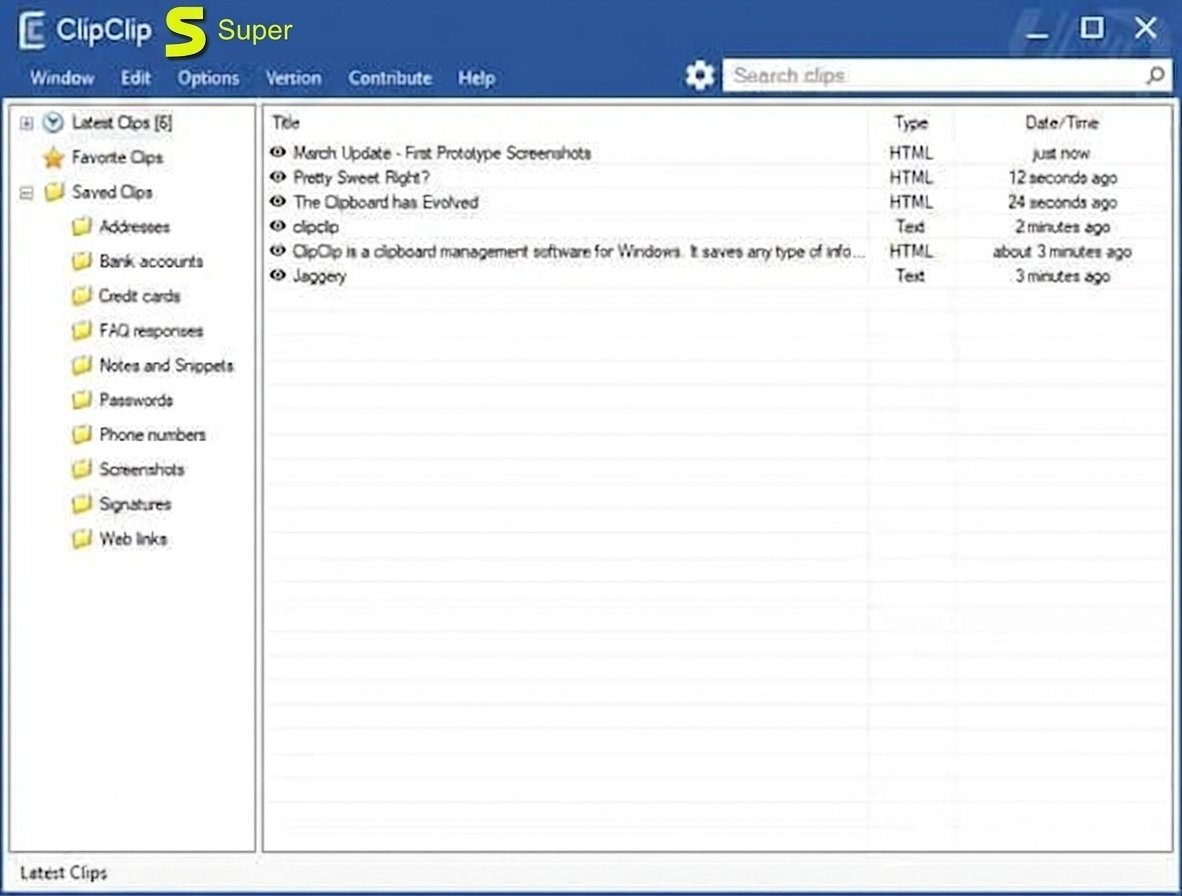
Instead of holding just one copied item, ClipClip stores a running list of “Latest Clips,” letting you go back and paste something you copied several actions ago.
Screenshot Capture and Clip Editing
Beyond text and files, ClipClip can also capture screenshots directly and let you annotate them before saving — a small feature, but a genuinely useful one for anyone documenting bugs, writing tutorials, or sending visual instructions to coworkers.
Copy and Paste Management
Clips can be converted from temporary “Latest Clips” into permanent “Saved Clips,” which persist even after you restart your computer.
Clipboard Organizer
Saved clips can be sorted into custom folders — useful for separating, say, email templates from code snippets or client information.
Search Clipboard History
A built-in search bar lets you find a specific past clip by keyword, rather than scrolling through a long list trying to remember when you copied it.
Text Snippets and Reusable Text
Frequently used blocks of text — signatures, canned responses, boilerplate — can be saved once and reused indefinitely, similar to a lightweight text-expansion tool.
Clipboard Shortcuts and Hotkeys
The default shortcut, Ctrl + Shift + V, opens ClipClip’s quick-access paste menu, letting you select and paste a past clip without breaking focus from what you’re working on.
Save and Reuse Frequently Copied Text
For repetitive daily tasks, saved clips essentially function as a personal library of text you use constantly — no more digging through old emails or documents to find a phrase you know you’ve used before.
Drag-and-Drop Clip Management
Clips can be dragged directly into folders, or dragged out of ClipClip into another application, which is particularly handy for anyone working across multiple monitors who wants to move saved content without extra copy-paste steps.
ClipClip Clipboard History
ClipClip Clipboard History for Windows
Every item you copy on a Windows PC running ClipClip gets logged automatically, whether it’s a single word or an entire paragraph of formatted text.
View, Save, and Access Previously Copied Items
Clips are viewable from the main ClipClip window or the quick-access paste menu, and can be promoted from temporary history into a permanently saved clip with a click.
Search Copied Text and Find Items in Clipboard History
Rather than relying on memory, typing a keyword into ClipClip’s search bar filters your entire history down to matching results almost instantly.
Organize Copied Items
Drag-and-drop folder organization means saved clips don’t just pile up in one long list — you can build a structure that matches how you actually work.
ClipClip Multiple Clipboard Manager
Multiple Clipboard Items in Windows
The core value proposition is simple: you’re no longer limited to one clipboard item at a time. Copy five things in a row, and all five remain accessible.
Copy and Paste Multiple Items
You can select several saved clips and paste them in sequence, which is a real time-saver when assembling a document from multiple copied sources. Think of building a summary report from five different source documents — instead of switching windows five separate times, you copy each piece once, then paste all five in order from ClipClip’s history.
ClipClip vs the Default Windows Clipboard
| Feature | Windows Clipboard History | ClipClip |
|---|---|---|
| Multiple clipboard items | Yes (limited history) | Yes (unlimited saved clips) |
| Permanent saved clips | No | Yes |
| Custom folders | No | Yes |
| Full-text search | No | Yes |
| Clip editing | No | Yes |
| Screenshot capture | No | Yes |
| Cost | Free (built-in) | Free |
ClipClip Text Snippets and Templates
Text Snippet Manager and Reusable Text Snippets
Saved clips can double as a snippet library — think email signatures, standard replies, or frequently referenced text you don’t want to retype.
Quick Text Templates
Because saved clips are organized into folders, you can build out templated responses by category (e.g., “Customer Support,” “Sales Follow-Up”) and pull the right one in seconds.
Text Shortcuts for Faster Copy and Paste
Combined with ClipClip’s keyboard shortcut for the quick-access menu, retrieving a saved snippet takes roughly the same effort as typing a few characters — just faster and error-free.
Integrations With Everyday Tools
ClipClip also includes lightweight integrations with services like Google Translate, Gmail, and Google Drive, which can be handy if your workflow already leans on those tools — for example, translating a saved clip without leaving the app, or sharing a clip directly to Drive.
ClipClip Search and Clipboard Organization
Search Clipboard History / Find Copied Text Quickly
The search function covers both temporary “Latest Clips” and permanently “Saved Clips,” so you don’t need to remember which category something was filed under.
Organize Clipboard History Into Folders
For heavy users, folder structure becomes the real productivity unlock — turning what would otherwise be a messy, ever-growing list into something genuinely navigable.
ClipClip Shortcuts and Hotkeys
ClipClip Keyboard Shortcuts
| Shortcut | Action |
|---|---|
| Ctrl + Shift + V | Open quick-access paste menu |
| Ctrl + C | Standard copy (captured automatically by ClipClip) |
| Ctrl + V | Standard paste (most recent clip) |
How to Use ClipClip Shortcuts
Shortcuts can be customized in ClipClip’s settings if the defaults conflict with another application you use regularly — a common issue for anyone running multiple productivity tools at once.
ClipClip Download
ClipClip Download and Free Download
ClipClip is available as a free download directly from its official website, with no premium tier gating core clipboard functionality behind a paywall.
ClipClip Latest Version
The application continues to receive updates, including recent additions like whitespace-cleanup tools for pasted text — a small but genuinely useful fix for anyone copying from PDFs or web pages.
ClipClip Download for Windows
The installer is a standard .exe file; running it walks you through a short setup wizard before ClipClip starts running in your system tray.
ClipClip for Windows
ClipClip Windows 11 and Windows 10
ClipClip officially supports both Windows 10 and Windows 11 (64-bit), covering the vast majority of current desktop installations.
ClipClip System Requirements
As a lightweight utility, ClipClip doesn’t demand much from your hardware — it’s designed to run continuously in the background without noticeably affecting performance.
How to Install and Set Up ClipClip
ClipClip Installation
- Download the installer from the official ClipClip website.
- Run ClipClipSetup.exe and follow the setup wizard.
- Choose whether to launch ClipClip immediately and run it at Windows startup.
- Optionally accept the default folder structure, or skip it to build your own later.
How to Configure ClipClip
After installation, the Settings menu is where you’ll adjust clipboard history length, hotkeys, and startup behavior to match your preferences.
Customize ClipClip Shortcuts
If the default Ctrl + Shift + V conflicts with another program, this can be reassigned from the Shortcuts section of ClipClip’s settings.
Set Up Clipboard Snippets
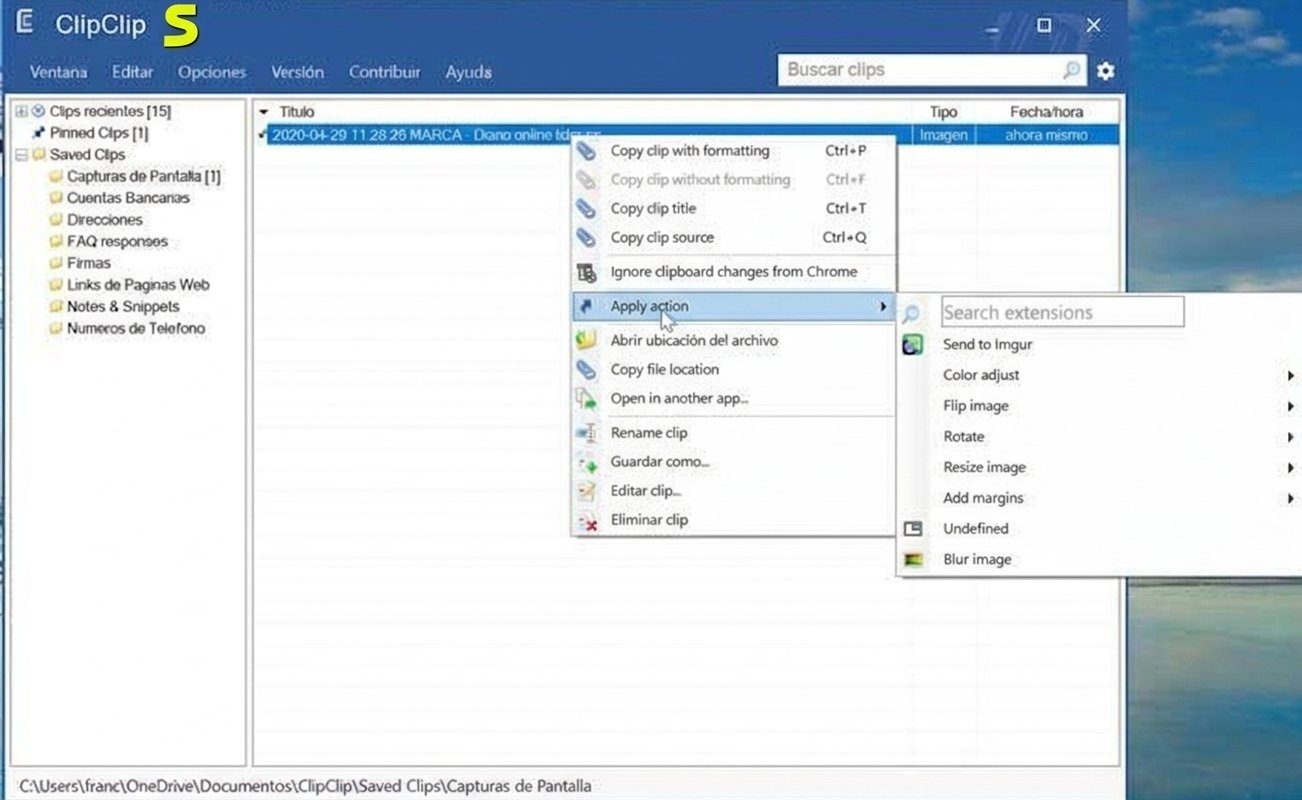
Right-clicking any item in your clipboard history gives you the option to save it permanently and assign it to a folder — this is the fastest way to start building a snippet library.
Rather than trying to organize everything on day one, most users get more value from letting ClipClip run passively for a few days first. Once you notice which clips you keep reaching for, that’s your cue for which folders to actually create — building structure around real usage tends to stick better than guessing upfront.
How to Use ClipClip
How to View and Search Clipboard History
Open the main ClipClip window, or use the Ctrl + Shift + V shortcut for quick access, then type in the search bar to filter by keyword.
How to Copy and Paste From Clipboard History
- Copy items as you normally would throughout your workday.
- Press Ctrl + Shift + V to open the quick-access menu.
- Select the clip you want.
- Paste it into your active document or field.
How to Save Copied Text Permanently
Right-click a clip in your “Latest Clips” list and choose to move it into “Saved Clips,” where it will persist indefinitely rather than eventually cycling out of history.
How to Create and Use Text Snippets
Save frequently used text once, name it clearly, and file it into a relevant folder — from there, retrieving it takes just a couple of clicks or a shortcut press.
ClipClip Clipboard Manager for Productivity
Faster Copy and Paste Workflows
For anyone doing repetitive data entry or writing, the ability to paste from a history of dozens of past clips — instead of just the last one — noticeably cuts down on retyping.
Managing Multiple Pieces of Information
Assembling a report from several sources becomes far less error-prone when you can pull each piece from a saved history instead of switching between windows repeatedly to re-copy things.
ClipClip for Work and Everyday PC Tasks
Even outside of professional use, ClipClip is handy for everyday tasks like saving addresses, confirmation numbers, or links you’ll need again later in the same session.
Reducing Context-Switching During Focused Work
One underrated benefit is fewer interruptions to your focus. Normally, losing a copied item means stopping what you’re doing, going back to the original source, and re-copying it — a small but real break in concentration. With clipboard history available, that interruption mostly disappears.
ClipClip Settings and Customization
ClipClip Settings and Storage Options
Settings control how long clips are retained, how many items display in the quick-access menu, and whether ClipClip launches automatically with Windows.
Configure Text Snippet Behavior
You can control how saved snippets behave when pasted — for instance, whether formatting carries over or text pastes as plain text by default.
ClipClip Privacy and Security
How ClipClip Handles Clipboard Data
Clipboard data is stored locally on your computer by default, meaning your copied history isn’t sent to a remote server unless you specifically enable a cloud-sync feature.
Is ClipClip Safe to Use?
ClipClip is a long-standing, widely reviewed utility with a straightforward permission model — it needs access to clipboard events to function, which is the same access any clipboard manager requires.
Clipboard Data and Sensitive Information
As with any clipboard manager, it’s worth being mindful of what gets saved permanently — passwords or sensitive personal data copied to the clipboard can end up stored in your clip history unless you delete them manually. A good habit is periodically clearing your “Latest Clips” history, especially after working with sensitive information like account numbers or personal identification details.
ClipClip Permissions and Windows Access
ClipClip requires access to Windows clipboard events to function, which is standard for this category of software and doesn’t extend to broader system monitoring beyond what’s needed for its core purpose.
ClipClip Review
ClipClip Ease of Use
The learning curve is minimal. Since ClipClip works passively in the background, most people get value from it immediately without needing to change their existing copy-paste habits.
ClipClip Performance on Windows
Running quietly in the system tray, ClipClip is lightweight enough that most users won’t notice any slowdown, even with a large saved-clip library.
ClipClip Pros and Cons
Pros
- Completely free with no paid tier
- Unlimited saved clips and folders
- Built-in search across clip history
- Supports text, images, and files
- Lightweight, runs quietly in the background
Cons
- Windows-only, no Mac or Linux version
- Interface feels dated compared to newer competitors
- No official mobile app
- Cloud sync options are more limited than some rivals
- Occasional reports of clip history not saving after updates
Is ClipClip Worth Using?
For a free tool, ClipClip covers the essentials extremely well — multiple clipboard history, folders, search, and snippet reuse. If you specifically need cross-platform support or built-in cloud sync as a priority, it’s worth comparing it against a couple of alternatives first.
ClipClip Not Working? Common Problems and Fixes
Most reported issues fall into a small number of predictable categories, and nearly all of them are fixable without needing to reinstall Windows or dig through system files.
| Problem | Likely Cause | Fix |
|---|---|---|
| Clipboard history not saving | History length limit reached, or app closed unexpectedly | Increase history limit in settings; ensure ClipClip is running in the tray |
| Clipboard history not showing | App minimized to tray without an active hotkey | Confirm the shortcut is set correctly under Settings > Shortcuts |
| Shortcuts not working | Conflict with another app’s shortcut | Reassign the ClipClip hotkey to an unused key combination |
| ClipClip not opening | Corrupted installation | Uninstall and reinstall the latest version |
| Blurry text or scaling issues | High-DPI display scaling conflict | Enable “Override high DPI scaling behavior” and set it to System in display settings |
| Settings not saving | Permissions issue or interrupted update | Run ClipClip as administrator, then reapply settings |
ClipClip Uninstall
How to Uninstall ClipClip
Uninstall ClipClip the same way as any Windows application — through Settings > Apps > Installed Apps, then selecting ClipClip and choosing Uninstall.
What Happens to Clipboard History After Uninstalling ClipClip?
Saved clips are stored locally, so uninstalling without backing them up first means that history is generally not recoverable — it’s worth exporting or reviewing important saved clips before removing the program.
ClipClip vs Other Clipboard Managers
ClipClip vs Ditto
Ditto is a long-standing, open-source clipboard manager known for its lightweight footprint and cross-device sync, but it has a more minimal, less visual interface than ClipClip — good if you want speed and low resource use, less good if you want folders and a polished screenshot workflow.
ClipClip vs ClipboardFusion
ClipboardFusion leans into automation, letting users set up rules that automatically clean or transform copied text (like stripping formatting). ClipClip doesn’t offer rule-based automation to the same degree, but its whitespace-cleanup tool covers a common version of that same need.
ClipClip vs CopyQ
CopyQ offers deeper scripting and automation options, appealing to power users and developers, while ClipClip focuses more on straightforward folder organization and ease of use.
ClipClip vs the Built-In Windows Clipboard History
Windows’ native clipboard history (Windows key + V) is convenient for quick, short-term recall, but it lacks permanent saved clips, folders, and search — the features that make ClipClip useful for heavier daily use.
| Tool | Free | Cross-Platform | Cloud Sync | Best For |
|---|---|---|---|---|
| ClipClip | Yes | Windows only | Limited | Everyday users wanting folders + search |
| Ditto | Yes (open-source) | Windows only | Yes | Lightweight, minimal-interface users |
| CopyQ | Yes (open-source) | Windows, Mac, Linux | Yes | Power users wanting scripting/automation |
| Windows Clipboard History | Yes (built-in) | Windows only | Via Microsoft account | Casual, short-term clipboard recall |
ClipClip Alternatives
If ClipClip doesn’t quite match your workflow, a few solid alternatives are worth trying:
- Ditto — free, open-source, and highly lightweight, with solid cross-device sync
- CopyQ — cross-platform and highly customizable, ideal for developers who want scripting support
- ClipboardFusion — best if automated text cleanup and transformation rules matter more to you than folder organization
- Windows Clipboard History — the built-in option, sufficient for casual users who don’t need permanent storage or folders
Best for casual users: the built-in Windows Clipboard History, since it requires zero setup and covers short-term recall needs without installing anything extra.
Best for cross-platform teams: CopyQ, since it runs on Windows, Mac, and Linux, unlike ClipClip’s Windows-only support.
For a broader breakdown of Mac-specific data and clipboard utilities, this iBoysoft overview is worth checking out if you also work across macOS, since ClipClip itself is Windows-only. According to How-To Geek’s clipboard manager coverage, dedicated clipboard managers remain one of the most underrated productivity tools for anyone doing repetitive copy-paste work, precisely because the built-in OS options are intentionally limited.
Official ClipClip site: clipclip.com
ClipClip FAQs
Yes, ClipClip is completely free to download and use, with no premium subscription required for its core features.
Yes, it’s a well-established utility that stores your clipboard data locally by default rather than sending it to external servers.
Yes, ClipClip officially supports both Windows 10 and Windows 11 in 64-bit versions.
Press Ctrl + Shift + V to open the quick-access paste menu, or open the main ClipClip window from the system tray.
Yes, this is its core feature — ClipClip stores an ongoing history of copied items rather than replacing them with each new copy.
This usually happens when the history limit has been reached or the app isn’t running in the background — check that ClipClip is active in your system tray.
Ditto is the top pick for a lightweight, open-source option, while CopyQ suits users who want cross-platform support and scripting features.
Final Verdict: Is ClipClip Worth Using?
Most people don’t realize how often they lose something to a simple copy-paste mistake until they stop losing it. ClipClip fixes that quiet, everyday frustration for free, and once you’ve used its folders and search a few times, going back to a single-item clipboard starts to feel genuinely limiting.
It won’t suit everyone — Mac and Linux users will need to look elsewhere, and power users chasing deep automation might prefer CopyQ. But for the average Windows user who copies and pastes dozens of times a day, ClipClip quietly earns a permanent spot in the system tray.