DiscordChatExporter Download, Features, Setup, and Alternatives
A complete, practical guide to backing up and archiving your Discord conversations.
Discord doesn’t make it easy to keep a real copy of your own conversations. Scroll back far enough in an old server and messages start loading slowly, images go missing, and there’s no built-in “export” button waiting for you.
That’s the gap DiscordChatExporter fills. It’s a free, open-source tool that pulls your Discord message history — channels, servers, or direct messages — into clean, readable files you can actually keep. This guide walks through what it does, how to download and set it up correctly, how to export in each available format, common problems people run into, and a few alternatives worth knowing about.
What Is DiscordChatExporter?
DiscordChatExporter is an open-source utility that downloads Discord message history and saves it as a file on your computer, rather than leaving it trapped inside the Discord app.
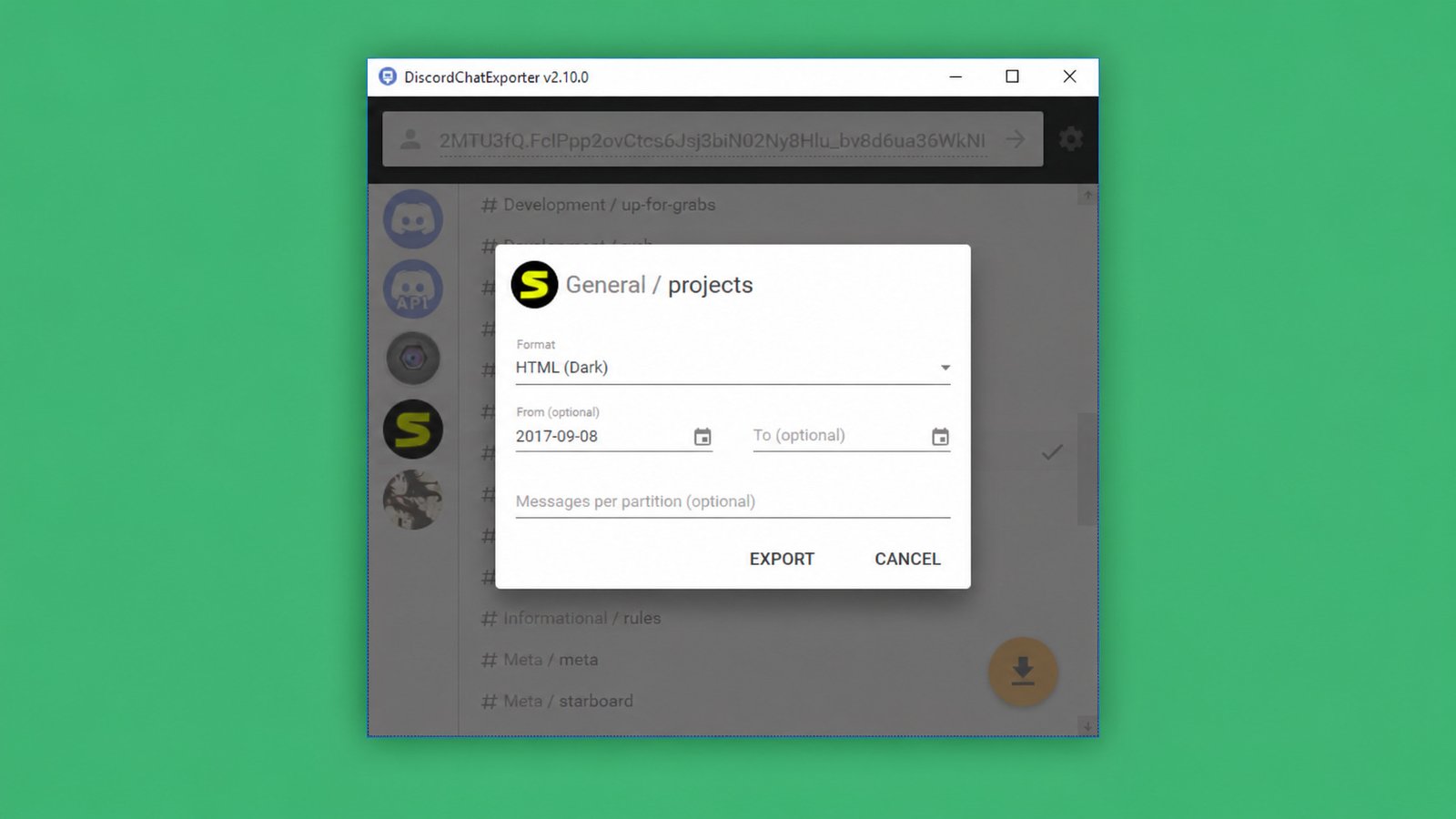
The project was originally created by developer Oleksii Holub (Tyrrrz) and remains one of the most widely used tools in this category, maintained publicly on GitHub. It’s built for a straightforward purpose: turning live Discord conversations into a permanent, portable record.
What Can You Export From Discord?
DiscordChatExporter can pull history from:
- Individual text channels inside a server
- Entire servers, channel by channel
- Direct messages and group DMs
- Forum threads (with some version-dependent limitations)
Beyond plain text, exports preserve the details that make a conversation make sense — timestamps, usernames, markdown formatting, emojis, reactions, and attachments — so the archive actually reads like the original conversation, not a stripped-down log.
DiscordChatExporter GUI and CLI
The tool ships in two forms: a graphical interface (GUI) for point-and-click use, and a command-line interface (CLI) for automation, scheduled exports, and more granular filtering. Most casual users start with the GUI; the CLI becomes useful once you’re exporting regularly or scripting the process.
DiscordChatExporter Features
Export Discord Chats and Messages
At its core, the tool downloads full message history for whatever channel, server, or DM you point it at, then converts that raw data into a file format of your choosing.
Export Discord Channels and Server Messages
You can target a single channel or work through an entire server’s channel list, which is especially useful when archiving a community before it’s shut down, migrated, or heavily pruned.
Create Discord Chat Transcripts
A “transcript” in DiscordChatExporter is simply an exported file — most often in HTML — formatted to visually resemble the original Discord conversation, complete with avatars, embeds, and message styling.
Back Up Discord Messages and Archive Conversations
Because exports are saved locally, they survive account deletions, server shutdowns, or Discord itself pruning old data — none of which you have control over from inside the app. This is the most common real-world use case: preserving a record of a community, a support server, a moderation log, or a personal conversation that matters to you.
Export Discord Data in Different Formats
DiscordChatExporter supports four output formats, each suited to a different purpose.
| Format | Best For | Notes |
|---|---|---|
| HTML | Reading and sharing | Visually replicates Discord’s interface; best for attachments and embeds |
| JSON | Developers, data analysis | Machine-readable, includes technical metadata |
| CSV | Spreadsheets | Good for sorting/filtering messages in Excel or Sheets |
| TXT | Simplicity, small file size | Plain text log, smallest and easiest to skim |
The GUI walks you through logging in, selecting a server or channel, and choosing a format with a few clicks. The CLI trades that simplicity for flexibility — date-range filters, scheduled exports, and batch processing across many channels at once.
DiscordChatExporter Download
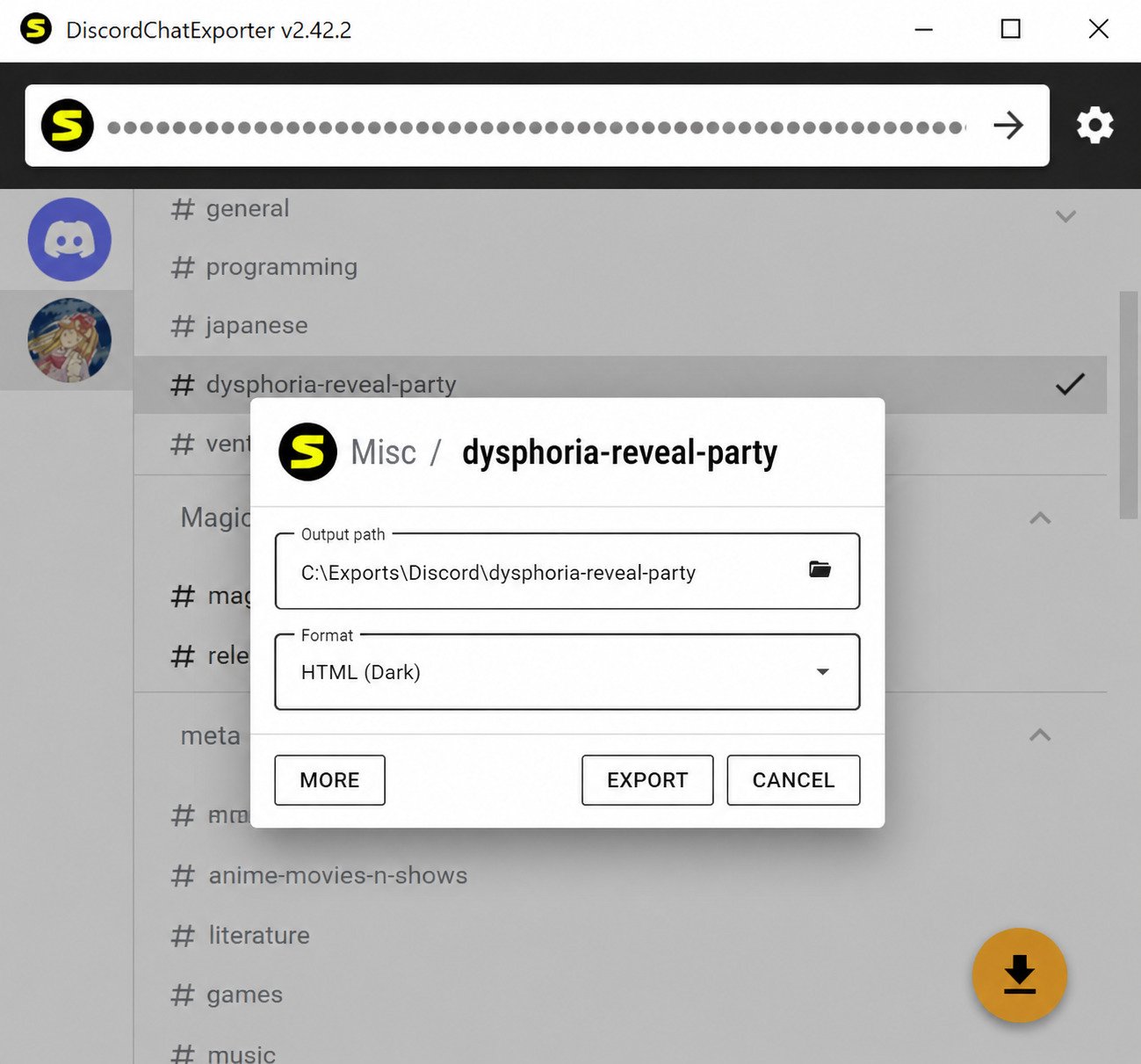
The project is actively maintained, with new releases published regularly on its official GitHub repository to keep pace with changes to Discord’s own API. DiscordChatExporter is completely free and open source — there’s no paid tier, and the full source code is publicly available for review.
DiscordChatExporter Download for Windows
Windows builds are available directly from the GitHub releases page as a downloadable zip — no installer wizard, just extract and run. There’s no separate Windows 11 build; the same release works across Windows 10 and 11 without modification.
DiscordChatExporter PC Download
Since it’s cross-platform, “PC” downloads simply mean choosing the correct build for your operating system from the releases page (Windows, macOS, or Linux).
Only download from the official source. Always get DiscordChatExporter from the official GitHub repository rather than third-party mirror sites. Because the tool requires account access to function, downloading a tampered copy from an untrusted source is a real risk not worth taking.
System Requirements and Compatibility
- Windows 10 / 11: Fully supported on both, with no functional differences.
- macOS: Builds are available too. After downloading, macOS users typically need to remove the app from quarantine via Terminal before it will launch, which is standard for unsigned open-source apps outside the App Store.
- Linux: Supported as a cross-platform build as well, running through the same GUI or CLI options available on Windows and macOS.
| Version | Setup Difficulty | Best For |
|---|---|---|
| GUI | Very easy | One-off exports, casual users |
| CLI | Moderate | Scheduled exports, automation, advanced filtering |
DiscordChatExporter Setup and Installation
Download the correct build for your OS from GitHub, extract the archive, and run the executable inside — there’s no traditional installer to click through.
Enter your Discord token. On first launch, the app prompts for a token, which is how it authenticates and knows which channels or servers you have access to. The GUI includes a built-in walkthrough for retrieving your token the first time you open it.
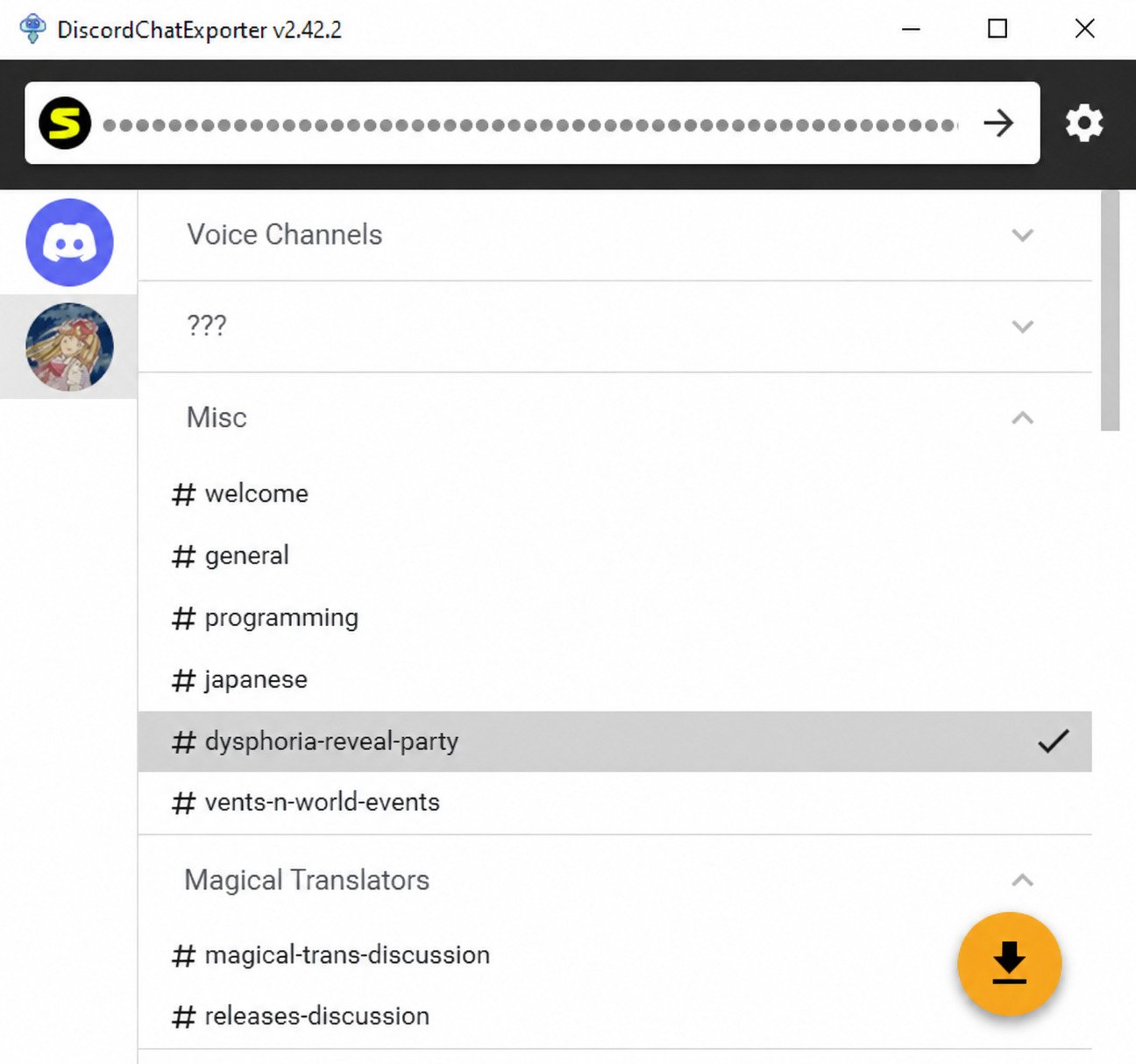
Select your servers or DMs. Once a token is entered, the app displays a list of servers and direct messages tied to that account, ready for you to select and export.
CLI setup (optional): Pass your token and target channel ID as command-line arguments — faster once you’re comfortable with it, but less forgiving of typos.
How to Use DiscordChatExporter
Select a server or DM from the list, choose a channel, pick your export format, and start the export — the app handles pulling and formatting the message history automatically.
Larger channels simply take longer, since the tool has to retrieve the full message history from Discord’s servers before writing the output file.
Exports are saved to a folder of your choosing on your local machine, ready to open, share, or store as a backup.
To capture a whole server, repeat the export process across each channel individually, or use the CLI to batch the process. Direct messages and group DMs appear in the same channel list as server channels, so the export process is identical either way.
Exporting in Each Format
How to Export Discord Chat to HTML
Choose the HTML format at export time; the result opens in any web browser and closely mirrors how the conversation looked inside Discord itself. Enabling the “download assets” option during export keeps a local copy of images and avatars, so the HTML file still displays correctly even if the original images are later deleted from Discord.
How to Export Discord Messages to CSV
CSV is ideal when you want to open the export in a spreadsheet tool to sort, filter, or search messages by date or author.
How to Export Discord Messages to JSON
JSON exports are the most detailed, retaining metadata useful for developers building custom viewers or running data analysis.
Discord Messages to TXT
TXT is the leanest option — smallest file size, easiest to open in any basic text editor, but with the least visual formatting. There’s no single “best” format: HTML suits readability, JSON suits developers, CSV suits spreadsheets, and TXT suits simplicity and size.
How to Create a Discord Chat Transcript
A transcript is essentially a formatted export, most commonly generated in HTML, designed to be read rather than parsed by software. Community moderators frequently generate transcripts of specific incidents or reports for record-keeping purposes. The same export process applies whether the “conversation” is a public channel or a private DM thread.
Select your channel, choose HTML as the format, and enable media download if you want attachments preserved alongside the text. The CLI supports exporting a specific date range, which is useful for capturing a transcript of one particular event rather than an entire channel’s history.
How to Back Up and Archive Discord Chats
Regularly exporting important channels protects against accidental deletions, account bans, or server shutdowns that would otherwise erase the history permanently. Backups are just export files stored somewhere safe — a local drive, an external drive, or cloud storage.
The CLI’s scheduling options make it possible to automate recurring backups of high-traffic channels without manual effort each time. Archiving is especially common for communities that are winding down, merging, or migrating to a different platform.
Best practice: the safest backup habit is exporting key channels on a recurring schedule rather than waiting until a server is already at risk of disappearing.
DiscordChatExporter Troubleshooting
| Symptom | Likely Cause | Fix |
|---|---|---|
| Export fails immediately | Invalid or expired token | Generate/enter a fresh token |
| Server missing from list | Token lacks access | Confirm account membership |
| Missing images in HTML export | Assets not downloaded | Enable “download assets” option |
| Export extremely slow | Very large channel history | Use CLI date-range filtering |
| App won’t launch (macOS) | Quarantine flag on unsigned app | Remove quarantine via Terminal |
Bot tokens are limited. If a bot token is used instead of a personal account token, remember that bots can only access channels they’ve been explicitly added to, which limits server-wide exports.
DiscordChatExporter Alternatives
A handful of community forks and separate tools cover similar ground, each with slightly different trade-offs. Most alternatives in this space, including community forks of the original project, remain free and open source as well. For most users, the original DiscordChatExporter project remains the most actively maintained and widely trusted option, thanks to its longevity and large user base.
- chat-exporter — a bot-based exporter built for discord.py bots, good for automated, in-server export commands.
- Discord transcript bots — some communities rely on bots that post transcript files directly into a channel whenever triggered.
- Chat Analytics — a companion tool that turns DiscordChatExporter’s output into visual statistics about server activity.
- DiscordChatExporter-frontend — a lightweight viewer for browsing exported files without opening raw HTML or JSON manually.
Naming across this space is inconsistent — several similarly named tools and forks exist — so always verify you’re downloading from the specific, actively maintained project you intend to use.
DiscordChatExporter vs Discord’s Built-In Data Export
| Method | Speed | Scope | Format Options |
|---|---|---|---|
| DiscordChatExporter | Minutes | Any channel/server you have access to | HTML, JSON, CSV, TXT |
| Discord’s official data request | Days | Your own account data only | JSON package |
| Manual copy-paste | Immediate but tedious | Whatever you manually select | Plain text only |
Manually copying messages doesn’t scale past a handful of lines and loses formatting, attachments, and context almost entirely. Bot-based backup tools integrate directly into a server and can run continuously, while DiscordChatExporter is typically run on demand from a desktop.
When Should You Use a Discord Chat Exporter?
Reach for a tool like this when you need a permanent, readable, and searchable record of a conversation or community — not just a quick glance back at recent messages.
Responsible use: only export chats and servers you’re authorized to access — your own conversations, or servers you own, moderate, or have explicit permission to archive. Using a personal account token to automate actions (including bulk exporting) can run up against Discord’s Terms of Service around automated account use, so it’s worth reading through those terms and, for organizational or business use, checking with your own legal or compliance team before relying on this for anything sensitive.
Pros, Limitations, and Best Use Cases
Advantages
- Free, open source, and actively maintained
- Multiple export formats for different needs
- Works across Windows, macOS, and Linux
- Preserves formatting, attachments, and reactions
- CLI option supports automation and scheduling
Limitations
- Requires a Discord token, intimidating for some users
- Bot tokens can’t access direct messages, only server channels
- Very large exports can take time to complete
- Personal-account use touches on Discord’s automation ToS
Who Should Use DiscordChatExporter?
- Community moderators archiving channels before a server changes or shuts down
- Individuals preserving meaningful personal conversations
- Researchers and journalists documenting public server activity for legitimate reporting
- Developers who want structured JSON data for analysis tools
When to Choose an Alternative
If you specifically need Discord’s own official record of your account data, its built-in data request tool is the more appropriate — if slower — choice. If you manage a live bot-driven server, an in-Discord export bot may fit your workflow better than a separate desktop app.
If you’re building out a small toolkit of niche utilities like this one, it’s worth browsing other focused tools — this guide to Hearthstone Deck Tracker covers a similarly purpose-built app, just for a completely different use case.
Frequently Asked Questions
Yes. It’s completely free and open source, with no paid version or hidden fees.
The official version from its GitHub repository is safe, but only ever download it from the original source, since it requires account authentication to work.
Yes, it can export messages from any channel, server, or direct message thread that the authenticated account has access to.
Yes, full channel history can be exported in one pass, including older messages beyond what loads quickly in the Discord app itself.
Yes, though exporting an entire server means going channel by channel, or using the CLI to batch the process.
Yes, HTML is one of four supported formats and the most visually accurate to the original conversation.
Yes, both formats are supported, making the tool useful for spreadsheet analysis or developer-focused data processing.
Final Verdict
Conversations disappear faster than most people expect — accounts get deleted, servers shut down, and Discord’s own scrollback only goes so far. Having a real, permanent copy of the chats that actually matter to you is worth the small effort it takes to set up.
DiscordChatExporter isn’t complicated once you’ve done it once, and it hands you full control over how your own history is kept. Export something today, and you’ll never have to wonder if a favorite conversation just quietly vanished for good.
One Response