RyTuneX: Free Windows Optimizer, PC Debloater, Privacy Tool, and Performance Guide
If your PC feels sluggish, cluttered with apps you never asked for, or a little too chatty about your personal data, you’re not imagining things. Windows ships with a lot of extra baggage, and most people don’t know where to start cutting it away. That’s exactly the gap RyTuneX was built to fill.
RyTuneX is a free, open-source optimization tool for Windows 10 and Windows 11 that combines performance tuning, bloatware removal, and privacy controls into a single, modern app. In this guide, we’ll walk through what RyTuneX actually does, how to install it safely, how it compares to other popular tools like Chris Titus Tech’s Windows Utility and Wintoys, and how to use it without breaking anything on your system.
Whether you’re a casual user who just wants a faster boot time or a gamer chasing every last frame, this guide covers everything you need to know before you click install.
Most people don’t set out to research “Windows optimization software.” They start with a frustration — a laptop that takes two full minutes to boot, a Start Menu cluttered with apps they never installed on purpose, or a nagging feeling that Windows knows a little too much about their daily habits. RyTuneX sits at the intersection of all three of those frustrations, which is exactly why it keeps showing up in comparisons alongside more established names in the debloating and tweaking space.
This guide is structured so you can either read it start to finish or jump straight to the section you need, whether that’s installation steps, a safety check, or a side-by-side with alternatives like Wintoys and Chris Titus Tech’s Windows Utility.
One more thing worth setting up front: this article won’t tell you every tweak will make your PC feel like new, and it won’t pretend RyTuneX is the only tool worth considering. Instead, the goal is to give you an honest, practical picture of what it does well, where its limits are, and how to use it responsibly — so you can decide for yourself whether it belongs in your toolkit.
What Is RyTuneX?
RyTuneX Windows Optimization Software Overview
RyTuneX is a system optimization utility built on the WinUI 3 framework and .NET, designed specifically for Windows 10 (version 20H1 and later) and Windows 11. It’s developed as an open-source project, meaning its code is publicly available for review, which is a meaningful trust signal in a category where shady “PC cleaner” apps have a bad reputation.
At its core, RyTuneX brings together three things that usually require three separate apps: performance optimization, app debloating, and privacy management. That combination is part of why it’s gained traction among people searching for a single tool to clean up a new PC or refresh an aging one.
What Is RyTuneX Used For?
People typically turn to RyTuneX for a handful of common goals:
- Speeding up a slow or newly purchased Windows machine
- Removing pre-installed apps and bloatware they never use
- Reducing background processes that eat RAM and CPU
- Disabling telemetry and data-collection features
- Fine-tuning Windows settings without digging through the Registry manually
In short, it’s used any time someone wants more control over what Windows is doing in the background, without needing to be a power user.
A useful way to frame it: if you’ve ever thought “I wish I could just uninstall this without Windows fighting me,” or “why does my laptop take so long to feel usable after I turn it on,” those are the exact frustrations RyTuneX targets. It doesn’t require scripting knowledge or a deep understanding of the Windows Registry — the interface does the translating for you.
How Does RyTuneX Optimize Windows?
RyTuneX works by exposing Windows settings, services, and scheduled tasks that are normally buried several menus deep (or hidden entirely) and letting you toggle them through a clean interface. Instead of manually editing the Registry or running scattered PowerShell scripts, you get one dashboard for tweaks that affect startup speed, background activity, visual effects, and system resource usage.
This matters because most “hidden” Windows settings aren’t dangerous by themselves — they’re just inconvenient to find. RyTuneX’s real value is convenience and visibility, not magic.
To put it another way: nearly everything RyTuneX does, you could theoretically do yourself through Settings, Group Policy Editor, or the Registry Editor. The tool’s contribution isn’t unlocking secret hidden performance — it’s saving you the twenty minutes of searching through obscure menus, remembering the correct Registry key path, or figuring out which of a dozen scattered toggles actually matters for your goal.
RyTuneX as a PC Optimizer and System Utility
Think of RyTuneX less like a “miracle speed booster” and more like a control panel for your operating system. It doesn’t invent new performance from nowhere; it helps you reclaim resources that Windows’ default configuration doesn’t prioritize for your use case, whether that’s gaming, productivity, or just basic daily browsing.
This distinction matters more than it sounds. A lot of “PC optimizer” software marketed to casual users leans on vague promises — mysterious registry cleaning, one-click “boost” buttons, or exaggerated before-and-after benchmark charts. RyTuneX takes a more grounded approach: it exposes real, documented Windows settings and lets you decide which ones fit your situation. That transparency is also why it’s frequently mentioned in the same breath as other open-source tweaking tools rather than the more dubious commercial “cleaner” apps that dominate search ads.
RyTuneX Features
Windows Performance Optimization Tools
RyTuneX includes dedicated sections for adjusting power plans, visual effects, and startup programs. These are the same categories that hardware review sites and IT professionals point to when explaining why a fresh Windows install often runs better than one that’s a year old — because these settings quietly accumulate cruft over time.
PC Cleaner and System Optimization Features
Beyond tweaks, RyTuneX offers cleanup functions that target temporary files, cache, and other junk that builds up during normal use. Clearing this out won’t transform an old laptop into a gaming rig, but it does free up storage space and can shave time off routine operations like file indexing.
Windows Tweaks and Advanced Optimization Settings
For more experienced users, RyTuneX exposes advanced tweaks that go beyond basic cleanup — things like adjusting background app behavior, notification settings, and specific system services. These are grouped separately from the beginner-friendly options, which is a thoughtful touch: it reduces the chance of someone accidentally disabling something they need.
Background Process and Resource Management
One of the more practical features is the ability to see and manage which processes are consuming system resources. Rather than opening Task Manager and guessing what’s safe to end, RyTuneX gives more context so you can make informed decisions about what to disable.
PC Speed Optimization and Performance Improvements
The cumulative effect of these tools is what most users actually care about: a system that boots faster, feels more responsive when switching between apps, and doesn’t bog down with unnecessary background activity. Results vary by hardware, but the underlying principle — remove unnecessary background load — is a well-established performance practice, not a gimmick.
Set realistic expectations: on a modern SSD machine with plenty of RAM, gains tend to be modest. On older hardware with a mechanical hard drive or limited memory, the difference can feel far more noticeable.
RyTuneX Windows Debloater
How RyTuneX Removes Windows Bloatware
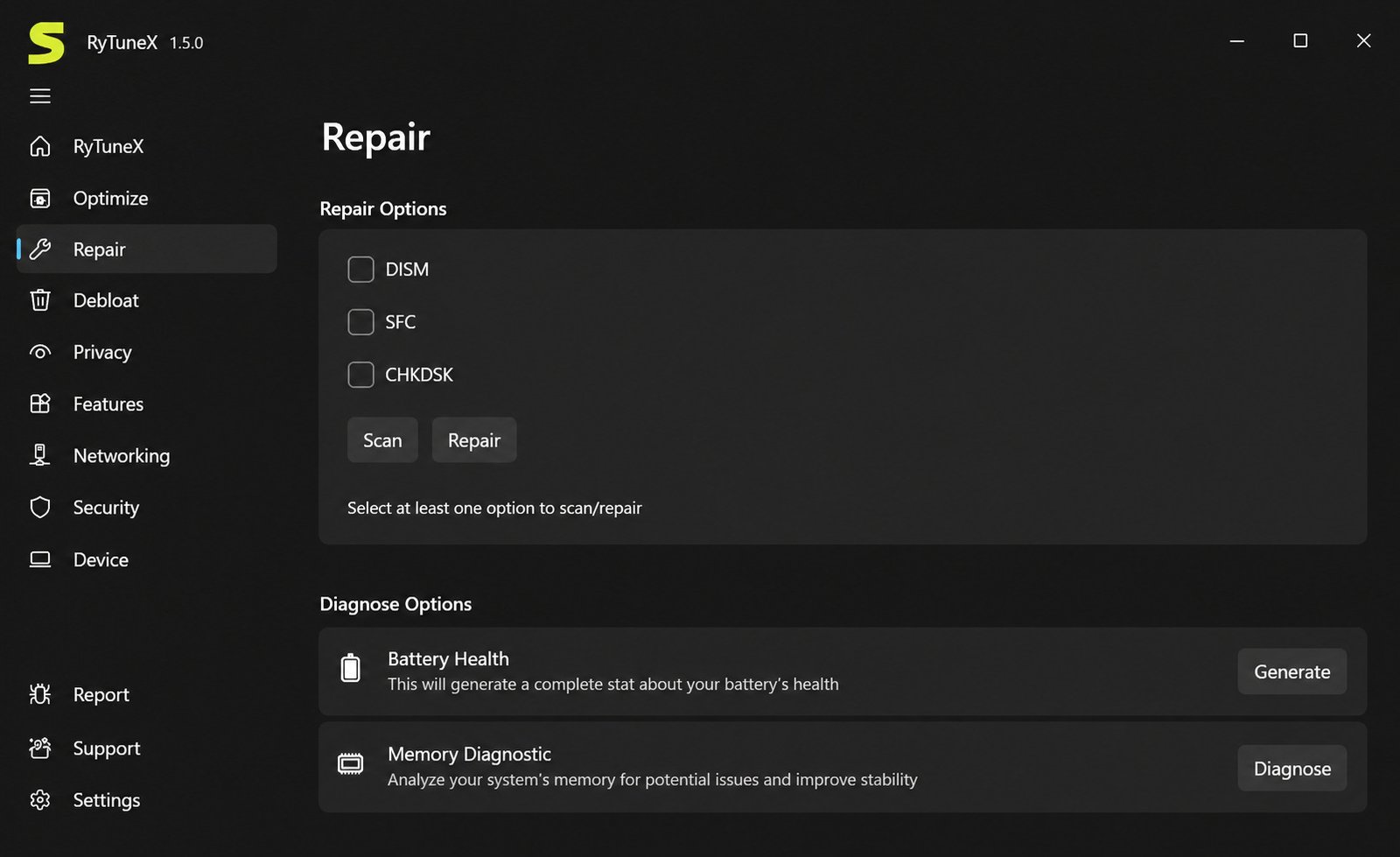
Bloatware refers to the pre-installed apps that come bundled with a fresh Windows installation — things like promotional games, redundant Microsoft utilities, or trial software from your PC manufacturer. RyTuneX’s debloating feature scans your system for these apps and presents them in a selectable list, so you can uninstall exactly what you don’t need in a few clicks instead of hunting through Settings one app at a time.
Windows 11 Bloatware Remover Features
On Windows 11, this is especially useful because Microsoft has leaned further into pre-installing apps tied to its own services. RyTuneX’s Windows 11 support lets you strip these out while leaving core system components untouched, which is the safest approach to debloating.
Windows 10 Bloatware Remover Features
Windows 10 has its own set of default apps that many users never open. RyTuneX supports Windows 10 (20H1 and newer) with the same selective removal approach, so long-time Windows 10 users get the same cleanup experience as those on Windows 11.
Remove Unnecessary Windows Apps
The key word here is selective. RyTuneX doesn’t force a blanket removal of everything; it shows you what’s installed and lets you decide. This matters because some “bloat” is actually useful to certain users — a photographer might want the built-in Photos app, while someone else doesn’t.
Windows App Remover and Debloating Options
In practice, most people use the debloating feature once, right after setting up a new PC or right after a major Windows update reinstalls something they’d already removed. It’s a maintenance tool as much as a one-time fix.
That last point trips people up more than anything else in this category. Windows feature updates occasionally reinstall default apps that were previously removed, especially after major version upgrades. This isn’t unique to RyTuneX — it happens with every debloating tool because Microsoft’s update process periodically resets certain default app configurations. The practical takeaway is to treat debloating as an occasional five-minute check-in after big updates, not a one-and-done task you never revisit.
RyTuneX Privacy Tool for Windows
Windows Privacy Settings and Optimization
Windows collects a fair amount of diagnostic and usage data by default. RyTuneX centralizes the privacy-related settings that are normally scattered across multiple Settings pages and Group Policy options into one place.
Windows Telemetry Settings and Management
Telemetry is the technical term for the diagnostic data Windows sends back to Microsoft — things like crash reports, feature usage, and performance metrics. RyTuneX gives you toggles to reduce how much of this data collection happens, within the limits Microsoft allows on each Windows edition.
Good to know: Windows Home and Pro editions can reduce telemetry to a “Basic” level but can’t fully eliminate it the way Enterprise editions can with Group Policy. Any tool claiming full elimination on Home/Pro isn’t being fully accurate.
Disable Unnecessary Windows Telemetry Features
RyTuneX helps you dial telemetry down to the minimum your edition supports — it can’t promise complete elimination, but it does make the available controls far easier to find and apply consistently.
Windows Privacy Tweaks and Configuration Options
Beyond telemetry, the privacy section typically covers things like advertising ID settings, activity history, and app permissions — the kinds of settings that affect how much of your usage patterns get shared with apps and services.
Windows 11 and Windows 10 Privacy Optimization
Both Windows 11 and Windows 10 support these privacy adjustments, though the exact menu locations differ between versions. RyTuneX abstracts that difference away so you don’t need to know which OS buries which setting where.
It’s worth noting that privacy optimization is not about achieving total invisibility — that’s not realistic on any modern operating system connected to the internet. It’s about reducing unnecessary data collection to a level you’re comfortable with, while keeping the features you actually rely on, like security updates, cloud backup, or sync across devices.
RyTuneX Download
RyTuneX Free Download
RyTuneX is completely free to download and use. There’s no premium tier gatekeeping core features, which is notable in a software category where “free” often means “free with upsells.”
RyTuneX Latest Version Download
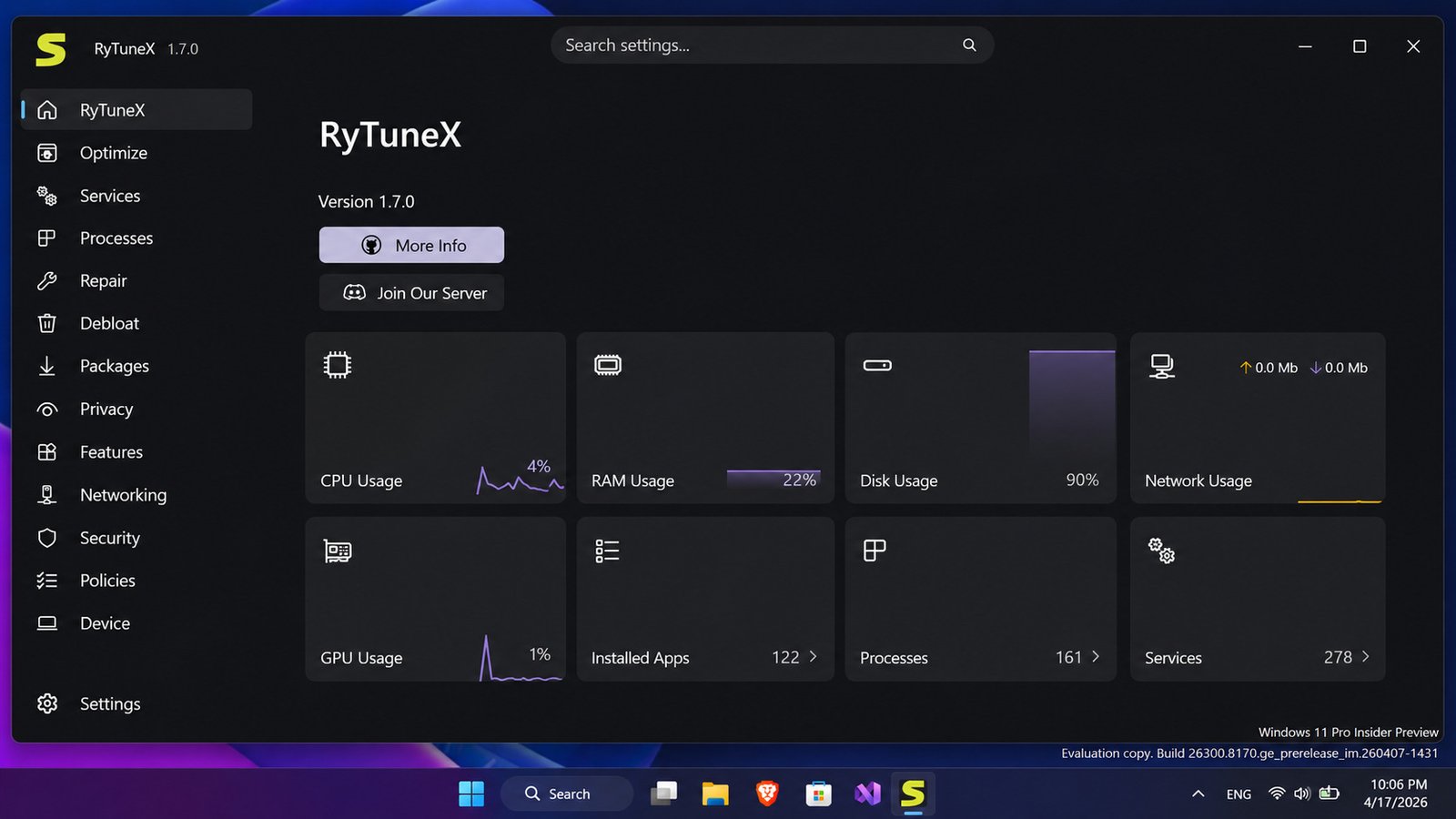
Because RyTuneX is actively developed, new versions are released periodically with bug fixes, compatibility updates for the latest Windows builds, and occasionally new features. Always grab the current release rather than an older cached copy from a third-party site.
Download RyTuneX for Windows
RyTuneX supports both Windows 10 and Windows 11, so the same download works across supported versions of either OS — you don’t need separate builds.
RyTuneX Windows Optimizer Download
The safest way to get RyTuneX is directly from its official project page or its Microsoft Store listing. Both are maintained by the project itself.
Where to Download RyTuneX Safely
Only download RyTuneX from the Microsoft Store or the official GitHub repository. Third-party “download” sites frequently repackage free software with bundled adware or outdated, unpatched versions.
This isn’t a RyTuneX-specific warning — it applies to nearly every popular free utility. A quick habit that protects you across the board: search for the project’s name plus “GitHub” or “official site” rather than clicking the first download link that appears in search results or ads.
RyTuneX for Windows 11
Download RyTuneX for Windows 11
Windows 11 users can install RyTuneX through the Microsoft Store for the smoothest, most secure experience, since Store apps are sandboxed and automatically updated.
Optimize Windows 11 Performance
Windows 11’s redesigned interface and additional background services (widgets, Copilot integrations, and similar features) mean there’s often more to trim than on Windows 10. RyTuneX’s optimization tools are built with these newer components in mind.
Windows 11 Debloater and Bloatware Removal
Because Windows 11 pre-installs several Microsoft Store apps by default, the debloating feature tends to have a longer list of removable items on this OS compared to Windows 10.
Windows 11 Privacy and Performance Tweaks
Combining the debloater with the privacy tools gives Windows 11 users a fairly complete cleanup pass in one session — remove unused apps, tighten privacy settings, and adjust performance options without switching between multiple utilities.
RyTuneX for Windows 10
Download RyTuneX for Windows 10
Windows 10 users (on version 20H1 or later) can install RyTuneX the same way, either from the Microsoft Store or GitHub releases, depending on which distribution channel is available for their setup.
Optimize Windows 10 Performance
Even though Windows 10 is a more mature OS with fewer newly added background services, older installations often accumulate startup programs and scheduled tasks over years of use. RyTuneX helps identify and trim these.
Windows 10 Debloater and App Removal
The debloating list on Windows 10 typically includes fewer default apps than Windows 11, but it’s still useful for removing manufacturer-installed trialware that often ships with pre-built desktops and laptops.
Windows 10 Privacy and System Tweaks
With Windows 10 approaching its later support lifecycle, many users are optimizing existing hardware rather than buying new machines — which makes lightweight, free tools like RyTuneX particularly relevant for stretching a PC’s useful life a little further.
RyTuneX Installation Guide
How to Install RyTuneX
Installing RyTuneX is straightforward and doesn’t require any technical background.
| Step | Action |
|---|---|
| 1 | Choose your install source (Microsoft Store, GitHub, or WinGet) |
| 2 | Download the installer or open the Store listing |
| 3 | Run the installer and follow the on-screen prompts |
| 4 | Launch RyTuneX from the Start Menu |
| 5 | Review the initial dashboard before applying any tweaks |
RyTuneX Microsoft Store Download
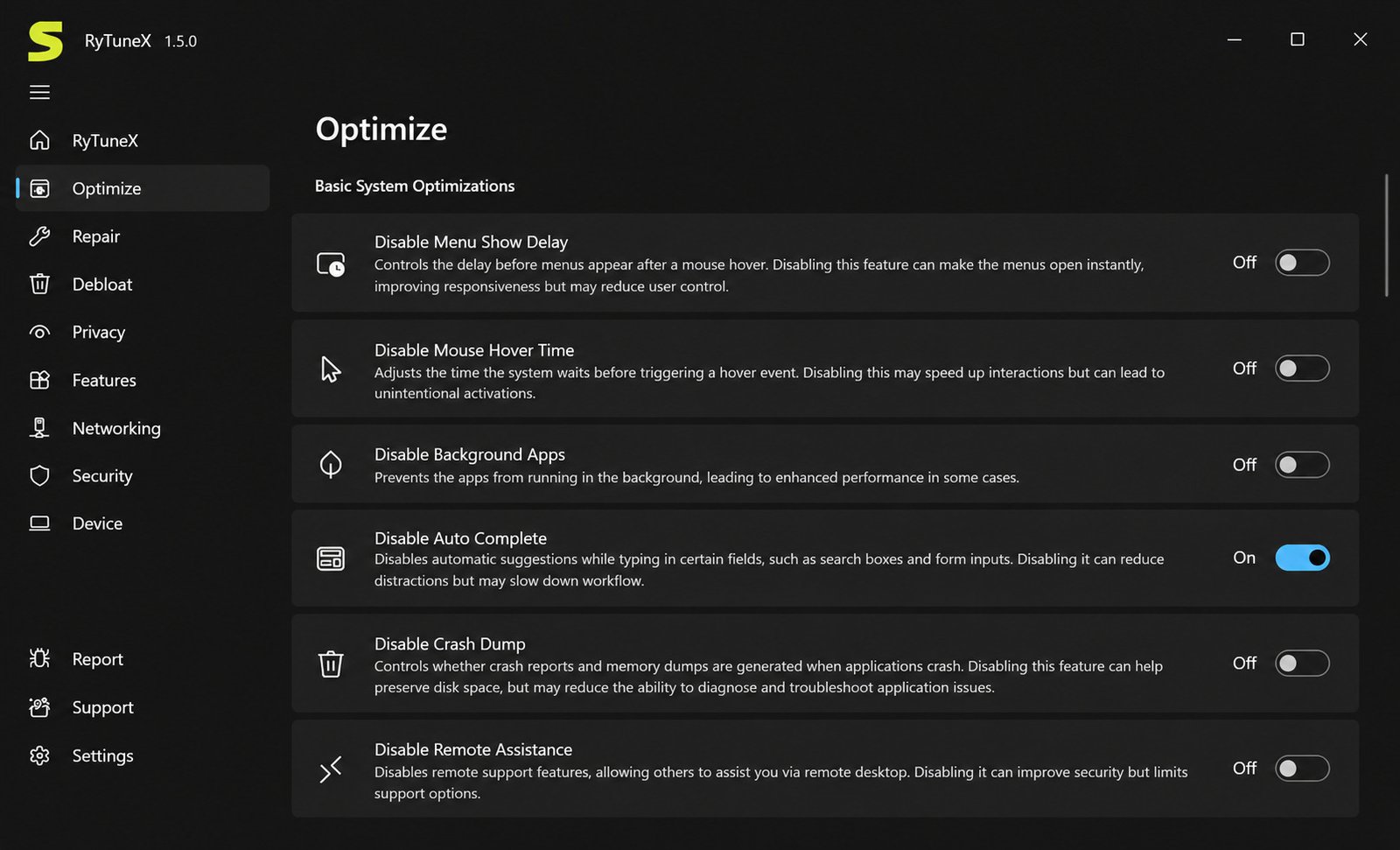
Installing through the Microsoft Store is generally the recommended path. It handles updates automatically, runs the app in a sandboxed environment, and confirms the publisher’s identity — all of which add a layer of security compared to sideloaded installers.
Installing RyTuneX From GitHub
For users who prefer more control, RyTuneX’s source code and release builds are available on its GitHub project page. This is also the best option for anyone who wants to inspect the code before running it, which is one of the practical benefits of open-source software.
Installing RyTuneX With WinGet
Windows’ built-in package manager, WinGet, can also be used to install and update command-line-friendly apps. If RyTuneX is listed in the WinGet repository, power users can install it with a single command from PowerShell or Windows Terminal, which is handy for setting up new machines quickly.
RyTuneX Setup and First-Time Configuration
A good first-time routine: open each major section (performance, debloat, privacy) once without changing anything, note which toggles are already enabled by default, and only then start making adjustments. This “look before you touch” approach takes maybe five extra minutes but dramatically reduces the odds of accidentally disabling something you actually needed.
How to Use RyTuneX
RyTuneX Tutorial for Beginners
If you’re new to system optimization tools, the safest approach is to start small. Open RyTuneX, browse each section without changing anything, and get a feel for what’s labeled “basic” versus “advanced” before applying tweaks.
How to Optimize Windows With RyTuneX
- Open RyTuneX and navigate to the performance section.
- Review the recommended or basic tweaks first.
- Apply one category of changes at a time (for example, startup programs).
- Restart your PC and note any difference in boot time or responsiveness.
- Move on to the next category if you’re satisfied with the results.
How to Debloat Windows With RyTuneX
- Go to the debloating or app removal section.
- Review the full list of installed apps RyTuneX has detected.
- Deselect anything you actually use regularly.
- Confirm removal for the rest.
- Restart the file explorer or your PC if prompted.
How to Remove Bloatware Using RyTuneX
The debloating workflow is intentionally simple: select, confirm, and done. There’s no need to manually locate each app in Windows Settings or use PowerShell commands, which is where a lot of the tool’s time-saving value comes from.
How to Apply Windows Optimization Tweaks Safely
- Apply changes in small batches, not all at once
- Restart between major changes so you can isolate any issues
- Keep a note of what you’ve changed in case you need to revert something
- Avoid advanced tweaks unless you understand what they do
- Back up important files before making system-level changes
- Check that Windows Update still runs correctly after applying tweaks
Optimize PC Performance With RyTuneX
How to Speed Up Windows and Make Your PC Faster
Speeding up a Windows PC generally comes down to three levers: reducing what runs at startup, minimizing background resource use, and keeping storage from filling up. RyTuneX addresses all three from a single app instead of requiring separate tools for each.
There’s a fourth lever worth mentioning that software alone can’t fix: aging hardware. If your PC is running a mechanical hard drive, upgrading to an SSD will almost always deliver a bigger, more noticeable speed improvement than any software tweak.
Reduce Unnecessary Background Processes
Background processes are one of the most common — and most invisible — sources of slowdown. Many apps register themselves to run in the background “just in case,” even when you rarely use them. Trimming these down frees up RAM and CPU cycles for what you’re actually doing.
Improve Windows System Performance
System-wide performance improvements come from a combination of the tweaks discussed earlier: leaner startup, fewer background services, and reduced visual overhead. None of these are exotic — they’re the same fundamentals IT professionals apply when setting up machines for demanding workloads.
Boost PC Performance With Safe Optimization Tweaks
“Safe” is the operative word. Aggressive tweaking tools that disable core Windows services for a marginal speed gain often cause more problems (broken updates, missing features) than they solve. RyTuneX’s tiered basic/advanced structure is designed to help users avoid that trap.
PC Performance Optimization for Everyday Use
For most people, the goal isn’t squeezing out the last 2% of benchmark performance — it’s making everyday tasks like opening apps, browsing, and multitasking feel smoother. That’s the realistic, achievable outcome RyTuneX is built around.
RyTuneX for Gaming PC Optimization
Gaming PC Optimizer Features
Gamers have a slightly different optimization priority than everyday users: minimizing background interference during active gameplay. RyTuneX’s process and startup management tools are directly useful here, since every background app competing for CPU and RAM can translate into dropped frames.
Optimize Windows for Gaming
Gaming-specific optimization typically means disabling unnecessary startup apps, reducing visual effects that don’t matter during full-screen gaming, and freeing up background bandwidth that might otherwise go to update checks or sync services.
Windows Gaming Optimization and Background Process Management
RyTuneX doesn’t replace dedicated in-game performance overlays or GPU driver settings — it complements them by cleaning up the OS layer underneath, which is a step many gamers skip entirely.
Performance Tweaks for a Smoother Gaming Experience
The realistic expectation: RyTuneX can help reduce stutter caused by background CPU contention, but it won’t turn a mid-range GPU into a high-end one. It’s a complement to good hardware, not a replacement for it.
RyTuneX System Utility and Windows Tweaker
Windows Tweaker Tools Explained
A “Windows tweaker” is a category of tool that exposes hidden or advanced OS settings through a simplified interface. RyTuneX fits squarely into this category alongside tools like Chris Titus Tech’s Windows Utility and Hellzerg’s Optimizer.
Windows System Utility Features
Beyond tweaks, RyTuneX functions as a general system utility — giving you visibility into installed apps, running processes, and privacy settings from one dashboard rather than jumping between Task Manager, Settings, and the Control Panel.
Advanced Windows Optimization Settings
For advanced users, deeper tweaks touch things like specific background services and scheduled tasks. These are clearly separated from beginner tweaks, which helps prevent accidental misconfiguration.
Managing System Tweaks and Configuration Changes
If you ever want to revert a change, RyTuneX’s interface generally lets you toggle settings back to their previous state just as easily as you changed them, which is far friendlier than manually reversing a Registry edit.
RyTuneX System Requirements and Compatibility
Supported Windows Versions
RyTuneX supports Windows 10 (version 20H1 and later) and Windows 11. Earlier Windows 10 builds and older operating systems like Windows 8.1 or Windows 7 are not supported.
RyTuneX for Windows 11 Compatibility
RyTuneX is built with WinUI 3, a framework designed to take advantage of modern Windows UI standards, which makes it a natural fit for Windows 11.
RyTuneX for Windows 10 Compatibility
Because it also targets Windows 10 from 20H1 onward, most actively used Windows 10 installations remain compatible, though very old, unsupported builds are not.
Hardware and System Requirements
| Requirement | Details |
|---|---|
| Operating System | Windows 10 (20H1+) or Windows 11 |
| Framework | .NET runtime (installed automatically if missing) |
| Storage | Minimal — a lightweight installer and app footprint |
| Permissions | Administrator rights recommended for full tweak access |
RyTuneX Review
RyTuneX Features and User Experience
RyTuneX’s biggest strength is its all-in-one design. Instead of juggling a debloater, a privacy tool, and a performance tweaker separately, you get all three in a single modern interface that doesn’t feel like it was built a decade ago.
Compared to some legacy Windows utilities that still rely on dated Win32 interfaces, RyTuneX’s use of WinUI 3 gives it a noticeably more modern look and feel — think rounded corners, adaptive layouts, and a design language that matches the rest of Windows 11 rather than clashing with it.
RyTuneX Pros and Cons
Pros
- Free and open-source
- Combines performance, debloat, and privacy in one app
- Modern WinUI 3 interface
- Actively maintained on GitHub
Cons
- Newer project, smaller community than long-established tools
- Some advanced tweaks require caution for beginners
- Limited to Windows 10 (20H1+) and Windows 11
- Feature set still expanding compared to mature alternatives
Performance, Debloating, and Privacy Tools
Each of RyTuneX’s three pillars — performance, debloating, and privacy — works well on its own, but the real value is not having to install three separate apps to cover all three.
Is RyTuneX a Good Free Windows Optimizer?
For the price of free, RyTuneX holds up well against paid “PC cleaner” software that often bundles unnecessary extras or exaggerates its performance claims. If you want a legitimate, transparent optimization tool, it’s a solid pick.
Who Should Use RyTuneX?
- New PC owners who want to clear out bloatware immediately
- Privacy-conscious users looking to reduce telemetry
- Gamers wanting to trim background resource usage
- Anyone refreshing an older Windows 10 or Windows 11 machine
- Budget-conscious users who don’t want to pay for commercial “PC cleaner” subscriptions
- Tech-comfortable users who want transparency into what tweaks actually change
It’s less necessary for users on tightly managed enterprise machines, where IT policy already controls most of these settings centrally. If that describes your work laptop, RyTuneX is better saved for a personal machine.
RyTuneX Alternatives
Best RyTuneX Alternatives
- Chris Titus Tech’s Windows Utility (WinUtil) — a PowerShell-based tool for tweaks, program installs, and fixes
- Hellzerg Optimizer — a long-running, focused Windows optimization tool
- Wintoys — a polished all-in-one debloat and repair utility
RyTuneX vs Chris Titus Tech
Chris Titus Tech’s Windows Utility runs as a PowerShell script rather than a standalone GUI app, and it leans heavily into batch program installation alongside tweaks and fixes. RyTuneX, by contrast, is a native WinUI 3 app with a more traditional point-and-click interface, which may feel more approachable to non-technical users.
RyTuneX vs Wintoys
Wintoys is a more mature, polished all-in-one utility covering debloating, repair, and tweaks. RyTuneX covers similar ground with a stronger focus on combining performance, debloat, and privacy specifically, with an actively growing open-source codebase.
RyTuneX vs Optimizer
Hellzerg’s Optimizer has built a loyal following for its focused, no-nonsense approach to Windows tweaks. It’s a great option if you want a minimalist tool, whereas RyTuneX aims for a broader feature set within a single app.
Best Free PC Optimizer Tools
| Tool | Best For | Interface Type |
|---|---|---|
| RyTuneX | All-in-one performance, debloat, and privacy | Modern GUI (WinUI 3) |
| Chris Titus Tech’s Windows Utility | Batch tweaks and app installs | PowerShell-based |
| Hellzerg Optimizer | Minimalist, focused tweaking | Lightweight GUI |
| Wintoys | Polished all-in-one maintenance | Modern GUI |
Best Windows Optimization Tools
If your main goal is raw performance tuning without extra frills, a focused tool like Hellzerg Optimizer might suit you. If you want breadth in one package, RyTuneX or Wintoys are better fits. Ultimately, the “best” tool depends on your comfort level with the underlying technology — users at ease with PowerShell tend to gravitate toward Chris Titus Tech’s Windows Utility, while those who want a guided, point-and-click experience tend to prefer RyTuneX or Wintoys.
Best Windows Debloat Tools for Windows 11 and Windows 10
For debloating specifically, RyTuneX, Chris Titus Tech’s Windows Utility, and Wintoys all offer selective app removal — the main difference comes down to interface preference and whether you’re comfortable running PowerShell scripts.
Is RyTuneX Safe to Use?
Is RyTuneX Safe for Windows?
RyTuneX is open-source, meaning its source code is publicly viewable for anyone to audit. That transparency is one of the strongest safety signals a free utility can offer, since there’s no hidden functionality operating outside public scrutiny.
Is RyTuneX Legit?
Yes — RyTuneX is a legitimate, actively maintained project distributed through official channels like the Microsoft Store and its official project page. Legitimacy concerns in this software category almost always trace back to unofficial download sources, not the original project itself.
Safe Windows Optimization and Debloating Practices
- Only download from official sources
- Read what a tweak does before applying it
- Apply changes gradually, not all in one sitting
- Keep Windows Update functioning normally unless you have a specific reason to change it
Should You Create a Restore Point Before Applying Tweaks?
Yes, always. Creating a System Restore point before making batch changes is a five-minute safety net that lets you roll back if something doesn’t behave as expected — good practice with any optimization tool, not just RyTuneX.
To create one manually: search “Create a restore point” in the Start Menu, open System Properties, and click Create under the System Protection tab. If something goes sideways after applying tweaks, you can roll your entire system back to that exact point in just a few minutes, no technical troubleshooting required.
RyTuneX GitHub, Microsoft Store, and WinGet
RyTuneX GitHub Releases and Source Code
The official RyTuneX project page hosts source code and release history, giving technically inclined users the ability to review exactly what the app does before installing it.
RyTuneX Microsoft Store Availability
The Microsoft Store listing offers the most convenient install path, with automatic updates and Microsoft’s own app verification process as an added layer of trust.
Installing RyTuneX Through WinGet
For those comfortable with the command line, WinGet installation offers a fast, scriptable way to set up RyTuneX — particularly useful when configuring multiple machines.
Choosing a Trusted RyTuneX Download Source
Stick to the Microsoft Store, the official project page, or WinGet. Avoid third-party download aggregators entirely, even if they claim to host the “latest version.” For a deeper look at optimization software and hardware tools worth pairing with a clean Windows setup, check out this Loupedeck overview on SoftFolders.
Frequently Asked Questions About RyTuneX
RyTuneX is a free, open-source Windows optimization tool that combines performance tweaks, bloatware removal, and privacy controls in one app.
Yes, RyTuneX is completely free with no paid tier required for its core features.
Yes, RyTuneX fully supports Windows 11 and is built using the modern WinUI 3 framework.
Yes, RyTuneX supports Windows 10 version 20H1 and later.
Install it through the Microsoft Store, official GitHub releases, or WinGet, then launch it from the Start Menu.
Open the performance section, apply basic tweaks first, restart, and gradually move on to advanced options if needed.
Yes, it includes a selective debloating tool that lets you choose exactly which pre-installed apps to remove.
Yes, it’s open-source and available through official channels, though official sources should always be used to avoid tampered downloads.
Conclusion
RyTuneX brings together performance tuning, debloating, and privacy management into one clean, free, and open-source package — something that usually takes three separate apps to accomplish. For everyday users, gamers, and anyone tired of pre-installed clutter, it’s a genuinely useful addition to a Windows maintenance routine.
As with any optimization tool, the smartest approach is patience: download it from an official source, create a restore point, and apply changes gradually. Used thoughtfully, RyTuneX can help your PC feel noticeably cleaner and faster without any of the guesswork.
One Response