Syncovery: Download, Installation, Features, and File Synchronization Guide
Losing a folder of important files hurts. One dead drive or one wrong click can wipe out months of work. Syncovery is file synchronization and backup software built to stop that from happening.
It copies, mirrors, and protects your files across PCs, servers, NAS devices, and cloud storage. You set the rules once, and it runs on schedule. Learn more on the official Syncovery website.
This guide covers what Syncovery does, how to download and install it, and how its sync modes work. You will also find fixes for common errors, licensing details, an honest review, and alternatives worth comparing.
What Is Syncovery and What Is It Used For?
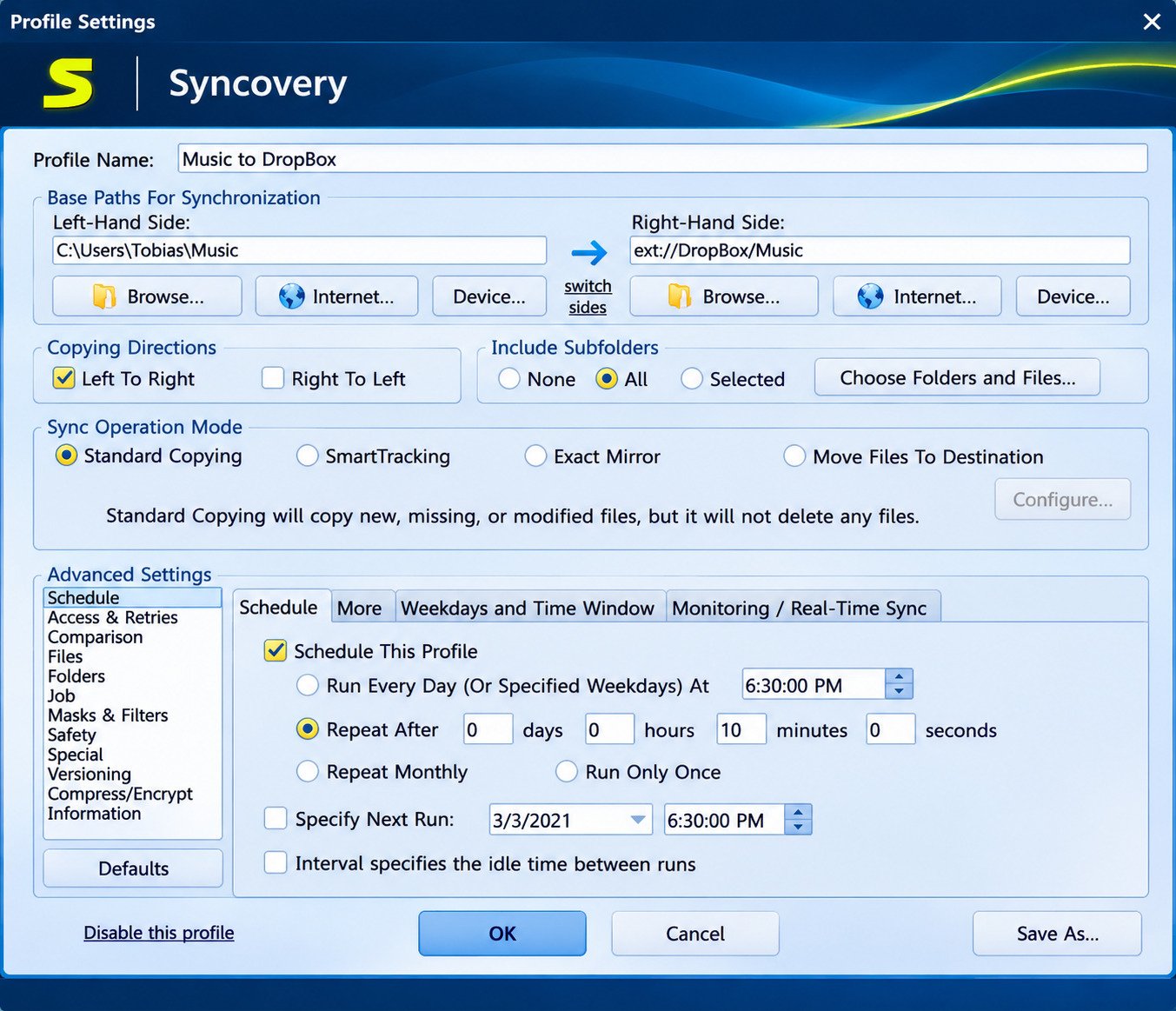
Syncovery is a program from Super Flexible Software that copies files between two locations using rules you define. Those locations can be folders, external drives, network shares, FTP servers, or cloud accounts.
Syncovery File Synchronization and Backup Software Overview
Think of Syncovery as a careful assistant. It compares two places, finds what differs, and copies only what needs copying. It handles both file synchronization and backup with history.
How Does Syncovery Work?
You create a profile. Each profile has a left side, a right side, a sync mode, and optional filters or a schedule. A preview lets you review changes before the job runs.
What Can You Do With Syncovery?
- Mirror a work folder to an external hard drive
- Back up a laptop to a NAS every night
- Sync files between two computers
- Copy server data to Amazon S3 or Backblaze B2
- Move data from one cloud service to another
Who Should Use Syncovery?
It suits home users with photo archives, freelancers, and small businesses running file servers. If you only want a simple drag-and-drop cloud folder, it may feel like more tool than you need.
Syncovery Supported Operating Systems and Devices
| Platform | Support |
|---|---|
| Windows | Vista and Server 2008 or newer, including Windows 10, 11, and Server 2025 |
| macOS | Intel and Apple Silicon Macs |
| Linux | Command line and web GUI, Intel, ARM, and other processors |
| FreeBSD | 64-bit Intel/AMD |
| NAS | Synology, QNAP, ASUSTOR |
Syncovery Download and Installation Guide
How to Download Syncovery for Windows
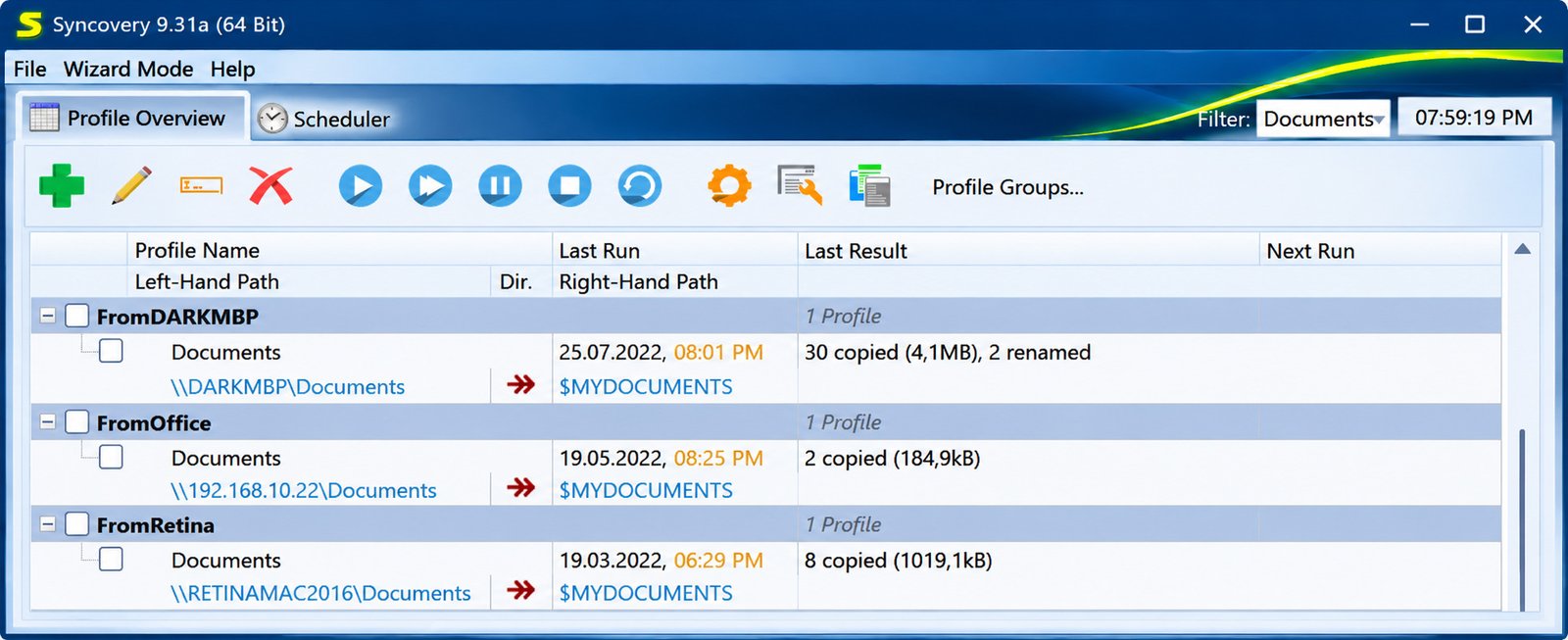
Open the Downloads menu on the official site and pick Windows. Choose the installer that matches your system, then run it. The trial unlocks all features.
Syncovery 12 Download and Latest Version
Syncovery 12 was announced on June 4, 2026 for Windows, macOS, Linux, and several NAS platforms. Check the download page for the current build before installing.
Syncovery Download for Windows 10 and Windows 11
Both versions are fully supported. Pick the 64-bit installer on modern PCs.
Syncovery Download for macOS and Apple Silicon
The Mac download page lists Intel and Apple Silicon builds, so choose the one for your chip.
Syncovery Download for Linux
Linux gets the command line version plus a web-based interface called SyncoveryCL. Debian and RPM installers are available.
Syncovery NAS, Synology, and QNAP Downloads
Dedicated packages exist for Synology, QNAP, and ASUSTOR. Install them through your NAS package workflow, then manage jobs from a browser.
Syncovery 64-Bit Download and System Requirements
The 64-bit edition needs at least Windows Vista. Older 64-bit Windows should use the 32-bit edition.
How to Install and Set Up Syncovery
- Download the installer from the official site.
- Run it and accept the license terms.
- Launch Syncovery and open the setup wizard.
- Create your first profile.
- Run a test with a small folder.
How to Use Syncovery for File Synchronization
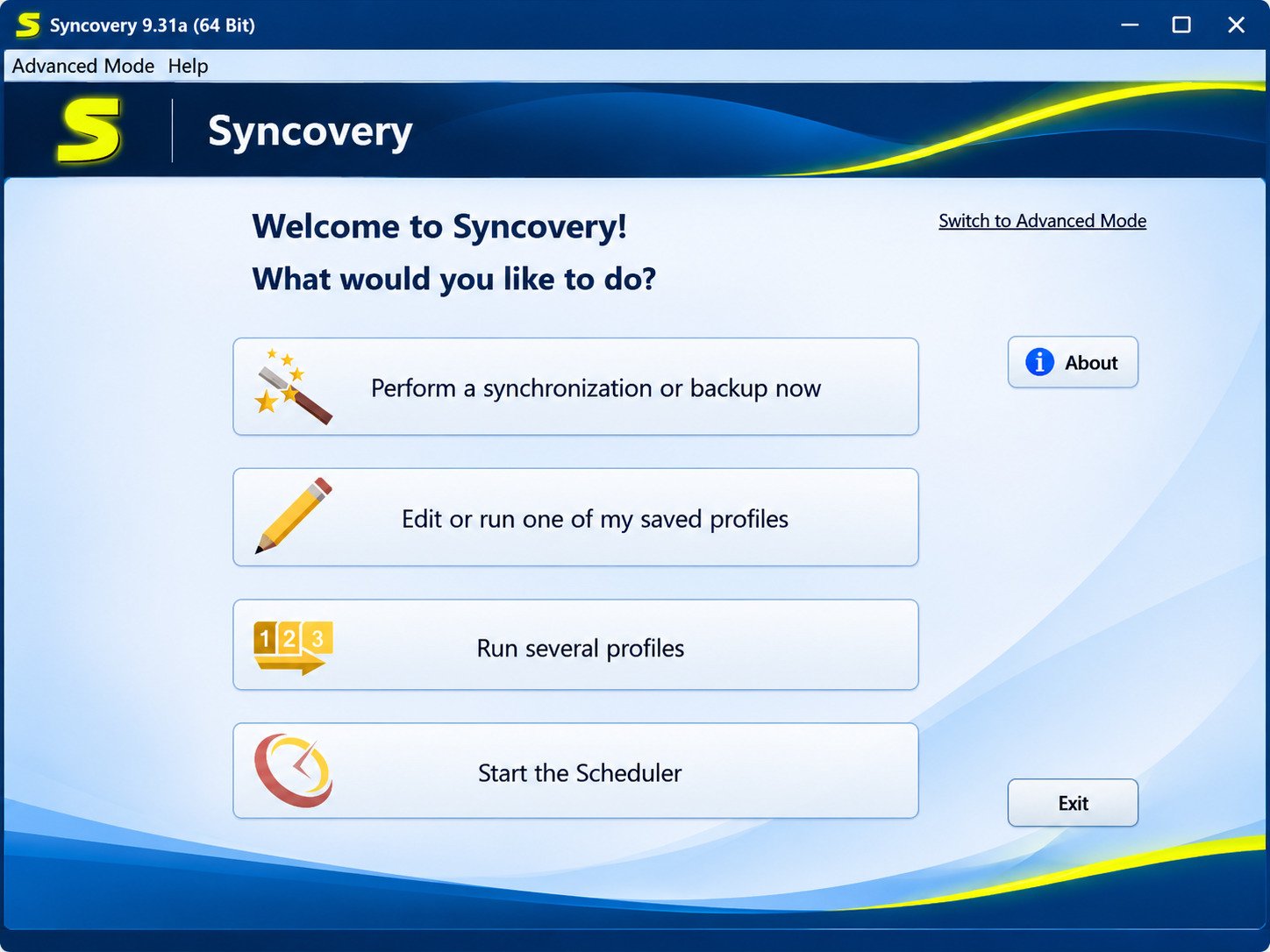
Syncovery includes wizards that guide you through each job. Beginners can start there, then move to advanced settings later.
How to Create a Syncovery Synchronization Profile
Add a new profile and name it clearly, like “Photos to NAS.” Choose a left folder and a right folder, then pick a sync mode.
How to Synchronize Two Folders With Syncovery
Set the left path as your source and the right path as your target. Choose a mode, run a preview, and then start the job.
How to Set Up Automatic File Synchronization
Open the schedule tab inside your profile and pick a time, such as nightly at 2 a.m. You can also use realtime monitoring.
How to Sync Files Between Two Computers
Share a folder on one PC, then point your profile at that network path. Use SFTP if the computers sit on different networks.
How to Configure One-Way and Two-Way Synchronization
One-way copies changes from left to right only. Two-way copies changes in both directions. Pick two-way when both sides get edited.
How to Synchronize Local and Network Drives
Version 12 includes an internal SMB client, so Syncovery can connect to Windows shares directly. This helps when running as a service and adds ransomware protection.
How to Schedule Automatic Sync Jobs
Use the built-in scheduler. For jobs that must run when nobody is logged in, install the scheduler service.
How to Preview File Changes Before Synchronization
The sync preview shows what will be copied, replaced, or deleted. Read it, especially the delete column.
Syncovery File Synchronization Modes and Folder Comparison
The mode decides how changes flow. Choosing wrong is the most common beginner mistake.
| Mode | Direction | Best for |
|---|---|---|
| Standard copy | One way | Simple backups |
| Exact mirror | One way | Identical copies |
| Two-way | Both ways | Two active locations |
| SmartTracking | Both ways | Reliable deletes and renames |
One-Way File and Folder Synchronization
New and changed files move from source to destination. It is the safest choice for backups.
Two-Way Folder Synchronization
Edits on either side travel to the other. Conflicts can happen when the same file changes on both sides.
Exact Mirror Mode: Create Identical Folder Copies
Mirror mode makes the destination match the source exactly. Extra files on the destination get removed.
SmartTracking: Track File Changes and Deleted Files
SmartTracking remembers what each side looked like at the last run, so Syncovery can tell a new file from a deleted one.
Compare Folders Before Synchronization
Use the comparison view to spot differences first. Look at size, date, and status columns.
Detect Moved Files and Synchronization Conflicts
Syncovery can notice renamed or moved files. For conflicts, set a rule such as “newest wins,” or decide each case by hand.
Synchronize Deleted Files Between Folders
Deletions can travel along with copies if you allow it. Many users send deleted files to a holding folder first.
Keep Multiple Folders and Locations Synchronized
Create one profile per pair of locations, then group them. A single schedule can run several profiles in order.
Syncovery Backup Features and File Recovery
Sync keeps copies matched, so a mistake can spread. Backup keeps history so you can go back. Syncovery supports both.
How to Back Up Files With Syncovery
Pick a one-way mode, set your source, and choose a destination such as an external drive. Turn on versioning, then schedule it.
Automatic and Scheduled File Backups
Pick a time when your PC is idle. Add email notifications so you hear about failures.
Incremental Backup and Delta Copying
After the first full copy, later runs copy only new or changed files. Block-level copying can send just the changed parts of large files.
Local and External Hard Drive Backups
An external USB drive is the cheapest starting point. Point the right side at the drive letter and set a schedule.
Network Drive and Server Backups
Back up to a NAS or file server using SMB, FTP, or SFTP. The internal SMB client in version 12 keeps credentials inside Syncovery.
Cloud Backup and Automated File Protection
Add a cloud destination and Syncovery handles the upload. Combine it with encryption so the provider never sees readable files.
File Versioning and Previous File Versions
Versioning saves older copies instead of overwriting them. It is your best defense against silent corruption or accidental edits.
How to Restore Files Using Syncovery
Restoring is simply copying in reverse. Swap the sides, or browse the backup and pick what you need. Test a restore before you need one.
Create and Manage Multiple Backup Profiles
Separate profiles for photos, documents, and system folders keep things tidy, each with its own schedule and retention rules.
Syncovery Cloud Storage and Cloud-to-Cloud Synchronization
Syncovery speaks to many cloud services directly. Version 12 also bundles Rclone, which opens even more connections.
Syncovery Google Drive Synchronization
Authorize your Google account once, then use Drive like any other folder.
Syncovery OneDrive Backup and File Sync
OneDrive works for personal files and business libraries, without relying on the OneDrive app.
Syncovery Dropbox Synchronization
Connect Dropbox and run scheduled copies, handy for an offline backup.
Syncovery Amazon S3 and Backblaze B2 Backup
These object storage services are popular for low-cost backups. Version 12 adds S3 IAM role support on EC2 instances.
Syncovery Microsoft Azure and Google Cloud Storage
Azure Blob, Azure File Shares, and Google Cloud Storage are supported. Azure File Shares connect through a direct HTTPS interface.
Syncovery SharePoint and Box Synchronization
Business users can sync SharePoint libraries and Box folders. A hierarchical dialog makes picking SharePoint libraries easier.
Syncovery MEGA, pCloud, and iCloud Drive Support
MEGA and pCloud are supported. Version 12 adds iCloud Drive, iCloud Photos, FileCloud, Filen.io, and Drime.
How to Transfer Files Between Cloud Storage Services
Set one cloud as the left side and another as the right side, then run a one-way copy.
How to Sync Google Drive With OneDrive
Connect both accounts, choose the folders, and pick one-way or two-way. Preview first.
Cloud-to-Cloud Backup and Automated Data Migration
Schedule a recurring copy for a second backup. For migrations, run it once, verify, and then switch over.
Syncovery Advanced File Transfer and Security Features
These options separate Syncovery from simple copy tools.
Block-Level Copying and Delta Transfer
Only changed pieces of a large file get sent, so small edits to a 20 GB file need no full re-upload.
AES Encryption and Secure File Synchronization
You can encrypt files with AES before they reach the destination.
PGP Encryption for Backup Protection
PGP support covers encrypting and decrypting files during transfers, including exchanges over SFTP.
ZIP and 7-Zip File Compression
Compress files into archives to save space. Version 12 for Linux added 7-Zip support.
Custom File Filters and File Masks
Include or exclude files by name, type, size, or date.
Copy Locked and Open Files
On Windows, Syncovery can copy files other programs are using, through shadow copy technology.
Parallel File Copying for Faster Transfers
Copying several files at once speeds up many small transfers. Version 12 adds an automatic mode.
Scheduler Service and Automated Backup Jobs
The service runs jobs without anyone logged in, ideal for servers.
Email Notifications and Task Monitoring
Get alerts on success or failure. Version 12.4 adds Exchange EWS support.
Command-Line File Synchronization
Run profiles from scripts or task systems, useful for admins who automate.
Syncovery Remote Service and Automation
The remote service lets you manage jobs on another machine from your desk.
Syncovery NAS, Server, and Network Synchronization
Servers and NAS boxes are where Syncovery shines.
Syncovery NAS Backup and File Synchronization
Install it on the NAS or connect to it from a PC. Either way, nightly jobs keep data copied elsewhere.
Syncovery Synology NAS Backup
A Synology package runs jobs directly on the NAS, controlled from a web interface.
Syncovery QNAP NAS Backup
QNAP has its own package. It works similarly and supports cloud targets.
How to Back Up NAS Devices to Cloud Storage
Put the NAS share on the left and a cloud service on the right. Enable encryption and versioning, then schedule it.
NAS-to-NAS File Synchronization
Run a job between two NAS units, ideally in different buildings.
Windows Server File Backup and Synchronization
Use the scheduler service and shadow copy support. Version 12.2 adds DFS support.
Linux Server Backup and File Transfer
The Linux edition runs from the command line or a browser. It handles SFTP, S3, and local paths.
FTP and SFTP File Synchronization
Syncovery supports FTP, secure FTP, and SFTP. Recursive listings in version 12 speed up scans.
WebDAV and Rsync Support
WebDAV works with many hosting products. Version 12 includes a rewritten rsync connector with no external dependency.
Network Drive and Shared Folder Synchronization
Mapped drives and UNC paths work, but the internal SMB client is more reliable for services.
Server Migration and Large-Scale File Transfers
The usual method is to copy once, sync again, then do a final delta at cutover.
Syncovery Compatibility: Windows, Mac, Linux, and Other Platforms
Different systems, same logic. Profiles behave much alike everywhere.
Syncovery for Windows 10 and Windows 11
It runs natively with full GUI support. Windows gets the broadest feature set.
Syncovery for macOS and Apple Silicon
The Mac edition works on Intel and M-series Macs.
Syncovery for Linux and ARM Linux
Linux covers Intel, ARM, and other CPU types.
Syncovery for FreeBSD
FreeBSD is supported on 64-bit Intel and AMD.
Syncovery for Synology and QNAP NAS
Both have tailored packages for NAS-managed backups.
Cross-Platform File Synchronization Between Windows, Mac, and Linux
Sync between systems using SFTP or shared folders. Watch for filename differences in case and symbols.
Syncovery Configuration, Troubleshooting, and Common Errors
Most problems come from paths, permissions, or credentials. Start there.
How to Configure Syncovery Synchronization Settings
Review the mode, filters, and deletion settings. Keep options simple at first.
How to Set Up and Manage Backup Schedules
Stagger jobs so they do not compete for disk and network. Check logs weekly.
How to Configure Syncovery SmartTracking
Enable it in the mode settings for two-way profiles. Let the first run finish fully.
How to Use Exact Mirror Mode Safely
Preview every time at first, and turn on a folder for deleted files.
Syncovery Not Syncing Files: Causes and Fixes
Check filters, the selected mode, and file dates. Confirm the profile is enabled and the path exists.
How to Fix Syncovery Synchronization Failed Errors
Open the log and read the first error. Common causes are permissions, full disks, and expired logins.
Syncovery Backup Not Working: Troubleshooting Guide
Run the job manually to see messages, then test the destination by copying a file by hand.
Syncovery Scheduler Not Running: How to Fix It
Make sure the scheduler service is installed and running, and the account has rights to the paths.
Syncovery Cannot Access Left or Right Path
This usually means a disconnected drive, wrong credentials, or a changed share name. Reconnect or retype the path.
How to Resolve Syncovery File Conflicts
Decide a rule such as newest wins. For important documents, keep both versions.
Syncovery Connection and Cloud Authentication Errors
Reauthorize the account, since tokens can expire. Check the system clock and any firewall.
Syncovery License, Pricing, and Available Editions
Syncovery sells perpetual licenses, a one-time fee. Upgrades are free for one year after purchase.
Syncovery Free Trial and 30-Day Trial
The 30-day trial includes all features, so you can test before paying.
How to Purchase and Activate a Syncovery License
Choose your region on the purchase page, pick an edition, and pay. Enter the license key inside the program.
Syncovery Standard vs Professional
Standard covers core sync and backup. Professional adds more advanced options. Check the official feature matrix.
Syncovery Professional vs Premium
Premium sits at the top, aimed at heavy users and businesses.
Syncovery Editions and Feature Differences
| Edition | Best for |
|---|---|
| Standard | Home users and simple backups |
| Professional | Power users and small offices |
| Premium | Businesses, cloud-heavy setups |
How to Upgrade Your Syncovery License
Use the upgrade page on the official site. Syncovery 12 is free for licenses ordered on or after May 1, 2025.
Is Syncovery Worth Its Price?
One report listed the Standard edition at about 39.90 euros for private users in Germany in mid-2026. Prices vary by region and edition.
Syncovery Review: Features, Advantages, and Limitations
After testing the workflow and reading official documentation, here is a balanced view.
Key Syncovery Features
- Many sync modes and SmartTracking
- Wide cloud and protocol support
- Versioning and encryption
- Service-based scheduling
- Cross-platform editions
Syncovery Pros and Cons
Pros
- One-time license
- Huge protocol support
- Strong scheduling
- Runs on NAS and Linux
Cons
- Many options can overwhelm beginners
- Interface looks dated to some
- Paid software
- Learning curve for advanced rules
Syncovery Performance and File Transfer Capabilities
Parallel copying, delta transfer, and recursive listings make large jobs faster. Real speed depends on your network and storage.
Syncovery Security and Data Protection
AES, PGP, and the internal SMB client add real protection. Still, no tool replaces offline copies.
Is Syncovery a Good File Synchronization and Backup Tool?
Yes, for people who want control. It is flexible and reliable, but it rewards a little learning time.
Who Should Choose Syncovery?
Choose it if you manage NAS devices, servers, or several clouds. Skip it if you only need a simple personal sync folder.
Best Syncovery Alternatives for File Synchronization and Backup
Several tools cover similar ground. The right pick depends on budget and complexity.
FreeFileSync: Free File and Folder Synchronization
FreeFileSync is open source and easy to learn, a good start for basic folder syncing.
GoodSync: Automated File Backup and Synchronization
GoodSync offers automated sync with a friendly interface. It usually runs on a subscription model.
SyncBack: Windows Backup and Synchronization Software
SyncBack is a long-standing Windows backup tool with profiles and scheduling. For a deeper look, read our SyncBack guide for features and setup tips.
Beyond Compare: File and Folder Comparison
Beyond Compare excels at side-by-side comparison. It also syncs, though comparing is its true strength.
Syncovery vs FreeFileSync
Syncovery offers more protocols, services, and NAS support. FreeFileSync wins on price and simplicity.
Syncovery vs GoodSync
Both automate well. Syncovery stands out with a perpetual license and deeper options.
Syncovery vs SyncBack
They overlap heavily. Syncovery leans on broader platform support, including Mac, Linux, and NAS.
Which Syncovery Alternative Should You Choose?
Pick FreeFileSync for free basics, Beyond Compare for comparing, and Syncovery for servers, NAS, and cloud work.
Frequently Asked Questions About Syncovery
What Is Syncovery Used For?
It synchronizes and backs up files between folders, drives, servers, NAS devices, and cloud storage.
Is Syncovery Free to Use?
No. It has a 30-day full-featured trial, then needs a paid perpetual license.
What Is the Latest Version of Syncovery?
Syncovery 12 launched in June 2026, with newer builds released since. Check the official download page for the current one.
Does Syncovery Support Two-Way Synchronization?
Yes. It supports both one-way and two-way modes, and SmartTracking helps handle deletions.
Can Syncovery Back Up Files to Google Drive and OneDrive?
Yes. It connects to both, plus Dropbox, S3, Azure, and many more.
Does Syncovery Support Synology and QNAP NAS?
Yes. Dedicated packages exist for both, along with ASUSTOR.
Is Syncovery Available for Mac and Linux?
Yes. It runs on Intel and Apple Silicon Macs and on many Linux distributions.
Conclusion
Syncovery gives you one tool for syncing, backing up, and moving files between almost any storage you own. Learn the sync modes, preview every job, and keep a tested restore plan. Those habits matter more than any feature.
Start with the free trial and one small test profile. Once it feels natural, add schedules, versioning, and a cloud copy. Your files will thank you the next time something goes wrong. For background, see this overview of file synchronization.