Carbon Copy Cloner Download for Mac: Official Website, Installation, and Features
Losing your Mac’s data feels like losing a diary, a photo album, and a filing cabinet in one second. A reliable backup is the only cure, and a Carbon Copy Cloner download for Mac is one of the smartest places to start. This guide shows you where to get it safely, how to install it, and how to use every major feature.
What Is Carbon Copy Cloner?
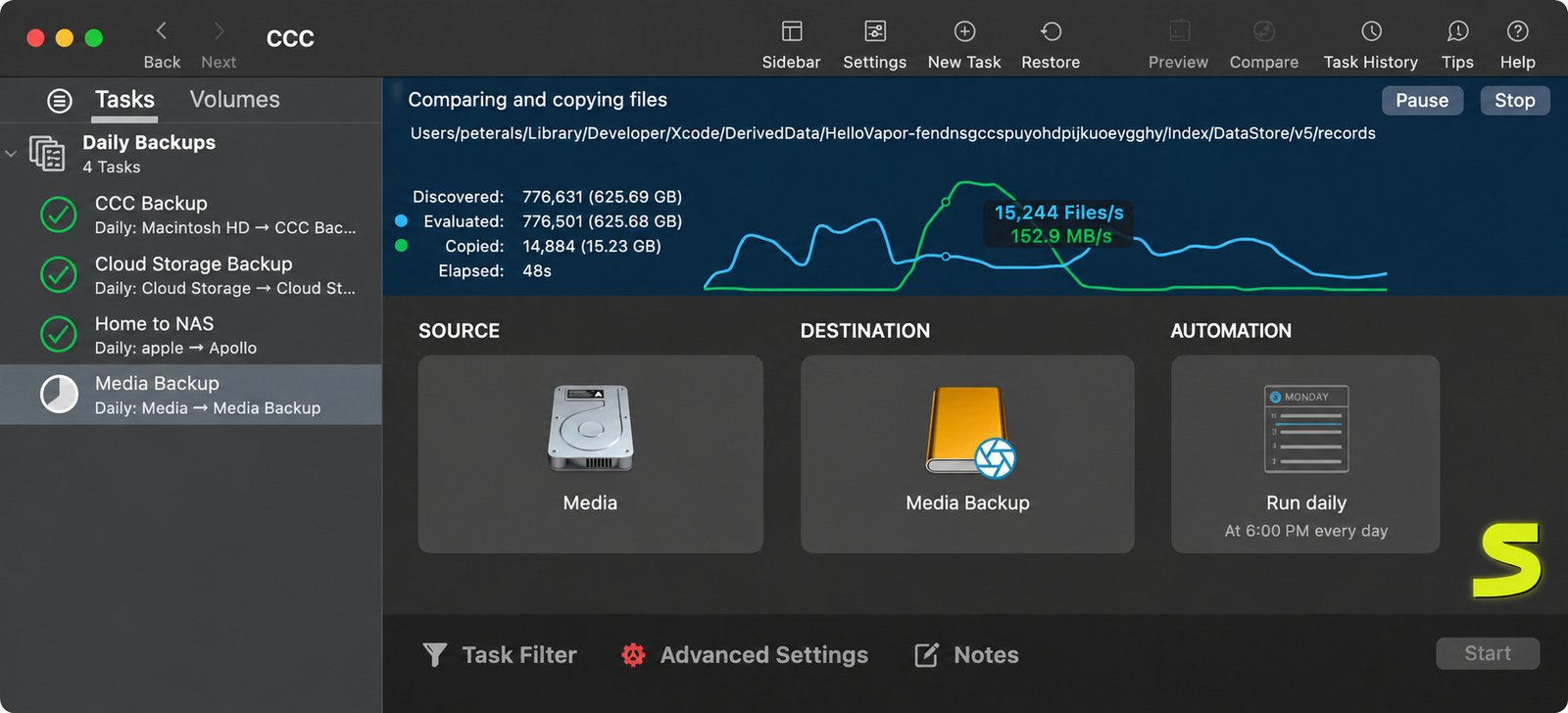
Carbon Copy Cloner is a backup and disk cloning utility built only for macOS. It copies your files to another drive, a network volume, or a NAS, and it can do it on a schedule without you lifting a finger.
An Overview of Carbon Copy Cloner (CCC)
CCC began as a small donation-ware tool and grew into a polished commercial product. Bombich Software maintains it, and version 7 is the current major release. Its clean interface and detailed task logs make it popular with home users and IT pros alike.
What Is Carbon Copy Cloner Used For?
People use CCC to back up a whole Mac, copy data to a new drive, keep a second copy of important folders, and migrate to a new computer. Many run it alongside Time Machine for double protection.
How CCC Works as Mac Backup and Disk Cloning Software
You pick a source, a destination, and a schedule. CCC copies your data and, on later runs, copies only what changed. That is called an incremental backup, and it keeps repeat backups fast. You can also preserve older file versions using snapshots.
Who Should Use Carbon Copy Cloner?
CCC suits anyone who wants more control than Time Machine offers: photographers, video editors, students, freelancers, and small offices. If you want one simple, automatic backup and nothing more, Time Machine may already be enough.
Carbon Copy Cloner Download for Mac
Fake download sites exist for almost every popular app, so go straight to the source.
Where to Download Carbon Copy Cloner Officially
The safest place is the developer’s own site, bombich.com. Open the Download page and choose the version that matches your macOS.
Carbon Copy Cloner Latest Version and CCC 7 Download
CCC 7 is the current major version and needs macOS 13 Ventura or later. The official download page always shows the newest stable build, so check it instead of trusting third-party version numbers. Click Download and save the disk image; at roughly 27 MB it downloads quickly. CCC arrives as a normal Mac app with no strange installer.
How to Download the Carbon Copy Cloner Free Trial
The trial needs no special page. Download the same installer, open the app, and CCC starts a free 30-day trial with every feature unlocked. You do not need a credit card.
Is Carbon Copy Cloner Available for Windows?
No. CCC is Mac-only. Windows users should look at tools such as Macrium Reflect or Clonezilla instead.
Which Carbon Copy Cloner Version Should You Download?
Match the version to your macOS. Using a build made for a different macOS can cause odd errors or a refusal to open.
| Your macOS | Recommended CCC |
|---|---|
| Ventura 13, Sonoma 14, Sequoia 15, Tahoe 26 | CCC 7 |
| Catalina 10.15, Big Sur 11, Monterey 12 | CCC 6 |
| High Sierra 10.13, Mojave 10.14 | CCC 5 |
Carbon Copy Cloner System Requirements and Compatibility
Supported macOS Versions
CCC 7 supports macOS 13 Ventura and newer. Older macOS needs CCC 6 or CCC 5. Confirm on the official download page, because support lists change with each macOS release. Not sure which macOS you have? Click the Apple menu and choose About This Mac.
Carbon Copy Cloner for macOS Tahoe
Official Tahoe support arrived with CCC 7.1.2, which also added a new glass-style icon. Install the newest 7.x build before you upgrade your Mac.
Apple Silicon and Intel-Based Macs
CCC runs natively on M-series Macs as a universal app. Apple Silicon has stricter rules about booting from external drives, so read the official bootability notes before expecting a startup-ready clone. Intel Macs work well with CCC 7 on Ventura or newer, though Tahoe is expected to be the last macOS to support Intel.
APFS and External Drive Compatibility
CCC understands APFS, including its snapshots. Use a quality external SSD or hard drive with a fast USB-C or Thunderbolt connection. A cheap, flaky enclosure is the most common cause of backup trouble.
Supported Backup Destinations and File Systems
| Destination | Works with CCC? |
|---|---|
| Internal or external APFS drive | Yes |
| Mac OS Extended (HFS+) drive | Yes |
| NAS or shared network volume | Yes |
| Disk image on any drive | Yes |
| Cloud storage like iCloud or Dropbox | Not as a direct destination |
| Windows-formatted NTFS drive | Not recommended |
How to Install Carbon Copy Cloner on Mac
Preparing Your Mac Before Installation
Install pending macOS updates, connect your backup drive, and keep your admin password handy. The backup drive should be at least as large as the data you plan to copy, ideally larger, to leave room for SafetyNet archives and snapshots.
Step-by-Step Carbon Copy Cloner Installation
- Go to bombich.com and download the CCC disk image.
- Double-click the downloaded file to mount it.
- Drag Carbon Copy Cloner into your Applications folder.
- Eject the disk image.
- Open CCC from Applications and approve the macOS security prompt.
Granting CCC the Required macOS Permissions
CCC needs Full Disk Access. Open System Settings, choose Privacy & Security, select Full Disk Access, and switch CCC on. Enter your admin password when the helper tool installs. If a warning persists, quit and reopen the app.
Launching, Activating, and Updating CCC
The first screen lets you start the trial. After buying, enter your license email and code from the app’s menu; the trial and paid version are the same program. CCC checks for updates automatically, and updates within a major version, such as 7.1 to 7.2, are normally free.
Key Features of Carbon Copy Cloner
Bootable and Standard Mac Backups
Standard backups copy your files and folders. Bootable clones are trickier on modern Macs because Apple protects the system volume, so check Bombich’s documentation before planning an emergency startup drive.
Incremental Backups and Scheduled Tasks
After the first full copy, CCC transfers only new or changed files. Set a task to run hourly, daily, weekly, or whenever you connect a drive. Automation turns backups from a chore into a habit.
SafetyNet Feature for Protecting Older Files
SafetyNet keeps files that would otherwise be deleted or replaced on the destination, like a recycle bin for your backup drive. It prevents one bad sync from erasing something you needed.
APFS Snapshots and File Version History
Snapshots capture how a volume looked at a certain moment, so you can pull back an older version of a document. CCC 7 even lets you search several snapshots together.
Drive Cloning, NAS Backups, Filters, and Verification
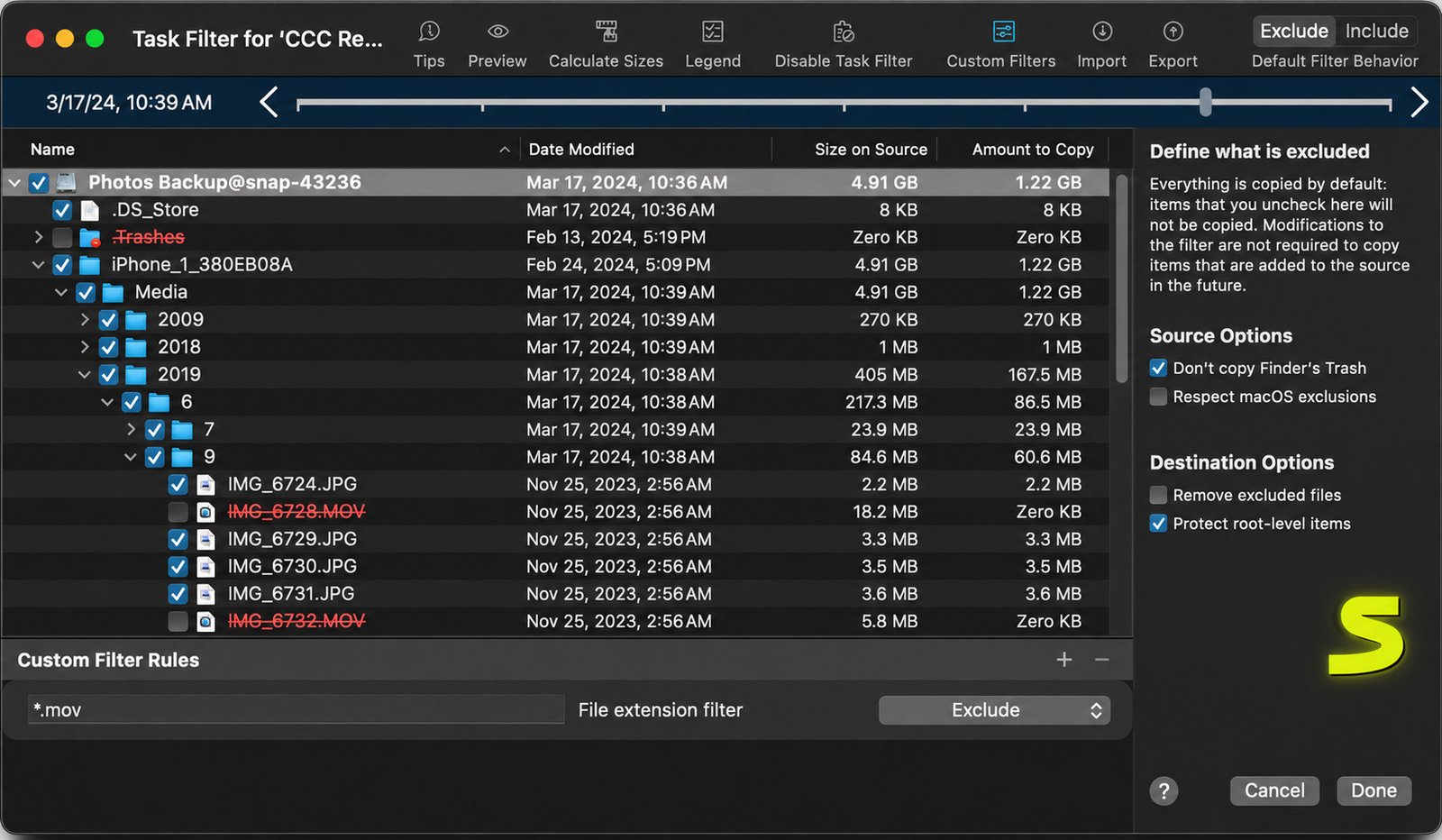
CCC copies a full volume to an external HDD or SSD with a few clicks, and treats a NAS like any other destination. Filters let you exclude folders, file types, and patterns. Verification confirms that copies match their originals; a backup you never verified is just a hopeful guess.
Backup Notifications and Task History
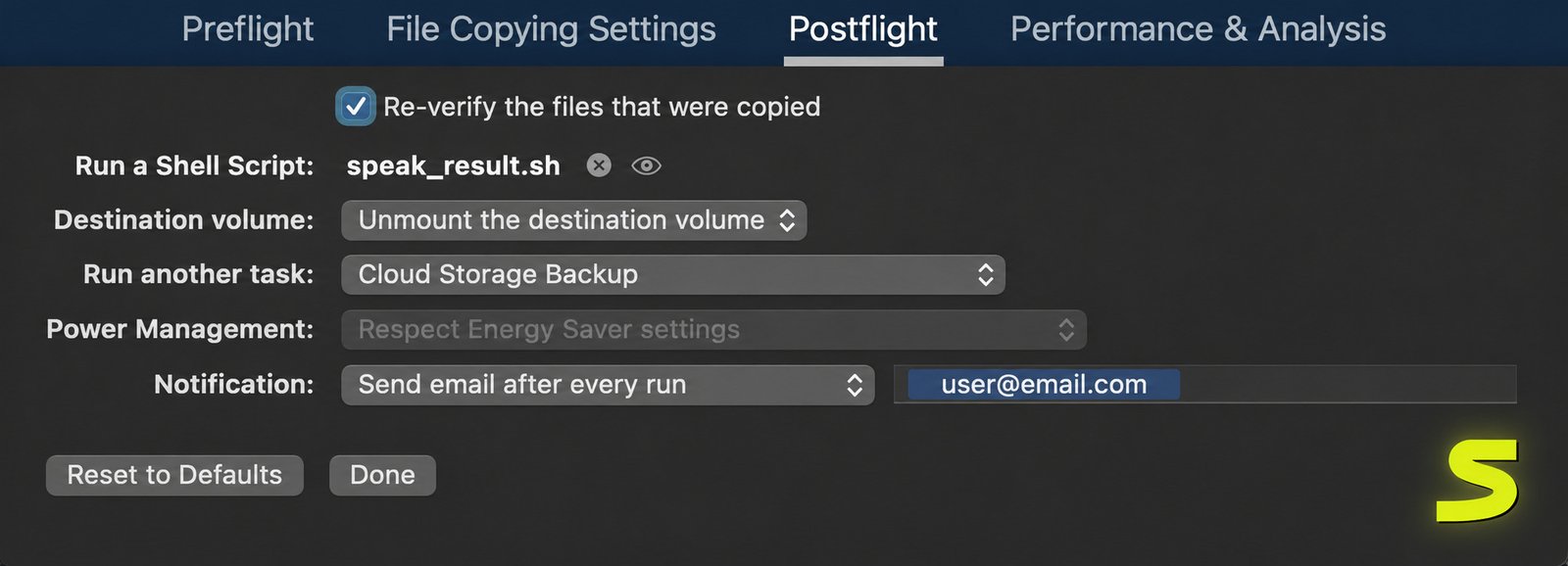
CCC reports success or failure through notifications and email, and the task history logs every run. Reading it once a week takes thirty seconds and builds real confidence.
How to Use Carbon Copy Cloner on Mac
Understanding the Interface and Selecting Source and Destination
The sidebar lists your tasks, and the main panel shows a source, a destination, and a schedule. Click the source box to choose what to protect, then pick your backup drive as the destination.
How to Clone a Mac Hard Drive with CCC
- Choose your startup volume as the source.
- Choose an external drive as the destination.
- Review the SafetyNet setting.
- Press Clone and let the first run finish.
A 500 GB drive over USB-C can take a couple of hours. Later runs are dramatically faster.
How to Back Up a Mac and Create an External Drive Backup
Create a new task, name it clearly, select your Mac’s data as the source, pick your backup drive, set a schedule, and save. Format a blank drive as APFS in Disk Utility first, and run the task manually once to confirm it works.
How to Schedule Automatic Backups
Click the schedule box, choose a frequency, and set a time when your Mac is awake. Laptop users can trigger the task whenever the backup drive is plugged in. Incremental behavior is the default, so you simply run the same task repeatedly.
How to Use SafetyNet and Verify Backups
Keep SafetyNet on for most tasks and set a size or age limit. Open the task history and look for green success marks. A warning often just means a file changed mid-copy; run the task again. If CCC reports an error, click it for a plain-language explanation.
Carbon Copy Cloner Backup and Data Recovery
A backup only matters when you can restore from it. Practice a restore now, while nothing is wrong.
How to Restore Files and Recover Older Versions
Open your backup drive in Finder and drag back any file you need. For a full restore, run CCC in reverse, using the backup as the source. To recover an older version, use the snapshot browser, select the date, and copy the file out.
How to Migrate Data to a New Mac Using CCC
Back up the old Mac to an external drive, then restore files manually or use Apple’s Migration Assistant with that backup. Keep the old Mac untouched for at least a week and test your important apps first.
Restoring from an External Drive and Checking Integrity
Because CCC keeps standard file structures, you can open your data in Finder without special software, so you are never locked in. Before restoring, review the latest task log and open a few random files to be sure they load.
Carbon Copy Cloner Settings and Advanced Options
Task Automation and Custom Schedules
Group several tasks to run in sequence, and run scripts before or after a task. Mix schedules to match your work: hourly for active projects, weekly full runs for everything else. You can also limit tasks to certain days or network conditions.
Managing SafetyNet Archives
Cap how much space archived files may use. CCC removes the oldest items first, keeping your drive healthy without losing recent history.
Backup Filters, Exclusions, and NAS Destinations
Exclude temporary files, browser caches, and trash folders, but use filters sparingly on your first backup. Test with a small folder before widening the scope. For a NAS, mount the share in Finder first, then choose it in CCC and save the credentials.
Managing Notifications and Task History
Turn on email alerts for failures only if you dislike noisy inboxes. Export the task history when troubleshooting with support.
Is Carbon Copy Cloner Free?
Short answer: no, but you can try it free first. CCC is commercial software with a generous trial.
Free Trial and Cost
Bombich provides a 30-day free trial with all features unlocked. CCC 7 costs $49.99 for the Personal and Household license, and education customers can get a 25% discount. Prices can change, so confirm the amount at checkout on bombich.com.
Carbon Copy Cloner Free Trial vs. Paid License
| Feature | Free Trial | Paid License |
|---|---|---|
| Duration | 30 days | Ongoing |
| Features | All unlocked | All unlocked |
| Updates within version 7 | During trial | Free |
| Support | Available | Available |
What Happens When the Free Trial Expires?
After 30 days, CCC stops running backup tasks until you enter a license. Your existing backups and settings stay untouched, and tasks resume once you activate.
Is a Paid Carbon Copy Cloner License Worth It?
For most people who value their data, yes. One payment covers a household and includes free updates within version 7. Professional data recovery can run into hundreds of dollars and is never guaranteed, so a steady backup habit is cheaper and far less stressful.
Is Carbon Copy Cloner Safe and Reliable?
CCC has been around for decades and has a strong reputation. Yes, it is safe when downloaded from bombich.com; the app is signed and works with macOS security features. Tampered installers from unofficial sites are the real risk.
SafetyNet archives replaced or deleted items instead of destroying them, and warnings appear before destructive actions. Verification confirms copies match the originals, while snapshots keep a read-only history of changes.
Carbon Copy Cloner Pros and Cons
Advantages
- Flexible scheduling and powerful filters
- Fast incremental backups
- Snapshots and SafetyNet for file history
- Clear logs and notifications
- Free 30-day trial
- Responsive developer support
Limitations
- Paid software with a $49.99 starting price
- Mac only, with no Windows version
- No direct cloud storage destination
- Bootable clone options are limited on modern macOS
- More options than casual users need
Carbon Copy Cloner Alternatives
Time Machine is free, built in, and effortless; CCC adds filters, flexible scheduling, NAS control, and clearer reports, and many experts run both. For more Mac tool ideas, see this Soft Folders guide. SuperDuper! is simpler and cheaper, while CCC offers deeper scheduling and snapshots. ChronoSync focuses on file synchronization and complex folder rules.
| Need | Best Pick |
|---|---|
| Free, automatic, effortless | Time Machine |
| Simple, affordable clone | SuperDuper! |
| Advanced Mac backups with control | Carbon Copy Cloner |
| Folder syncing across machines | ChronoSync |
Pick the tool you will actually use every week, because the best backup program is the one that quietly runs in the background.
Common Carbon Copy Cloner Problems and Troubleshooting
Most CCC errors have simple causes. Note what changed right before the problem started, such as a macOS update, a new cable, or a renamed drive.
Cannot Complete a Backup
Check free space on the destination, confirm the drive is healthy, run Disk Utility’s First Aid, and read the task log for the exact file that failed. If one file keeps failing, close the app using it or exclude it.
Cannot Access the Destination or Tasks Not Running
Grant Full Disk Access again. For network volumes, reconnect the share and re-enter credentials, since a sleeping NAS is a common culprit. Also verify the task is enabled, your Mac is awake at the scheduled time, and the destination is mounted.
Verification Errors and SafetyNet or Snapshot Issues
Verification errors often point to a failing drive or a bad cable, so swap the cable and test the drive. If the drive fills up, lower the SafetyNet limit or delete old snapshots.
External Drive Not Recognized
Try a different port and cable. Open Disk Utility to see if macOS detects the drive, then mount it manually and refresh CCC’s destination list.
Installation and Update Problems
Download a fresh copy from bombich.com, replace the old app, and restart your Mac. If macOS blocks the app, approve it under Privacy & Security.
Frequently Asked Questions About Carbon Copy Cloner
It backs up and clones Mac drives, schedules automatic backups, and keeps older file versions. It is also useful when moving to a new Mac or drive.
No, but it offers a free 30-day trial with all features. After that, you need a paid license.
CCC 7 is priced at $49.99 for the Personal and Household license. Education discounts and upgrade offers may apply.
Download it from the official website, bombich.com. Avoid third-party sites that offer cracked versions or fake keys.
No. CCC is designed only for macOS and cannot run on Windows.
Yes. CCC 7 is a universal app that runs natively on both Apple Silicon and Intel Macs.
Yes. You can back up to a NAS or network volume that your Mac can mount.
Conclusion
Carbon Copy Cloner gives Mac owners a calm, dependable way to protect what matters. Download it from the official site, test the free trial, and set one automatic task today. That single step can save years of memories and work.
A backup is only valuable before disaster strikes, not after. Start small, verify your results, and practice a restore once. Then relax, knowing your Mac’s data is safe and ready whenever you need it.