Broot Review and Tutorial: How to Download, Install, and Use the Terminal File Manager
Ever typed ls, then cd, then ls again, and still could not find the file you wanted? Every terminal user knows that small frustration. Broot is built to end it.
This Broot review and tutorial shows you how to download, install, and use the terminal file manager step by step. You will learn the key features, the best commands, and the fixes for common problems.
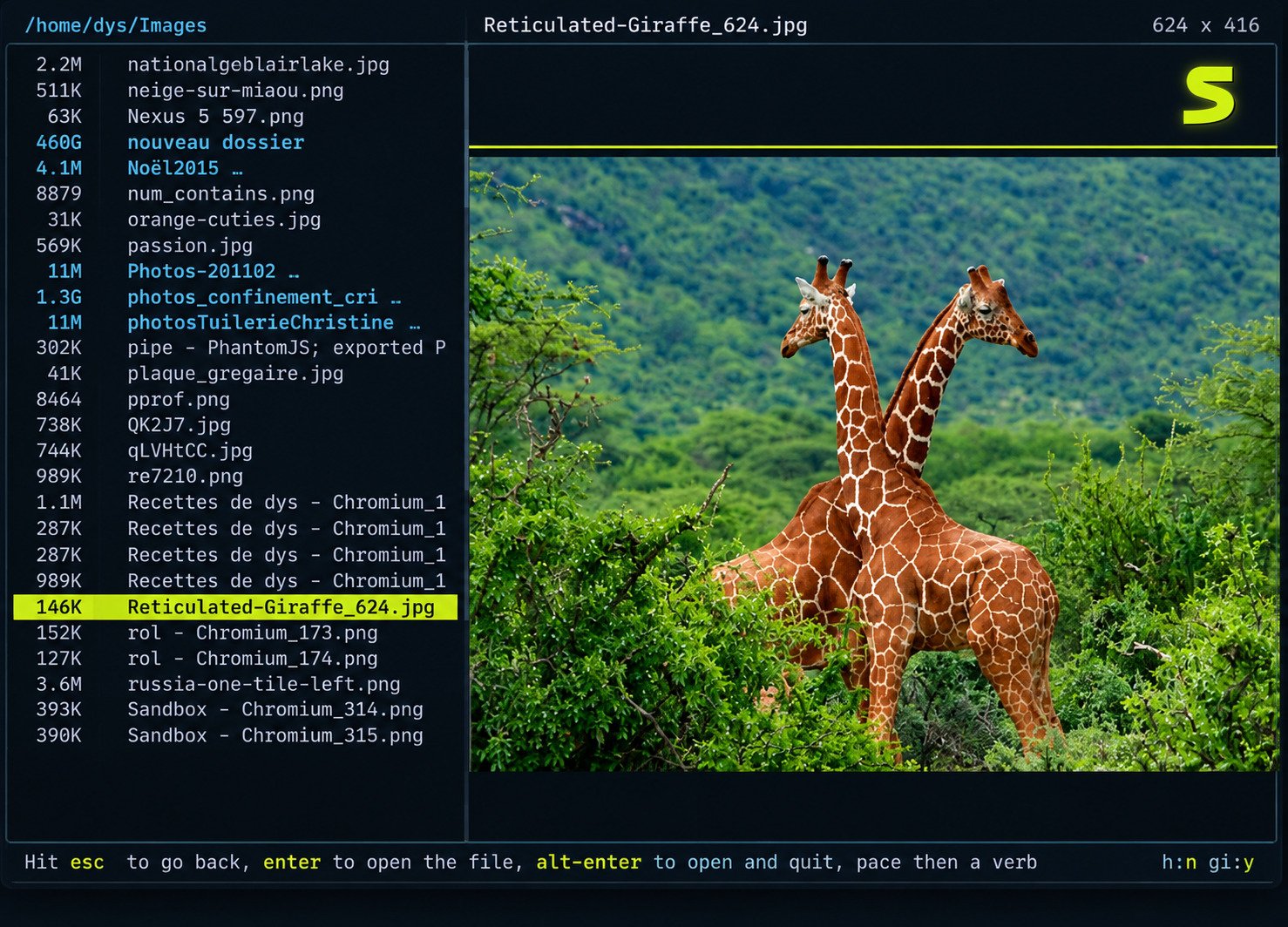
Broot is a free, open-source file manager for the command line. It shows a compact, interactive directory tree that you can search, preview, and act on without leaving the terminal.
If you enjoy tidying files on Windows too, our guide to Renax (https://softfolders.com/renax/) pairs nicely with the habits you will build here.
Broot terminal file manager: free download and overview t-is-broot”>What Is Broot?
Broot (pronounced “be root”) is a terminal file manager that turns any folder into a tree you can explore with your keyboard. Type a few letters and the tree narrows to what matches.
Understanding Broot and How It Works
Broot reads a directory and draws a tree that fits your screen. Folders that do not fit are folded into an “unlisted” line. As you type, it filters the tree live, so the right file rises to the top. Because it never asks you to leave the keyboard, the whole experience feels fluid.
Broot as an Interactive Terminal File Manager
Unlike static tools, Broot reacts to every keystroke. You can move with arrow keys, open folders, preview files, and run actions like copy, move, or edit. Think of it as a file explorer that lives inside your shell. It suits quick lookups and long cleanup sessions equally well.
How Broot Differs From Traditional Command-Line Tools
The classic tree command prints everything and floods your screen. The ls command shows one level at a time. Broot gives you a smart overview of many levels, then lets you jump straight to your target.
Who Should Use the Broot File Browser?
Developers, system administrators, and anyone who works with large project folders will gain the most. Beginners also benefit, because the interface is forgiving and the built-in help appears when you press the question mark key.
Is Broot an Open-Source Rust Application?
Yes. Broot is open source, written in the Rust programming language, and released under the MIT license. Its code lives on GitHub (https://github.com/Canop/broot), where you can read the documentation, report bugs, and follow new releases. Active development means bugs get fixed and useful ideas get added regularly.
Key Features of Broot
Broot packs a lot into one lightweight program. Here is a quick table of its strongest features before we look at each one.
| Feature | What it does |
|---|---|
| Interactive tree | Shows folders as a collapsible, screen-sized tree |
| Fuzzy search | Finds files from partial or messy input |
| Preview panel | Displays file contents beside the tree |
| Git integration | Shows file status and branch details |
| Shell integration | Changes your shell directory when you leave Broot |
| Custom commands | Lets you create your own shortcuts and verbs |
Interactive Directory Tree Browser
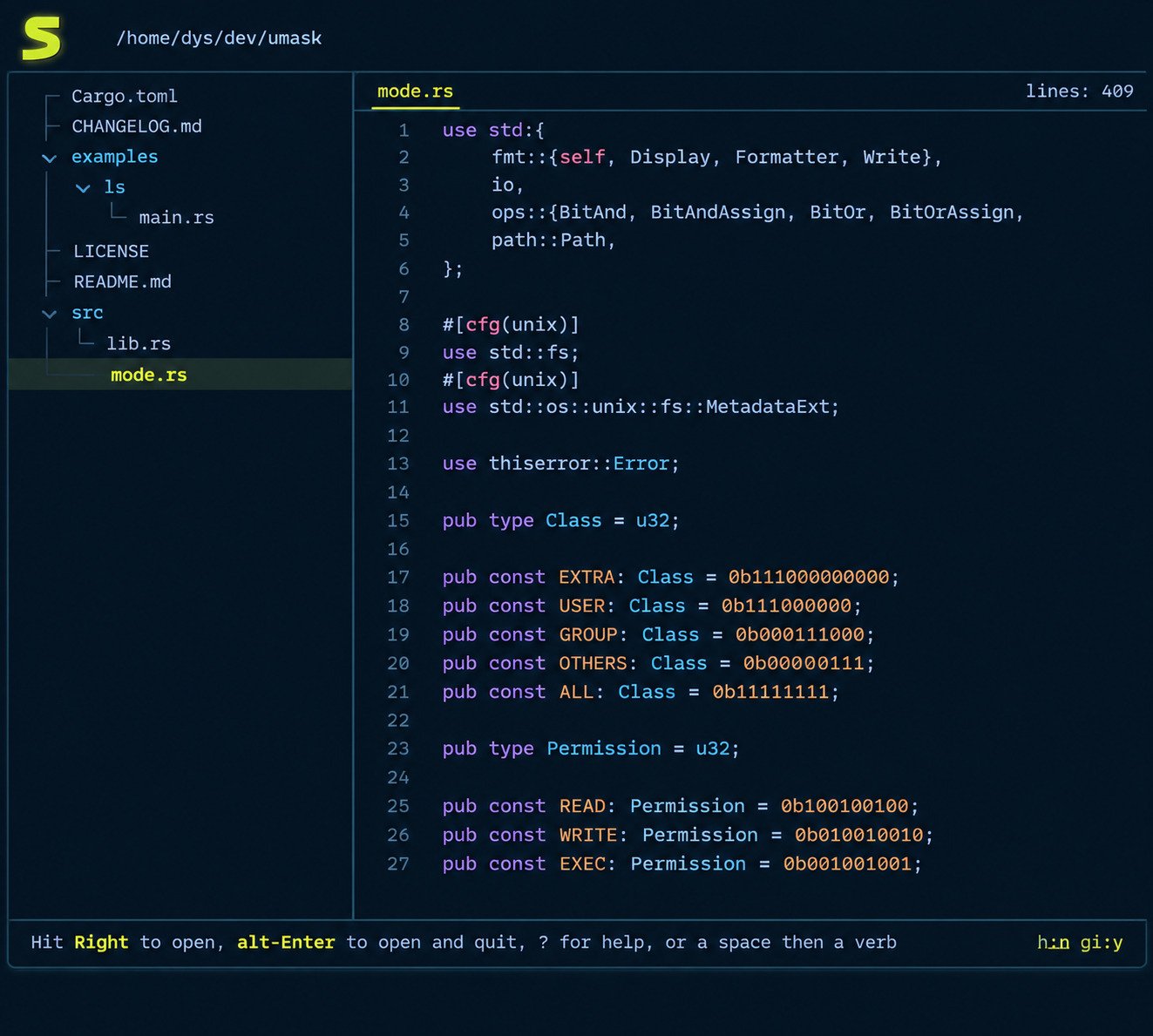
The tree adapts to your terminal size. Deep projects stay readable because Broot hides what does not fit and tells you how much is unlisted. You always see the big picture first.
Fast File and Folder Navigation
Navigation takes seconds. Press enter to open a folder, use the arrows to move, and type a pattern to leap deep into the tree. Many users stop typing full paths altogether. For example, typing a project name and pressing enter can replace a long chain of cd commands.
Fuzzy Search for Files and Directories
Fuzzy search matches letters in order, even if they are not side by side. Typing “cfg” can surface “config.toml” instantly. It forgives typos, which makes searching feel quick and relaxed.
File Preview Panel
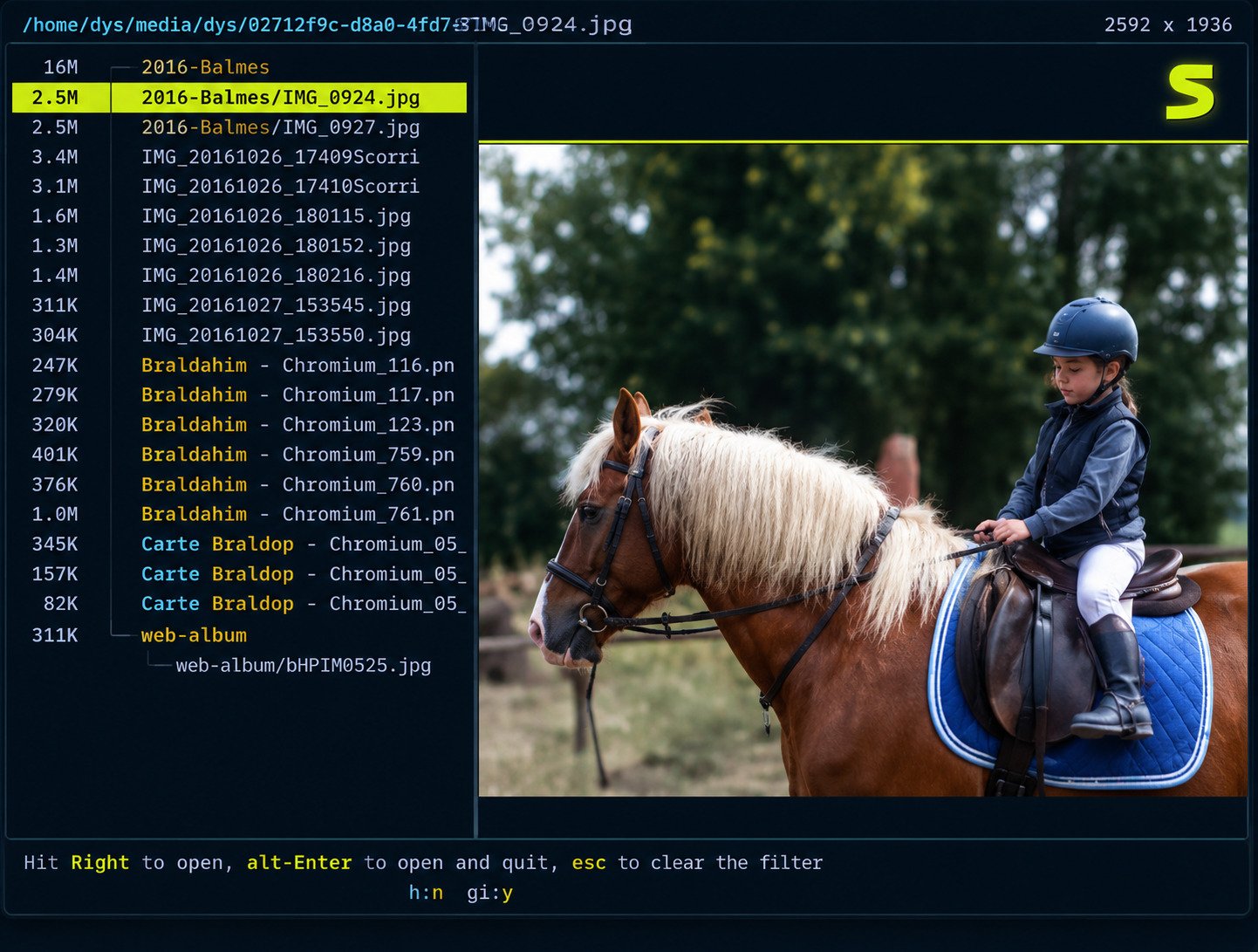
Press ctrl and the right arrow to open a preview panel. You can read text files, scan code, and view some images in compatible terminals, all without opening a separate editor.
Git Integration and Repository Status Display
Inside a repository, Broot can show which files changed. It also lets you filter the tree to modified files only, which is handy before a commit or a code review.
Shell Integration for Changing Directories
A program cannot normally change your shell’s folder. Broot solves this with a small shell function called br. Browse, pick a folder, and your shell lands there when Broot closes.
Custom Commands and Keyboard Shortcuts
Broot is highly configurable. You can bind keys, define verbs, and call external programs. If a task repeats, you can turn it into a single shortcut.
Hidden Files and Directory Navigation
Hidden files stay out of sight by default to keep the tree tidy. A quick toggle reveals dotfiles when you need them, so configuration folders are never far away.
Directory Size Visualization
Press the size toggle and Broot shows how much space each folder uses, with small bars for comparison. It works like a mini disk analyzer, perfect for finding what is eating your storage.
Sorting Files by Size and Modification Date
You can sort the tree by size, date, or file count. Sorting by size exposes giant folders, while sorting by date shows what you edited most recently.
Multiple File Selection and Operations
Broot has a staging area. Add several files to it, then copy, move, or remove them together. It saves time when you clean up messy folders or gather files for a project.
Broot System Requirements and Platform Compatibility
Broot is light on resources. It needs only a modern terminal, a supported shell, and an operating system that runs Rust programs. Most computers made in the last decade qualify. Even a small virtual machine or a Raspberry Pi can run it comfortably.
Does Broot Work on Windows?
Yes, Broot runs on Windows. You can download a build or install it with a package manager such as Scoop. Many users also run it inside WSL for a Linux-like experience.
Broot for Linux Distributions
Linux has the broadest support. Broot is available in many distribution repositories, and precompiled binaries exist for others. Arch, Debian, Ubuntu, Fedora, and Alpine users all have easy routes.
Broot for macOS
On macOS, the simplest route is Homebrew. A single command installs Broot, and the same commands work on Intel and Apple Silicon Macs without extra setup.
Understanding Broot's Rust-Based Architecture
Because Broot is written in Rust, it starts fast and uses little memory. Rust also produces standalone binaries, so you usually need no extra runtime or heavy dependencies.
Terminal and Shell Requirements
Any modern terminal emulator works. For image previews, terminals like Kitty and WezTerm give the best results. Shell integration supports popular shells including Bash, Zsh, and Fish.
How to Download Broot
You can get Broot from the official site, from GitHub, or through your system’s package manager. Always prefer official sources, because they give you clean, current builds.
Where to Download the Official Broot Release
The project’s official website has a download page with builds for several systems. It also links to the installation guide, which is worth bookmarking for later reference.
Download Broot From GitHub
The GitHub repository (https://github.com/Canop/broot) hosts every release. Open the Releases section, choose the newest version, and download the file that matches your system.
How to Find the Latest Broot Version
Check the Releases page on GitHub for the newest tag. After installing, you can also run broot --version in your terminal to see which version you currently have.
Choosing the Correct Broot Package for Your Operating System
Match the package to your system and processor. Windows users want the Windows build, Linux users pick the correct architecture, and Mac users should check whether their machine is Intel or Apple Silicon.
Broot Download Options for Windows, Linux, and macOS
| System | Common Options |
|---|---|
| Windows | Official build, Scoop, Cargo |
| Linux | Distribution repositories, precompiled binary, Cargo |
| macOS | Homebrew, Cargo |
How to Install Broot on Windows, Linux, and macOS
Installation is quick on every platform. Pick the method below that fits your setup, then verify it works.
How to Install Broot on Windows
Download the Windows build from the official site and place it in a folder on your PATH. Alternatively, run scoop install broot if you use Scoop. Then open a new terminal window.
How to Install Broot on Linux
Use your distribution’s package manager when possible. On Arch, run sudo pacman -S broot. On newer Debian and Ubuntu releases, try sudo apt install broot. Otherwise, download the binary and make it executable.
How to Install Broot on macOS
Open Terminal and run brew install broot. Homebrew downloads the package, places it on your PATH, and keeps it easy to update later with brew upgrade.
How to Install Broot Using Cargo
If you already use Rust, run cargo install broot --locked. This compiles Broot on your machine. It takes a few minutes, but it works on almost any platform Rust supports.
Installing Broot With Available Package Managers
Package managers keep Broot updated for you. Homebrew, Pacman, Apt, Scoop, and Alpine’s apk all carry it. Package versions can lag behind GitHub, so check the version if you want the newest features.
How to Verify the Broot Installation
Open a fresh terminal and run broot --version. If a version number appears, you are ready. Next, run broot once and accept the shell function installation when prompted.
Troubleshooting Common Installation Problems
Most problems come from the PATH setting. If your terminal cannot find Broot, add its folder to PATH and restart the terminal. On Linux, remember to mark downloaded binaries as executable.
How to Use Broot Terminal File Manager
Now for the fun part. These steps take you from your first launch to confident daily use.
Launching Broot From the Terminal
Type broot, or br once shell integration is set up, and press enter. Broot opens in your current folder. To start somewhere else, add a path, such as br ~/projects.
Understanding the Broot Interface
The screen shows the tree in the middle, an input bar at the bottom, and a status line with hints. Everything you type goes into that input bar, either as a search or a command.
Navigating Directories With the Interactive Tree
Use the up and down arrows to move through entries. Press enter on a folder to make it the new root, and press escape to step back when you want the previous view.
Expanding and Collapsing Folders
Folders open when you focus them, and the tree adapts to show their contents. Broot decides how much to reveal based on available space, so deep branches never swamp your screen.
Searching for Files and Directories
Just start typing. The tree filters as you type, showing matches inside nested folders. There is no separate search mode to enter, which keeps the whole flow smooth and quick.
Using Fuzzy Search in Broot
Fuzzy matching is the default. Type letters in order, like “rdme” for README, and Broot ranks the best matches first. It saves effort whenever you only half remember a file name. Developers searching big codebases will feel the difference immediately.
Finding Files by Name and Path
Need more precision? Start your pattern with a slash for a regular expression. You can also search file contents with c/ followed by your text, and search full paths with p/ before the pattern.
Viewing Hidden Files and Folders
Launch with br -h to show hidden files, or toggle them inside Broot. This is useful for dotfiles such as .gitignore, .env, and shell configuration files.
Previewing Files in Broot
Select a file and open the preview panel with ctrl and the right arrow. Press ctrl again to move into the preview and scroll. It beats opening an editor just to peek at a file.
Sorting Files by Name, Size, and Date
Broot offers sort commands for size, date, and count, and you can reset to the default order any time. Use br -s to launch with sizes, and add -d to see modification dates.
Understanding Directory Size Visualization
When sizes are on, each entry shows its weight plus a small bar relative to its siblings. A huge folder stands out immediately, so cleanup targets are obvious at a glance. Cleaning a crowded disk becomes far less stressful.
How to Manage Files and Folders With Broot
Broot is more than a viewer. Commands, called verbs, start with a colon, and many have short forms. Type a colon, then the verb name.
Selecting Files and Directories
Move to an entry with the arrow keys to select it. To work on several items, add them to the staging area with ctrl and g, then run one command for the whole group.
Opening Files From the Broot Interface
Press enter on a file to open it with your system’s default program. For terminal editors, type :e to open the file in the editor you prefer.
Creating and Managing Directories
Create a folder with :mkdir, followed by the new name. Create an empty file with :touch. The new item appears in the tree right away, so you can confirm it worked. It is a small touch, yet it builds trust in every command.
Moving and Renaming Files
Use :mv to move or rename the selected file, and :cp to copy it. Broot can also open a second panel, so you can send files from one location to another easily.
Deleting Files and Folders
Use :rm to delete the selected item. Be careful, because this removal is permanent. If your system supports it, a trash verb is the safer choice for items you might want back.
Performing Multiple File Operations
Stage your files first, then apply a verb. The command runs on everything in the staging area. This approach is faster than repeating the same action file by file.
Using Broot File Management Commands
| Verb | Purpose |
|---|---|
:e | Edit the file |
:cp | Copy |
:mv | Move or rename |
:rm | Remove |
:mkdir | Create a folder |
:touch | Create an empty file |
How to Configure Broot Shell Integration
Shell integration is the feature that makes Broot feel truly native. Without it, you can still browse, but you cannot change your shell’s folder.
What Is Broot Shell Integration?
It is a small function, named br, that wraps the Broot program. When you exit with a directory selected, the function runs cd for you, so your shell follows your browsing. Many users call this the single most useful part of Broot.
How to Install the Broot Shell Function
Run broot --install, or simply launch broot for the first time. Broot offers to set up the function and edits your shell’s startup files. Then restart the terminal.
Configuring Shell Integration on Windows
Support depends on your shell. For the smoothest experience, many Windows users run Broot in WSL or Git Bash. Check the official documentation for the current status of PowerShell and Command Prompt.
Setting Up Shell Integration on Linux and macOS
Bash, Zsh, and Fish are supported. After installation, open a new terminal and type br. If it works, the function is active. If not, make sure your startup file loads the Broot script.
How to Use Broot to Change Directories
Browse to the folder you want, then press alt and enter. Broot closes and your shell moves into that folder. It feels like magic the first time.
Returning to the Previous Working Directory
Press enter on a file or simply quit without choosing a folder, and your shell stays where it began. That makes exploring safe, because you can always leave without moving.
Fixing Common Shell Integration Problems
If br is not found, restart your terminal or reload the shell configuration. If it still fails, run broot --install again and confirm the startup file was changed.
How to Use Git Integration in Broot
Developers will love this part. Broot understands Git, so it can highlight changes while you browse a project.
Understanding Git Status Indicators
Broot shows the current branch and marks files by state, such as modified, new, or ignored. The marks sit beside file names, so you can spot changes without typing git status.
Viewing Modified and Untracked Files
Use the git status filter to limit the tree to changed files. The tree shrinks to exactly what you touched, which makes pre-commit checks quick and almost effortless. You catch stray files before they reach a commit.
Navigating Git Repositories With Broot
Open Broot at the repository root and explore as usual. Search by name, preview diffs and files, and open items in your editor, all while the Git context stays visible.
How to Enable Git Integration
Git features work automatically inside a repository, as long as Git is available on your system. If marks do not appear, confirm you are inside a working repository.
Using Broot Alongside Git Command-Line Tools
Broot does not replace Git. Use it to find and inspect files, then run commit, push, and merge in your usual way. The two tools complement each other nicely.
How to Customize Broot
Broot works well out of the box, yet it shines when tailored. Customization lives in a simple configuration file.
Understanding the Broot Configuration File
Broot reads settings from a file named conf.hjson. On Linux it usually sits in the .config/broot folder in your home directory. Running broot --help or reading the docs shows where yours lives.
Changing Keyboard Shortcuts and Commands
Open the configuration file and edit the verbs section. Each entry can bind a key to a command. Start with one small change, test it, and then continue. Small steps keep your setup stable and easy to debug.
Creating Custom Commands
Define a new verb with an invocation name and an execution line. For example, you can create a verb that opens the selected file in your favorite editor or runs a script.
Configuring File Preview Behavior
Preview settings control how files appear in the side panel. You can adjust how text and binary files display, which suits different workflows and different terminal sizes. Try a few options and keep whatever feels natural.
Customizing File and Directory Display
Choose which columns show, such as sizes, dates, and permissions. You can also change colors with a skin file, so Broot matches your terminal theme perfectly.
Adjusting Search and Navigation Settings
Set default flags, like showing hidden files, so you do not repeat them each time. Tuning these small defaults removes friction from every session.
Managing Broot Configuration Across Devices
Keep your configuration folder in a Git repository or a dotfiles project. Then copy it to any new computer, and Broot behaves the same everywhere.
Common Broot Commands and Shortcuts
Learning a handful of commands unlocks most of Broot’s power. Start with the essentials, then add more over time.
Essential Broot Commands for Beginners
Start with the question mark for help, escape to go back, and enter to open. Then try :q to quit. These four actions cover your first week.
Commands for Searching and Navigating Directories
Plain text gives fuzzy search. A leading slash gives a regex search. The c/ prefix searches inside files, and p/ searches paths. Alt and enter jumps your shell to the chosen folder.
File and Folder Management Commands
Use :cp, :mv, :rm, :mkdir, and :touch for everyday work. Combine them with the staging area to handle many files at once.
Useful Keyboard Shortcuts
| Shortcut | Action |
|---|---|
| Enter | Open the selected item |
| Esc | Go back |
| Ctrl + Right | Open the preview panel |
| Ctrl + G | Stage or unstage a file |
| Alt + Enter | Change directory and exit |
| ? | Show help |
Broot Commands for Advanced Users
Advanced users can chain filters, define custom verbs, and open multiple panels. You can also launch Broot with flags in scripts, which turns it into a handy building block. For example, a script can open Broot in a chosen folder and wait for your pick.
Broot vs the Traditional Tree Command
Tree prints every level and overwhelms big folders. Broot shows a fitted overview and lets you interact. If you only need a static printout for a document, tree is still fine.
Broot Pros and Cons
No tool is perfect. Here is an honest look at where Broot excels and where it asks for patience.
Advantages of Using Broot as a Terminal File Manager
Broot is fast, free, and open source. Its search is excellent, its previews are useful, and its shell integration saves real typing. It also has strong documentation and an active community.
Limitations and Disadvantages of Broot
The learning curve is real, since verbs and prefixes take practice. Windows shell integration can need extra care. It also differs from classic two-pane managers, which some people prefer.
Is Broot Suitable for Everyday File Navigation?
Yes, for most terminal users. If you already spend your day in a shell, Broot will probably speed up your navigation within a week or two of regular practice.
Broot Alternatives
Several good tools solve similar problems. The best choice depends on your habits and your operating system.
Ranger
Ranger is a popular file manager written in Python. It uses Vim-style keys and a three-column layout. It is great for people who like previews and familiar Vim movement.
lf
The lf file manager is written in Go and inspired by Ranger. It is lightweight and very configurable, which suits users who enjoy building their own setup.
Midnight Commander
Midnight Commander is a classic two-pane manager with menus and mouse support. It is friendly for beginners and for people who remember old orthodox file managers.
Yazi
Yazi is a modern Rust-based manager known for fast, asynchronous previews. It is a strong pick if you want rich image and file previews with a polished feel.
Traditional Tree Command
The tree command is simple and available almost everywhere. It prints a static view, so it works well in scripts and documentation but not for interactive browsing.
Which Broot Alternative Should You Choose?
| Tool | Best For |
|---|---|
| Broot | Searching large trees and jumping to folders |
| Ranger | Vim users who want previews |
| lf | Lightweight, custom setups |
| Midnight Commander | Beginners who like two panes |
| Yazi | Fast, rich previews |
| tree | Quick static output |
Common Broot Problems and How to Fix Them
Most issues have simple fixes. Work through the cause that matches your symptom.
Broot Command Not Recognized in the Terminal
This almost always means Broot is not on your PATH. Add the installation folder to PATH, open a new terminal, and run broot --version to confirm.
Broot Not Opening or Launching
Check that the file is executable and matches your system’s architecture. Reinstalling from an official source often solves corrupted downloads or wrong-platform packages.
Shell Integration Not Working
Run broot --install again, then restart your terminal. Confirm that your shell startup file now references the Broot script, and use br instead of broot.
Files or Directories Not Appearing in Search
Hidden and ignored files are filtered by default. Turn on hidden files, or toggle the Git-ignore setting, and the missing entries will usually reappear.
File Preview Not Displaying Correctly
Image previews need a compatible terminal such as Kitty or WezTerm. For text issues, check that the file is not binary and that your terminal supports the character set.
Git Status Not Appearing
Confirm you are inside a Git repository and that Git is installed. Then toggle the Git status display, since it may be switched off in your current view.
Broot Configuration Errors
A typo in conf.hjson can stop settings from loading. Undo your latest change, check commas and brackets, and reload. Keeping a backup makes recovery painless.
Permission Issues When Managing Files
Broot follows normal system permissions. If an action is denied, check ownership and access rights. Avoid running Broot as an administrator unless you truly need to.
Frequently Asked Questions About Broot
Broot is used to browse, search, preview, and manage files in the terminal. It is especially helpful for navigating large directory trees quickly.
Yes. Broot is free to use and open source under the MIT license, with its code available on GitHub.
Yes, Broot runs on Windows, Linux, and macOS. Windows users can also run it inside WSL.
Download the Windows build or run scoop install broot. Then open a new terminal and type broot.
Open Broot and start typing. It filters the tree instantly, and a leading slash switches to regex search.
Run broot --install, accept the prompt, and restart your terminal. Then launch Broot with the br command.
For interactive browsing, yes, because it adapts to your screen and lets you act on files. For static printouts, tree remains simple and useful.
Conclusion
Broot turns a tedious chore into something quick and almost enjoyable. Once you learn a few commands, you stop typing long paths and start moving through folders with confidence. That small change adds up every single day. Over a month, the saved minutes become hours.
Give it a fair week of practice and let the shortcuts settle in. If you like it, tune the configuration to your style and share it across your devices. Your terminal will feel lighter, friendlier, and much more your own.