YogaDNS Download: Features, Setup, and Alternatives for Windows (2026 Guide)
Table of Contents
- What Is YogaDNS?
- YogaDNS Features
- YogaDNS Supported DNS Protocols
- YogaDNS DNS Privacy and Security
- YogaDNS DNS Rules and Routing
- YogaDNS and NextDNS
- YogaDNS Public and Custom DNS Servers
- YogaDNS for Windows
- YogaDNS Download and Installation
- How to Use YogaDNS
- YogaDNS Free and Pricing
- Is YogaDNS Safe to Use?
- YogaDNS Troubleshooting
- YogaDNS vs Other DNS Tools
- YogaDNS Review
- YogaDNS Alternatives
- Frequently Asked Questions About YogaDNS
- Final Verdict: Is YogaDNS Worth Using?
Every website you open starts with a tiny question: "Where does this name live?" By default, Windows asks that question in plain text, and anyone on the network path can read it. That is exactly the gap YogaDNS closes.
YogaDNS is a Windows DNS client that encrypts and routes your lookups for the whole system. In this guide, you will learn what it does, how to download and set it up, what the free version covers, and which alternatives are worth a look.
What Is YogaDNS?
YogaDNS is an advanced DNS client for Windows. It sits between your apps and the internet, grabs every DNS request, and sends it to the servers you choose, using modern encrypted protocols.
What Does YogaDNS Do?
It gives you control over a part of networking that most people never touch. Instead of trusting whatever DNS server your router or ISP hands out, you decide which resolver answers, and how the question travels.
That means better privacy, fewer spying eyes, and the option to send different websites to different resolvers.
Picture a laptop that jumps between home Wi-Fi, a campus network, and a hotel hotspot. Each one hands you its own DNS server. With YogaDNS, your DNS choices follow you, so the rules you set stay the same wherever you connect.
YogaDNS as a DNS Client for Windows
Think of it as a traffic officer for DNS. Browsers, games, updaters, and background services all ask for addresses. YogaDNS catches those questions at the system level, so you do not need to tweak each app one by one.
How YogaDNS Handles DNS Requests
When an app asks for a domain, YogaDNS checks your rules, picks the matching server, and sends the query using the protocol you set for it. The answer comes back and is handed to the app.
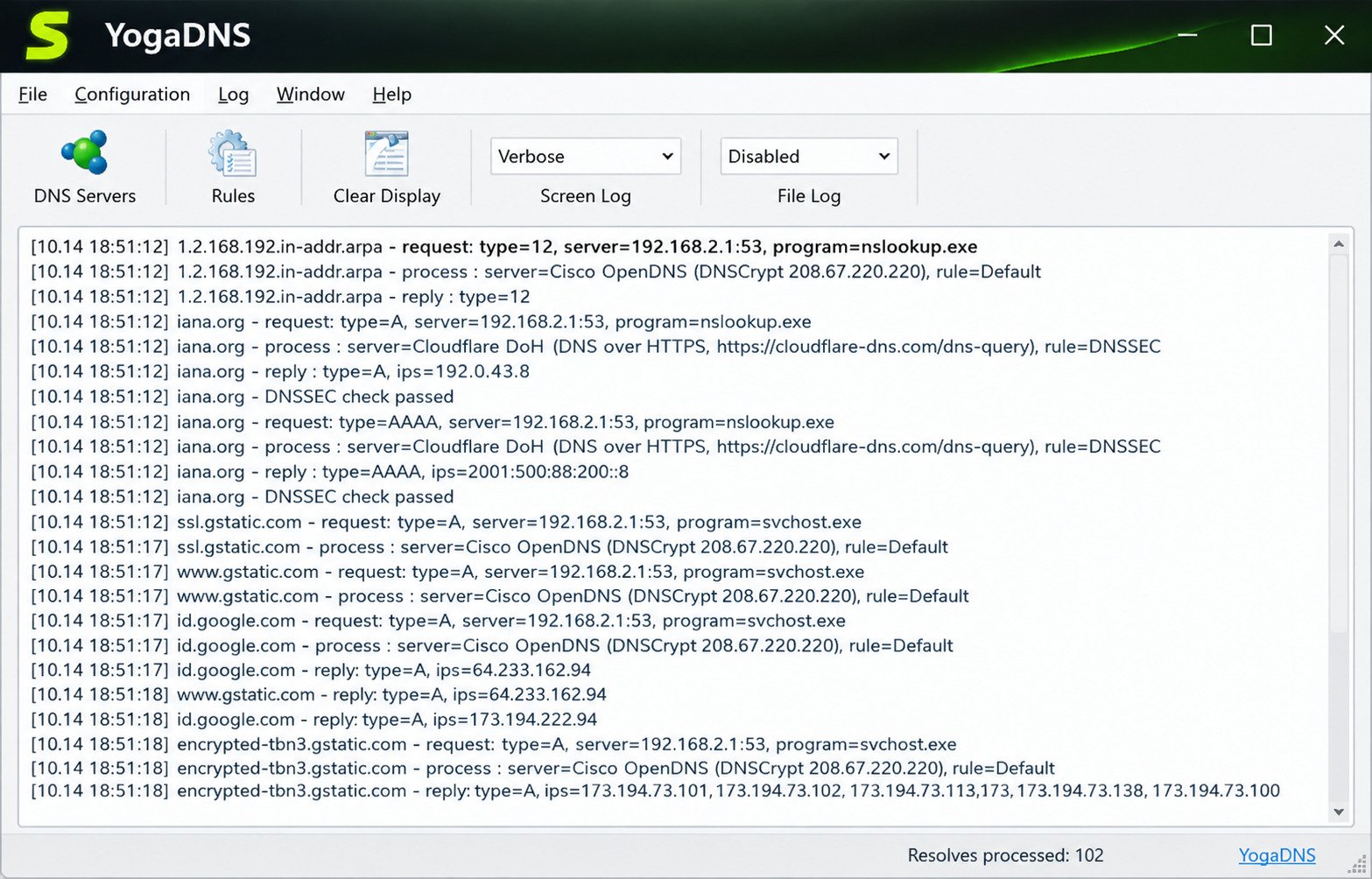
If a server fails, it can move to the next one in your list. You can also watch the activity in a live log, which is handy for troubleshooting.
This flow happens in milliseconds. In daily use, you will not notice it, except when a page loads a little faster or a blocked domain simply refuses to appear.
YogaDNS vs Windows Built-in DNS Settings
Windows lets you type a DNS server address, and newer builds offer basic encrypted options. YogaDNS goes much further.
| Feature | Windows DNS Settings | YogaDNS |
|---|---|---|
| Encrypted DNS | Limited (DoH on supported builds) | DoH, DoT, DNSCrypt, DoQ |
| Per-domain rules | No | Yes |
| Multiple servers and pools | Primary and secondary only | Yes (Pro for unlimited) |
| Live query log | No | Yes |
| Per-network-adapter control | Manual | Built in |
YogaDNS Features
Here are the features that matter most in daily use. Each one solves a real problem, not just a spec-sheet line.
Secure and Encrypted DNS
Plain DNS travels unprotected. YogaDNS wraps your queries in encryption, so your ISP or a coffee-shop network cannot easily read which sites you look up.
Multiple DNS Servers and DNS Resolver Pools
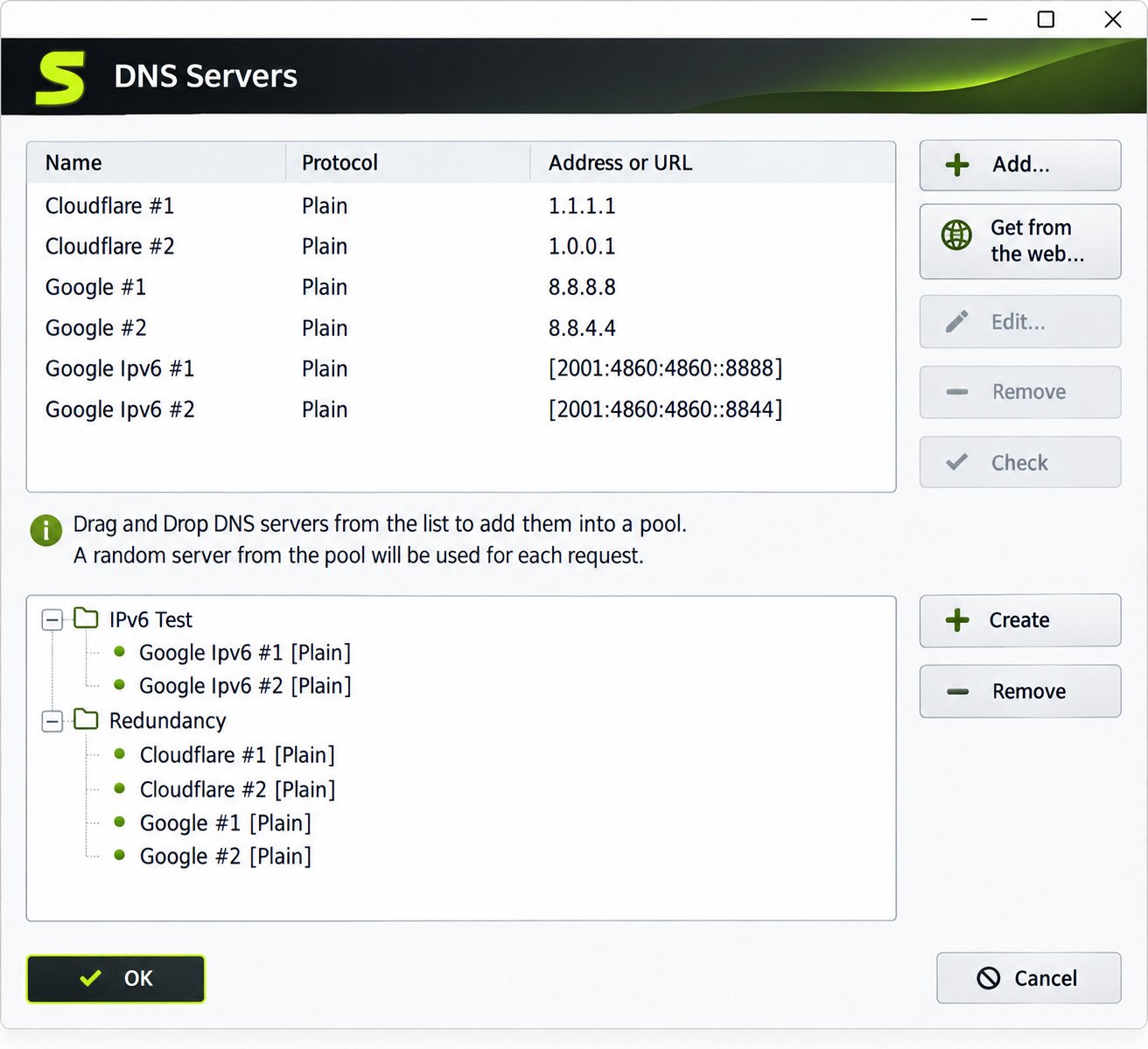
You can add several servers and group them into pools. A pool lets YogaDNS spread requests or fall back when one resolver is slow or down.
DNS Rules and Hostname-Based Routing
Rules decide which server handles which domain. For example, send work domains to your company resolver and everything else to a privacy-focused public one.
DNS Routing by Network Interface
Using Wi-Fi at home and Ethernet at the office? You can apply different DNS behavior per network adapter, so each connection follows its own plan.
DNS Leak Protection
Because YogaDNS captures requests at the system level, apps are less likely to slip lookups past your chosen server. It is still smart to test, which we cover later.
Leak protection matters most on public Wi-Fi, where a single plain lookup can reveal the sites you visit. Catching every request in one place removes much of that risk.
DNSSEC Validation
DNSSEC checks that an answer was not tampered with on the way. YogaDNS supports it, which adds another layer of trust to the replies you receive.
Not every domain signs its records, so DNSSEC cannot protect every lookup. Still, where it exists, it helps you spot forged answers before they reach your browser.
DNS Server Failover and Redundancy
If your main resolver stops responding, a backup takes over. You keep browsing while YogaDNS quietly handles the switch.
NextDNS Integration
NextDNS works smoothly with YogaDNS, and NextDNS itself points Windows users toward it. You get filtering and analytics from NextDNS with system-wide enforcement from YogaDNS.
DNS Configuration and Management
The interface is straightforward: a server list, a rules list, and a log. Even if you are new to DNS, you can find your way around in a few minutes.
A good habit is to keep your setup simple at first. One main server, one backup, and one catch-all rule will cover most households without any extra tuning.
YogaDNS Supported DNS Protocols
Protocol support is YogaDNS's strongest card. Here is how each one differs.
| Protocol | Port and Transport | Best For |
|---|---|---|
| DNS over HTTPS (DoH) | HTTPS, port 443 | Blending in with normal web traffic |
| DNS over TLS (DoT) | TLS, port 853 | Clean, dedicated encrypted DNS |
| DNSCrypt | Own encrypted protocol | Authenticated resolvers and Anonymized DNS |
| DNS over QUIC (DoQ) | QUIC, UDP | Low latency on supported resolvers |
DNS over HTTPS (DoH)
DoH sends DNS inside ordinary HTTPS traffic. Because it looks like normal web browsing, it is harder to block. It is the most widely supported option among public resolvers.
DNS over TLS (DoT)
DoT uses a dedicated port for encrypted DNS. It is simple and efficient, though some strict networks block that port.
DNSCrypt
DNSCrypt authenticates the connection between you and the resolver. YogaDNS also supports Anonymized DNS, which helps separate your IP address from the queries.
DNS over QUIC (DoQ)
DoQ runs over QUIC and can feel snappier, especially on shaky connections. Some users report good results, though it depends on your resolver and network.
DoH3 and Modern Encrypted DNS
DoH3 is DoH over HTTP/3. Support varies by resolver and app version, so check the official YogaDNS page for current details before relying on it.
Choosing the Right DNS Protocol
Start with DoH for compatibility. Try DoT or DoQ if you want speed, and pick DNSCrypt if your resolver offers it. When one fails, switch to another.
If you travel often, keep one DoH server and one DoT server in your list. Hotel and office networks sometimes block one but allow the other, and having both ready saves you from a frustrating afternoon.
YogaDNS DNS Privacy and Security
Privacy is why most people install it. But it helps to know what it protects and what it does not.
Encrypted DNS and DNS Privacy
Encrypted DNS hides your lookups from anyone between you and the resolver. The resolver itself still sees them, so choose one you trust. For a plain-language primer, see Cloudflare's guide to what DNS is: https://www.cloudflare.com/learning/dns/what-is-dns/
How YogaDNS Helps Prevent DNS Leaks
A DNS leak happens when a lookup goes to your ISP instead of your chosen server. YogaDNS reduces this by handling requests system-wide, but browser settings like built-in secure DNS can fight with it. Turn those off for cleaner results.
DNSSEC Validation in YogaDNS
DNSSEC proves answers are authentic. It does not encrypt anything, so it works best alongside DoH, DoT, or DoQ.
Local vs Remote DNSSEC Validation
Remote validation trusts your resolver to check signatures. Local validation checks them on your own PC, which is stricter but may cause more failures with poorly configured domains.
Is YogaDNS a VPN?
No. YogaDNS is not a VPN. It protects DNS lookups only.
What YogaDNS Can and Cannot Protect
Think of YogaDNS as a locked envelope for your address book lookups, not a full disguise. It pairs well with a VPN or a privacy-focused browser, but it should not replace either one.
YogaDNS DNS Rules and Routing
Rules are where YogaDNS really shines. Here is how to use them well.
Create Custom DNS Rules
A rule has a pattern, a server or pool, and an action. Start simple: one default rule, then add exceptions as you need them.
Name each rule clearly, such as Work Domains or Streaming. Months later, you will thank yourself when you open the list and instantly know what each line does.
Route DNS Queries by Hostname
Match patterns like *.example.com to send those lookups to a chosen server. This is perfect for internal company sites, local network names, or ad-blocking resolvers.
Use Different DNS Servers for Different Domains
You might send streaming sites to a fast public resolver, banking sites to a trusted one, and everything else to NextDNS. Mixing resolvers gives you speed and filtering where each fits.
Using Multiple DNS Resolvers and Pools
Pools add resilience. If one resolver slows down, the pool uses the others. Note that the free version limits how many servers and rules you can use.
For example, a family PC could use one pool for general browsing and another pool for a child's account profile on a filtered resolver. That is the kind of flexibility that built-in Windows settings simply cannot match.
YogaDNS and NextDNS
NextDNS is a popular match, so it deserves its own section.
What Is NextDNS?
NextDNS is a cloud DNS service with filtering, blocklists, and analytics. You get a personal configuration ID and can adjust it from a dashboard.
Is NextDNS Free?
Yes, it has a free tier with a monthly query limit. Paid plans remove that cap. Check NextDNS for current limits.
How to Use NextDNS with YogaDNS
Copy your NextDNS DoH address from your dashboard. In YogaDNS, add a new DoH server, paste the address, and create a rule that points all domains to it. Test with the NextDNS setup page.
YogaDNS vs NextDNS
They are not rivals. NextDNS is a resolver service; YogaDNS is a Windows client. One answers questions, and the other decides who gets asked.
When to Use YogaDNS With NextDNS
Use both when you want NextDNS filtering enforced across every Windows app, not just one browser.
This is also useful when a game launcher or background app ignores browser settings. YogaDNS catches those lookups and passes them to your NextDNS profile, so your blocklists apply everywhere.
YogaDNS Public and Custom DNS Servers
You need a resolver before YogaDNS can do anything useful. Here are the basics.
What Is a DNS Server?
A DNS server translates a website name like example.com into an IP address your device can connect to. Without it, you would type numbers instead of names.
Public DNS vs Custom DNS Servers
Public DNS servers are open to everyone, like Google, Cloudflare, Quad9, and OpenDNS. Custom servers are ones you choose or run yourself, such as a NextDNS profile or a home AdGuard server.
Is 208.67.222.222 OpenDNS?
Yes. 208.67.222.222 is one of the main OpenDNS resolver addresses, run by Cisco. It supports optional filtering features.
Google Public DNS and Other Popular Resolvers
Google uses 8.8.8.8 and 8.8.4.4. Cloudflare uses 1.1.1.1. Quad9 uses 9.9.9.9 and adds malware blocking. All of them offer encrypted options.
Choosing a Secure DNS Resolver
Look for a clear privacy policy, encrypted protocol support, and reliable speed. If you want filtering, pick one with blocklists. If you want pure speed, pick one with servers near you.
It is worth running a quick speed test with two or three resolvers before you commit. The fastest one for a friend may not be the fastest one for you, because distance and your ISP's routing change the result.
YogaDNS for Windows
YogaDNS runs on Windows 7 through Windows 11, plus several Windows Server versions, according to third-party listings. Check the official site for the latest requirements.
On Windows 10 and Windows 11, setup is the same. YogaDNS manages DNS system-wide, so you do not need to change each adapter by hand.
One small note for Windows 11 users: if you previously set encrypted DNS inside Windows settings, remove it first. Two tools managing the same job is the most common cause of odd behavior.
YogaDNS Download and Installation
Check the file name and the publisher shown in the Windows prompt before you approve the install. That quick glance takes five seconds and can save you from a tampered download. Once everything runs smoothly, it is also smart to keep an eye on your PC's health, so our guide to checking CPU temperature is a handy next read: https://softfolders.com/cpu-temp/
How to Install YogaDNS
- Download the installer from the official site.
- Run it and accept the Windows permission prompt.
- Follow the wizard and finish the install.
- Open YogaDNS from the Start menu.
You need administrator rights because the tool works at the network level. The first launch may ask about firewall access; allow it.
After installing, reboot if the installer suggests it. A fresh start makes sure the network driver loads cleanly before you add your first server.
How to Use YogaDNS
Setup takes about ten minutes. Take it one step at a time.
Add a DNS Server
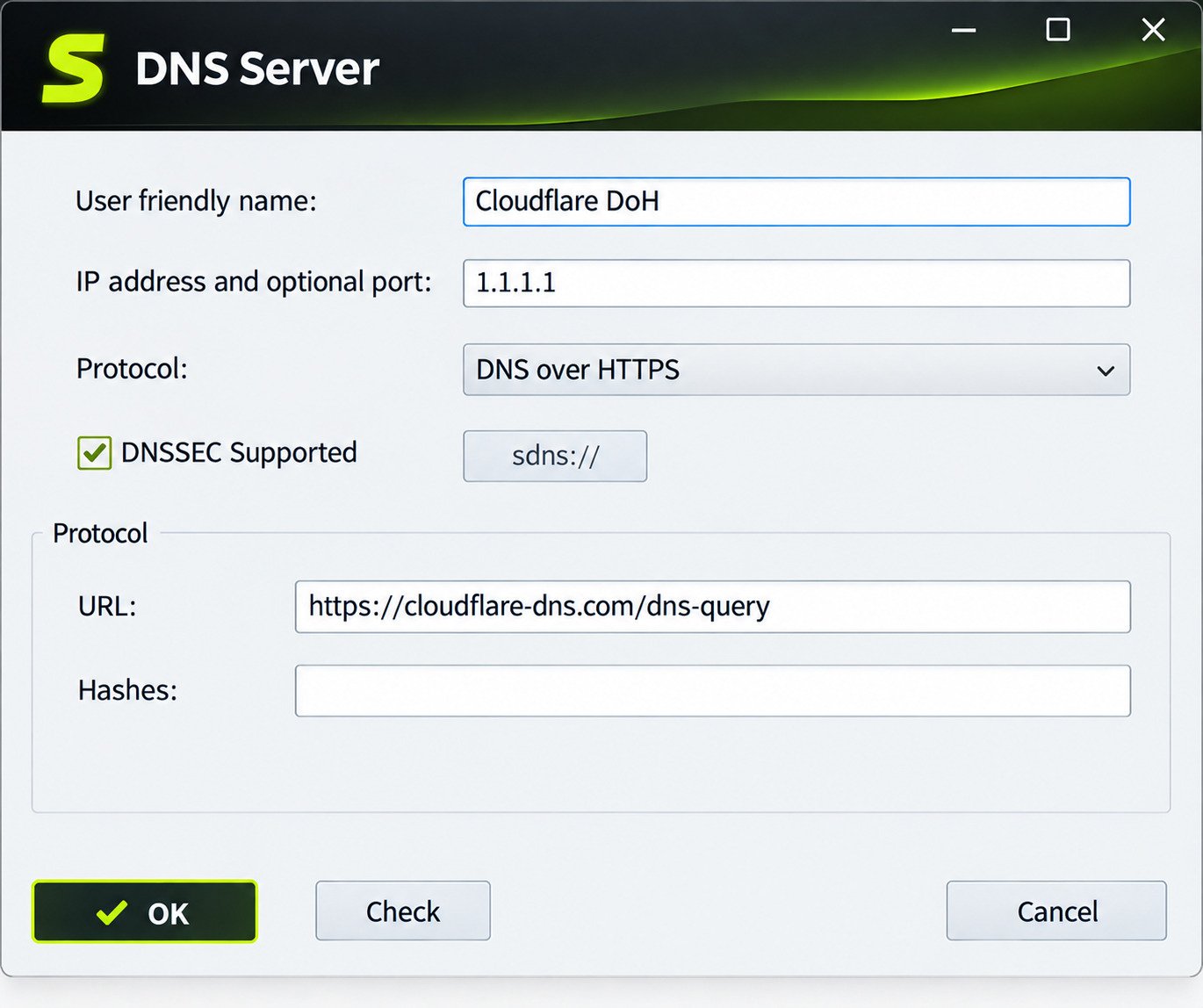
Open the server list and choose Add. Pick a protocol, paste the server address, and save. For DoH, you use a URL; for DoT, an address and port.
Configure DoH, DoT, DNSCrypt, and DoQ
Each protocol has its own settings window. DoH needs a URL like https://dns.example/dns-query. DoT needs a host name. DNSCrypt uses an sdns:// stamp from your provider. DoQ needs a supported resolver address.
Create DNS Routing Rules
Open the rules list and add a default rule that sends all domains to your main server. Then add exceptions for special domains.
Set Up Multiple DNS Servers
Add a backup server and group both in a pool. That way, a failing resolver does not break your browsing. This feature is limited in the free version.
Test Your DNS Configuration
Open the log in YogaDNS and visit a few sites. You should see each request and which server answered it.
If you see requests marked as handled by your chosen server, you are in good shape. If nothing appears, check that the service is running and that no other DNS tool is active.
Check for DNS Leaks
Visit a DNS leak test site such as dnscheck.tools. The results should show your chosen resolver, not your ISP. If your ISP appears, disable browser secure DNS settings and retest.
YogaDNS Free and Pricing
Many people ask whether YogaDNS costs money. The answer is: partly.
Before you buy, use the free version for a week. If you hit the limits, you will know Pro is worth it, and if you do not, you saved money.
Is YogaDNS Free?
There is a free version with limits. A Pro license unlocks the rest. Third-party listings show a price around 29.95 USD, but confirm on the official site, since prices can change.
YogaDNS Free vs Pro
| Feature | Free | Pro |
|---|---|---|
| DNS servers | Limited | Unlimited |
| Rules | Limited | Unlimited |
| Core encrypted protocols | Supported | Supported |
| Windows service mode | No | Yes |
| Email support | No | Yes |
Free Features and Pro Features
The free version is enough to test the tool and run a simple setup. If you want many rules, pools, or service mode, Pro makes sense.
Service mode matters if you want YogaDNS to start before you log in, which is useful on shared or always-on PCs. Home users can often skip it.
Is YogaDNS Safe to Use?
Yes, YogaDNS is a legitimate and established tool, and users in privacy communities discuss it often. But because it handles all your DNS, only use the official download.
A good rule of thumb for any network tool is to read recent user feedback, check that the developer still updates it, and keep a restore plan. YogaDNS passes all three checks for most users, though you should always verify details yourself.
Does YogaDNS Encrypt DNS Traffic?
Yes, when you use DoH, DoT, DNSCrypt, or DoQ servers. Plain DNS servers stay unencrypted.
Does YogaDNS Hide Your IP Address?
No. Your IP address stays visible to the sites you visit. Only your DNS lookups are protected.
What to Check Before Installing
It also helps to note your current DNS settings before you start. That way, you can restore them quickly if you ever decide to uninstall.
YogaDNS Troubleshooting
If something breaks, work through these common fixes.
YogaDNS Not Working
Restart the app and check that your server settings are correct. Confirm no other DNS tool is binding to port 53.
If the problem started after a Windows update, reinstall YogaDNS over the existing copy. Your settings are usually kept, and the network components are refreshed.
DNS Requests Not Resolving
Check the log for errors. Test the server in another tool, and try a different resolver to rule out an outage.
DoH, DoT, DNSCrypt, or DoQ Connection Problems
Some networks block port 853 or QUIC. Switch to DoH, which uses regular HTTPS. For DNSCrypt, double-check the stamp.
Antivirus or firewall software can also interfere. Add YogaDNS as an allowed program, then test again before changing anything else.
DNS Leak After Configuring YogaDNS
Turn off secure DNS in Firefox, Chrome, and Brave. Then confirm a catch-all rule exists.
DNS Server and Routing Rule Problems
Rules are checked in order, so a broad rule above a specific one can hide it. Reorder them and test again.
If a single website fails while everything else works, create a temporary rule for just that domain and point it to a different resolver. If it loads, the original server was the culprit.
YogaDNS vs Other DNS Tools
| Tool | Type | Strength | Limit |
|---|---|---|---|
| YogaDNS | Windows DNS client | Rules and many protocols | Free version limits |
| DNS Jumper | DNS switcher | Quick server changes | No encryption or rules |
| NextDNS | Cloud resolver | Filtering and analytics | Needs a client for Windows |
| Windows settings | Built-in | Simple | Few options |
YogaDNS vs DNS Jumper
DNS Jumper changes your server address in a click. YogaDNS encrypts and routes. Choose DNS Jumper for simplicity and YogaDNS for control.
YogaDNS Review
After testing the concept against what real users report, here is a balanced view.
Performance and Reliability
Users report stable performance, and some see snappier browsing with DoQ. Heavy rule lists may use a bit more memory.
Speed is personal. Your distance to the resolver, your ISP, and your protocol choice all change what you feel, so treat any benchmark as a starting point, not a promise.
Ease of Use
The layout is clear, but DNS terms can overwhelm beginners. Copying a provider's setup guide solves that.
Pros and Cons of YogaDNS
Pros
system-wide control, wide protocol support, flexible rules, live log, NextDNS compatibility.
Cons
free version limits, Windows only, and a learning curve for rules.
YogaDNS Alternatives
If YogaDNS is not right for you, try one of these.
- NextDNS: great for filtering and mobile devices.
- DNS Jumper: simple server switching.
- DNSCrypt-Proxy: free, open source, and powerful but command-line based.
- Acrylic DNS Proxy: a local caching DNS proxy for Windows.
- Simple DNSCrypt: a GUI for DNSCrypt-Proxy, though users report it is no longer actively maintained.
Best Tools for Advanced Users and Privacy
Advanced users often like DNSCrypt-Proxy for its flexibility. Privacy-focused users often pair YogaDNS with a trusted resolver.
If you are comfortable with config files, DNSCrypt-Proxy gives you deep control for free. If you prefer a clean window and a log, YogaDNS is the easier ride.
Whichever you pick, test it for a week. DNS tools are easy to swap, and real daily use tells you more than any feature list.
Frequently Asked Questions About YogaDNS
It captures DNS requests on Windows and sends them to your chosen servers through encrypted protocols.
It has a free version with limits, plus a paid Pro license for unlimited servers and rules.
Yes, when downloaded from the official site. Avoid cracked copies.
Yes, it supports all four, along with Anonymized DNS.
Yes, you can add several servers and group them in pools; Pro removes limits.
No. It only protects DNS lookups, not your IP address or other traffic.
Yes, add your NextDNS DoH address as a server and point a rule to it.
Final Verdict: Is YogaDNS Worth Using?
YogaDNS gives you real control over a part of your PC that usually stays hidden. If you care about privacy and want more than basic settings, it is a solid pick.
Start with the free version, test your setup, and upgrade only if you need more rules. A few minutes of setup can make every site you open a little more private.