WizTree Download, Features, Setup, and Alternatives: The Fast Way to Find What’s Eating Your Disk
Your PC says “low disk space,” and you have no idea why. You delete a few photos, empty the recycle bin, and the warning comes back anyway.
That is where WizTree helps. It is a fast disk space analyzer for Windows that shows exactly which files and folders are hogging your storage, usually within seconds.
This guide covers what WizTree does, how to download and use it, whether it is safe, and how it compares with WinDirStat and TreeSize.
What Is WizTree and What Is It Used For?
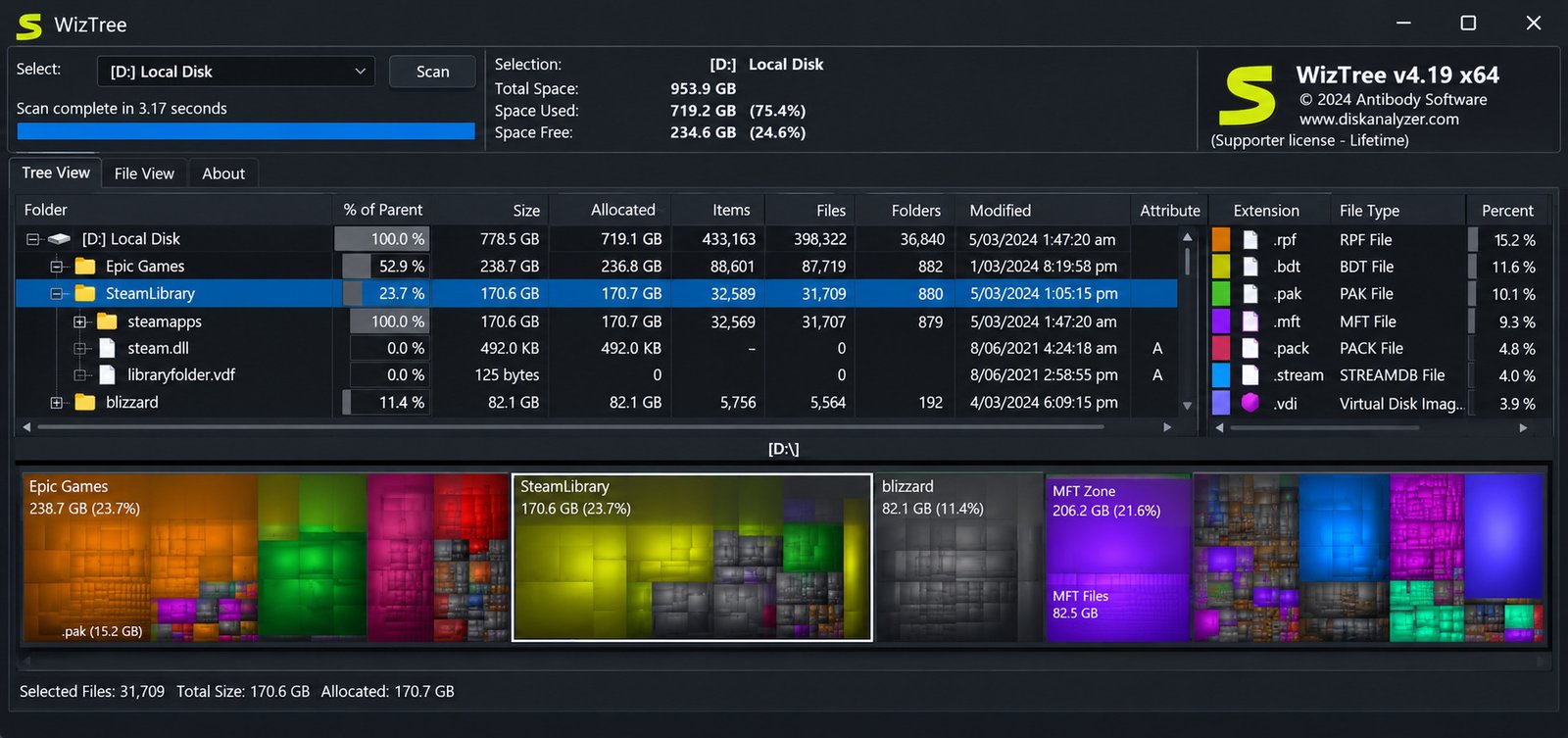
WizTree is a disk usage analyzer made by Antibody Software. You point it at a drive, and it tells you where your space went. People use it to clear space on laptops, tidy up game libraries, and audit work PCs. Think of it as an X-ray for your hard drive.
What Does WizTree Do?
- Scans a drive or folder
- Ranks everything by size
- Draws a visual map of your storage
- Helps you find, search, and export file data
It does not clean your PC on its own. You decide what to keep and what to remove.
How WizTree Analyzes Disk Space
On supported drives, WizTree reads the drive’s file index directly instead of opening every folder one by one. That is why it feels so quick. It then totals the sizes and displays them in folder trees, file lists, and a graphic treemap.
WizTree as a Disk Space Analyzer for Windows
WizTree is built for Windows. There is no Linux version, and the Mac edition, WizTreeMac, is a separate app. On Windows 10 and Windows 11, it works with internal drives, SSDs, external disks, and USB sticks.
Who Should Use WizTree?
- Home users with a full C: drive
- Gamers juggling 100 GB titles
- Photographers and video editors with huge media folders
- IT support staff checking other people’s machines (with a proper license)
A simple example: a student with a 256 GB laptop finds a forgotten 40 GB folder of old video projects. One scan, one delete, problem solved.
WizTree Features and Capabilities
Fast Disk and Storage Scanning
Speed is WizTree’s headline feature. In one published test, a 1 TB drive scanned in about 11 seconds. Your results will vary with your hardware.
Disk Usage and Folder Size Analysis
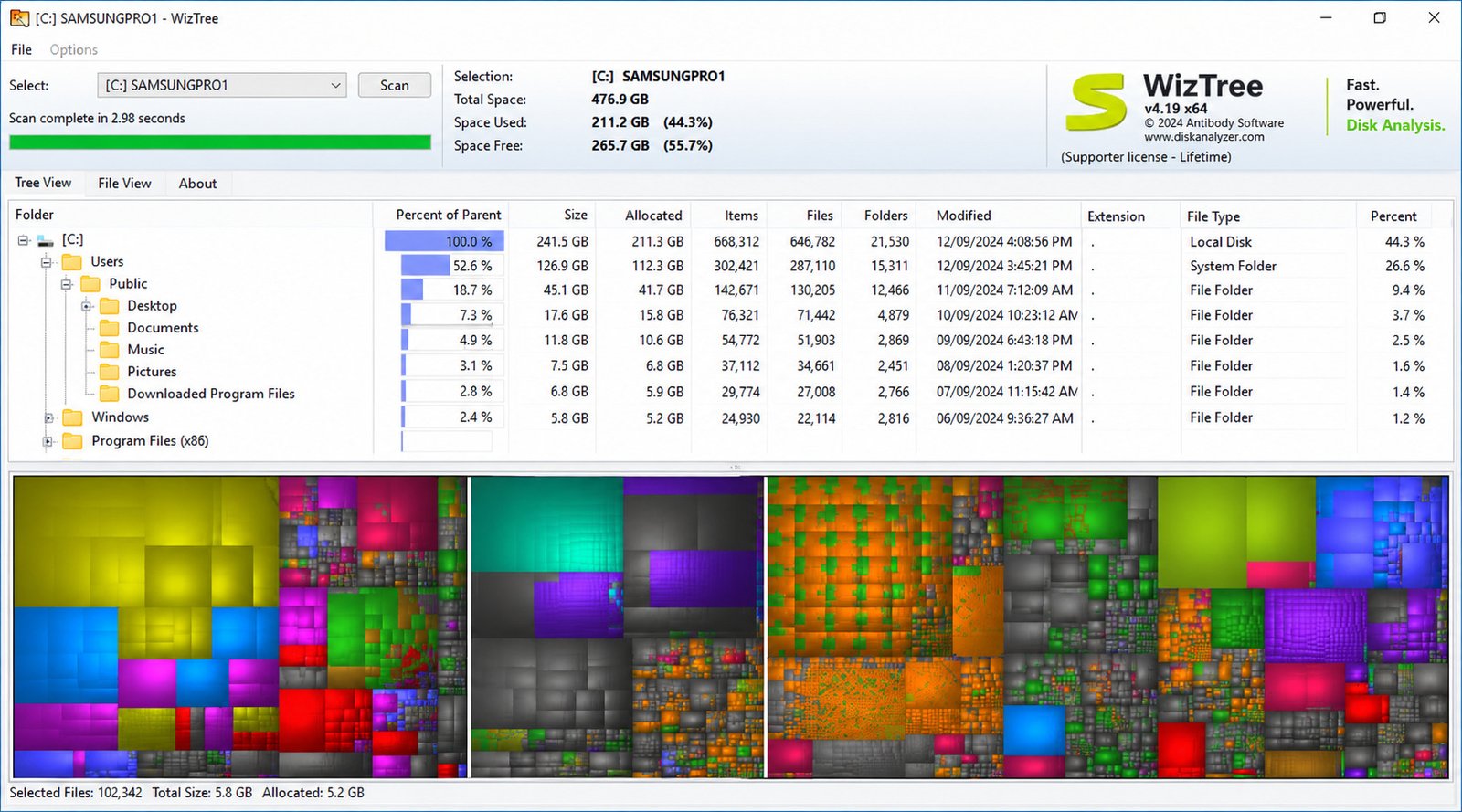
The tree view lists folders by size, with percentages and file counts. You quickly see that “Users” or “Program Files” is the real culprit.
Find Large Files and Folders
A dedicated file view lists the biggest individual files first. That single list often answers the question “what is taking up space?”
Visual Disk Treemap
The treemap shows each file as a colored rectangle. Bigger rectangles mean bigger files.
File and Folder Size Sorting
Click any column header to sort by size, date, or file type. Sorting by “Size” is the fastest cleanup trick there is.
Search and Filter Files
Search supports wildcards and size filters. For example, entering >=500mb <=1gb finds files between 500 MB and 1 GB.
Duplicate File Finding
WizTree can flag likely duplicates. We cover how it works, and its limits, in the duplicate finder section below.
CSV Export and Disk Usage Reports
You can export results to CSV and open them in Excel or Google Sheets. It is handy for reports and before-and-after comparisons.
Portable Mode
A portable version runs without installation. It is perfect for a USB stick or a locked-down PC.
How WizTree Finds What Is Taking Up Disk Space
How to Find Large Files on Windows
- Scan your drive.
- Open the File View tab.
- Sort by Size, largest first.
- Review the top 20 files.
Often you will find old installers, video files, virtual machine disks, or huge log files.
Speaking of logs, servers and monitoring setups can create enormous event logs. If you work with Windows event data, our guide to Winlogbeat explains how log shipping works, and WizTree helps you spot the log folders that grow too large.
How to Find the Largest Folders
Use the Tree View and expand folders from the top. Follow the biggest percentage bar down until you find the real source. For example, “AppData” may look harmless until you notice a 30 GB browser cache inside it.
How to Identify Files Taking Up Space
Look at file types, locations, and dates. Old files in “Downloads” are usually easy wins.
How to Analyze Hard Drive and SSD Storage
WizTree treats HDDs and SSDs the same way. SSDs usually scan faster, but the method and results look identical.
How to Find Files You Can Safely Remove
| File type | Usually safe to remove? | Note |
|---|---|---|
| Old installers (.exe, .msi) | Yes | If you no longer need them |
| Downloaded ISO files | Often | Check you can redownload |
| Personal videos and photos | Only after backup | Never delete the only copy |
| Temp files | Usually | Close apps first |
| System files (Windows folder) | No | Leave these alone |
| Program Files content | No | Uninstall via Windows Settings |
WizTree Treemap and Disk Space Visualization
What Is a Disk Treemap?
A disk treemap turns your storage into a mosaic. Each rectangle’s area matches the file size.
How the WizTree Treemap Works
Folders are grouped together, and colors usually represent file types. Large blocks stand out instantly.
Understanding File and Folder Size Visualization
If one block dominates the picture, one file or folder is the problem. If the picture looks like confetti, your space is spread across thousands of small files.
How to Use the Treemap to Find Large Files Quickly
Click the biggest rectangle. WizTree highlights the file in the list, so you know exactly where it lives.
How Fast Is WizTree?
Short answer: very fast on NTFS drives, often seconds instead of minutes.
Why WizTree Scans Drives So Quickly
Traditional analyzers walk through folders one at a time. WizTree skips that step on supported drives.
WizTree and NTFS Master File Table Scanning
NTFS keeps a master index of every file, called the Master File Table (MFT). WizTree reads that index directly, which is far quicker than opening each folder. On drives without MFT access, such as some network locations, it falls back to a slower method.
WizTree vs Traditional Disk Scanners
| Factor | WizTree | Traditional scanners |
|---|---|---|
| Method | Reads the MFT | Walks every folder |
| Speed on NTFS | Very fast | Slower |
| Admin rights | Needed for fastest mode | Often optional |
| Network drives | Slower | Similar |
What Affects WizTree Scan Speed?
- Drive type (SSD vs HDD)
- Number of files
- File system (NTFS is fastest)
- Administrator permission
- Background activity
How to Use WizTree on Windows
How to Scan a Drive With WizTree
- Open WizTree and approve the admin prompt.
- Choose a drive from the dropdown.
- Click Scan.
- Wait a few seconds for results.
How to Find Large Files and Folders
Switch between Tree View and File View. The first shows folders, the second shows individual files.
How to Search for Specific Files
Type part of a name, or use wildcards like *.mp4. Add size filters to narrow results quickly.
How to Sort and Filter Disk Usage Results
Click column headings, or filter by date. A filter like <2020/01/01 shows files modified before 2020.
How to Delete Unwanted Files From WizTree
Right-click a file and choose delete. Double-check the path first.
How to Refresh or Rescan a Drive
After cleanup, press Scan again. The numbers update to reflect your new free space.
WizTree for Windows 10 and Windows 11
Using WizTree as a Windows Disk Space Analyzer
WizTree works smoothly on both systems. It complements Windows’ built-in storage tools rather than replacing them. Windows Settings shows broad categories like apps and temporary files. WizTree goes deeper, down to individual files, and shows folder sizes that File Explorer doesn’t display at a glance.
Finding Large Files on Windows 10 and Windows 11
The steps are identical. Scan C:, sort by size, and check your Downloads, Videos, and AppData folders first. On Windows 11, also look for old update leftovers, game installs, and OneDrive-synced folders.
Managing Low Disk Space With WizTree
- Scan your system drive.
- Remove obvious junk.
- Move big media to an external drive.
- Rescan to confirm results.
- Repeat every few months.
WizTree Download, Installation, and Setup
How to Download WizTree
Get it from the official site, diskanalyzer.com. Avoid random “free download” pages. The official WizTree site lists the current installers and the portable version.
How to Install WizTree on Windows
Run the installer, follow the prompts, and decline anything unrelated. The program is small, only a few megabytes. You can choose desktop shortcuts and file associations. Keep the defaults if you’re unsure.
WizTree 64-Bit Version and Latest Version
Modern PCs should use the 64-bit build. It handles large drives and huge file counts more comfortably. Version 4.33 is listed as the latest at the time of writing. Check the official page for newer builds.
WizTree Portable Download and Setup
The portable edition needs no installation. Download the portable ZIP, extract it to a folder or USB drive, and launch the program from there.
WizTree Settings and Options
- Language and theme
- Scan options
- Default drive
- Treemap colors
WizTree Free Version: Is It Really Free?
Yes, for personal use. The free version includes all features, with no ads or bundled extras: the treemap, file view, search, CSV export and import, and duplicate detection.
WizTree Free vs Paid/Professional Use
| Use case | License needed? |
|---|---|
| Home PC | No |
| Personal laptop | No |
| Work or business PC | Yes |
| IT support for clients | Yes |
| Large organization | Enterprise license |
The paid license is about usage rights, not extra features. For commercial use, an individual supporter plan costs around US$25, with enterprise options costing more. Prices change, so confirm on the official site.
Is WizTree Safe and Trustworthy?
Short answer: yes, when downloaded from the official site.
It has been around for years and is widely recommended in Windows communities. It is a mature, focused tool, not a flashy “PC cleaner.” The installer is small and straightforward, and the analysis is read-only. Risk only appears when you delete files yourself. It never removes anything without your action.
Privacy and Security Considerations
- Scan only drives you own or are allowed to scan
- Be careful with exported CSV files, since they list file names and paths
- Keep Windows and antivirus updated
WizTree Duplicate File Finder
How to Find Duplicate Files With WizTree
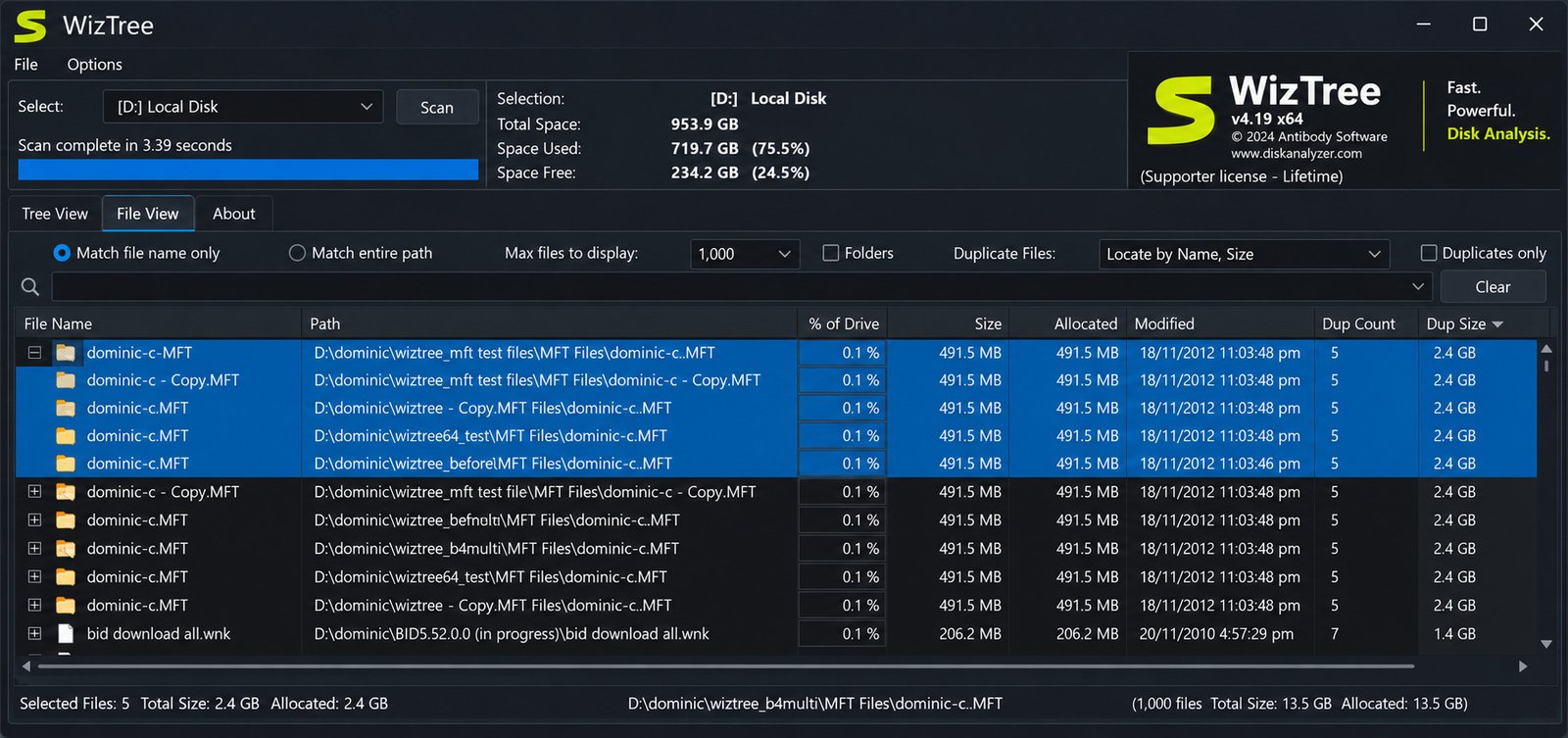
Open File View, then choose a method in the Duplicate Files dropdown. Duplicates are marked with a plus sign you can expand. Matching by name and size is the faster, simpler option. Adding the date makes matches stricter, reducing false positives but possibly missing edited copies.
What WizTree Can and Cannot Do
| It can | It cannot |
|---|---|
| Flag likely duplicates | Compare file contents |
| Show duplicate counts and sizes | Guarantee a true match |
| Help you sort by wasted space | Delete duplicates automatically |
WizTree CSV Export and Reporting
After scanning, use the export option and save the file. Open it in Excel or Sheets. Exports typically include file names, paths, sizes, dates, and attributes. You can build pivot tables, track growth over time, or share findings with a team.
Creating a Disk Usage Report
- Scan and export monthly.
- Compare top folders.
- Note what grows fastest.
- Act on the biggest changes.
WizTree Troubleshooting
- Not working: restart the app as administrator first. Most problems come from missing permissions.
- Cannot scan a drive: check that the drive is connected and readable. Some protected or encrypted drives need unlocking first.
- Unexpected disk usage: allocated size can differ from file size, and hidden system data may use space. Compare against Windows’ numbers and rescan.
- Slow scan: likely a network drive, a non-NTFS file system, or no admin rights.
- Stale results: press Scan again. Results don’t update automatically after you delete files.
- Admin issues: right-click the program and select Run as administrator for the fastest mode.
WizTree Portable vs Installed Version
The portable version is the same tool without installation, and it stores nothing on your system. Use it on work PCs, shared computers, or when helping a friend.
| Factor | Portable | Installed |
|---|---|---|
| Setup | None | Installer |
| Best for | USB use, quick jobs | Daily use |
| Updates | Manual | Manual or prompted |
| Footprint | Minimal | Small |
WizTree vs WinDirStat
Both show treemaps. WizTree focuses on speed, while WinDirStat is a long-standing classic. WizTree is generally faster on NTFS because of its MFT method, and its layout feels cleaner to many users. WizTree has duplicate detection and CSV export; WinDirStat has a loyal following and open-source licensing. Pick WizTree for speed at home, and WinDirStat if you want free open-source software at work.
WizTree vs TreeSize
TreeSize is aimed at professionals and offers deeper reporting, richer reports, and enterprise tools. WizTree is lighter, usually scans faster, and keeps things simple. TreeSize has free and paid editions; WizTree is free at home, paid at work.
| Need | Better choice |
|---|---|
| Quick home cleanup | WizTree |
| Advanced reports | TreeSize |
| Open-source preference | WinDirStat |
| Portable use | WizTree |
Best WizTree Alternatives
- TreeSize: good for detailed reporting and larger IT environments.
- WinDirStat: a free, open-source option with a familiar treemap.
- Others: Windows’ built-in Storage settings work for basic needs, and SpaceSniffer appeals to visual users.
How to Choose a WizTree Alternative
- Budget and licensing
- Speed needs
- Reporting depth
- Open-source preference
WizTree Review
Fast, clear, and beginner-friendly. Most people figure it out in two minutes. Best uses: clearing space, auditing folders, and creating quick usage reports.
Strengths
- Very fast scans
- Free for personal use
- Treemap and CSV export
- Portable option
Limitations
- Windows-focused
- License needed for work
- Duplicates not content-checked
- Not a full cleaner
Before using it: run it as admin, avoid deleting system files, and confirm licensing if you use it at work.
Frequently Asked Questions About WizTree
What is WizTree used for?
Is WizTree really free?
Is WizTree safe?
Is WizTree portable?
Does WizTree work on Windows 10 and Windows 11?
Can WizTree find duplicate files?
Does WizTree work on Mac or Linux?
Conclusion: Is WizTree a Good Disk Space Analyzer?
Yes. It is fast, clear, and easy to learn. WizTree turns a frustrating “disk full” moment into a quick, clear answer. In a few seconds you see exactly where your space went, and you decide what stays.
It isn’t flashy, and that’s the point. Download it from the official site, scan carefully, delete only what you recognize, and enjoy a lighter, faster PC.
One Response