W10Privacy Download, Features, Setup, and Alternatives
Ever noticed how Windows keeps asking to “personalize your experience”? Behind that friendly wording sit dozens of settings for data sharing, ads, and background services. Finding them all takes patience.
W10Privacy is a free tool that puts those scattered settings in one window. This guide covers what it does, how to download it safely, which settings to change first, and when another tool might suit you better.
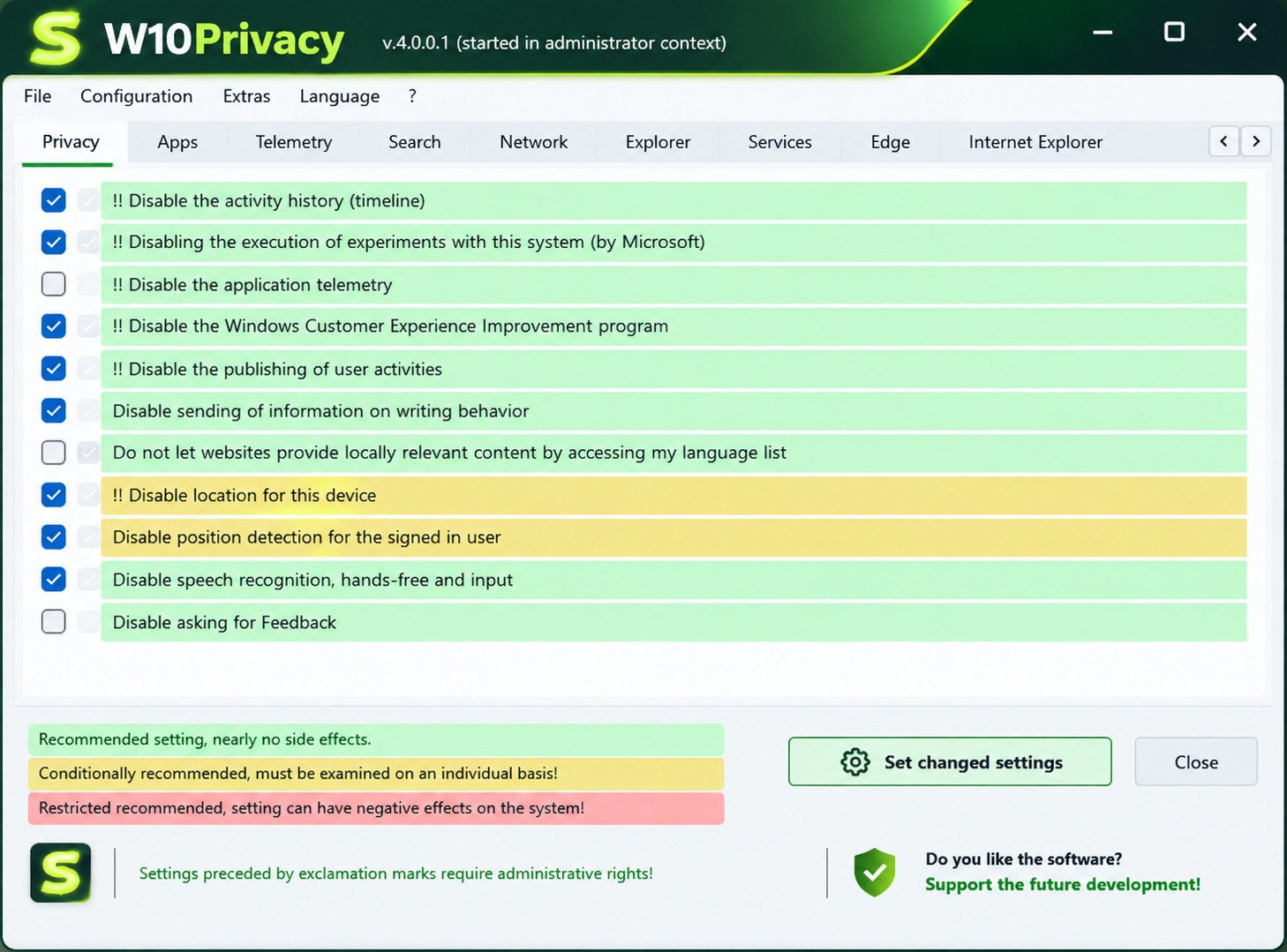
What Is W10Privacy and How Does It Work?
Quick answer: W10Privacy is a free, portable Windows utility that shows privacy-related settings in one interface. You can review them and apply changes with a click.
What Is W10Privacy?
W10Privacy is freeware by developer Bernd Schuster. It reads your current Windows configuration and shows it as a list of options grouped by tabs.
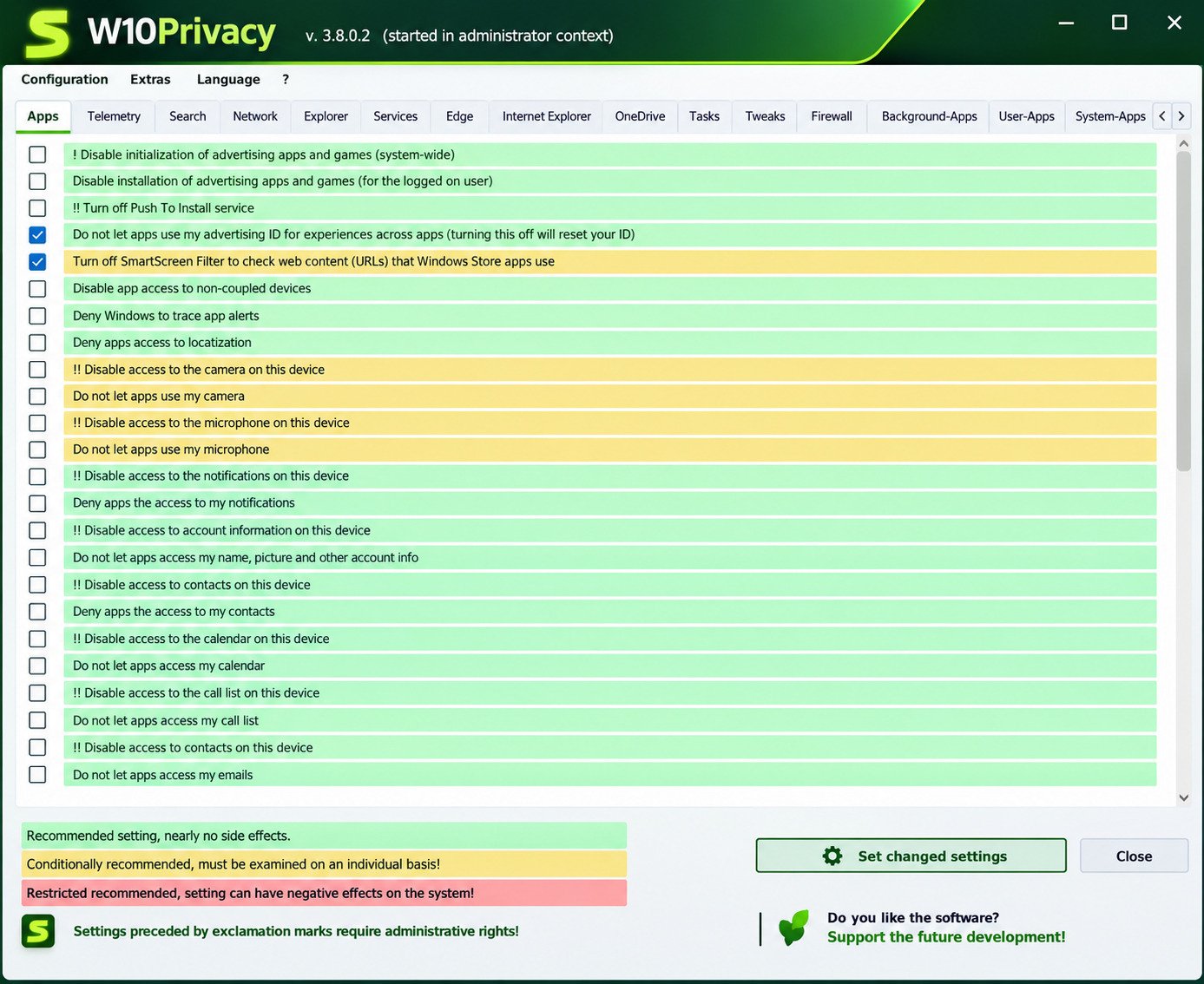
Reviews describe those tabs as covering Privacy, Apps, Telemetry, Search, Network, Explorer, Services, Edge, OneDrive, Tasks, Tweaks, and Firewall, among others. The download is only a few megabytes.
How W10Privacy Manages Windows Privacy Settings
Windows stores privacy choices in registry values, Group Policy-style keys, scheduled tasks, and services. W10Privacy changes those same locations for you.
You would normally need to visit many menus to do this by hand. Here you see everything at once and decide what to switch.
Who Should Use W10Privacy?
It suits people who like control and are willing to read before clicking. It is a good match if you:
- Want fewer ads, suggestions, and background data transfers
- Manage several PCs and want a repeatable setup
- Are comfortable undoing changes if something breaks
Complete beginners can still use it, but they should stick to the recommended items and create a restore point first.
W10Privacy Features for Windows Privacy Protection
Quick answer: W10Privacy can adjust telemetry, advertising, location, search, services, scheduled tasks, and preinstalled apps from a single screen.
Manage Windows Privacy and Security Settings
The main strength is breadth. One tool covers app permissions, browser settings, search behavior, and network options.
Each entry has a short description, and a color code hints at how safe the change is. Green generally means recommended, yellow means limited recommendation, and red means think twice.
Control Telemetry and Diagnostic Data
Telemetry options let you lower the level of diagnostic data Windows sends. You can also disable related tasks and services.
Keep in mind that some editions of Windows limit how low this setting can go. Home and Pro editions usually keep a basic level of data.
Manage Advertising ID, Suggestions, and Personalized Content
You can turn off the advertising ID, Start menu suggestions, lock screen tips, and “suggested apps.” These are the things that make a fresh install feel like a shop window.
Control Location, Activity History, and Other Privacy Features
Location access, activity history, and app permissions are all listed. You can switch them off globally instead of app by app.
Configure Windows Services, Apps, and System Components
Newer versions can also remove preinstalled apps and adjust some services. This is powerful, and it is also where most problems begin. Change one thing at a time.
Portable Mode and Advanced Privacy Configuration
W10Privacy runs without a full installation, so you can keep it on a USB drive. It also offers restore point creation and settings export, which helps when you configure more than one computer.
W10Privacy Settings and Configuration Guide
Quick answer: Start with the green (recommended) settings, review the yellow ones individually, and leave red ones alone unless you know why you need them.
Understanding the Settings Interface
When you open the program, each setting shows its current state. Hover over an item to read what it does.
Take five minutes to scroll through before touching anything. It is the cheapest way to learn what your PC is currently doing.
Recommended Settings
The recommended profile applies changes the developer considers low-risk. It is a good first pass for most home users.
Afterwards, restart Windows and use your PC normally for a day or two. If nothing feels off, move on to more changes.
Best Settings for Everyday Privacy
For daily use, this short list gives a lot of privacy for very little risk:
- Turn off the advertising ID
- Disable Start menu and lock screen suggestions
- Reduce diagnostic data to the lowest available level
- Turn off activity history upload
- Limit app access to location and microphone
Advanced Settings
Advanced options include disabling services, blocking scheduled tasks, and removing system apps. These can affect updates, Microsoft Store, or Windows Search.
Caution: Only change advanced options if you understand the trade-off. Search online for the exact setting name before you apply it.
How to Review Changes Before Applying Them
Do not click “apply” on autopilot. Scan the highlighted items and note which ones differ from your current configuration.
Write down anything unfamiliar. This small habit makes troubleshooting much easier later.
| Color | Meaning | Suggested Action |
|---|---|---|
| Green | Recommended | Usually safe to apply |
| Yellow | Limited recommendation | Read the description first |
| Red | Not recommended | Skip unless you have a reason |
W10Privacy and Windows Telemetry
Quick answer: Windows telemetry is diagnostic data sent to Microsoft. W10Privacy lets you lower it, but not always remove it completely.
What Is Windows Telemetry?
Telemetry is information about how Windows and its apps perform. It includes crash reports, device details, and usage patterns.
Microsoft says it uses this data to fix bugs and improve security. Many users simply prefer to share less.
How W10Privacy Handles Windows Telemetry
The tool changes the diagnostic data level, disables related scheduled tasks, and can stop certain services. It works on the settings Windows already exposes, plus a few deeper ones.
Recent releases even added extra registry values for the diagnostic level, aimed at people using certain enterprise long-term servicing editions.
Block Windows Telemetry Services and Components
Some telemetry-related services can be disabled. However, blocking components does not guarantee zero communication.
Windows still contacts Microsoft for updates and licensing. Be realistic: the goal is reduction, not invisibility.
What to Consider Before Disabling Telemetry
Less diagnostic data can mean less helpful error reporting. Some feedback tools may stop working.
If you rely on Windows Insider builds, keep telemetry at the required level. Otherwise enrollment may fail.
W10Privacy for Windows Tracking and Data Collection
Quick answer: Windows tracks things like app launches, typed input for personalization, and location. W10Privacy switches many of these off in one place.
What Windows Tracking Does
Tracking supports features like personalized suggestions, search results, and sync across devices. It is convenient, but it also builds a profile of your habits.
Use W10Privacy to Limit Windows Tracking
Look under the Privacy and Search tabs. Options there control app launch tracking, web results in search, and personalization data.
A practical example: disabling web search in the Start menu keeps your local searches from being sent to Bing.
Reduce and Control Data Collection
Combine these steps for a balanced setup:
- Lower the diagnostic level
- Disable inking and typing personalization
- Turn off cloud clipboard and activity history if you do not use them
- Review permissions for camera and microphone
Any of these can be reversed later if a feature turns out to be useful.
W10Privacy for Windows 10
Quick answer: W10Privacy was built for Windows 10 and works well there, though Windows 10 itself has reached end of support.
Compatibility
Windows 10 is the tool’s home ground. Nearly every option targets a setting that exists on that system.
Privacy, Telemetry, and Advertising on Windows 10
Windows 10 has more built-in ads and suggestions than many people expect. The tool handles the advertising ID, tips, and consumer features, along with telemetry tasks.
Privacy Settings Worth Reviewing
Beyond the basics, check Cortana leftovers, Wi-Fi Sense remnants, and background app permissions. Those often stay enabled long after you stop using the related features.
Risk: Microsoft ended mainstream support for Windows 10 in October 2025. A privacy tool does not replace security updates, so consider extended updates or upgrading.
W10Privacy for Windows 11
Quick answer: Yes, W10Privacy works with Windows 11, and its recent releases include adjustments for newer feature updates.
Compatibility
Despite the name, the developer has kept the tool current for Windows 11. Changelogs mention tweaks for recent versions such as 23H2 and 25H2.
Privacy, Telemetry, and Personalization on Windows 11
Windows 11 adds newer items: widgets, Copilot-related features, recommended files in Start, and tighter account integration. Check the Apps and Tweaks tabs for options that match these features.
Settings Worth Reviewing
Start with these three:
- Recommendations in the Start menu
- Widgets and news feeds
- Diagnostic data and tailored experiences
Windows 11 feature updates sometimes shift where settings live, so always compare against your current version.
W10Privacy for Windows Ads, Advertising ID, and Suggestions
Quick answer: Windows uses an advertising ID to show personalized ads and suggestions. You can turn it off with W10Privacy.
How Windows Advertising Features Work
Each user account receives a unique advertising ID. Apps can read it to tailor promotions.
Windows also shows tips, promoted apps, and suggested content in Start, Settings, and the lock screen.
Disable the Advertising ID and Personalized Ads
Look for the advertising ID entry under the Privacy tab. Turning it off does not remove ads. It only makes them less personal.
Disable Suggestions and Promotional Content
Suggestions, tips, and preinstalled sponsored apps each have their own switches. Disable them together for a cleaner Start menu.
The change is small, but it makes Windows feel calmer and more like your own computer.
W10Privacy for Cortana, Location, and Activity History
Quick answer: You can limit Cortana-related features, turn off location tracking, and stop activity history collection with a few clicks.
Cortana-Related Settings
Cortana has been largely retired, yet settings tied to it can linger. W10Privacy helps you find and disable leftover options.
Location Tracking and Activity History
Location services help maps and weather but also reveal where you use your PC. If you have a desktop, you can usually disable location entirely.
Activity history records apps and files you open. Turn it off if you do not use timeline-style features or cross-device continuity.
Weigh the Implications
Turning off location can break “Find my device.” Turning off activity history removes some cross-device conveniences. Decide what you value more.
How to Download W10Privacy
Quick answer: Download W10Privacy from the developer’s official website, w10privacy.de, and avoid unofficial mirrors.
Where to Download
Always begin at the developer’s site. Trusted software directories also host recent versions, but the official page is the safest source.
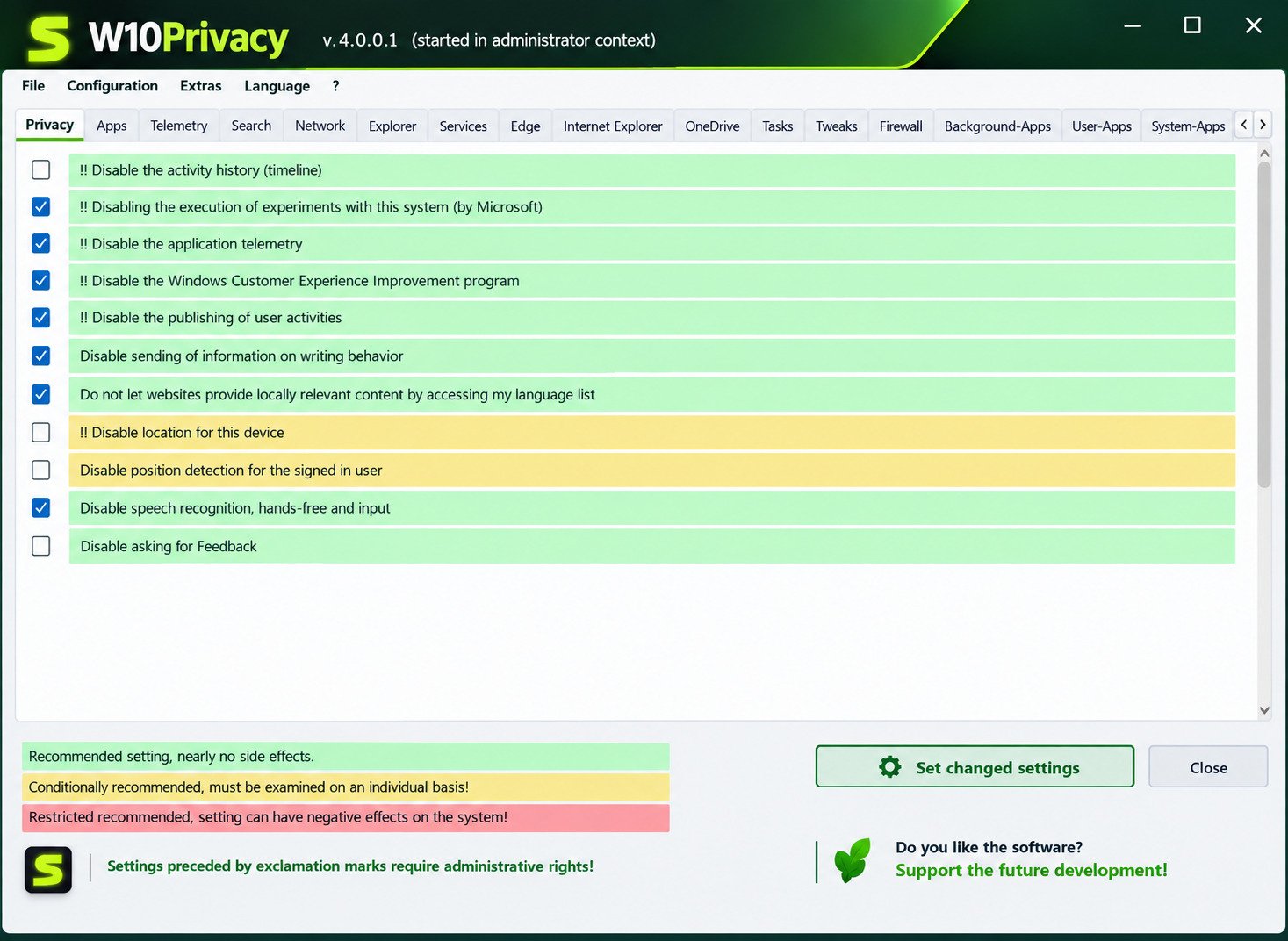
Free and Portable Downloads
The tool is freeware. It comes as a small archive, roughly 2 MB, that you can extract anywhere.
Latest Version
Version numbers change often. Recent listings show releases in the 6.x series, but check the official page for the current build.
How to Verify the Download
Follow this quick routine:
- Download only from the official site
- Scan the file with Microsoft Defender
- Upload it to VirusTotal if you want a second opinion
- Compare the file size to what the site lists
Heads up: Some antivirus programs flag the tool as a false positive because it edits system settings. That is common with configuration utilities, but it is another reason to download only from official sources.
How to Install and Set Up W10Privacy
Quick answer: Extract the ZIP, run the executable, create a restore point, and review the settings before applying anything.
Installation Guide
There is no complex installer. Extract the archive to a folder, such as Documents or a USB drive.
Launching for the First Time
Right-click and run as administrator. The app scans your system and displays current settings.
Creating a Safe Starting Configuration
Before making any change, create a restore point from inside the tool. Also export your current settings if the option is available.
Applying Changes and Restarting
Apply your selection, then restart Windows. Some changes only take effect after a reboot.
Keeping a Backup
If you plan advanced changes such as service or app removal, back up important files too. A system image is even better.
How to Use W10Privacy to Make Windows More Private
Quick answer: Review, choose, apply, restart, then verify. Repeat in small steps.
Here is a simple routine that works for most people:
- Review the current state of each tab
- Choose the settings you actually want to change
- Apply the recommended group first
- Restart Windows
- Test your daily apps, printers, and sync tools
- Add advanced changes gradually
If something stops working, reverse only the most recent change. That is far easier than untangling twenty at once.
For logging and monitoring on your PC, you may also find this guide on Winlogbeat useful, especially if you want to see what Windows records locally.
Is W10Privacy Safe to Use?
Quick answer: It is generally regarded as safe when downloaded from the official site, but it changes system settings, so use it carefully.
Understanding What It Changes
The tool edits the registry, tasks, and services. Those are normal actions for a configuration utility.
Why Reviews Matter
Because you control the changes, most issues come from applying too many options at once. Read each description.
Restore Points and Backups
A restore point takes a minute and can save an afternoon. Make one every time you try something new.
Avoid Disabling Components You Do Not Understand
Risk: Do not turn off services just because they sound unnecessary. Windows Update, Defender, and the Store depend on several background components.
For privacy guidance straight from the source, see Microsoft’s privacy resources.
W10Privacy Troubleshooting and Common Problems
Quick answer: Most problems come from missing administrator rights, antivirus interference, or Windows updates that reset settings.
| Problem | Likely Cause | Fix |
|---|---|---|
| App won’t start | Blocked by antivirus | Restore file from quarantine, run as admin |
| Settings not applied | No restart or missing rights | Reboot, rerun as administrator |
| Settings reset | Windows feature update | Reapply saved configuration |
| Something stopped working | A service or app was disabled | Undo the latest change |
Errors and Startup Problems
If it fails to launch, extract the file again to a normal folder, not a protected one. Also make sure the archive fully extracted.
Undo Changes and Restore Defaults
Use the restore point or the tool’s own options to reverse a change. Individual items can be switched back one by one.
After a Windows Update
Check the tool again. Feature updates can reset or replace privacy options.
W10Privacy and Windows Updates
Quick answer: Major Windows updates can undo your privacy settings, so recheck them after each big update.
How Updates Affect Settings
Microsoft sometimes restores defaults or adds new options during upgrades. That is normal behavior.
Review and Restore
After a major update, open the tool and compare it with your saved configuration. Reapply what changed.
Balance Function and Privacy
Important: Never block security updates in the name of privacy. Patching is one of the best protections you have.
W10Privacy Review: Features, Privacy Controls, and Limitations
Quick answer: It is a strong, free, detailed tool. Its main drawbacks are a dense interface and the risk of over-tweaking.
| Area | Verdict |
|---|---|
| Privacy coverage | Very broad |
| Windows 10 and 11 support | Yes |
| Ease of use | Moderate; many options |
| Advanced control | Excellent |
| Risk | Higher if you change everything |
Strengths
- Free and portable
- Detailed descriptions
- Color-coded guidance
- Regular updates
Trade-Offs
- Some tweaks can affect search, Store apps, or update behavior
- The number of tabs can overwhelm first-time users
Best Suited For
Enthusiasts, IT hobbyists, and privacy-conscious users who enjoy reading before clicking.
W10Privacy Alternatives for Windows Privacy Management
Quick answer: Popular alternatives include O&O ShutUp10++ and Winaero Tweaker. Choose based on how much control and guidance you want.
When to Consider an Alternative
Try another tool if you want a simpler interface, a different feature set, or if your antivirus keeps blocking this one.
W10Privacy vs. O&O ShutUp10++
O&O ShutUp10++ is known for a cleaner layout with clear on/off toggles and recommendations. W10Privacy offers more depth, especially for apps, tasks, and services.
W10Privacy vs. Winaero Tweaker
Winaero Tweaker is a broader customization tool. Privacy is only one part of it, so it suits people who also want to adjust appearance and behavior.
| Feature | W10Privacy | O&O ShutUp10++ | Winaero Tweaker |
|---|---|---|---|
| Focus | Privacy and system tweaks | Privacy | General tweaking |
| Interface | Dense, tabbed | Simple toggles | Categorized tree |
| App removal | Yes | Limited | No |
| Portable | Yes | Yes | Yes |
| Best for | Advanced users | Beginners | Customizers |
Built-In Settings vs. Third-Party Tools
Windows Settings are safer and fully supported, but they are scattered and incomplete. Third-party tools save time but need care.
A sensible approach is to use built-in settings first, then add a tool for what remains.
Frequently Asked Questions About W10Privacy
It is a free Windows utility that lets you view and change privacy-related settings in one place.
Yes, when downloaded from the official site and used with a restore point. Review changes before applying them.
Yes. Recent versions include updates for newer Windows 11 releases.
Not entirely. It reduces diagnostic data, but Windows still needs some communication for updates.
Yes. Use a restore point or switch individual settings back and reapply.
Major Windows updates can restore defaults. Reopen the tool and reapply your configuration.
Support for Windows 10 ended in October 2025, so it no longer gets regular security updates unless you enroll in extended coverage.
Final Thoughts on W10Privacy
W10Privacy gives you a clear view of what Windows is doing in the background, and the power to change it. Used with care, it can make your PC feel quieter, cleaner, and more your own.
Start small, keep a restore point, and recheck after big updates. Privacy is not a one-time switch. It is a habit, and a few thoughtful clicks today can spare you a lot of hassle tomorrow.
2 Responses