Enfocus PitStop Pro Download, Features, Setup, and Alternatives
Ever sent a PDF to the printer, only to get a call saying the fonts are missing or the bleed is gone? It happens to designers and print shops every week. Enfocus PitStop Pro exists to stop that exact problem.
In this guide, you will learn what Enfocus PitStop Pro does, how its preflight and editing tools work, how to download and set it up, what it costs, and which alternatives are worth a look.
What Is Enfocus PitStop Pro and What Does It Do?
Enfocus PitStop Pro is a plugin for Adobe Acrobat that checks PDF files for print problems, lets you edit them directly, and fixes many errors automatically.
What Is PitStop Pro?
PitStop Pro is a desktop plugin made by Enfocus. It installs into Adobe Acrobat and adds a professional prepress toolset on top of it. According to Enfocus, more than 130,000 print shops use it, and the product has been evolving for over 25 years.
Think of it as a quality inspector and repair shop living inside Acrobat. Acrobat opens the file. PitStop checks it, edits it, and tells you whether it is safe to print.
How PitStop Pro Works With PDF Files
You open a PDF in Acrobat, then run a check using a preflight profile. A profile is simply a list of rules, such as "all fonts embedded" or "images at least 300 ppi."
PitStop compares your file to those rules and builds a report. The report lists warnings and errors, and you can click each one to jump to the exact spot on the page.
PitStop Pro as a PDF Preflight and Correction Tool
Finding a problem is only half the job. PitStop Pro can also apply fixes, such as converting colors, adding missing bleed, or outlining fonts that cannot be embedded.
Some fixes run automatically. Others let you approve each change first, which is handy when the file is important.
PitStop Pro for PDF Editing and Print Production
Regular PDF editors often break print files. Fonts get swapped, color spaces disappear, and metadata vanishes. PitStop edits the PDF natively, so the file keeps the qualities that make it printable.
That is why prepress teams trust it for last-minute changes, like fixing a typo on a finished brochure.
Who Should Use Enfocus PitStop Pro?
PitStop Pro suits anyone who sends PDFs to press or receives them from clients. Typical users include:
- Commercial printers and prepress operators
- Graphic designers who deliver print-ready artwork
- Publishers and packaging teams
- Marketing teams handling brochures, labels, and posters
a small print shop receives a business card file from a client. The logo is RGB, the fonts are not embedded, and there is no bleed. With PitStop Pro, the operator runs one profile, applies the fixes, and returns a clean file in minutes.
If you only read or sign PDFs occasionally, this tool is more than you need.
Enfocus PitStop Pro Features
Here is a quick look at the main features before we go deeper.
| Feature | What it does | Best for |
|---|---|---|
| PDF preflight | Checks fonts, color, images, and page setup | Catching errors early |
| Direct editing | Edits text, images, paths, and layers in Acrobat | Last-minute fixes |
| Automated corrections | Repairs common problems in one click | Saving time |
| Preflight profiles | Custom rules for each print job | Consistent quality |
| Action Lists | Runs several steps in sequence | Repetitive tasks |
| Global Changes and QuickRuns | Applies edits across many objects or pages | Large documents |
| Inspector | Shows the properties of any object | Troubleshooting |
| PDF/X checks | Validates against print standards | Professional printing |
PDF Preflight and Validation
The preflight engine is the heart of the product. It examines fonts, color spaces, image resolution, transparency, page boxes, and more. It supports standards such as PDF/X and Ghent Work Group specifications.
Direct PDF Editing and Object Correction
You can select a single object and change it. Text, vector shapes, images, colors, and layers are all editable. There is no need to go back to the original design file for small fixes.
Automated PDF Corrections
PitStop ships with dozens of ready-made fixes. You do not have to build anything to start. Many beginners are surprised how much they can fix on day one.
Preflight Profiles and Custom Checks
Profiles let you define what "good" means for each printer, press, or client. You can start from a built-in profile and adjust it.
Action Lists and PDF Automation
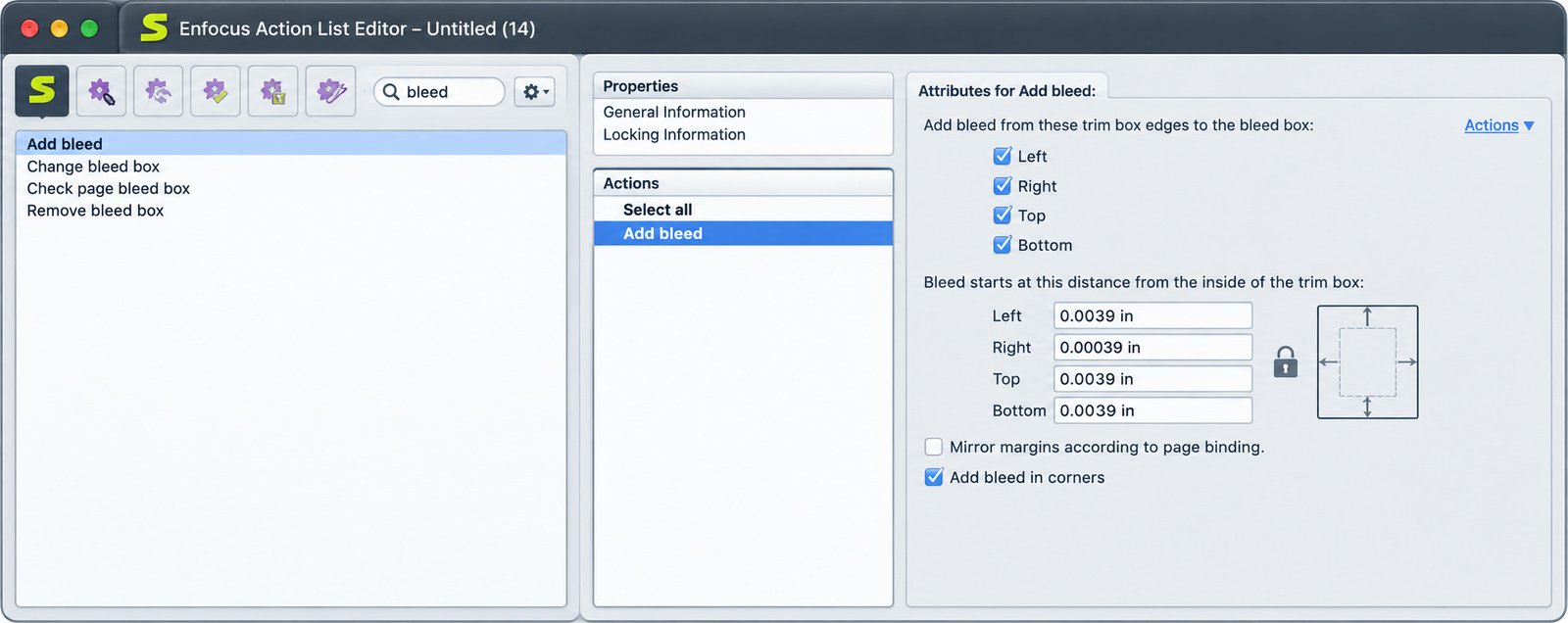
An Action List bundles several edits and fixes into one repeatable recipe. Run it on a file, and every step happens in order.
Global Changes and QuickRuns
Global Changes let you modify many objects at once, for example changing every piece of black text to a single black value. QuickRuns let you launch saved routines fast.
Inspector and PDF Object Analysis
The Inspector shows the technical details of any object you click. It answers the question every prepress operator asks: "Where is this error coming from?"
Print Production and PDF/X Compliance
PitStop can check whether a file meets PDF/X requirements, which is the family of standards made for reliable print exchange. The PDF Association lists support for PDF/X-1a, X-3, X-4, X-5, and X-6.
PitStop Pro PDF Preflight and Validation
What Is PDF Preflight?
Preflight is a pre-press check of your PDF against print rules. The name comes from airline pilots who run a checklist before takeoff. Same idea: catch problems on the ground, not in the air.
How PitStop Pro Checks PDF Files
PitStop scans every object on every page. It looks for missing fonts, wrong color modes, low-resolution images, missing bleed, and risky transparency. Then it flags what breaks your chosen rules.
Create and Use Preflight Profiles
To begin, pick a built-in profile that matches your job, such as a PDF/X-4 check. Run it on your file and read the report. If your printer has special requirements, duplicate the profile and adjust the checks.
Enfocus notes that PitStop Pro includes dozens of ready-made preflight profiles and Action Lists, so you can begin without any setup. That is great news if you are brand new to prepress work.
Customize Preflight Profile Settings
Every check in a profile can be turned on, off, or set to warn instead of fail. For instance, you might allow RGB images for a digital print job but block them for offset printing.
Review Preflight Reports and Results
The report uses clear markers. Errors need fixing. Warnings deserve a look. Clicking an item highlights the object on the page, which saves a lot of hunting.
Fix PDF Preflight Errors
Some errors come with a built-in fix. You can apply it directly from the report. For others, you edit the object by hand and run the check again.
Preflight PDFs for Print Production
Before sending any file to a printer, run the profile they recommend. A clean report is the best proof that the file is ready.
How to Edit PDF Files With PitStop Pro
Edit PDF Text Directly
PitStop lets you select and change text without wrecking the layout. It also supports adding multiline text in the 2025 release, according to reseller feature lists.
Edit Images and Graphics
You can resample, crop, and rotate images, and check their resolution. Cropping a photo that is too big for its frame takes seconds.
Edit PDF Vector Objects and Paths
Vector shapes such as logos, cut lines, and borders can be moved, resized, or simplified. Recent versions also improved cut and crease line optimization, which packaging teams will appreciate.
Change Colors and Object Properties
Fill and stroke colors, line widths, and overprint settings can be changed per object. This helps when a client sends a logo in the wrong color.
Modify Layers and Page Elements
PitStop has strong layer handling, including a dedicated layer panel in the newest release. You can show, hide, or organize layers without opening the source file.
Correct PDF Objects Without Recreating the Document
This is the biggest time saver. Instead of rebuilding a layout, you correct the one broken object and move on.
Review PDF Changes Before Final Output
After editing, run preflight again. Compare the new report with the old one. Save the file under a new name so the original stays untouched.
PitStop Pro PDF/X and Print-Ready PDF
What Is PDF/X Compliance?
PDF/X is a family of standards built for reliable print exchange. A PDF/X file carries everything the printer needs: embedded fonts, defined color, and clear page boxes. That leaves far less room for surprises.
Check and Validate PDF/X Files
Choose a PDF/X profile, such as PDF/X-4, and run the check. PitStop reports every rule the file breaks. Fix those items, run the check again, and keep going until the report is clean.
Prepare PDFs for Professional Printing
A print-ready PDF is not just a pretty file. It needs correct bleed, embedded fonts, the right color mode, and enough image resolution. When your printer supplies a specification, match your profile to it. That one habit prevents most back-and-forth emails.
PitStop Pro PDF Correction and Automated Fixes
Correct Common PDF Production Problems
Most print problems fall into a few families. Here are the usual suspects and how PitStop handles them.
| Problem | Why it matters | Typical fix in PitStop |
|---|---|---|
| Missing or unembedded fonts | Text may print in the wrong typeface | Embed or outline fonts |
| Missing bleed | White edges after trimming | Add or extend bleed |
| RGB images in a CMYK job | Colors shift on press | Convert to CMYK |
| Low-resolution images | Blurry print | Replace or flag for resupply |
| Wrong page boxes | Trim and bleed mismatch | Reset trim, bleed, and media boxes |
| Unwanted overprint | Objects vanish or mix colors | Adjust overprint settings |
Fix PDF Errors Before Printing
Fixing errors early is cheaper than reprinting. One wrong color or missing font on a run of 5,000 flyers can cost real money.
Apply Automatic PDF Corrections
Choose a fix from the preflight report or run a ready-made Action List. PitStop then applies the change to every affected object in one pass.
Repair Preflight Errors With PitStop Pro
If the report shows a failed check, look for the linked fix. Apply it, run preflight again, and confirm the error disappears.
Use Automated Corrections for Repetitive Problems
If the same problem shows up in every client file, save the fix as an Action List. You will never fix it manually again.
Review Corrections Before Exporting the Final PDF
Always open the fixed file and scan it visually, page by page, before it goes anywhere. Automated fixes are powerful, but a human eye still catches surprises.
Bleed, Crop Marks, and Page Boxes
Bleed is the extra image area beyond the trim edge. Without it, tiny cutting shifts leave white slivers. PitStop can check bleed size, add missing bleed, and reset the trim, bleed, and media boxes so they match your printer's request.
Font Preflight and Management
Fonts cause a large share of print headaches. PitStop detects missing or unembedded fonts, and shows exactly where each one is used. Fix them by embedding the font or converting text to outlines when embedding is not allowed.
Color Management and RGB to CMYK Conversion
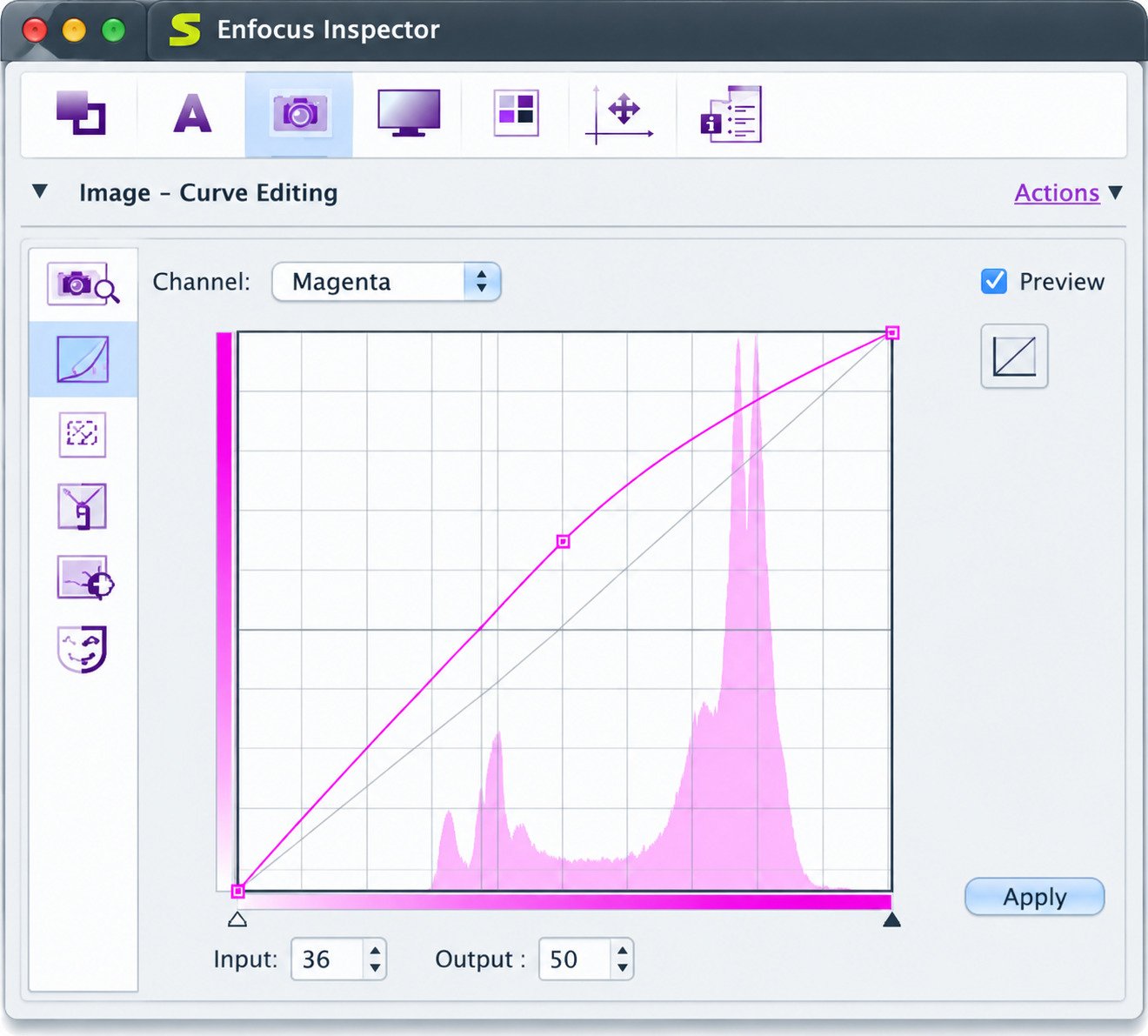
PitStop checks color spaces and supports ICC profiles, Device Link conversions, spot colors, and a Pantone library, according to Enfocus. You can convert RGB to CMYK, control ink coverage, and inspect separations. Newer versions even offer a gamut comparison that highlights color shifts before you convert.
Overprint and Transparency Checks
Overprint tells a printer to mix inks instead of knocking out what is underneath. Used wrongly, it makes objects disappear or change color. PitStop finds overprint and transparency issues so you can fix them before they reach the press.
PitStop Pro and Adobe Acrobat
How PitStop Pro Works as an Acrobat Plugin
PitStop runs inside full Adobe Acrobat, both Standard and Pro. It does not work in the free Reader. Once installed, its tools appear inside the Acrobat interface.
Supported Workflows Inside Acrobat
You can preflight, edit, inspect, and run Action Lists from within your normal Acrobat routine. Most teams need very little retraining because the tools sit where they already work.
PitStop Pro Inspector and PDF Object Analysis
What Is the PitStop Pro Inspector?
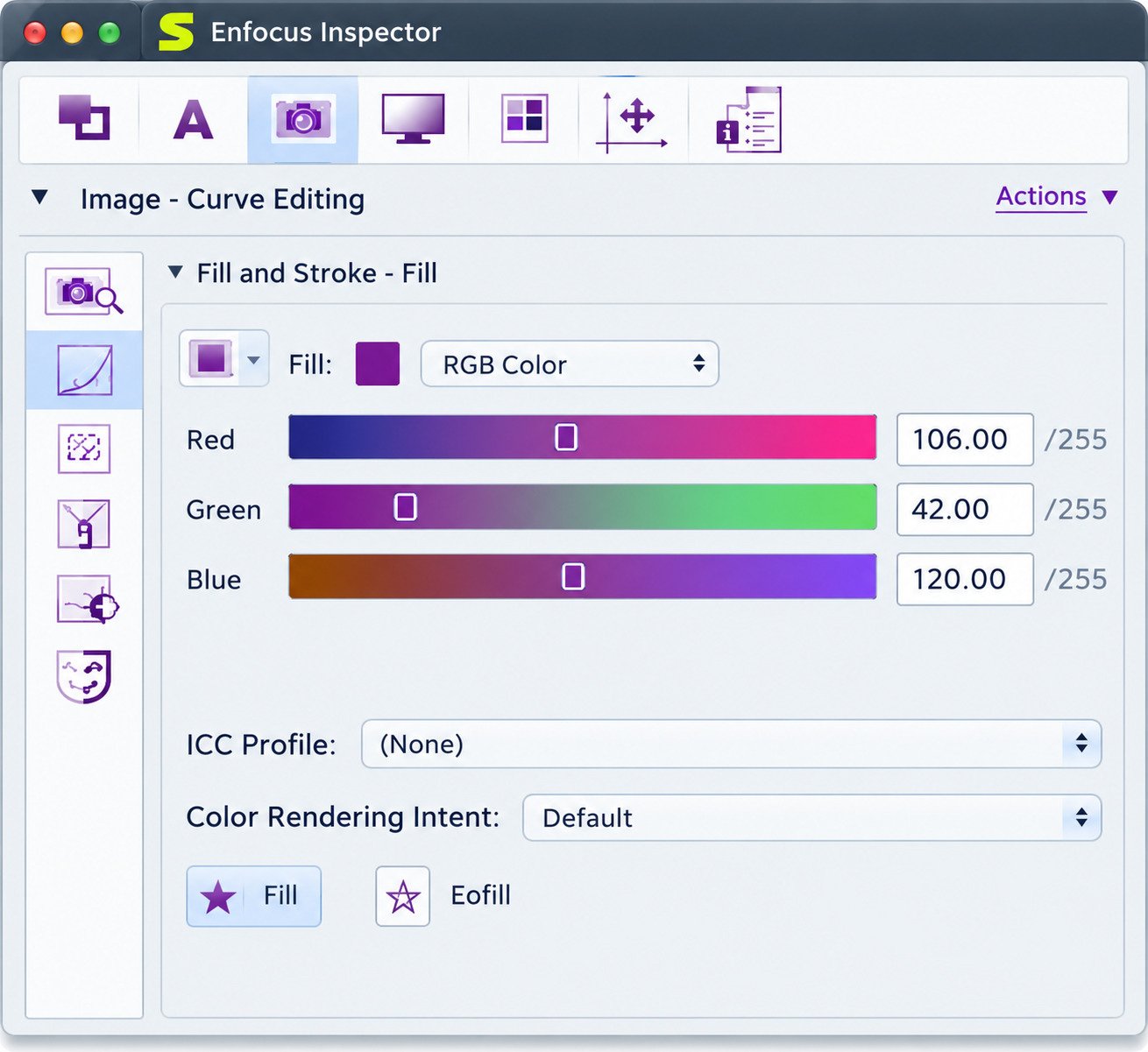
The Inspector is a panel that shows the technical properties of any object you select. Fonts, colors, resolution, paths, and overprint settings are all visible in one place.
Find the Source of Preflight Problems
Say your report flags a stray RGB color, but you cannot see it anywhere. Click the error, open the Inspector, and it shows you the exact object responsible. Often it is a tiny hidden shape or a placed logo. Without the Inspector, you might search for an hour.
PitStop Pro Action Lists and PDF Automation
What Are PitStop Pro Action Lists?
An Action List is a saved sequence of edits and checks. Think of it as a recipe you can reuse on any file.
Create an Action List
Start with a simple task, such as converting all images to a target color space. Add steps one by one, save the list, and give it a clear name.
Run Multiple PDF Operations Automatically
One Action List can resize pages, fix fonts, convert colors, and run a final preflight. You click once, and PitStop works through the steps.
Batch PDF Editing With Action Lists
For many files at once, teams often move up to PitStop Server or automation tools from Enfocus. Enfocus notes that PitStop Pro connects to enterprise automation for higher-volume work.
Resource syncing is another useful extra. Subscription users can sync Preflight Profiles and Action Lists through Enfocus Cloud, so everyone on the team uses the same rules.
Global Changes and QuickRuns in Practice
Global Changes are ideal when one edit must repeat across a whole document. For example, you can select every object with a certain fill and change it in one step. A QuickRun then lets you launch a saved routine from a list, so a common job takes seconds instead of minutes.
Combine them with preflight and you get a repeatable process: check the file, apply the saved fix, and check again.
How to Download and Install PitStop Pro
Where to Download Enfocus PitStop Pro
Always download from the official Enfocus website. Avoid random mirror sites, since a PDF tool that touches print files deserves a trusted source. You can find the product page and trial at enfocus.com.
PitStop Pro Free Trial
Enfocus offers a free 30-day trial. It is the best way to test the software with your own files before you spend anything.
Check System Requirements
PitStop Pro runs on supported Windows and macOS systems, and needs a compatible full version of Adobe Acrobat. Requirements change with each release, so read the official list before installing.
How to Install PitStop Pro
- Close Adobe Acrobat.
- Run the installer you downloaded.
- Follow the on-screen steps.
- Reopen Acrobat and look for the PitStop tools.
Complete the Initial Setup
Sign in with your Enfocus account, pick a first preflight profile, and test it on a sample file. Small tests early save frustration later.
PitStop Pro License, Activation, and Account Setup
How Licensing Works
Enfocus sells subscriptions directly. Resellers also offer permanent license keys, floating licenses, and volume options.
Activate and Manage Your License
Sign in to your Enfocus account and follow the activation prompt. Your account also lets you view usage data for your PitStop Pro installation.
Troubleshoot Activation Problems
If activation fails, check your internet connection, confirm that you signed in with the right account, and make sure your license is still active. If the issue continues, contact Enfocus support.
How to Use PitStop Pro
Open, Inspect, and Preflight a PDF
Open the file in Acrobat. Choose a preflight profile and run it. Then read the report from top to bottom.
Review and Fix Errors
Handle errors first, then warnings. Use the built-in fixes when they are available.
Edit and Automate
Use editing tools for one-off changes. Use Action Lists for jobs you repeat. Finally, run preflight one more time on the finished file.
Check the Final PDF Before Printing
Compare the final report with your printer's requirements. If it comes back clean, you are ready to send.
PitStop Pro Settings and Configuration
Tips to Get the Most Out of PitStop Pro
Start small. Run one profile on one file, learn what the report tells you, and then add complexity.
- Name your profiles clearly, such as "Offset PDF/X-4" or "Digital Print RGB OK".
- Save the fixes you use often as Action Lists.
- Keep a folder of test files for checking new settings.
- Read the release notes when you update, because new versions add tools.
Small habits like these turn PitStop from a tool you use into a workflow you trust.
Customize Profiles and Correction Options
Edit a copy of a built-in profile. Adjust the thresholds, such as minimum image resolution, to match your printer's rules. Keep your original profiles untouched.
Manage Automation and Color Settings
Organize your Action Lists with clear names, and set default color settings for your usual print workflow. A tidy setup makes the tool faster to use every day.
Working with lots of PDFs and ebooks outside of print? A library tool like Alfa eBooks Manager can help you keep your digital files organized.
What About the AI Assistant?
The 2025 release introduced Botus, an AI-powered chatbot that guides users through PitStop's tools. If you are new to prepress, it can point you to the right feature faster than digging through manuals.
Is Enfocus PitStop Pro Legit and Safe to Use?
Is PitStop Pro Legitimate PDF Software?
Yes. It is a long-standing commercial product from Enfocus, and it is listed by the PDF Association. It has a support portal, online training, and documentation.
Why Preflight Results Should Be Reviewed First
Preflight software follows rules. It cannot judge design intent. A fix that is correct for one job may be wrong for another, so read the report before you apply changes.
Best Practices for Editing Production PDFs
- Keep the original PDF and work on a copy.
- Review preflight results before applying fixes.
- Test Action Lists on sample files first.
- Re-run preflight after every batch of changes.
Keeping Original PDFs and Backup Copies
Automated fixes are powerful, and mistakes are possible. A backup is your safety net.
PitStop Pro Price and Free Trial
How Much Does PitStop Pro Cost?
Enfocus has listed PitStop Pro at about $40 per month or $480 per year, excluding taxes. Prices can change, so confirm on the official page.
What Is Included?
According to Enfocus, subscriptions include all upgrades, access to online training modules, and technical support. Permanent licenses are available through resellers.
Free Trial and What to Consider Before Buying
The 30-day trial lets you test real files. Also remember that PitStop requires full Adobe Acrobat, which is a separate cost.
| Item | Details |
|---|---|
| PitStop Pro subscription | About $40 per month or $480 per year |
| Free trial | 30 days |
| Adobe Acrobat | Required separately |
| Permanent license | Available through resellers |
PitStop Pro Troubleshooting
Why Is PitStop Pro Not Working?
Most problems come from Acrobat version mismatches or a system update. Check that your PitStop release supports your Acrobat and operating system.
Fix Installation and Activation Errors
Close Acrobat, reinstall, and restart the computer. For activation, check your Enfocus account and internet connection.
Fix Preflight and Editing Problems
If a preflight looks wrong, confirm you picked the correct profile. If an edit fails, check whether the file is locked, encrypted, or damaged.
Fix Preflight Errors That Keep Coming Back
If the same error appears after a fix, the cause is usually upstream. The design file may have a stray RGB element, or the export settings may be wrong. Fix the source file too, and the problem stops returning.
Check Profiles and Action Lists
Broken results often come from one badly set rule. Test with a simple sample file, then add complexity step by step.
PitStop Pro Review: PDF Editing, Preflight, and Automation
Ease of Use for Professional Workflows
Beginners may need a few sessions to feel comfortable. The good news is that Enfocus offers online training modules with a subscription, and the built-in profiles give you a safe starting point.
Pros and Cons
What works well
- Trusted preflight engine
- Native editing that protects print quality
- Strong automation with Action Lists
- Easy start with built-in profiles
- Works inside a familiar Acrobat window
Limitations and workflow considerations
- It needs full Adobe Acrobat, which adds cost.
- It has a learning curve for beginners.
- After big system updates, you may need a compatible release.
- It is not a general PDF reader or a dedicated imposition tool.
Overall, PitStop Pro is a strong choice for print professionals. It is less suited to casual PDF users.
Enfocus PitStop Pro Alternatives
When to Consider a PitStop Pro Alternative
Consider other options if you want a lower cost, do not use Acrobat, or only need basic checks.
PDF Preflight and Correction Alternatives
| Tool | Best for | Note |
|---|---|---|
| Adobe Acrobat built-in Preflight | Basic checks | Included with Acrobat Pro |
| callas pdfToolbox | Advanced preflight and automation | Professional alternative |
| PDF Press | Users without Acrobat | Lower listed cost, per its own comparison |
| PitStop Server | High-volume automation | Same family as PitStop Pro |
Feature sets change often, so check each vendor's page before deciding.
Print Production and PDF Validation Tools
Some teams pair a checker with a separate automation layer. That can work well if you already own tools for imposition or job routing. The trade-off is more software to learn and maintain, so keep your setup as simple as your volume allows.
Adobe Acrobat and Third-Party Workflows
Acrobat's built-in Preflight covers many basic checks. Third-party tools add deeper editing, stronger reporting, and automation. If you prepare files for print every day, the extra depth usually pays off. If you print rarely, the built-in tools may be enough.
How to Choose a Tool
Ask three questions. How many files do you check? Do you need editing or only checking? Does your team already have Acrobat?
Before you commit, think about how often you handle print files. A team that checks ten PDFs a week has different needs from a shop that checks hundreds. Match the tool to your volume, your budget, and the skills already on your team. Then test it with real jobs first, because a tool that looks perfect in a demo can feel very different when a deadline is close and the client file is messy.
Frequently Asked Questions About Enfocus PitStop Pro
It checks PDF files for print problems, edits them directly, and fixes many errors automatically inside Acrobat.
Yes. It installs into full Adobe Acrobat Standard or Pro and does not run on its own.
No. It is a paid product, but Enfocus offers a free 30-day trial.
Yes. It offers automatic fixes and manual editing tools for many common errors.
Yes. It supports several PDF/X standards, including X-1a, X-3, and X-4.
Yes. It supports color conversion, including ICC profiles and spot colors.
Yes. It is an established commercial product used by print shops worldwide.
Final Thoughts on Enfocus PitStop Pro
Final verdict
PitStop Pro takes the worry out of sending files to print. It finds problems, helps you fix them, and gives you a clear report you can trust. For anyone who has faced a reprint bill, that peace of mind is worth a lot.
Start with the free trial and test it on your own files. If it saves you even one bad print run, it has already paid for itself. Your next print job can go out with confidence.
One Response