Coomer Downloader Download, Features, Setup, and Alternatives
A practical guide to what Coomer Downloader does, how to set it up on Windows, how to fix common problems, and what to use instead.
What Is Coomer Downloader and How Does It Work?
What Is Coomer Downloader?
Coomer Downloader is a specialized software tool designed to help users save media content from Coomer websites to their local devices. Unlike manual saving of individual files, it automates the process and allows batch downloads of single posts, entire galleries, or complete creator profiles.
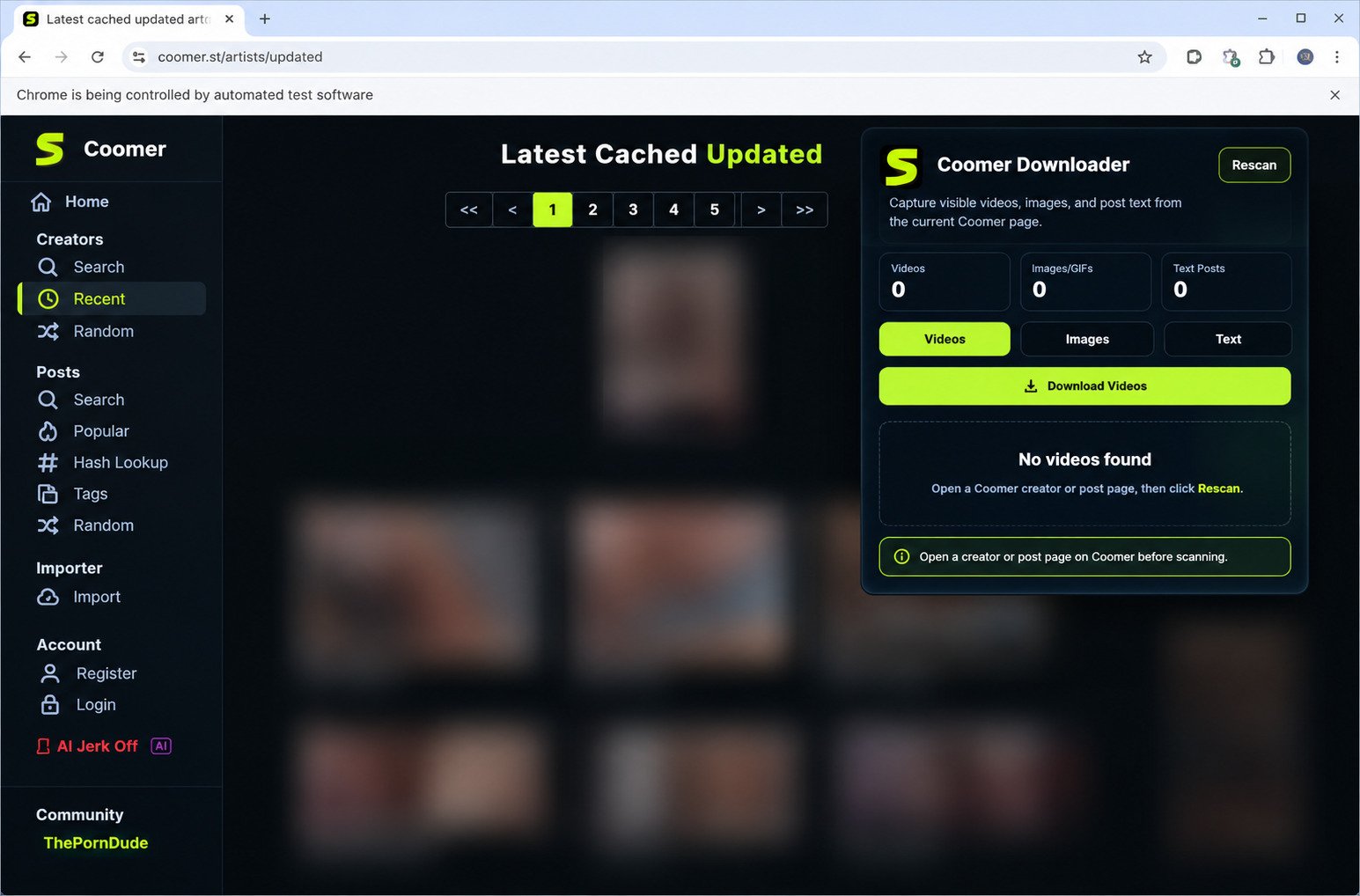
How a Coomer Media Downloader Works
When you paste a profile link or post URL, the software scans the page structure to locate images and videos, then retrieves those files through automated requests, much like a browser loading a page. The files are saved to your chosen folder in the background, so you can queue many downloads. Many downloaders also track saved files to prevent duplicates.
What Types of Content Can It Download?
- Images in JPEG, PNG and other standard formats
- Videos in MP4, WebM and similar formats
- Image galleries with multiple photos in one post
- Creator profile content, including all posts from a user
- Individual posts with mixed media
Software vs. Online Download Tools
| Factor | Desktop software | Online tools |
|---|---|---|
| Batch downloads | Hundreds of files, no open tab | Limited, often single files |
| Speed | Faster, no web server processing | Depends on server |
| Installation | Required | None |
| Platforms | Mostly Windows | Any operating system |
Who Is It Designed For?
Content archivists preserve collections that could be lost if accounts are deleted. Researchers use batch downloads to analyze posting trends, and personal users save favorites for offline viewing.
Coomer Downloader Features
Download Images, Videos, and Other Media Files
The software recognizes photos, video clips and mixed posts. Images keep original resolution, videos are saved in the highest available quality, and GIFs and animated content are handled too.
Individual Posts, Profiles, and Galleries
Paste a single post URL to save only what you need, or enter a creator’s profile URL to retrieve everything they have posted, with progress tracking for large jobs. Gallery posts are saved together in a dedicated folder or with sequential names, and can be mixed with posts and profiles in the same queue.
Batch and Bulk Media Downloads
Add multiple URLs to a queue and process them sequentially or simultaneously. Queue tools let you pause, resume or reorder downloads while system resources are shared sensibly.
Manage Downloaded Files and Media Collections
Folders are typically built from creator names, post dates or media types, with descriptive file names. Some downloaders add a database that records what you saved, when, and from where.
Windows and PC Download Support
The Windows build works on Windows 10 and Windows 11, saves to your Downloads folder or any custom location, and is tuned so it doesn’t monopolize RAM or CPU in the background.
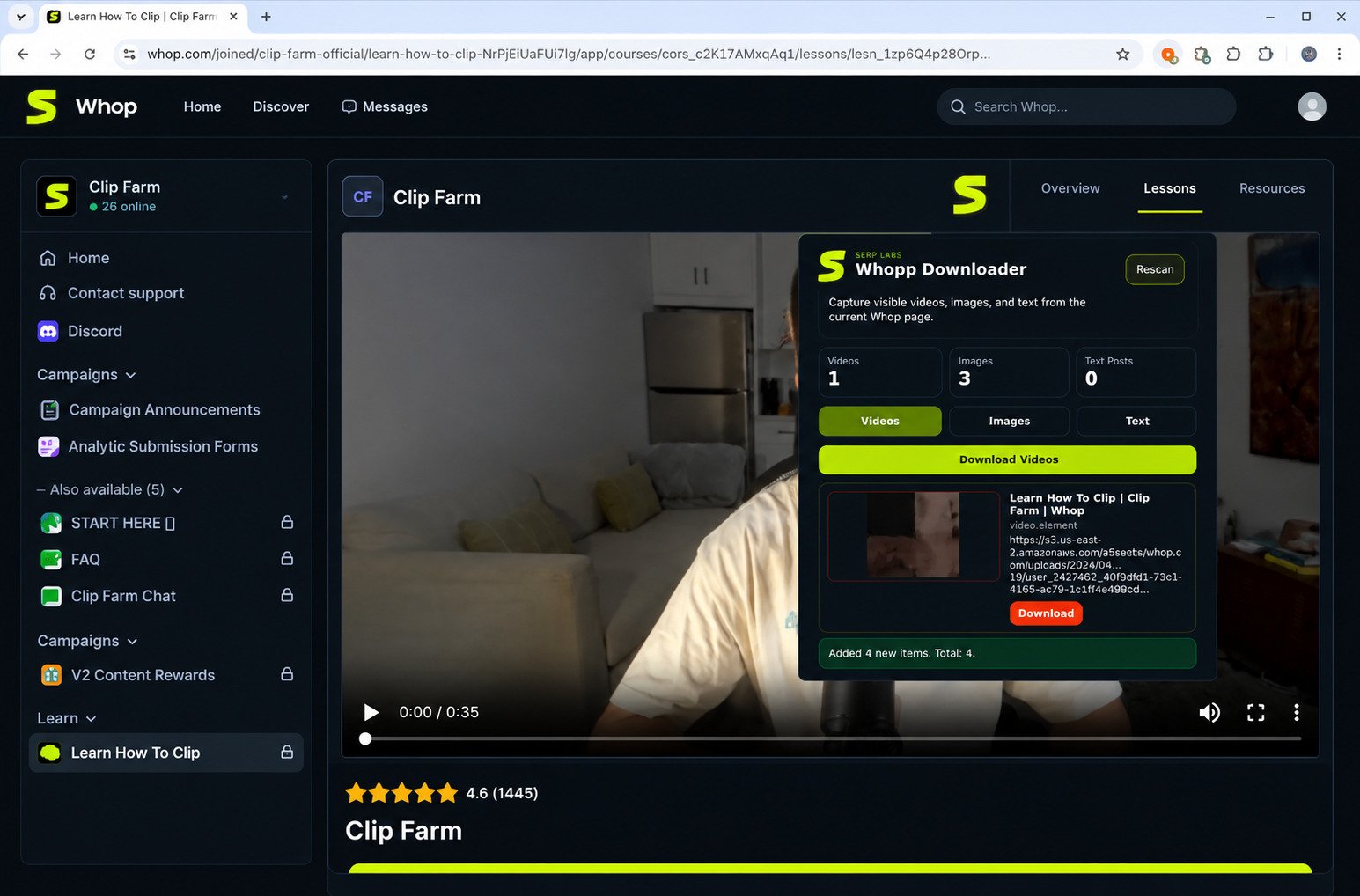
How to Download Content From Coomer
- Find the profile, creator, or postBrowse to the content in your regular browser and confirm the creator name, date or thumbnails.
- Copy the URLClick the address bar and press Ctrl+C. Include the full “https://” prefix, as partial URLs may not work.
- Add the URL to Coomer DownloaderPaste it with Ctrl+V into the input field. The software should recognize whether it is a profile, post or gallery link.
- Select the media you wantUse “Select All” or tick individual files from the thumbnail list, useful for large profiles.
- Start and monitor the downloadClick Download or Start and watch speed, completed files and remaining items. Failed files show errors you can retry.
- Find and organize downloaded filesOpen your download folder and spot-check a few files to confirm nothing was corrupted.
Profile, Image, Video, and Batch Downloading
Coomer Profile and Creator Downloader
Enter the profile’s main URL and the software maps every post into a list. Very large profiles can take hours or even days, and most tools let you sort by date, popularity or media type. Keep creators in separate directories with a consistent naming convention as archives grow.
Coomer Image and Gallery Downloader
Images keep original quality, formats such as JPEG, PNG and WebP are detected automatically, and EXIF metadata is usually retained. Galleries get their own subfolder with sequential numbering, and failed images are retried without stopping the batch.
Coomer Video Downloader
Videos are saved in original MP4 or WebM format and play in VLC or Windows Media Player. They need more bandwidth and disk space, so consider a separate folder or an external drive. If a video fails, use retry or resume, and check that it plays in your browser to rule out platform-side problems.
Batch and Bulk Downloads
Set simultaneous download limits to match your connection, enable resume and duplicate detection, and use error logs to retry only failed items. Parallel downloads are faster but use more RAM and CPU.
Tip: Consistency beats any specific folder system. Pick creator, date or content type once and stick with it.
Coomer Downloader for Windows and PC
| Platform | What to expect |
|---|---|
| Windows 10 | Standard setup wizard, Start menu entry, optimized memory use |
| Windows 11 | Matches the new design language and works with its security features |
| Other PCs | Runs on modest laptops and desktops and respects power settings |
The desktop workflow is simple: find content in your browser, copy the URL, paste it into the downloader, configure options and start. Files appear in Windows Explorer like any other documents.
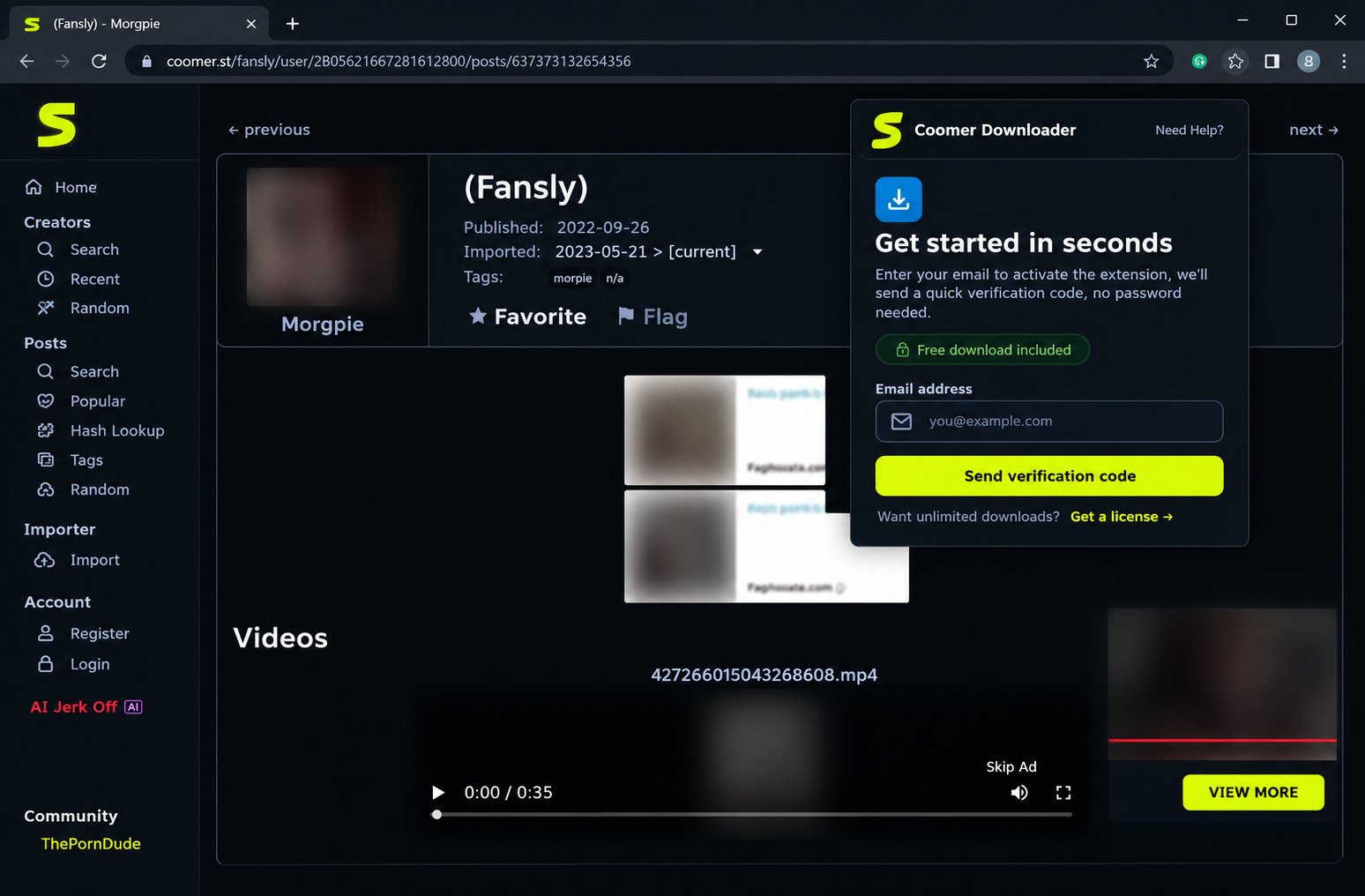
Coomer Downloader Download, Installation, and Setup
Where to Get Coomer Downloader
Sources vary by tool. Use official developer pages or trusted repositories, for example the project’s GitHub releases page, and verify authenticity before installing.
Install and Configure
- InstallRun the installer and follow the prompts. Administrator permission may be needed. Choose install location and shortcuts.
- Set download location and file namesConsider a dedicated folder or drive, and choose whether to keep original names or add creator names and post IDs.
- Prepare for batchesSet simultaneous download limits for your connection, and enable resume and duplicate detection.
- Verify before big jobsTest with one image and confirm it opens correctly.
Coomer Downloader Troubleshooting
| Problem | Likely cause | Fix |
|---|---|---|
| Downloader not working | Connectivity, outdated version, site changes | Test other apps online, then update the software |
| Timeouts | Slow or busy servers | Retry off-peak |
| Permission errors | Write-protected folder | Save to a folder in your user directory |
| Media won’t download | Anti-scraping measures or expired URL | Check it in a browser, update the tool |
| Profile or gallery fails | Rate limiting, private content | Reduce simultaneous connections and add delays |
| Batch stops midway | Low disk space or memory, corrupt queue | Free space, clear and rebuild the queue |
If only certain URLs fail, the content may have been removed. If all fail, check your connection, firewall, and whether the site loads in your browser.
Coomer.su Not Updating: Common Causes and Checks
The platform aggregates content from other sources, so delays there propagate to Coomer. Server maintenance or changes to source APIs can also halt updates until developers fix them.
- If new posts show on the website but not in your downloader, the software may be using cached data. Try a manual refresh.
- If the website shows nothing new, confirm the creator posted on the source platform, then check status pages or community forums.
- Review downloader filters and date limits that might exclude new content.
- Check that the creator’s profile hasn’t been deleted, restricted or set private.
Coomer Downloader Safety, Privacy, and Responsible Use
Malware risk: Only download from official sources. Avoid sites that bundle extra software or demand surveys, run installers through antivirus first, and treat unofficial .exe files with extra scrutiny.
Privacy: Legitimate downloaders don’t need your account credentials or contacts and location data. If login is required, use a dedicated account rather than your primary one.
Legal and ethical: Many platforms prohibit automated downloading, and downloaded content usually stays under copyright. Don’t redistribute or use it commercially without permission, respect creators who deleted content on purpose, and consider supporting creators directly.
Coomer Downloader Compatibility and Requirements
| Requirement | Guidance |
|---|---|
| Windows | Windows 10 and 11; Windows 7/8 support is increasingly rare |
| RAM | 4 GB minimum, 8 GB or more for heavy use |
| Internet | 5-10 Mbps minimum, 25 Mbps or higher for batches; stability matters most |
| Storage | Plan for more than you expect; use external or network drives for growth |
| Browser | Any modern browser works for copying URLs |
Coomer Downloader Review
Most tools have simple interfaces, reliable image, video and gallery support, and a minimal learning curve. Queue tools, tray notifications and organization features vary between tools.
Pros
- Automates bulk and profile downloads
- Keeps original image and video quality
- Resume, retry and duplicate detection
- Easy setup on Windows
Cons
- Website changes can break it temporarily
- Rate limiting slows large jobs
- Some tools lack automatic updates
- Legal and platform-rule risks
Coomer Downloader Alternatives
Look at alternatives when your tool lacks features, stops working after site changes, or hasn’t been updated in months.
| Type | Examples and strengths |
|---|---|
| Desktop media downloaders | JDownloader and similar managers: broad platform support, more manual setup |
| Browser-based tools | No installation, cross-platform, weaker at batches and organization |
| Image and gallery tools | Better sorting, tagging and offline galleries |
| Video downloaders | yt-dlp and others: format conversion and quality selection |
| Batch specialists | Scheduling and bandwidth management, more configuration |
Many users combine online tools for quick single files with desktop software for full archives. For a versatile option across platforms and file types, try ByClick Downloader.
Frequently Asked Questions About Coomer Downloader
What Is Coomer Downloader?
Coomer Downloader is software that automates saving media content from Coomer websites to your computer, supporting images, videos, and bulk profile downloads.
How Do I Download From Coomer?
Copy the Coomer post or profile URL, paste it into the downloader software, select the media you want, and click download to save files to your PC.
Can Coomer Downloader Download Entire Profiles?
Yes, most Coomer Downloaders support complete profile archival by processing all posts from a creator and saving all associated media files.
Can I Download Coomer Creator Posts in Bulk?
Yes, bulk downloading lets you archive multiple posts or entire creator profiles automatically without downloading each post individually.
Can Coomer Downloader Download Images?
Yes, image downloading is a core feature supporting JPEG, PNG, and other common formats with preservation of original quality and resolution.
Can Coomer Downloader Download Videos?
Yes, video downloads work similarly to images, saving MP4 and other video formats to your chosen download folder.
Can I Download an Entire Coomer Gallery?
Yes, gallery posts with multiple images are recognized automatically, and all contained photos download together in a single operation.
Can Coomer Downloader Download Multiple Files at Once?
Yes, batch functionality lets you queue multiple URLs and download dozens or hundreds of files in a single operation.
Does Coomer Downloader Work on Windows 10?
Yes, most Coomer Downloaders are specifically designed for Windows 10 with full compatibility and native feature integration.
Does Coomer Downloader Work on Windows 11?
Yes, current Coomer Downloaders support Windows 11 and work with its updated security features and interface design.
Why Is Coomer Downloader Not Working?
Common causes include internet connectivity issues, outdated software versions, website changes that broke compatibility, or insufficient disk space.
Why Is My Coomer Download Failing?
Download failures typically result from network interruptions, rate limiting by the website, incorrect URLs, or permission issues with your download folder.
Why Is Coomer.su Not Updating?
Content update delays occur when aggregation systems experience technical issues, source platforms block automated access, or during server maintenance periods.
How Do I Change the Coomer Download Location?
Access the downloader’s settings or preferences menu and look for “Download Folder,” “Save Location,” or similar options to specify a new path.
Final Thoughts on Coomer Downloader
Features: Support for images, videos, galleries and complete profiles, plus batch queues, covers virtually all common use cases and replaces tedious manual saving.
Before you use it: Download from trusted sources, verify files, keep antivirus current, plan your storage, and respect platform terms and creators’ rights.
Choosing a tool: Specialized Coomer downloaders are optimized for one platform; general-purpose tools offer broader compatibility. Try a few and keep the ones that fit your workflow.
One Response