FolderIco Download, Features, Setup, and Alternatives: Complete Windows Folder Customization Guide
Scrolling past dozens of identical yellow folders looking for the right one is a small daily frustration most computer users know well. FolderIco is a lightweight tool built to fix exactly that, letting you change folder icons and colors in Windows so the right folder stands out at a glance. This guide walks through what FolderIco actually does, how to install and use it, how to fix it when something goes wrong, and which alternatives are worth considering.
What Is FolderIco and How Does It Work?
What Is FolderIco?
FolderIco is a folder icon and color changer for Windows (with a Mac version also available) that lets you personalize how your folders look directly from File Explorer. Instead of leaving every folder as the same plain icon, you can assign colors, icons, and even custom cover images.
What Is FolderIco Used For?
Most people use FolderIco to:
- Color-code folders by project, priority, or client
- Make important folders instantly recognizable on a busy desktop
- Add a personal or branded touch to shared or work folders
- Quickly tell apart similarly named folders
How FolderIco Changes Folder Icons and Colors
FolderIco works by modifying the folder’s icon settings using Windows’ native customization system, applying your chosen icon or color without altering the folder’s actual contents or files.
FolderIco as a Windows Folder Customization Tool
It integrates directly into the right-click context menu, so changing a folder’s look takes just a couple of clicks rather than digging through folder properties menus manually.
This matters more than it might sound. Windows technically lets you change a folder icon through its built-in Properties dialog, but that process buries the option a few menus deep and offers a very limited default icon set. FolderIco shortens that entire workflow into a single right-click, while also opening the door to colors, cover images, and custom icon libraries that Windows doesn’t offer natively. You can read more about how Windows handles this natively in Microsoft’s official folder customization documentation.
FolderIco Features
Folder Icon Changer and Custom Folder Icons
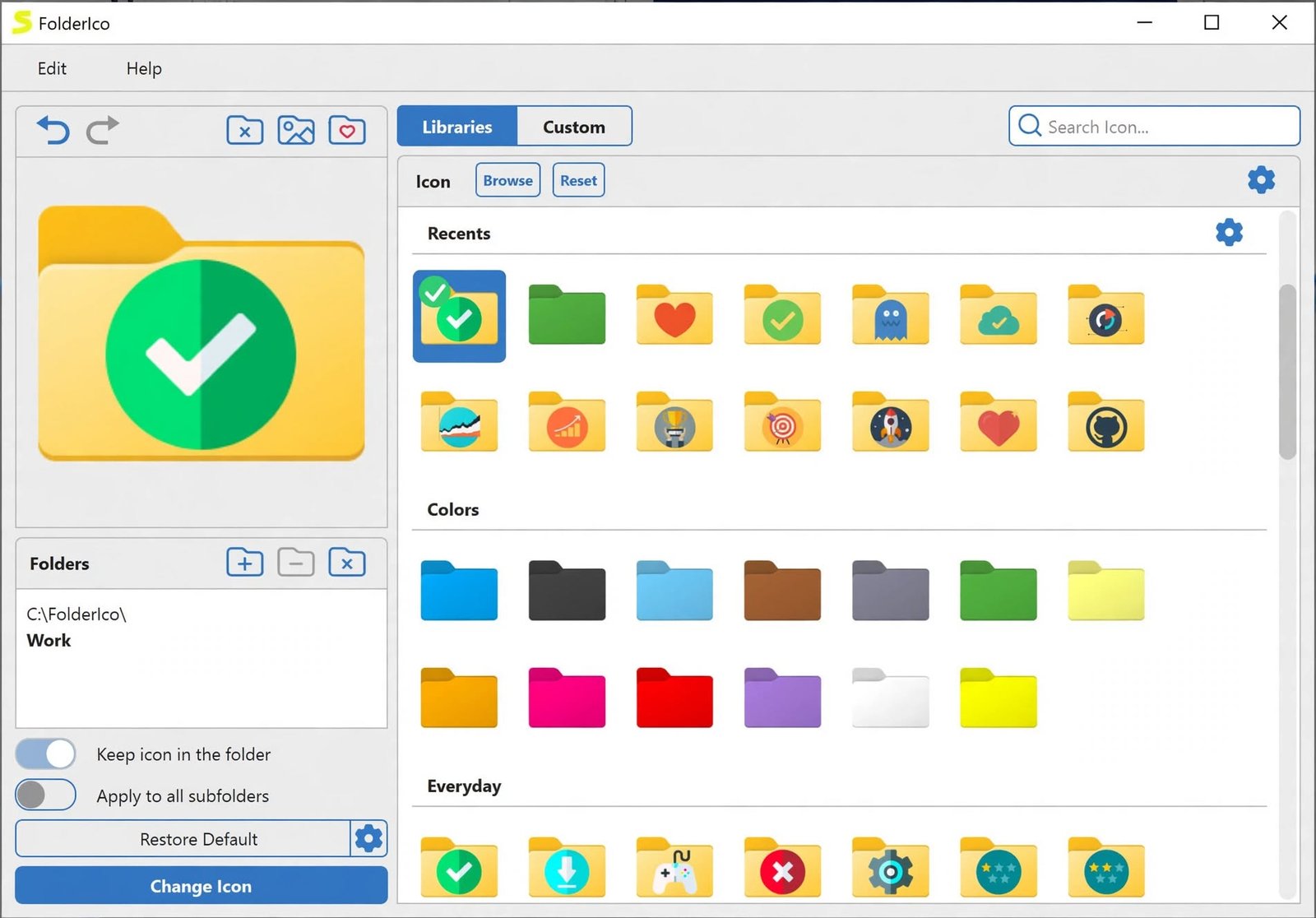
Choose from a built-in icon library or import your own custom icon files to give any folder a distinct look.
Folder Color Changer and Colored Folder Icons
Apply a solid color overlay to a folder icon, useful for quick visual categorization across large folder structures.
Windows Folder Customization
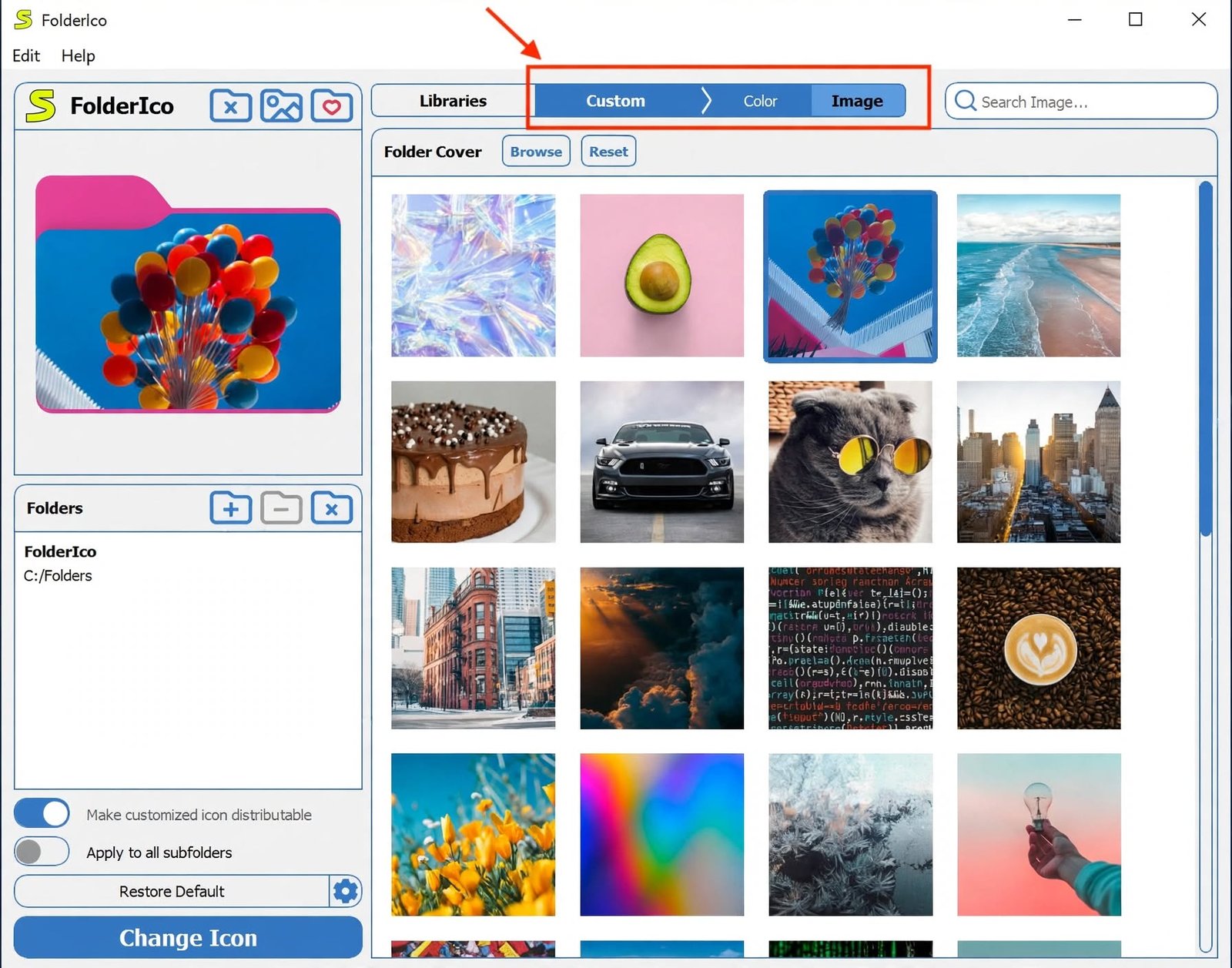
Beyond icons and colors, more recent versions also support custom cover images and stickers, giving folders a more personalized appearance.
Folder Appearance and Visual Organization
| Customization Option | What It Does |
|---|---|
| Icon | Replaces the default folder icon |
| Color | Tints the icon a chosen color |
| Cover Image | Overlays a picture on the folder |
| Sticker | Adds a small badge to the icon |
Folder Icon Management and Organization
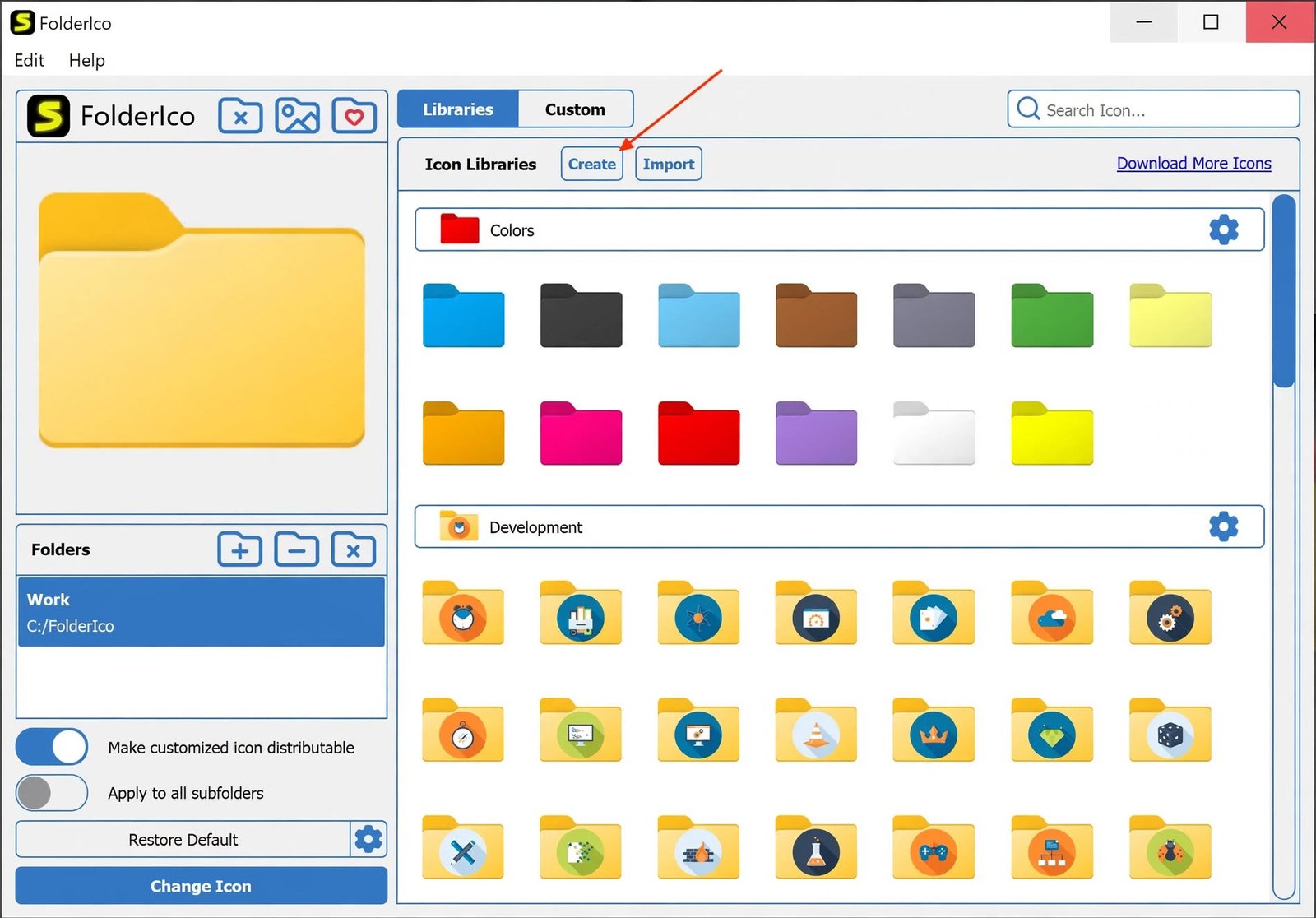
You can build, import, and export custom icon libraries, which is handy if you want the same style applied consistently across multiple computers.
Custom Icons and Folder Identification
A distinct icon works faster than reading folder names, especially when you’re scanning a long list quickly.
Organize Folders by Color and Icon
Many users combine both for example, red icons for urgent projects and green for completed ones to build an at-a-glance filing system.
Picture a freelancer juggling five active clients. Without customization, every client folder looks the same, so opening the wrong one before finding the right project is common. Assign each client a different color, though, and the correct folder becomes visible from across the screen, without reading a single label.
Folder Icon Changer for Windows
How to Change a Folder Icon in Windows
Right-click the folder, select the FolderIco option from the context menu, and choose an icon from the library.
How to Customize Folder Icons
Beyond the built-in library, you can load your own .ico files for a fully custom look.
Custom Folder Icons for Windows
This is especially useful for professionals who want branded folder icons for client work or internal documentation.
Change Folder Icons in Windows 11
FolderIco supports Windows 11’s updated Explorer interface, so context menu integration works the same way as in earlier Windows versions.
Change Folder Icons in Windows 10
Windows 10 remains one of the most common environments for FolderIco, with the same right-click workflow.
How to Add Custom Folder Icons
Select “Add Custom Icon” or a similar option in the FolderIco dialog, then browse to your icon file to apply it.
How to Create and Use Custom Folder Icons
The built-in Icon Creator tool lets you build new icons from images rather than relying only on pre-made options.
Folder Color Changer for Windows
How to Change Folder Color in Windows
Right-click a folder, open FolderIco, and pick a color swatch the change applies instantly without needing to restart Explorer.
How to Customize Folder Colors
You can fine-tune which shade represents which category, building a simple color key that makes sense for your own workflow.
Change Folder Color in Windows 11
The color-changing feature behaves consistently on Windows 11, including compatibility with dark mode.
Change Folder Color in Windows 10
The same steps apply on Windows 10, since the underlying customization method hasn’t changed across recent Windows releases.
Color-Coded Folders for Better Organization
Color coding is one of the fastest ways to visually separate active work from archived files without renaming anything.
Organize Windows Folders by Color
A simple system for instance, red for urgent, yellow for in progress, green for done can dramatically cut down time spent searching for the right folder.
Keep your color key consistent. If red sometimes means “urgent” and other times means “archived,” the system loses its usefulness fast. Writing your color key down somewhere, even in a single note, helps keep it consistent across weeks and months of use.
FolderIco for Windows 11 and Windows 10
FolderIco for Windows 11
FolderIco is compatible with Windows 11, including its refreshed right-click context menu layout.
FolderIco for Windows 10
Windows 10 support has been consistent across FolderIco’s recent version history.
Folder Customization on Windows 11
Because Windows 11 changed how the context menu is structured, FolderIco needed updates to keep full integration current versions handle this properly.
Folder Customization on Windows 10
No special configuration is needed; installation alone enables the right-click integration.
Windows Folder Icon and Color Support
Both operating systems support the icon, color, cover, and sticker options identically once FolderIco is installed and Explorer is refreshed.
FolderIco Download and Latest Version
FolderIco Download for PC
FolderIco is available for download directly from its official website, with separate builds for Windows and macOS.
FolderIco Free Download
A free trial version is offered with no registration required, letting you test the interface and features before buying.
FolderIco Latest Version
The developer regularly ships updates that expand icon library management, add command-line support, and improve stability.
FolderIco Software Download
The installer is small and quick, typically only a few megabytes in size.
FolderIco Download and Installation Options
If you’re upgrading from an older version, it’s recommended to uninstall the previous version and restart your PC first so the Explorer integration refreshes correctly.
FolderIco Free Version, Trial, and License
Is FolderIco Free?
FolderIco offers a free trial, but full ongoing use of the software requires purchasing a license.
FolderIco Free Download and Trial
The trial version lets you explore icon and color changes without entering payment details up front.
FolderIco License and Activation
Once purchased, a license key unlocks the full version, removing any trial limitations.
FolderIco Paid Features and Licensing
Paid licensing typically includes continued access to updates and the complete icon library.
FolderIco Portable Version: Availability and Limitations
Unlike some older folder-icon tools, current FolderIco versions are generally distributed as installers rather than portable executables, so a full installation is usually required.
How to Install and Set Up FolderIco
FolderIco Installation
- Download the installer for your operating system from the official site.
- Run the installer and follow the setup prompts the process takes just a minute or two.
- Right-click any folder to bring up the FolderIco menu and start customizing right away.
- Restart File Explorer or your PC if icons don’t appear updated immediately.
FolderIco Setup
After installation, FolderIco integrates into File Explorer automatically; no separate application window needs to stay open.
Configure Folder Icons and Colors
Right-click any folder to bring up the FolderIco menu and start customizing right away.
Customize Folder Appearance
From the same menu, you can switch between icons, colors, covers, and stickers depending on what look you’re going for.
Set Up FolderIco on Windows
If icons don’t appear updated immediately after installation, restarting Explorer or your PC typically resolves it.
How to Use FolderIco: Complete Tutorial
How to Change a Folder Icon
Right-click the folder, choose FolderIco, select an icon, and confirm the new icon appears immediately.
How to Change a Folder Color
Follow the same right-click process, but select a color swatch instead of an icon.
How to Customize Folders in Windows
Combine icons, colors, and covers to build a folder appearance system that matches how you actually work.
How to Organize Windows Folders
Group folders visually first by color, then refine further using distinct icons within each color group.
How to Color Code Folders
Decide on a small, consistent color meaning system (for example, by urgency or by client) before applying it broadly, so it stays useful over time.
How to Organize Folders by Icon
Use recognizable icons for frequently accessed folders, like a document folder, so you can spot them instantly.
How to Create a More Visual Folder Organization System
Pairing this tool with clear folder naming still matters icons and colors work best as a visual layer on top of good naming habits, not a replacement for them.
FolderIco for Folder Organization and Productivity
Organize Windows Folders by Color
A consistent color scheme reduces the mental effort of remembering which folder is which.
Organize Folders by Icon
Custom icons work particularly well for folders you open frequently throughout the day.
Visually Organize Files and Folders
The goal isn’t just aesthetics a well-organized visual system can genuinely save time during busy workdays.
Use Folder Colors for Quick Identification
Color is processed faster by the eye than text, which is why color-coded systems tend to speed up folder navigation.
Customize Folders for Better File Management
Small visual cues add up, especially for people managing dozens of active project folders at once.
Folder Identification and Visual Organization
Combining icons and colors gives you two layers of identification instead of relying on folder names alone.
FolderIco Not Working and Common Problems
FolderIco Not Working
If FolderIco’s context menu option doesn’t appear, restarting File Explorer or your computer usually resolves it after installation.
FolderIco Not Opening
Running the application as administrator can fix launch issues caused by permission restrictions.
FolderIco Icon Not Changing
Refreshing the icon cache, either through FolderIco’s own reset option or a manual Explorer restart, typically fixes icons that appear stuck.
FolderIco Folder Color Not Working
Make sure you’re applying the color to the folder itself and not a shortcut pointing to it, since shortcuts behave differently.
FolderIco Custom Icon Not Working
Confirm your custom icon file is a valid .ico format, since unsupported image formats won’t apply correctly.
FolderIco Windows 11 Problems
Keeping both Windows and FolderIco updated to their latest versions resolves most compatibility issues on Windows 11.
FolderIco Windows 10 Problems
Similarly, installing the latest FolderIco build usually clears up minor display glitches on Windows 10.
FolderIco Installation and Download Errors
Temporarily disabling third-party antivirus software during installation can help if the installer is being blocked incorrectly.
FolderIco Activation and License Errors
Double-check that your license key was entered exactly as provided, including any dashes or capitalization.
FolderIco Update Problems
If an update doesn’t apply cleanly, uninstalling the older version fully before reinstalling the latest one is the most reliable fix.
How to Uninstall and Update FolderIco
How to Uninstall FolderIco
Use Windows’ standard “Apps & Features” settings to remove FolderIco like any other installed program.
How to Update FolderIco
Download the latest installer from the official site and run it; most updates install directly over the existing version.
What to Do Before Uninstalling FolderIco
If you want to keep your custom icons applied, note that removing FolderIco may revert customized folders back to their default appearance.
Restoring Folder Icons After Uninstallation
Windows will typically restore default folder icons automatically once the customization tool is removed and Explorer restarts.
Is FolderIco Safe and Legit?
Is FolderIco Safe to Use?
Yes when downloaded from the official website, FolderIco is a legitimate desktop customization tool with a long release history.
Is FolderIco Legit?
It has been actively maintained and updated for years, which is a good sign for any small utility software.
FolderIco Security and Privacy
FolderIco only modifies local folder display settings; it doesn’t need internet access to change how a folder looks.
FolderIco Permissions and Windows Integration
It uses Windows’ built-in folder customization features (the same system behind desktop.ini files), rather than modifying system files in unusual ways.
FolderIco Review: Is It Worth Using?
FolderIco Performance and Ease of Use
The tool is lightweight and doesn’t run as a constant background process, so it has little impact on system performance.
FolderIco Folder Customization Experience
The right-click integration makes the whole process feel native to Windows rather than like a separate app you have to open.
FolderIco Advantages and Limitations
Advantages
- Simple right-click workflow
- Icons, colors, covers, and stickers in one tool
- Works on both Windows and Mac
- Lightweight and fast
Limitations
- Full features require a paid license
- Fewer portable/offline options compared to older versions
- Basic interface compared to modern design-forward apps
Who Should Use FolderIco?
Anyone managing a large number of folders freelancers, students, project managers, or anyone who just wants a tidier desktop will find it useful.
Students juggling folders for different courses, remote teams sharing a project drive, and small business owners separating client work all tend to get quick, noticeable value from it. On the other hand, casual users with just a handful of folders may not need anything beyond Windows’ default appearance, since the benefit of color-coding scales with how many folders you’re managing.
FolderIco Alternatives
Best Folder Icon Changers for Windows
If FolderIco isn’t quite the right fit, a few other tools are worth comparing:
- Folder Marker focused specifically on marking folder priority with icons
- Folder Colorizer a dedicated color-changing tool with a simpler feature set
- CustomFolder a lighter-weight option for basic icon swaps
Best Free Folder Customization Software
Free tools tend to cover basic icon and color changes well, but often lack cover images, stickers, or icon library management found in FolderIco’s paid tier.
Best Folder Color Changer Tools
| Tool | Icons | Colors | Covers/Stickers | Platforms |
|---|---|---|---|---|
| FolderIco | Yes | Yes | Yes | Windows & Mac |
| Folder Marker | Yes | Limited | No | Windows |
| Folder Colorizer | Yes | Yes | No | Windows |
Best Folder Organization Software for Windows
If your real goal is deeper file organization automatically sorting, renaming, or moving files rather than just changing how folders look a dedicated file management tool is worth exploring instead, since visual customization and automated organization solve two different problems. FolderIco changes how folders look; it doesn’t move, rename, or sort the files inside them.
FolderIco vs Folder Marker
Folder Marker leans toward marking priority (urgent, important, done), while FolderIco offers broader visual customization including covers and stickers.
FolderIco vs Folder Colorizer
Folder Colorizer keeps things simple with color-only changes, whereas FolderIco adds icon and cover customization on top.
FolderIco vs CustomFolder
CustomFolder is a more minimal icon-swapping utility, while FolderIco offers a fuller customization suite in one package.
Best FolderIco Alternative for Windows 11
Folder customization is about visual organization, but if your workflow also involves converting media files, tools like this YouTube to MP3 converter solve a completely different, but equally common, everyday task.
FolderIco FAQs
A free trial is available, but full ongoing use requires a paid license.
It’s used to change folder icons, colors, covers, and stickers to make folders easier to identify at a glance.
Several free tools exist for basic color changes, though FolderIco’s trial offers a broader feature set to test first.
Yes, FolderIco supports Windows 11 alongside Windows 10.
Yes, FolderIco includes an Icon Creator tool and supports importing your own .ico files.
Right-click the folder, select FolderIco from the menu, and choose or import an icon.
Use the same right-click menu, then pick a color swatch instead of an icon.
FolderIco lets you combine icons, colors, covers, and stickers from a single right-click menu.
Yes, and it’s one of the most effective ways to visually separate folders by priority or category.
This is usually an icon cache issue restarting File Explorer or your PC typically resolves it.
Make sure you’re running the latest version, since Windows 11’s context menu changes required updates from the developer.
Final Verdict: Should You Use FolderIco?
If your folders all blend together in one long, forgettable list, FolderIco offers a simple fix. A few clicks turn a sea of identical icons into a color-coded, visually organized system that’s genuinely faster to navigate.
It’s not the only tool in this space, and the full feature set sits behind a paid license, but for anyone who wants their folders to actually look and feel organized, it’s a small change that makes a noticeable daily difference. Visit the official FolderIco website to download the current version.