WonderPen Download, Features, Setup, and Alternatives for Writers
Staring at a blank page is hard enough. Staring at a blank page while also juggling forty scattered notes about your plot, your characters, and that one scene you wrote three weeks ago and can’t find again? That’s the real problem most writing apps fail to solve.
WonderPen is a writing app built specifically for long-form projects — novels, books, and multi-chapter stories — with a tree-style organizer that keeps everything in one place. Rather than trying to be a bloated all-in-one novel-planning suite, it leans into a simple idea: if your manuscript’s structure stays visible and flexible at all times, the actual writing gets easier.
That focus is part of why it’s picked up steady interest among independent authors, students working on long dissertations, and even bloggers managing multiple long-running drafts at once. In this guide, you’ll learn exactly what WonderPen does, how to install and set it up on Windows, Mac, or Linux, what it costs, and which alternatives are worth considering if it’s not quite the right fit for your workflow.
What Is WonderPen and How Does It Work?
WonderPen Overview
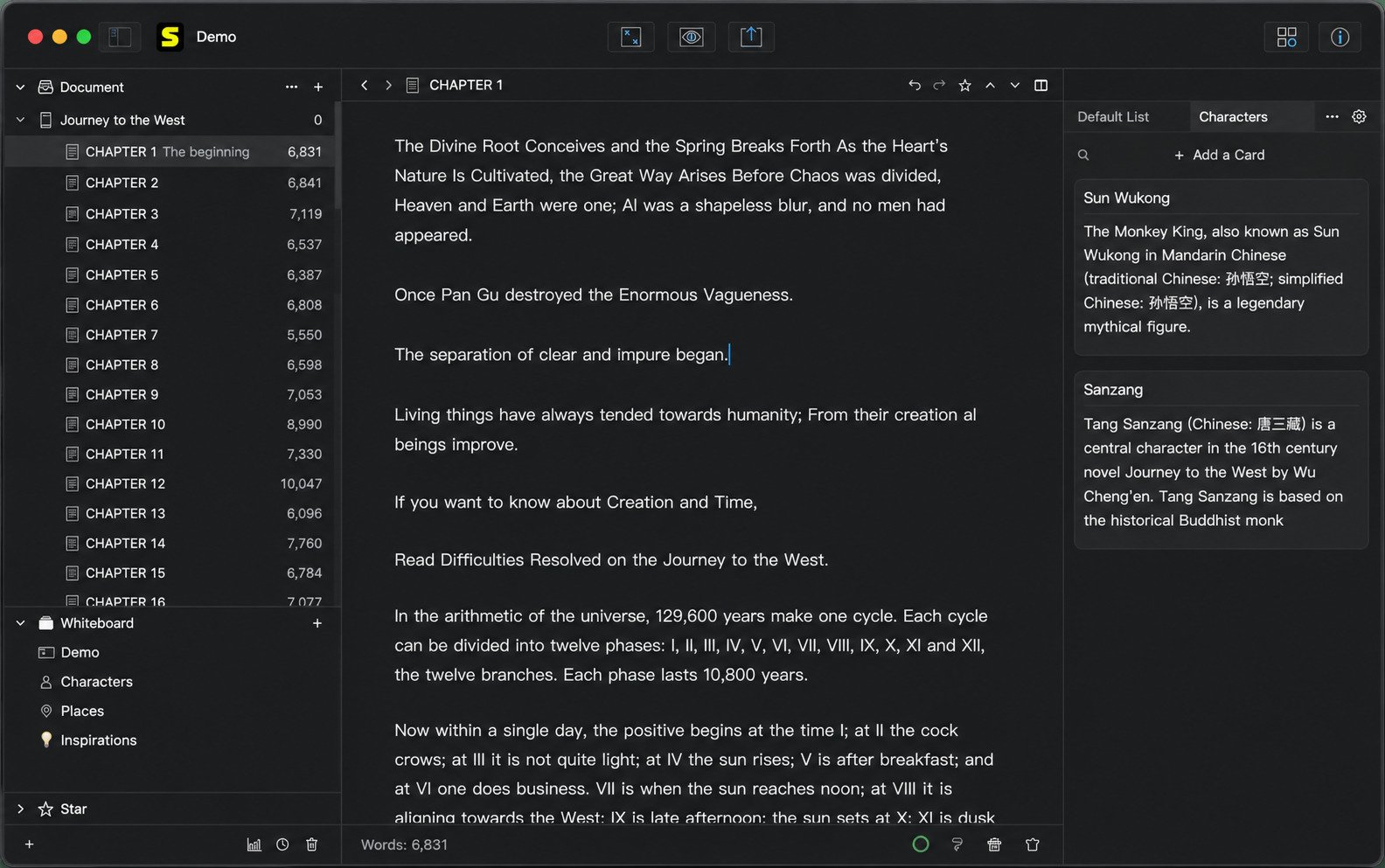
WonderPen is developed by TominLab (Hangzhou Tongming Technology), and its entire design philosophy centers on one idea: long documents need structure, not just a text box. Instead of one giant scrolling file, your project lives inside a tree-like directory where each chapter, scene, or note is its own node.
That structural choice matters more than it might sound. Most standard word processors treat a 300-page manuscript the same way they treat a two-page memo — as one continuous scroll. Once a document passes a certain length, scrolling and searching become genuinely painful. WonderPen sidesteps that entirely by letting you jump straight to any chapter or scene from a visible tree, without ever losing your place in the bigger picture.
Who Is WonderPen Best For?
WonderPen tends to suit:
- Novelists managing dozens of chapters across a single manuscript
- Students and researchers organizing long-form papers or theses
- Journal keepers who want a private, distraction-free space to write daily
- Bloggers or content writers who juggle multiple drafts at once
- Screenwriters or playwrights who need to separate acts, scenes, and revision notes without losing structure
It’s less suited to writers who specifically want deep plot-planning scaffolding — character relationship maps, timeline visualizers, or story-beat templates — built directly into the app. For that kind of guided planning, a dedicated novel-structuring tool might still be worth pairing alongside it.
How WonderPen Organizes Your Writing
Rather than forcing you into a single linear document, WonderPen treats your project like a filing cabinet with infinite folders. You can nest chapters inside parts, scenes inside chapters, and notes inside scenes — then drag and drop to reorder anything at any time.
Common Ways Writers Use WonderPen
A few real-world scenarios illustrate where the app fits best:
- A novelist drafts each chapter as a separate node, then uses global note cards to track a dozen recurring characters across a 90,000-word manuscript.
- A graduate student writing a thesis nests each chapter’s sections as sub-nodes, keeping citations and side notes in the memo panel rather than cluttering the main draft.
- A blogger managing five ongoing series keeps each series as its own top-level node, with individual posts nested underneath for easy tracking.
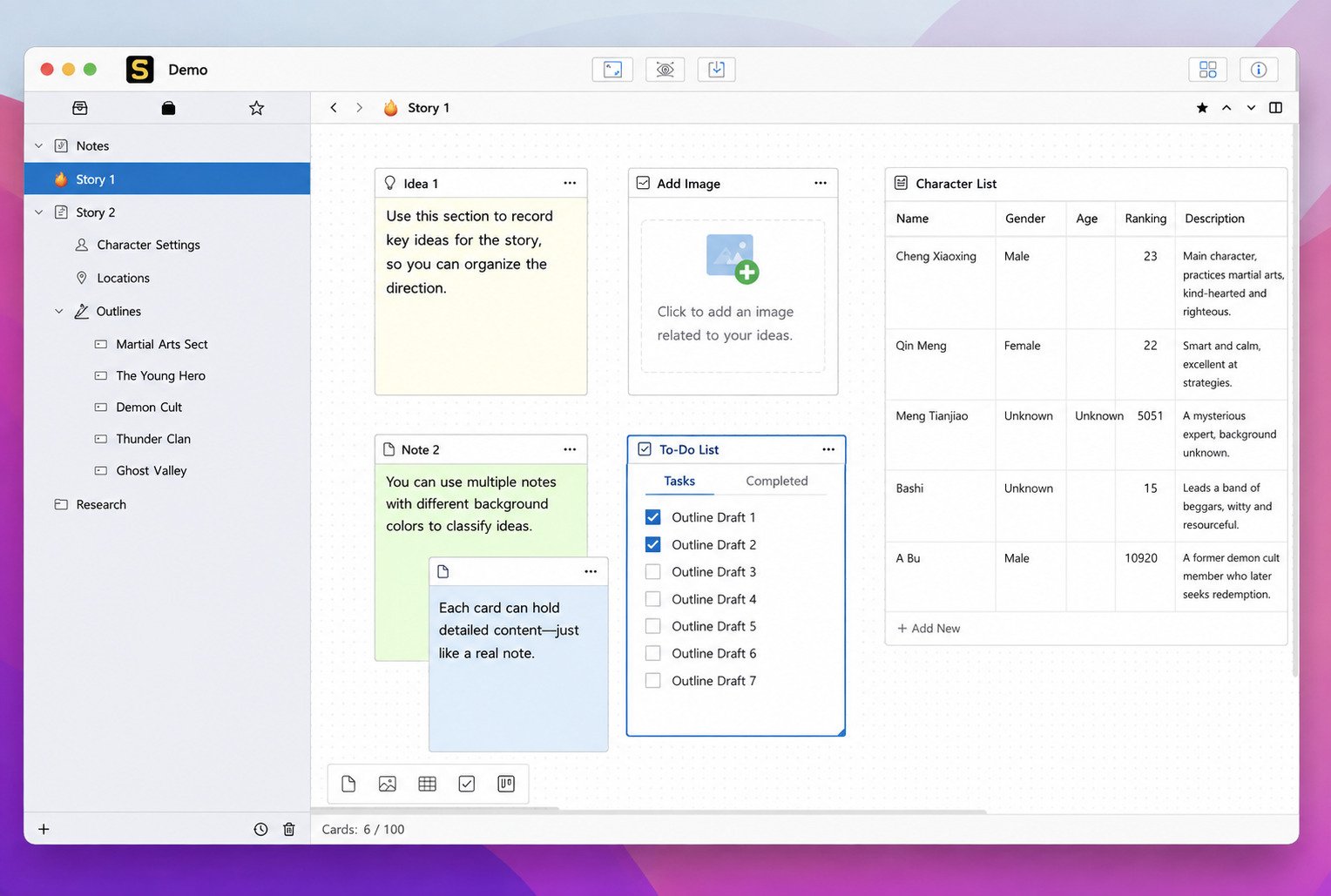
- A screenwriter separates acts and scenes into the tree, then uses whiteboard mode to map out pacing before writing dialogue.
WonderPen Features for Writers
Tree-Style Directory for Long Manuscripts
This is WonderPen’s signature feature. A collapsible, multi-level directory tree sits alongside your editor, so you always see your entire manuscript’s structure without losing your place in the text. You can nest as many levels as you need — parts inside the book, chapters inside parts, and scenes inside chapters — and every node can be dragged into a new position without cutting or retyping a single word.
For a 20-chapter novel, that means you can restructure the entire order of your story in a couple of minutes if beta-reader feedback tells you chapter twelve should really come before chapter nine.
Distraction-Free Writing Mode
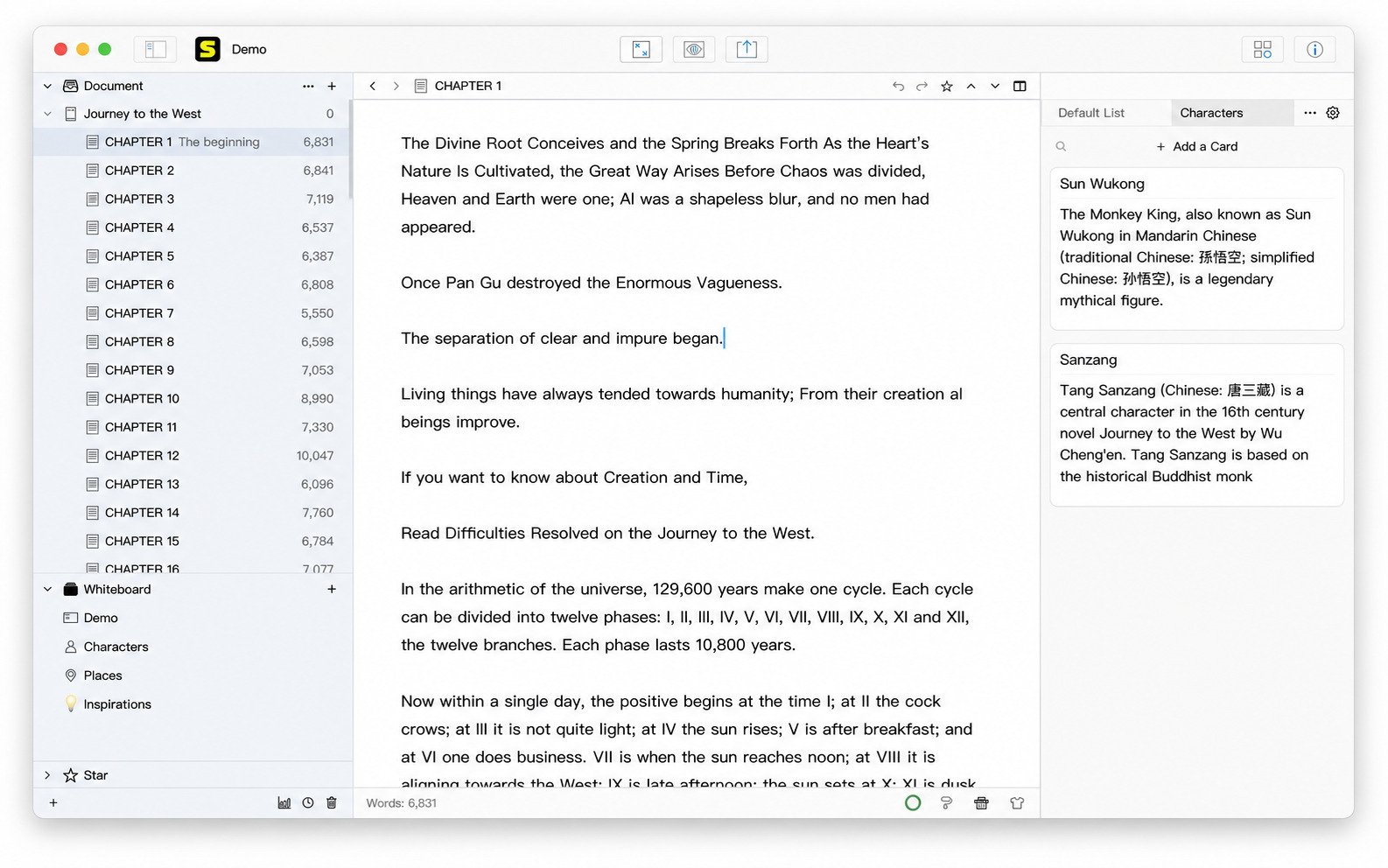
A full-screen composition mode strips away menus, sidebars, and notifications, leaving just your words on the page — useful for anyone who struggles with focus during long writing sessions. You can toggle in and out of this mode instantly, so switching between deep drafting and quick reorganizing doesn’t feel disruptive.
Whiteboard Mode for Notes and Planning
Beyond the linear editor, WonderPen includes a whiteboard mode where you can freely place notes, images, checklists, tables, and kanban-style boards. It’s a flexible space for outlining plot points, tracking research, or planning without committing to a rigid template — closer to a digital corkboard than a form you have to fill in.
Writers who think visually tend to get the most value here, using the whiteboard to sketch a loose story map before ever touching the formal chapter tree.
Document Memos and Global Note Cards
Every document gets its own memo panel for side notes that won’t appear in your final export — perfect for reminders like “fix this character’s age here” without cluttering the actual manuscript. On top of that, global note cards let you jot down details you need to reference across multiple chapters, like a character’s backstory or a recurring location.
This two-tier note system solves a common continuity problem: local reminders stay attached to the exact scene they’re relevant to, while shared reference details stay available no matter which chapter you’re currently editing.
Markdown Support and Formatting
The editor supports Markdown syntax alongside one-click typesetting, so your formatting stays clean and consistent even across a 100,000-word manuscript. If you’re used to writing in plain Markdown elsewhere, the transition into WonderPen is close to seamless.
Search, Chapter Splitting, and Merging
Full-text search and replace works across your entire project, not just the open document. You can also split a long chapter into smaller pieces or merge several shorter ones — handy when your outline changes mid-draft and a single scene needs to become two, or two rushed scenes need to be combined into one.
Backups, Snapshots, and Data Safety
WonderPen automatically saves your work after every edit, and it supports both document snapshots and full library backups, so a corrupted file or an accidental deletion doesn’t mean losing months of writing. Snapshots effectively act as version history, letting you roll back a specific chapter to an earlier draft without affecting the rest of the manuscript.
Sync Across Devices
Cloud snapshots let you pick up a project on a different device — start on your desktop at home, then continue editing on your phone or tablet later. For writers who split their time between a home office and commuting, this kind of lightweight sync often matters more day-to-day than any single feature on the list.
WonderPen Download and Supported Platforms
WonderPen for Windows
WonderPen runs natively on Windows 10 and 11, with regular updates pushed through the official release channel. The Windows build tends to be the most frequently updated, likely reflecting where the bulk of its desktop user base sits.
WonderPen for Mac
A native macOS build is available for macOS 12.0 and later, covering both Intel and Apple Silicon Macs. The interface adapts to standard macOS conventions, so keyboard shortcuts and window behavior should feel familiar if you’re coming from other native Mac apps.
WonderPen for Linux
WonderPen is also distributed through Flathub, making it one of the few dedicated novel-writing apps with proper Linux support out of the box — something writers on Linux distributions often struggle to find among mainstream writing software, most of which skips Linux entirely.
WonderPen for iPhone, iPad, and Vision Pro
A mobile companion app is available on the official WonderPen page, supporting iPhone, iPad, and even Apple Vision Pro, so your manuscript is accessible wherever inspiration strikes. The mobile version mirrors the desktop app’s core tree structure, meaning a chapter you reorganize on your phone during a commute will reflect correctly once you’re back at your desktop.
System Requirements
| Platform | Minimum Requirement |
|---|---|
| Windows | Windows 10 or 11 (64-bit) |
| macOS | macOS 12.0 or later |
| Linux | Available via Flathub (x86_64 and aarch64) |
| iOS / iPadOS | iOS or iPadOS 16.4 or later |
| visionOS | visionOS 1.0 or later |
How to Install and Set Up WonderPen
Installing WonderPen
- Download the installer for your platform from the official WonderPen site, the Mac App Store, or Flathub for Linux.
- Run the installer and follow the on-screen prompts.
- Launch the app — you’ll land on an empty library ready for your first project.
The installation process is intentionally lightweight. There’s no complex dependency setup or account creation wall blocking you before you can start writing — you can open the app and begin typing within a couple of minutes of downloading it.
First-Time Setup and Workspace Configuration
On first launch, you can choose between light and dark modes, adjust your editor’s font size and line spacing, and pick from several built-in themes to match your preferred writing environment. Advanced users can also add custom CSS if they want finer control over how their workspace looks and feels.
Importing Existing Manuscripts
If you’re migrating from another tool, WonderPen accepts plain text and Markdown imports, which covers exports from most common writing apps and word processors. For a manuscript already broken into chapter files, you can import each one as its own node and quickly rebuild your directory tree without retyping anything.
Setting Up Backups
Head into your library settings to confirm automatic backups are enabled. Given how much time goes into a full manuscript, it’s worth double-checking this before you get too far into a project — losing a single scene is annoying, but losing months of drafting because a backup setting was off by default is the kind of mistake you only make once.
How to Use WonderPen for Novel and Book Writing
Starting a New Writing Project
Create a new library, then add your first document node — this becomes the root of your manuscript’s directory tree. From there, you can decide whether to start writing immediately or build out your full chapter structure first.
Building Your Outline With the Directory Tree
Add nodes for each part, chapter, or scene, then drag them into whatever order fits your outline. Because the tree is fully flexible, you can restructure your entire book without cutting and pasting text. Many writers find it useful to create placeholder nodes for chapters they haven’t written yet, so the whole book’s shape is visible from day one — even if half the nodes are still empty.
Using Memos and Note Cards for Planning
Attach memos to individual chapters for continuity notes, and use global note cards to store details — like character traits or a timeline — that apply across the whole book. This becomes especially valuable past the halfway point of a long manuscript, when remembering small details from chapter three while writing chapter twenty-five gets genuinely difficult without a reference system.
Using Whiteboard Mode to Brainstorm
Before locking in your outline, many writers use whiteboard mode to lay out ideas visually first, then convert the strongest ones into actual chapter nodes in the directory tree. It works well as a staging area — a place for half-formed ideas to sit until they’re solid enough to become a real chapter.
Exporting a Finished Manuscript
When your project is ready, export your selected node — or the whole tree — to PDF, Word, EPUB, HTML, image, or plain text, depending on where the manuscript needs to go next (a beta reader, an editor, or a publishing platform). Because exports can be scoped to specific nodes, you’re not limited to all-or-nothing sharing — you can send a single chapter for feedback without exposing the rest of the draft.
WonderPen Export and File Management
Exports can be scoped to a single chapter or the entire project, which is useful when you only need to share one section with a critique partner rather than the whole draft. If your writing group coordinates feedback over Discord, tools like DiscordChatExporter can help you save those critique threads locally alongside your manuscript notes, so nothing useful gets lost in scroll-back.
Is WonderPen Free? Pricing and Plans
Free Version and Limitations
WonderPen’s core writing and organizing tools are available for free, covering the directory tree, editor, memos, and basic export options — enough for most single-project writers to get real use out of it without paying anything. The main limitation shows up around cloud storage: free accounts get a smaller sync quota, which mostly affects writers juggling several large projects across multiple devices rather than someone working on a single manuscript locally.
Pro+ Membership
A Pro+ membership unlocks expanded cloud sync storage and additional features, priced at roughly $2.99 per month or $19.99 per year on mobile. Desktop pricing has historically been offered as a one-time purchase option as well, so it’s worth checking the official site for the current plan structure before buying, since pricing models for indie software tools do shift over time.
Is WonderPen Worth Paying For?
For writers who only need local storage and basic exports, the free tier likely covers everything. If you write across multiple devices and want reliable cloud sync, the Pro+ upgrade is a reasonable, low-cost add-on — especially compared to subscription-based competitors that charge considerably more per month for similar cross-device syncing.
WonderPen Review
Writing Experience
The full-screen mode and clean typography make long writing sessions genuinely comfortable, without the visual clutter that plagues some general-purpose note apps repurposed for fiction writing. There’s a noticeable difference between opening a dedicated writing tool versus trying to force a spreadsheet app or a generic notes app to behave like one — WonderPen clearly built its editor around the actual act of drafting, not just storing text.
Organization and Planning Tools
The combination of the directory tree, memos, and whiteboard mode covers most of what a novelist needs — though it’s worth noting WonderPen doesn’t include dedicated character-sheet templates or a built-in corkboard view the way some specialized fiction tools do. If your process depends heavily on filling out structured character profiles, you may still want a companion tool alongside WonderPen for that specific task.
Ease of Use
New users can realistically get comfortable with the core workflow — creating nodes, dragging them around, and switching into distraction-free mode — within a single sitting. There’s no steep onboarding curve or lengthy tutorial required before the app becomes genuinely useful.
Pros and Cons
Pros
- Clean, distraction-free writing environment
- Flexible tree-based organization for long manuscripts
- Available on Windows, Mac, Linux, iOS, iPad, and Vision Pro
- Free tier is genuinely usable, not just a stripped-down demo
- Local and cloud backups protect your work
- Lightweight installer with a short learning curve
Cons
- No dedicated character or plot-planning templates
- Cloud sync storage is limited without a Pro+ subscription
- Smaller community and fewer tutorials compared to long-established tools like Scrivener
Who Should Use WonderPen?
If you want a lightweight, flexible workspace for organizing a long manuscript without a steep learning curve, WonderPen is worth trying — especially given the free tier lets you fully evaluate it before spending anything. It’s a particularly good fit if you’ve previously tried writing a novel in a standard word processor and hit a wall once the document got too long to navigate comfortably.
WonderPen Troubleshooting: Common Problems and Fixes
WonderPen Won’t Open or Crashes
Try reinstalling the latest version from the official source, since crashes are most often tied to an outdated build conflicting with a newer OS update. On Linux, updating through Flathub directly usually resolves version-mismatch issues faster than a manual reinstall.
Sync or Backup Problems
Confirm you’re signed into the same account across devices, and check your internet connection — cloud sync requires an active connection to push and pull the latest snapshot. If sync still fails after that, restarting the app often clears a stuck connection without needing to reinstall anything.
Export Problems
If an export to Word or PDF looks off, check your one-click typesetting settings first, since formatting inconsistencies usually trace back to mismatched font or spacing presets rather than an actual export bug. Exporting a smaller test node first can also help isolate whether the issue is with one specific chapter or the whole project.
WonderPen vs Other Writing Software
| Tool | Best For | Platforms | Pricing Model |
|---|---|---|---|
| WonderPen | Tree-based long manuscript organization | Windows, Mac, Linux, iOS, iPad, Vision Pro | Free + Pro+ subscription |
| Scrivener | Full novel-writing suite with corkboard view | Windows, Mac, iOS | One-time purchase |
| Obsidian | Note-linking and knowledge management | Windows, Mac, Linux, iOS, Android | Free (paid sync add-on) |
| yWriter | Free, no-frills scene and chapter tracking | Windows | Free |
| Ulysses | Minimalist writing for Apple ecosystem | Mac, iOS | Subscription |
According to writing resources like Poets & Writers, choosing the right tool often comes down to whether a writer needs heavy planning features (character sheets, corkboards) or simply wants a clean space to draft — which is exactly the trade-off between something like Scrivener and a lighter tool like WonderPen.
Best WonderPen Alternatives
If WonderPen doesn’t fit your process, consider:
- Scrivener — for writers who want dedicated corkboard and character-sheet tools alongside their manuscript, at the cost of a steeper learning curve.
- Obsidian — for writers who think in linked notes rather than a strict chapter tree, especially useful for research-heavy projects.
- yWriter — a free, simpler option focused purely on scene tracking, with a more dated interface but zero cost.
- Manuskript — an open-source alternative with built-in outline and character tools, appealing if you want more planning structure without a subscription.
- Bibisco — free novel-writing software with structured character and plot planning, closer to Scrivener in philosophy but fully free.
Ultimately, the right choice comes down to how much planning scaffolding you want the software to provide versus how much you’d rather build yourself.
WonderPen FAQs
WonderPen is a writing app designed for organizing and drafting long-form projects like novels, books, and multi-chapter stories.
Yes, the core app is free to use, with an optional Pro+ subscription for expanded cloud sync storage.
Yes, WonderPen supports Windows, macOS, and Linux (via Flathub), along with iOS, iPad, and Vision Pro.
Yes, its tree-style directory lets you nest, reorder, split, and merge chapters as your outline evolves.
Yes, the editor supports Markdown syntax alongside one-click typesetting for consistent formatting.
Yes, finished projects can be exported to PDF, Word, EPUB, HTML, image, or plain text.
It depends on your needs — WonderPen is lighter and available on more platforms, while Scrivener offers deeper novel-planning tools like a corkboard and character sheets.
Final Verdict: Is WonderPen a Good Writing App for Authors?
WonderPen won’t try to do everything. It skips the character databases and plot-structure templates that some novel-writing tools pile on, and instead focuses on giving you a clean, flexible space to actually organize and write your manuscript. For a lot of writers, that trade-off is exactly right.
If you’ve been putting off a big writing project because your notes are scattered across five different apps, WonderPen’s free tier is worth an afternoon of your time. Worst case, you’ve lost nothing. Best case, you’ve finally found a home for that book you keep meaning to finish.