DriverMax Download, Driver Updater & Windows Driver Guide
If your PC has started freezing randomly, your Wi-Fi keeps dropping, or your printer suddenly refuses to cooperate, outdated drivers are usually the hidden culprit. DriverMax is one of the most widely used driver updater tools built to fix exactly this problem, and in this guide you’ll learn everything about the DriverMax download process, its features, and how to use it safely on Windows 11 and Windows 10.
Whether you’re a casual home user or someone who manages several PCs, this guide covers the DriverMax latest version, free vs Pro comparison, installation steps, troubleshooting tips, and the best alternatives all in one place.
What Is DriverMax?
DriverMax is a Windows driver management utility developed by Innovative Solutions. It scans your computer, identifies outdated or missing drivers, and helps you install the correct updated versions without manually hunting through manufacturer websites.
Instead of guessing which driver belongs to which hardware component, DriverMax automates the entire discovery and update process, which makes it especially useful for people who aren’t comfortable digging through Device Manager.
DriverMax Driver Updater and Scanner
At its core, DriverMax works as a driver scanner. It checks every hardware component connected to your PC — from your graphics card to your keyboard — against a large driver database and flags anything that’s outdated.
This scan typically takes just a couple of minutes, and the results are displayed in a simple, readable list so you know exactly what needs attention.
How DriverMax Finds Outdated and Missing Drivers
DriverMax compares the driver versions currently installed on your system with the latest available versions in its database, which covers millions of hardware devices. When a newer version exists, or when Windows detects a device with no proper driver at all, DriverMax flags it as outdated or missing.
This matters because Windows doesn’t always install the best driver automatically — sometimes it installs a generic one that technically works but limits performance.
Driver Management, Installation, and Driver Backup
Beyond just updating, DriverMax also handles the full lifecycle of driver management:
- Scanning and detecting driver issues
- Downloading and installing updated drivers
- Creating backups of your current drivers
- Restoring previous driver versions if something breaks
This backup-and-restore combination is one of the more practical reasons people stick with DriverMax rather than updating drivers manually.
Is DriverMax Safe to Use?
Yes, DriverMax is generally considered safe when downloaded from the official website. It doesn’t bundle malware, and it creates a system restore point before major updates, which adds a safety net in case a new driver causes conflicts.
Download safely: like any third-party updater, it’s smart to avoid downloading DriverMax from random third-party mirrors and stick to the official source instead.
DriverMax Download and Latest Version
DriverMax Download
The safest way to get DriverMax is directly from the official DriverMax website. This avoids bundled toolbars, fake installers, or outdated versions that unofficial download sites sometimes push.
DriverMax Free Download
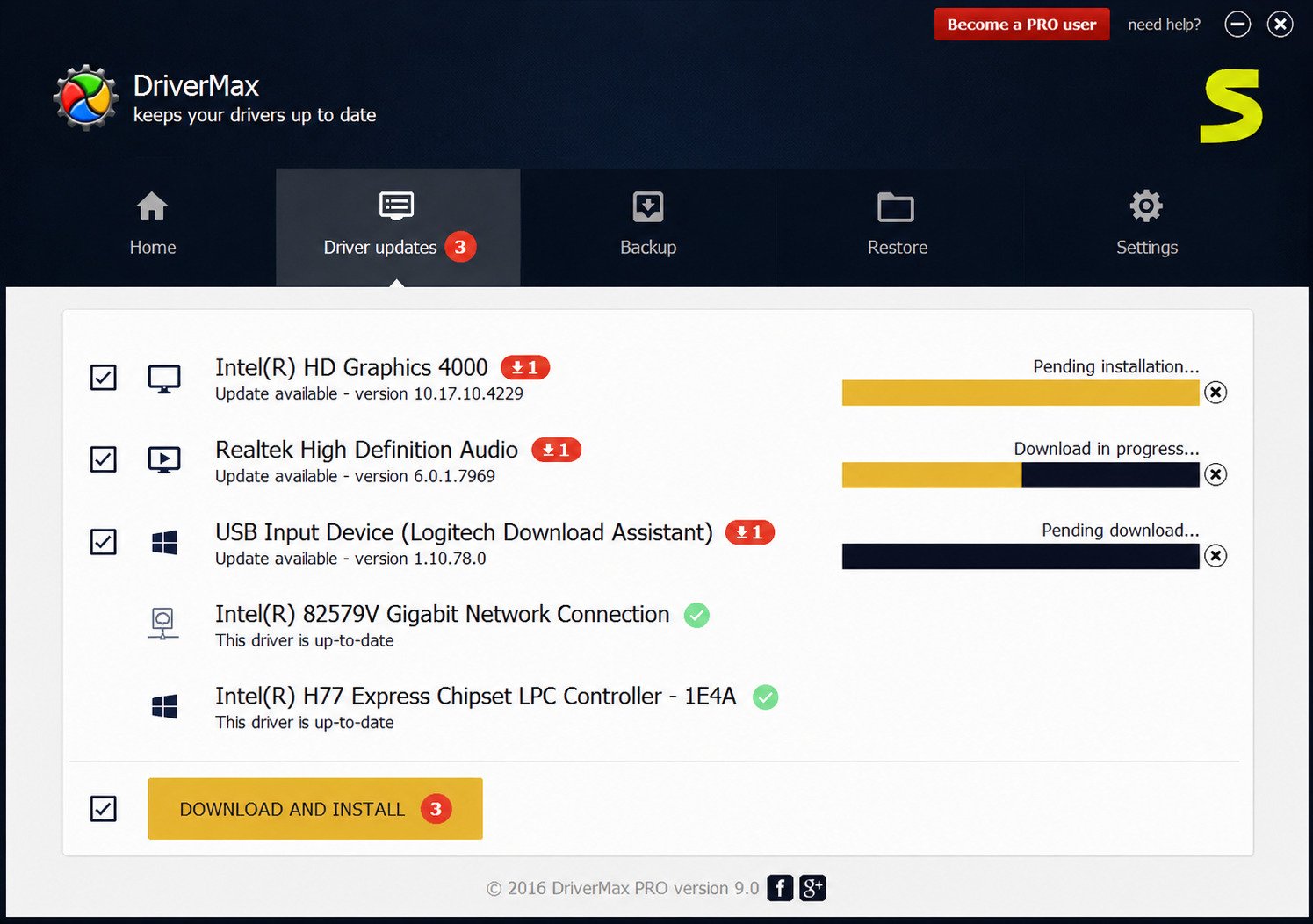
DriverMax offers a free download tier that lets you scan your PC and update a limited number of drivers per day at no cost. It’s a solid starting point if you only need occasional updates rather than bulk driver management.
DriverMax Latest Version and Latest Release
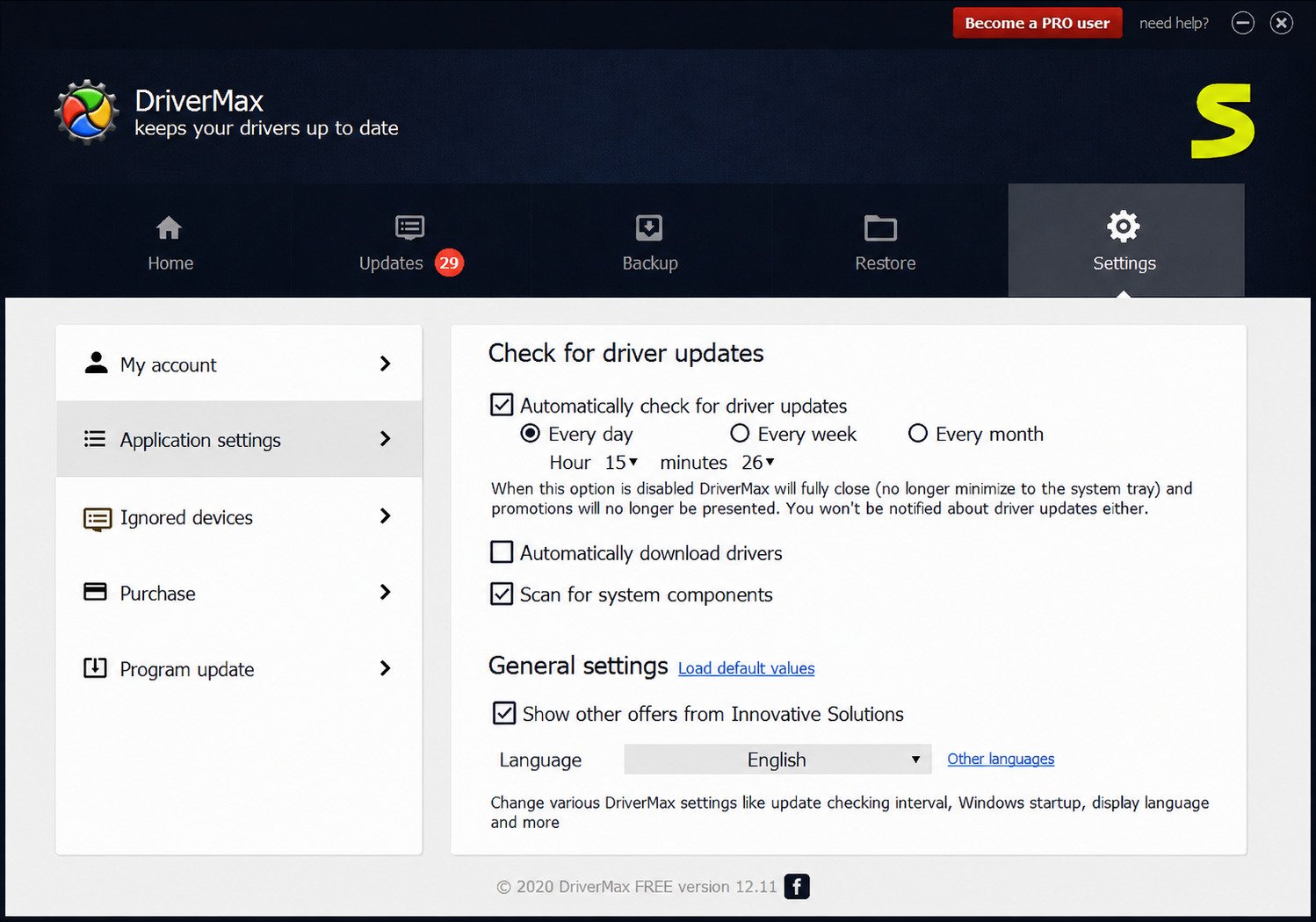
DriverMax is updated regularly, with new releases adding driver database expansions, bug fixes, and compatibility improvements for the newest Windows updates. Always check the official site before downloading to confirm you’re getting the current build rather than an older cached version.
DriverMax Pro and Free Version
| Feature | Free Version | Pro Version |
|---|---|---|
| Driver scanning | Yes | Yes |
| Daily update limit | Limited (a few per day) | Unlimited |
| One-click “Update All” | No | Yes |
| Direct in-app downloads | Redirects to website | Direct download |
| Driver backup & restore | Yes | Yes |
| Priority support | No | Yes |
DriverMax Offline Driver Update and Portable Version
DriverMax primarily works as an internet-connected tool since it pulls updates from an online database. There isn’t an official portable version, so installation on the target machine is generally required for full functionality, including offline backup exports you can reuse later.
DriverMax for Windows 11 and Windows 10
DriverMax Windows 11 Download
DriverMax is compatible with Windows 11 and supports both 32-bit and 64-bit systems, making it a reasonable option for users who upgraded and are dealing with missing drivers post-upgrade.
DriverMax for Windows 11
On Windows 11, driver mismatches are a common cause of Bluetooth, audio, and graphics glitches after a fresh install. DriverMax’s scanner is built to catch these gaps and suggest compatible replacements.
DriverMax Windows 10 Download
Windows 10 remains widely used, and DriverMax fully supports it, including older hardware that may no longer receive automatic driver updates through Windows Update.
DriverMax for Windows 10
For Windows 10 users with aging laptops or custom-built desktops, DriverMax can be particularly useful since manufacturer support pages for older hardware sometimes go stale.
Windows Driver Updater and Driver Scanner
Whether you’re on Windows 10 or 11, the core promise is the same: a single scan that shows you every outdated or missing driver instead of checking each component individually.
DriverMax Features for PC Driver Management
Automatic Driver Updates
DriverMax can be scheduled to run scans automatically and apply updates without you needing to open the app every time.
Driver Scanner and Outdated Driver Checker
The built-in scanner checks driver version numbers against its database and highlights anything behind the latest release.
Missing Driver Detection
Beyond outdated drivers, DriverMax also detects hardware with no driver installed at all, which commonly happens after a clean Windows install.
Automatic Driver Download and Installation
Once updates are found, DriverMax can download and install them with minimal manual steps, especially on the Pro version.
Driver Backup and Restore
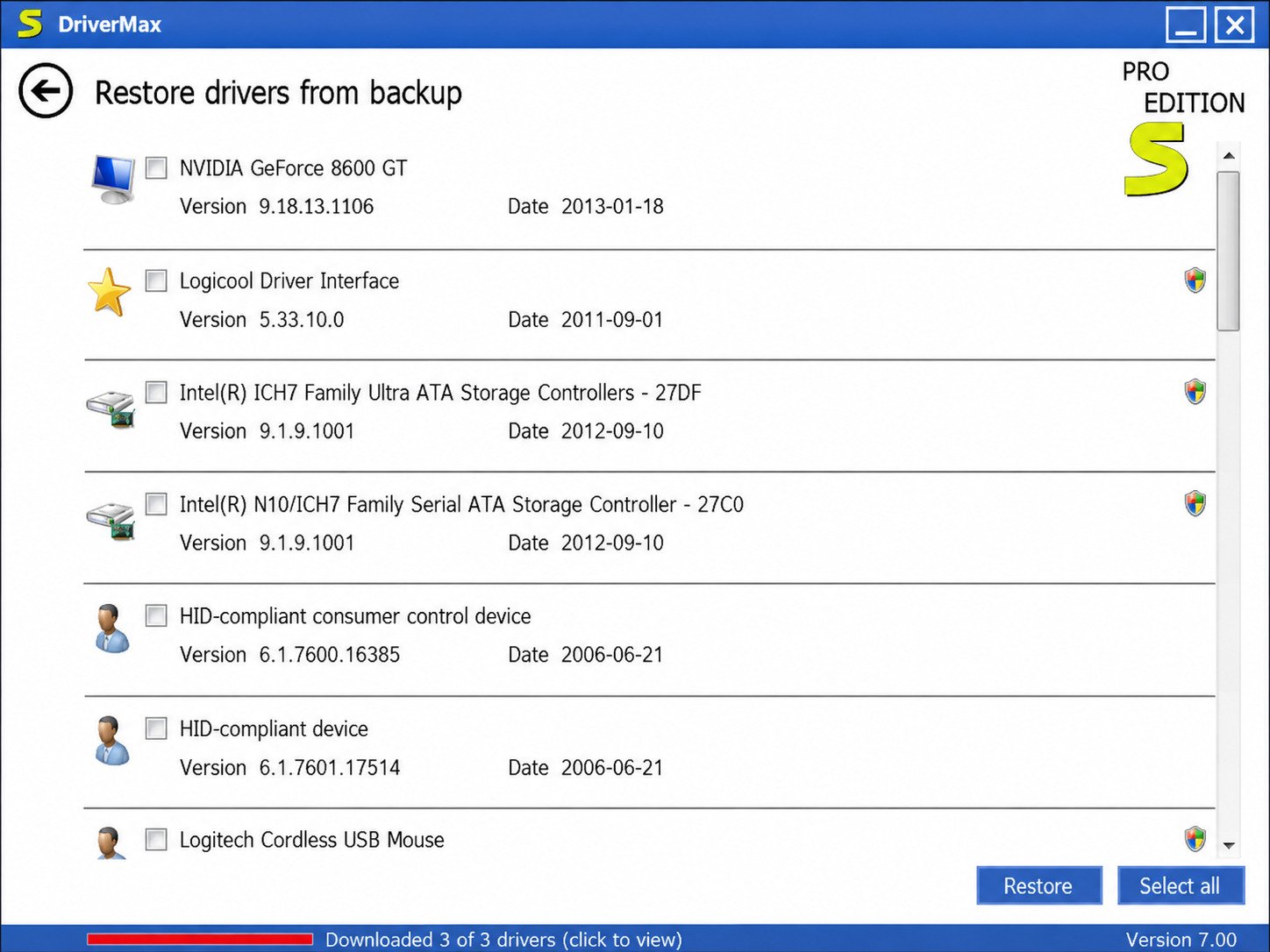
Before applying updates, DriverMax lets you back up your current driver set. If a new driver misbehaves, you can roll back instantly instead of troubleshooting blind.
One-Click Driver Updates
The “Update All” feature (Pro) applies every pending update in a single action, saving time compared to updating drivers one by one.
Update Different Types of PC Drivers With DriverMax
Graphics and GPU Driver Updates
Outdated GPU drivers often cause stuttering, screen tearing, or crashes in games and creative apps. DriverMax flags these and points you toward newer, more stable releases.
Audio and Sound Driver Updates
If sound has stopped working, cuts out randomly, or sounds distorted, an outdated audio driver is a common cause that DriverMax can detect quickly.
Network and Wi-Fi Driver Updates
Frequent Wi-Fi disconnects or slow network speeds are sometimes tied to an outdated network adapter driver, which DriverMax scans for as well.
Chipset and Motherboard Driver Updates
Chipset drivers affect how efficiently your CPU, RAM, and storage communicate. DriverMax includes these in its scan results too.
USB, Bluetooth, and Printer Drivers
Peripheral drivers — USB controllers, Bluetooth adapters, and printers — are also covered, which helps when a device suddenly stops being recognized by Windows.
Webcam, Keyboard, and Mouse Drivers
Even smaller peripherals like webcams, keyboards, and mice get checked, which matters more than people expect for video calls and gaming peripherals with custom features.
How to Install and Use DriverMax
How to Install DriverMax
- Download the installer from the official DriverMax website.
- Run the setup file and follow the on-screen prompts.
- Launch the application once installation completes.
How to Use DriverMax
After launching DriverMax, the main dashboard gives you a single button to start scanning, plus tabs for backup, history, and settings.
DriverMax Tutorial for Beginners
If you’re new to driver updaters, start with a scan first, review the results, and only update drivers flagged as outdated or missing — there’s no need to reinstall drivers that are already current.
How to Scan for Outdated Drivers
Click “Scan for driver updates” on the dashboard. DriverMax will check your system and generate a results list within a couple of minutes.
How to Update Drivers With DriverMax
From the results list, select the specific driver you want and click update. Free users may be redirected to a webpage to complete the download.
How to Update All Drivers With DriverMax
Pro users can click “Update All” to install every recommended driver update in one go, which is the fastest route to a fully updated system.
How to Update and Manage Windows Drivers
How to Update Drivers on Windows 11
You can update drivers manually through Device Manager, via Windows Update, or with a third-party tool like DriverMax for a more complete scan.
How to Update Drivers on Windows 10
The process mirrors Windows 11 — Device Manager and Windows Update cover the basics, while DriverMax adds broader hardware coverage.
How to Find Outdated Drivers
Open Device Manager, expand each category, and check driver properties manually, or run a DriverMax scan to get a complete list instantly.
How to Find Missing Drivers
Unknown devices in Device Manager (often marked with a yellow warning icon) usually indicate a missing driver, which DriverMax can identify and match to the correct hardware.
How to Install Missing Drivers
Once identified, missing drivers can be downloaded either from the manufacturer’s site directly or through DriverMax’s suggested match.
How to Automatically Update PC Drivers
Enabling scheduled scans in DriverMax settings lets the tool check for updates in the background on a recurring basis.
How to Back Up and Restore Drivers With DriverMax
How to Back Up Windows Drivers
Open the Backup tab in DriverMax and select the drivers you want saved. This creates a local copy you can restore later.
How to Save Installed Device Drivers
DriverMax exports the current, working versions of your drivers so you have a fallback if a future update causes problems.
How to Restore Windows Drivers
If a driver update goes wrong, open the Backup/Restore tab and select the previous version to roll it back.
Driver Backup and Restore Explained
Think of this feature as a safety net: back up before updating, and if anything breaks, you’re one click away from reverting.
When Should You Restore an Older Driver?
Restore an older driver if a new update causes crashes, black screens, missing features, or reduced performance compared to before the update.
DriverMax Troubleshooting
DriverMax Not Detecting Drivers
If DriverMax isn’t detecting drivers correctly, try running it as an administrator and confirm your internet connection is stable, since scans rely on an online database.
DriverMax Scan Not Working
A stuck or failed scan is often resolved by restarting the application, checking for a pending DriverMax update, or temporarily disabling conflicting security software.
DriverMax Driver Update Problems
If an update fails to apply, check whether Windows Update is mid-installation in the background, as the two can occasionally conflict.
DriverMax Not Installing a Driver
Free-tier limits are a common reason installation stalls — confirm you haven’t hit your daily update cap before assuming there’s a technical fault.
What to Do When a Driver Update Fails
Restore the previous driver from backup, restart your PC, and retry the update after confirming your internet connection is stable.
How to Fix Outdated or Missing Drivers
Run a fresh scan, restart your computer, and reattempt the update — most driver issues resolve after these basic steps.
DriverMax Alternatives
Best DriverMax Alternatives
If DriverMax’s free-tier limits don’t fit your needs, several other driver updaters are worth comparing before committing to a paid license.
Best Free Driver Updater Software
Free driver updaters generally trade off unlimited updates for basic scanning access — useful for occasional users rather than IT professionals.
Best Driver Updater for Windows 11
Look for a tool with confirmed Windows 11 compatibility, active update cycles, and a large driver database to avoid mismatches.
Best Driver Updater for Windows 10
Since Windows 10 support is winding down over time, a tool with a broad legacy hardware database is especially valuable here.
Free Windows Driver Updater Alternatives
Consider comparing free tiers side-by-side, since daily/monthly update caps vary widely between tools.
DriverMax vs Other Driver Updaters
| Tool | Free Tier Limit | Backup/Restore | Standout Feature |
|---|---|---|---|
| DriverMax | Limited daily updates | Yes | Large driver database, easy UI |
| Driver Booster | Limited free updates | Yes | Game-focused driver mode |
| Driver Easy | Very limited free updates | Yes | Simple scan-and-match interface |
| Snappy Driver Installer | Mostly unlimited (offline packs) | Manual | Fully offline driver packs |
| AVG Driver Updater | Trial-based | Yes | Bundled with AVG security suite |
| DriverPack | Unlimited (bulk installer) | Limited | Bulk offline installation |
DriverMax vs Driver Booster
Driver Booster leans heavily toward gaming performance drivers, while DriverMax focuses on broad, general-purpose driver coverage across all hardware types.
DriverMax vs Driver Easy
Driver Easy’s interface is minimal and fast, but DriverMax’s backup/restore workflow tends to feel more complete for everyday users.
DriverMax vs Snappy Driver Installer
Snappy Driver Installer works well offline with downloaded driver packs, whereas DriverMax needs an internet connection but offers a more guided experience.
DriverMax vs AVG Driver Updater
AVG’s version is tied to its broader security suite, while DriverMax functions as a standalone, dedicated driver tool.
DriverMax vs DriverPack
DriverPack is built for bulk installs on multiple machines, while DriverMax is better suited to individual PC maintenance with more careful, one-by-one control.
DriverMax License, Pro, and Free Version
Is DriverMax Free?
Yes, DriverMax has a free version, though it limits how many drivers you can update per day.
DriverMax Free vs Pro
The free version is fine for occasional single-driver fixes, while Pro removes daily limits and enables bulk, one-click updating.
What Does DriverMax Pro Include?
Pro includes unlimited driver updates, direct in-app downloads (no browser redirects), faster download speeds, and priority customer support.
DriverMax License and Activation
A Pro license is activated with a purchased key entered inside the application, unlocking the unlimited update features.
DriverMax Login and Account Questions
Most DriverMax functions work without a mandatory account, though registering can help manage your license and support requests more easily.
DriverMax Pros & Cons
Pros
- Large driver database covering millions of devices
- Simple scan-update-backup workflow for beginners
- Backup & restore included even on the free version
- Creates a system restore point before major updates
- Full support for both Windows 10 and Windows 11
Cons
- Free version caps daily driver updates
- No official portable version — installation required
- Needs an internet connection to scan and match drivers
- Free-tier downloads redirect to a webpage instead of installing in-app
Frequently Asked Questions About DriverMax
Yes, when downloaded from the official website. It’s not known to bundle malware and includes safety features like restore points.
It’s a solid, beginner-friendly option, especially for users who want an all-in-one scan-update-backup workflow rather than manual driver hunting.
Yes, DriverMax supports Windows 11 on both 32-bit and 64-bit systems.
Yes, DriverMax fully supports Windows 10, including many older hardware devices.
Yes, but the one-click “Update All” feature for unlimited drivers is a Pro-tier feature; the free version limits daily updates.
Yes, backup and restore are available in both free and Pro versions, which makes rolling back a bad update simple.
Yes, DriverMax offers a free version with a capped number of daily driver updates.
DriverMax is updated on a regular release cycle, so it’s best to check the official DriverMax site for the current version number before downloading.
Conclusion
Final Verdict
Keeping your drivers updated doesn’t have to mean digging through Device Manager or hunting down manufacturer pages one by one. DriverMax simplifies that entire process into a scan, update, and backup workflow that even beginners can follow confidently.
If you’re setting up a new Windows 11 PC, recovering from a driver-related crash, or just tired of manual updates, DriverMax is a practical tool worth trying. And if you’re already optimizing your Windows setup, you might also find it useful to explore other performance tools like RyTuneX on SoftFolders for additional system tuning options.