YouConvert: Features, How to Use, Safety, and Alternatives (2026 Guide)
You paste a link, click a button, and a few seconds later a YouTube video becomes a file on your phone. That is the promise of the YouConvert website, and it explains why so many people search for it every month.
But there is a catch. Many sites use the YouConvert name, and they are not all the same service. Some work, some redirect, and some are plain risky.
This guide explains what YouConvert is, what it can convert, how to use it, and whether it is safe. You will also find fixes for common errors and solid alternatives.
Quick answer: YouConvert is the name of several free, browser-based tools that convert YouTube links into MP3 or MP4 files. Because unrelated sites share the name, always check the address, avoid pop-ups, and respect copyright before you download anything.
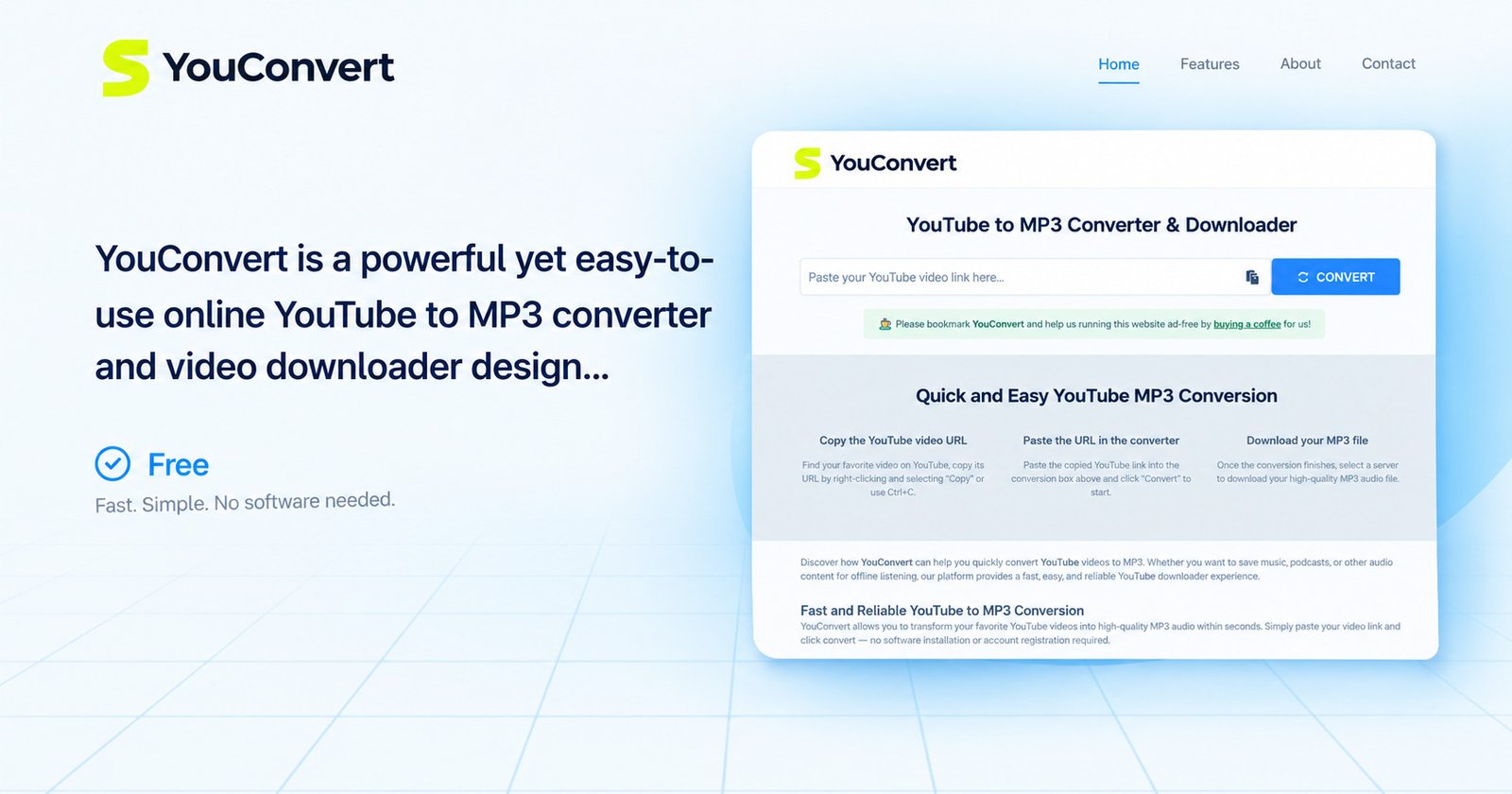
What Is YouConvert?
YouConvert is an online YouTube converter. You give it a video link, and it gives you back an audio file (MP3) or a video file (MP4). There is nothing to install. Everything happens in your browser, which is why people compare it to a “paste and go” tool.
What Does the YouConvert Website Do?
In simple terms, it does three jobs:
- Reads the YouTube URL you paste in
- Processes the video on its own server
- Offers a file to download in your chosen format
Think of it like a photocopier. You hand over the original link, and you get back a copy in a different shape.
How Does YouConvert Work?
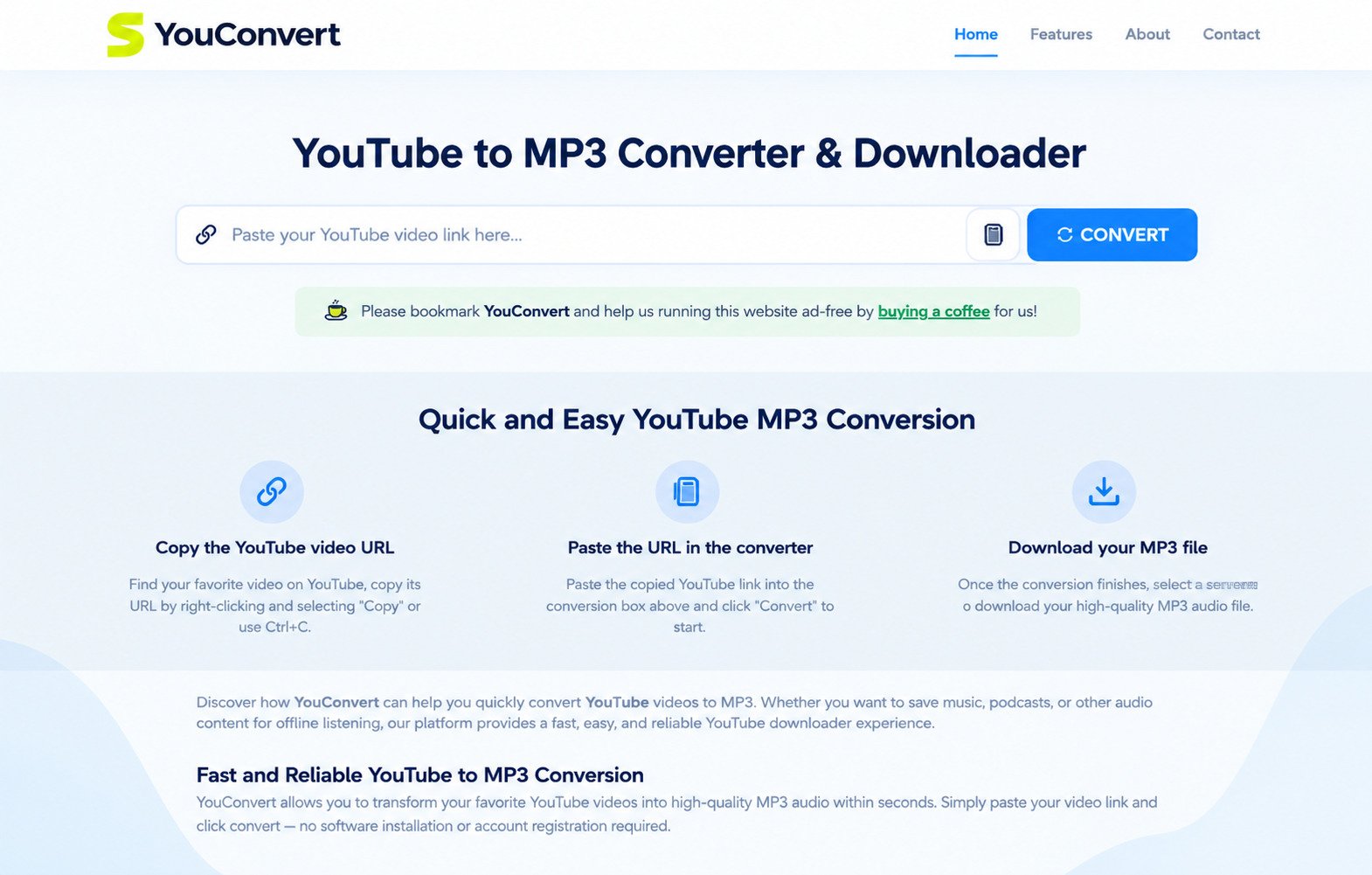
You copy a link from YouTube, paste it into the YouConvert box, pick a format, and press convert. When the server finishes, a download button appears. Behind the scenes, the site pulls the video stream, extracts the audio if you chose MP3, and packages the result. Speed depends on video length, server load, and your connection.
Is YouConvert an Online YouTube Converter?
Yes. It is a web-based YouTube converter, not a desktop program. That is its biggest strength and also its biggest risk. Online converters are easy, but you rely on a website you do not control. Quality and safety vary a lot between domains.
What Can YouConvert Convert?
Most versions focus on YouTube links. Common targets include:
- Music videos
- Podcasts and interviews
- Lectures and tutorials
- YouTube Shorts
- Your own uploaded videos
Some versions claim support for other platforms like Vimeo or Dailymotion, but YouTube remains the main focus.
Who Is YouConvert Designed For?
- Students who want lecture audio for commutes
- Creators who need to save their own uploads
- Travelers who want offline listening in low-signal areas
- Casual users who like quick, no-account tools
Example: a student on a long bus ride with patchy data can save a lecture they have permission to use and listen offline without burning mobile data.
YouConvert Features and Capabilities
The feature list looks similar across most versions of the site.
YouTube Video and Audio Conversion
The core feature is turning a link into a file. Audio mode is popular for music, talks, and podcasts. Video mode suits tutorials and clips you want to rewatch offline.
YouTube MP3 and MP4 Conversion
MP3 is the universal audio format and plays on almost every phone, car stereo, and laptop. MP4 is the universal video format, lightweight and compatible with nearly every device.
Online Video Downloading
Many versions also work as a video downloader, so the file plays without internet. This is where legal care matters most; see the safety section.
Browser-Based Conversion
Everything runs inside Chrome, Safari, Firefox, or Edge. No plugin, extension, or app is needed, which is handy on a shared or work computer.
Free Conversion Without Installing Software
Most versions advertise free use with no sign-up and earn money through ads. Free is nice, but ad-supported converters are exactly where misleading buttons tend to appear.
Supported Video and Audio Formats
| Format | Type | Best for | Typical availability |
|---|---|---|---|
| MP3 | Audio | Music, podcasts, general use | Almost always |
| MP4 | Video | Offline viewing on any device | Almost always |
| M4A | Audio | Apple devices, better compression | Some versions |
| WAV | Audio | Editing, uncompressed audio | Some versions |
| FLAC | Audio | Lossless listening | Rare |
If a site promises every format with “military-grade security,” treat that with healthy skepticism.
Video and Audio Quality Options
Audio quality is measured in bitrate (kbps). Higher numbers keep more detail but create larger files.
- 128 kbps: fine for speech and casual listening
- 192 kbps: a solid middle ground for most music
- 320 kbps: the best MP3 quality, with bigger files
A converter cannot add quality that was never there. If the original upload is low quality, a 320 kbps file will not magically sound better.
How to Use YouConvert
Using the tool is easy. The hard part is making sure you are on a safe version of the site.
How to Convert a YouTube Video With YouConvert
- Open YouTube and find the video.
- Copy the link from the address bar or the Share button.
- Open the converter site in your browser.
- Paste the link into the input box.
- Choose MP3 or MP4.
- Pick your quality.
- Click Convert, then Download.
Warning: If a pop-up appears, close it rather than clicking through.
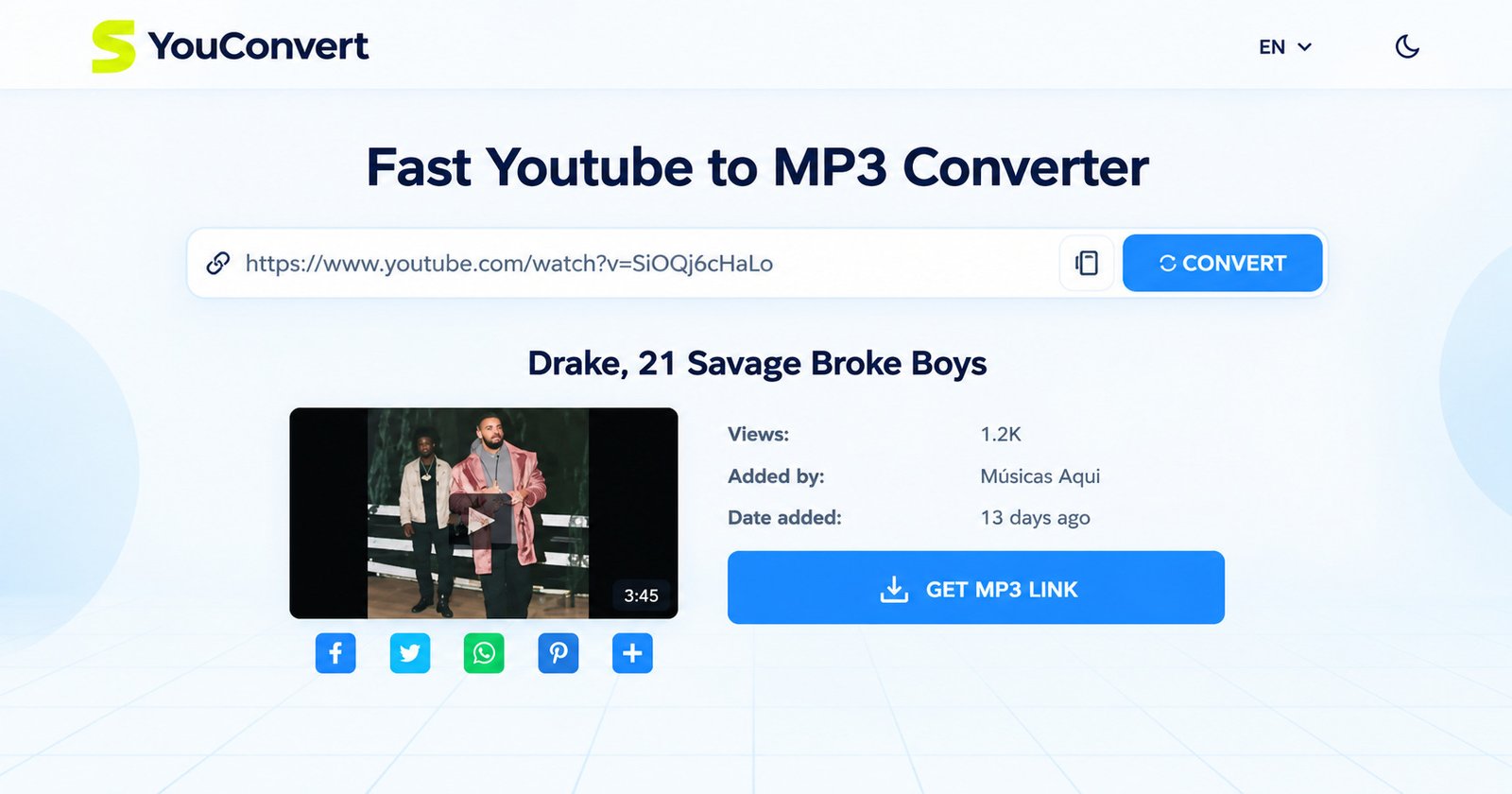
How to Convert YouTube Videos to MP3
Choose the MP3 option before you press convert and select a bitrate; 192 kbps is a sensible default. When the file is ready, click download and check that it ends in “.mp3” and not “.exe” or “.apk.”
How to Convert YouTube Videos to MP4
Choose MP4 and pick a resolution such as 360p, 720p, or 1080p. On a phone, 720p is usually plenty. On a big screen, go higher if the site allows it.
How to Download YouTube Audio
Audio downloads work like MP3 conversion, and some versions also offer M4A or WAV. Audio is smaller, faster, and easier on storage than video.
How to Download YouTube Videos
Pick the video option, choose a resolution, and download. Downloading videos you do not own may break YouTube’s rules or copyright law. Stick to content that is yours, public domain, or licensed for reuse.
How to Save Converted Files
Files usually land in your Downloads folder on a PC, Mac, or Android phone. On an iPhone, they may appear in the Files app. Tip: rename files right away, such as “lecture-week-3.mp3”.
Does YouConvert Require an Account?
Most versions say no login is required. If a version asks for your email, card details, or a software install just to convert one video, close the page.
YouConvert YouTube to MP3 Converter
How to Convert YouTube to MP3 Online
Paste the link, select MP3, and convert. Long videos, such as three-hour podcasts, may take longer or fail on free servers.
Converting YouTube Videos to MP3
The tool strips the video track and keeps the sound, giving you a small file you can play anywhere. Great for speeches, language lessons, and your own original music.
YouTube Audio and Music Conversion
Music is where copyright matters most. Most commercial songs are protected, and converting them without permission can violate both the law and YouTube’s terms. Safer choices include royalty-free music, Creative Commons tracks, and your own recordings.
MP3 Quality and Bitrate
| Bitrate | Approx. size per 4-minute song | Sound quality | Good for |
|---|---|---|---|
| 128 kbps | About 4 MB | Basic | Speech, podcasts |
| 192 kbps | About 6 MB | Good | Everyday music |
| 320 kbps | About 10 MB | Best for MP3 | Headphones, car stereos |
How to Save YouTube Audio as an MP3 File
After conversion, click Download and wait for the file to finish, then open it in any media player. If it does not play, the download may be corrupted. Try again or use a different browser.
YouConvert YouTube to MP4 Converter
How to Convert YouTube to MP4 Online
Paste the link, pick MP4, choose a resolution, and download. Larger resolutions take longer.
Converting YouTube Videos to MP4
The server packages the video stream into a standard MP4 file, widely compatible and the default choice.
Saving YouTube Videos as MP4 Files
Save the file in a folder you can find later, like “Tutorials” or “Travel Offline.”
MP4 Video Quality and Resolution
| Resolution | Best for | File size (10 min, approx.) |
|---|---|---|
| 360p | Small phone screens, slow data | 30–50 MB |
| 720p | Most phones and laptops | 80–120 MB |
| 1080p | Big screens, sharp detail | 150–250 MB |
When to Choose MP4 Instead of MP3
Pick MP4 when visuals matter: cooking tutorials, coding lessons, workout routines, or presentations. Pick MP3 when you only need the voice or music, such as a commute podcast.
YouConvert as an Online YouTube Converter
YouTube Converter Without Software
You do not need to install anything, which helps on locked-down work computers and school laptops.
YouTube Converter Without Installation
No installation also means no leftover files on your system. When you close the tab, the tool is gone.
Using YouConvert Directly in a Web Browser
Any modern browser works. Keep it updated, because outdated browsers are easier targets for malicious ads.
YouConvert Online vs Desktop Converter Software
| Factor | Online converter | Desktop software |
|---|---|---|
| Setup | None | Download and install |
| Cost | Usually free | Free or paid |
| Speed | Depends on server | Depends on your computer |
| Control | Limited | High |
| Ad risk | Higher | Lower with trusted apps |
| Batch downloads | Rare | Common |
Does YouConvert Require Registration?
Usually not. Most versions skip sign-up, which is convenient and means fewer personal details are shared.
Is YouConvert Free?
Is YouConvert Really Free to Use?
Most versions say yes. One explains that it covers its costs through non-intrusive ads, while another claims to be ad-free and supported by donations. Those claims are not verified, so treat them as marketing until you see the site yourself.
What Features Are Available for Free?
Typically, basic MP3 and MP4 conversion at standard quality options. Advanced formats or very long videos may be restricted.
Are There Any Usage or Conversion Limits?
Some versions say “unlimited,” while others limit very large files for speed and stability. If a long video fails, try a shorter one first.
Does YouConvert Require Payment?
Legitimate versions should not ask for payment before you convert. If a site demands a subscription or card number, leave.
YouConvert Supported Devices and Platforms
Using YouConvert on Windows and PC
Open it in Chrome, Edge, or Firefox and follow the usual steps. Files go to your Downloads folder.
Using YouConvert on Mac
Safari and Chrome both work. If a download is blocked, check Safari’s download settings.
Using YouConvert on Android
Android handles MP3 and MP4 downloads easily. Use Chrome and avoid any prompt to install an app or “update” something.
Using YouConvert on iPhone
iPhones are more restrictive. Downloads often go to the Files app, and some formats may not play instantly in Photos or Music.
Using YouConvert in a Web Browser
Because the tool is browser-based, the operating system matters less than the browser itself. Keep yours updated.
Desktop vs Mobile Use
Desktop is better for long videos and larger files. Mobile is better for quick, short audio clips on the go.
YouConvert Audio Conversion
YouTube Audio to MP3
The most common use. Paste, convert, download, and enjoy offline.
YouTube Music to MP3
Be careful here. Commercial music is almost always copyrighted. For legal offline music, an official subscription is the safer route.
Converting Online Videos to Audio
Talks, lectures, and interviews work well. Audio-only files are small and easy to share with yourself across devices.
Downloading Audio From a Video
You keep only the sound track, which saves storage and battery on long recordings.
MP3 Quality and File Size
Use 128 kbps for speech, 192 kbps for general use, and 320 kbps only when sound quality really matters.
YouConvert Video Conversion
YouTube Video to MP4
MP4 is the standard format for sharing and playing video on almost everything.
Online Video Conversion
Online tools are best for quick, one-off jobs. For big libraries, desktop software is more reliable.
MP4 Quality and Resolution
Choose resolution based on your screen. Higher is not always better on a small phone.
Choosing the Right Output Format
- Need sound only? Choose MP3.
- Need picture and sound? Choose MP4.
- Need editing quality? Look for WAV.
Managing Converted Video Files
Create folders, use clear file names, and delete files you no longer need.
Does YouConvert Require Installation?
Using YouConvert Without Installing Software
No. That is the whole point. Treat any request to install a program as a red flag.
YouConvert as a Browser-Based Service
Everything happens on the website’s servers. Your device only handles the final download.
YouConvert Website Access
Several domains use the name, and some have been reported as unavailable or redirecting. Users should access the official site and avoid fake clones. Type the address yourself and avoid ads that claim to be “YouConvert.”
YouConvert vs Desktop Conversion Tools
Desktop tools offer more control and fewer ads. Online tools win on convenience.
Is YouConvert Safe and Legit?
This is the section that matters most. The honest answer: it depends on which site you land on.
Is YouConvert Safe to Use?
There is no single, verifiable “official” YouConvert. Multiple unrelated sites share the name, and one page states that the original Youconvert.net was taken down over copyright issues. Safety is about the specific website, not the brand name.
Is YouConvert Legitimate?
As a technology, converters are not magic or scams, but some copies use famous names to attract traffic. Treat claims like “millions of satisfied users” and “military-grade encryption” carefully, since those are marketing phrases, not proof.
Is YouConvert Safe for Downloading Files?
Checklist before you download:
- The file type matches what you chose (.mp3 or .mp4)
- No extra installer or “player” is offered
- No request for personal information
- Your browser shows a secure padlock
- No redirects to unrelated pages
Privacy and Security Considerations
- Do not enter passwords, emails, or card numbers
- Use an updated browser and antivirus
- Block notification requests from the site
- Avoid clicking “Allow” on pop-ups
Avoiding Suspicious Ads and Downloads
Risk: Free converters often show ads that look like download buttons. The real button is usually plain and appears only after conversion finishes. If unsure, close the tab and start again.
Copyright and Responsible Use of Converted Content
Copyright notice: YouTube’s rules restrict downloading content without permission, and one YouConvert version openly warns that using the service may be against YouTube’s terms. Read the official YouTube Terms of Service first. Safe uses include your own videos, public domain content, and Creative Commons material that allows reuse.
YouConvert Not Working: Common Problems and Fixes
Why Is YouConvert Not Working?
- The site is down or redirecting
- YouTube changed something and the tool has not caught up
- Your browser or network is blocking it
- The video is private, age-restricted, or too long
YouConvert Conversion Failed
Try a shorter video first. Then refresh the page, clear your cache, and try again. If it still fails, the site may be overloaded.
YouConvert Download Is Not Starting
Check whether your browser blocked the download, look for a small icon in the address bar, and allow it. Also try another browser or disable aggressive ad blockers for that page.
YouConvert Video or Audio Conversion Errors
If the file is corrupted or will not play, convert again at a different quality. Some players fail on unusual formats, so try VLC.
Browser and Internet Connection Problems
A weak connection can interrupt downloads. Switch between mobile data and Wi-Fi, or restart your router.
What to Do When a YouTube URL Is Not Supported
Make sure you copied the full link. Short links, playlist links, and live streams can cause errors. Private and region-locked videos generally cannot be converted at all.
YouConvert Review
YouConvert Ease of Use
One box, one button. Even beginners can finish a conversion in under a minute.
Conversion Speed and Performance
Speed depends on server load and video length. Short clips are fast, while long videos can stall.
Output Quality and Supported Formats
Most versions advertise MP3 up to 320 kbps and common video resolutions. “Studio quality” claims should be taken lightly because the source video limits the result.
Free Features and Limitations
You get free basic conversion, but also ads, possible limits, and uncertainty about which site is genuine.
Advantages and Limitations of the YouConvert Website
Pros
- Free to use
- No software needed
- Simple interface
- Works across devices
- No account needed
Cons
- Many unofficial clones
- Ad and pop-up risks
- Uncertain reliability
- Copyright and terms-of-service concerns
- Limited format control
Overall: convenient for quick, legal jobs, but not something to trust blindly.
YouConvert Alternatives
Best YouConvert Alternatives
Look for tools with a clear privacy policy, a stable address, and no forced installs.
Online YouTube Converter Alternatives
Other browser-based converters carry the same risks: ads, uncertain legality, and short lifespans.
YouTube MP3 Converter Alternatives
For music, the most reliable and legal route is official, such as YouTube Premium or YouTube Music, which allow offline listening inside the app.
YouTube MP4 Converter Alternatives
YouTube’s own in-app download feature (with Premium) is the safest option. It avoids malware and respects creators.
Browser-Based Alternatives to YouConvert
If you must use a web tool, test it with a short, legal video first and watch for suspicious behavior.
Desktop Alternatives to Online Converters
Open-source yt-dlp and desktop apps like 4K Video Downloader give more control and fewer ads. They suit regular downloaders, but the same copyright rules apply. For more tools of this kind, see our guide to Coomer Downloader.
How to Choose a YouConvert Alternative
- Is the site’s address stable?
- Does it show clear terms and a privacy policy?
- Does it avoid forced installs?
- Does it respect copyright?
YouConvert vs Other Online YouTube Converters
YouConvert vs Online YouTube Downloaders
Very similar. The difference usually lies in ad intensity, speed, and reliability, not in basic features.
YouConvert vs Desktop YouTube Downloaders
| Feature | YouConvert-style tools | Desktop downloaders |
|---|---|---|
| Convenience | Very high | Medium |
| Safety control | Low | Higher |
| Batch downloads | Rare | Common |
| Cost | Free, ad-supported | Free or paid |
| Updates | Site-dependent | Developer-dependent |
YouConvert vs Dedicated Video Conversion Software
Dedicated software like HandBrake converts files you already own into other formats. It does not fetch videos, so it solves a different problem.
Differences in Features, Speed, and Convenience
Online tools win on convenience. Desktop tools win on control, stability, and safety.
Who Is the YouConvert Website Best Suited For?
Casual users who need a quick conversion of content they have the right to use, such as students saving their own recorded presentations. It is not ideal for large batches, guaranteed uptime, or strict privacy.
What to Consider Before Using YouConvert
Check four things: the site’s address, your legal right to download, your device’s security, and whether a legal alternative exists.
Is YouConvert Suitable for Online Video Conversion?
For quick, small, lawful jobs, yes. For regular or large-scale use, a trusted desktop tool or an official subscription is a better long-term choice.
Conclusion
The YouConvert website promises something very appealing: fast, free, no-install conversion. Yet the name is shared by many different sites, and not all of them are what they claim to be.
Treat it as a convenience tool, not a guaranteed service. Stay careful with ads, respect creators, and stick to content you have permission to save. Do that, and you can enjoy offline listening and viewing without the stress.