CopyTrans Manager: Free Download, Features, Setup Guide, and Alternatives
Contents
- Introduction
- What Is CopyTrans Manager?
- CopyTrans Manager Features
- How to Download and Install CopyTrans Manager
- How to Transfer Music to an iPhone With CopyTrans Manager
- How to Transfer Music to an iPod
- Managing iPhone and iPod Playlists
- Edit Music Information and ID3 Tags
- Videos, Ringtones, and Other Media
- CopyTrans Manager for Windows
- CopyTrans Manager and Other CopyTrans Tools
- Is CopyTrans Manager Free and Safe?
- Mac, Android, and APK: What About Other Platforms?
- CopyTrans Manager Troubleshooting
- CopyTrans Manager Review
- Best CopyTrans Manager Alternatives
- Frequently Asked Questions About CopyTrans Manager
- Conclusion
Introduction
Still using iTunes just to move a few songs to your phone? You are not alone, and you do not have to.
CopyTrans Manager is a free Windows program that lets you add, edit, and delete music and videos on an iPhone, iPad, or iPod without opening iTunes. You drag files in, and they land on your device.
This guide covers what the tool does, how to download and set it up, where it falls short, and which alternatives are worth a look.
What Is CopyTrans Manager?
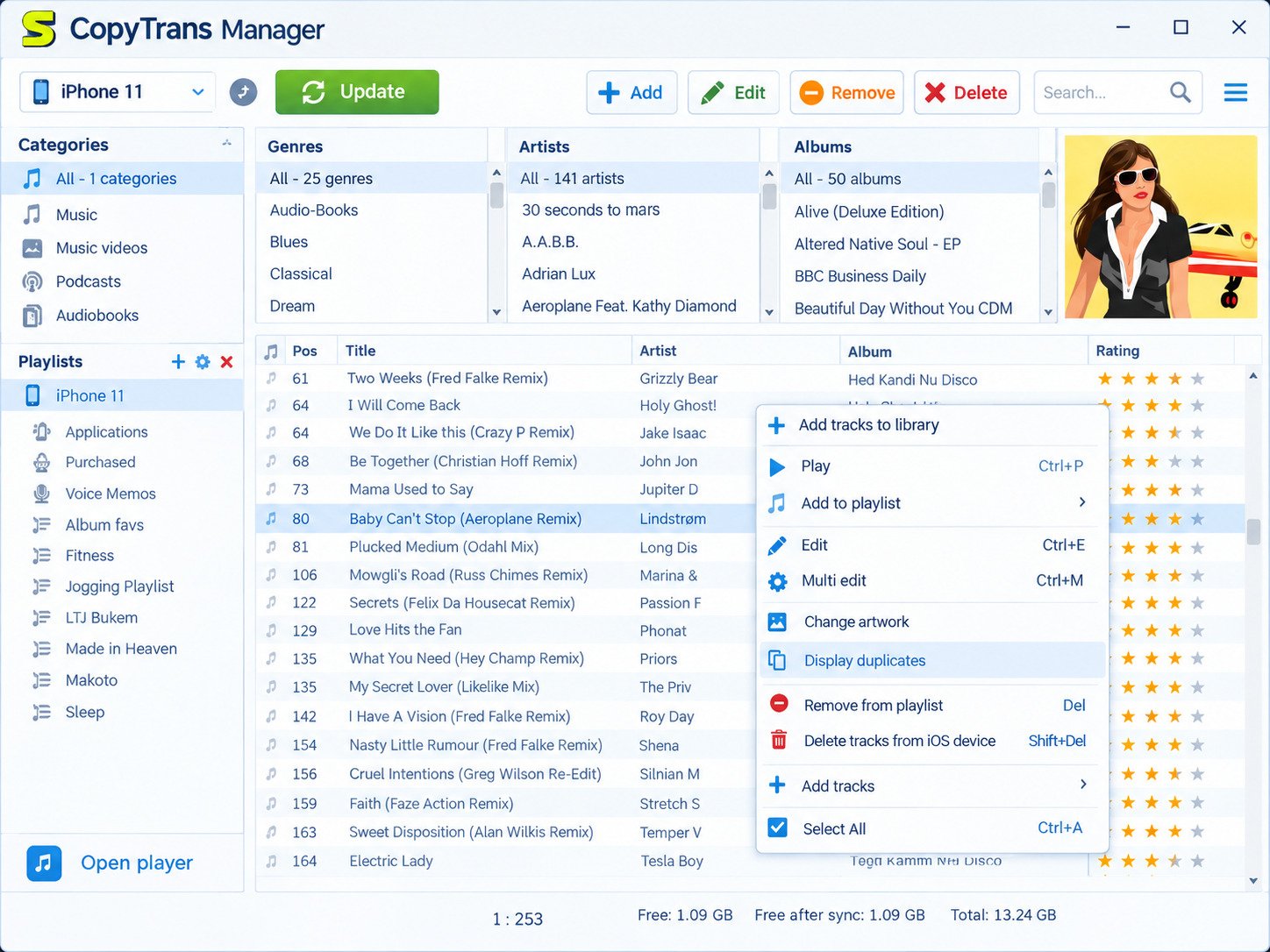
CopyTrans Manager is a free, lightweight Windows app that manages music, videos, and playlists on iPhone, iPad, and iPod. It works as a simpler alternative to iTunes.
The software is made by WindSolutions, the team behind the wider CopyTrans family of tools. According to the official site, it supports all iPhone, iPad, and iPod models and was designed for Windows 11, 10, 8.1, and 7.
What Can You Do With It?
You can do the everyday jobs that people usually dread in iTunes:
- Drag and drop songs from your PC onto your device
- Delete tracks directly from the device
- Reorder songs and build playlists
- Edit song titles, artists, albums, and artwork
- Add videos, podcasts, and audiobooks
Who Is It Designed For?
It suits people who keep their own music files, such as MP3 collections, old CDs they ripped, or albums bought outside Apple’s store. It is also popular with owners of older iPods who want to skip iTunes sync.
If you stream everything through Apple Music, you may not need it. If you own files, it can save you real time.
Why Do People Look for an iTunes Alternative?
iTunes was built to do everything: sync, shop, back up, and stream. For someone who just wants songs on a phone, that is a lot of baggage.
The usual complaints are slow loading, confusing sync rules, and the fear of losing tracks. Many people have seen a device wiped because a library did not match.
A focused tool removes that stress. You see your device, you drag files, and you decide what changes.
Real-Life Situations Where It Helps
Here are a few cases where people reach for this tool:
- The old iPod revival. You find a dusty iPod and want fresh songs without wiping it.
- The CD collector. You ripped hundreds of discs and want them on your iPhone.
- The shared PC. You use a family or office computer and prefer a portable tool.
- The tidy-up. You want to delete clutter and fix tags without a full sync.
In each case, the appeal is the same: direct control with fewer steps.
Why This Matters in Everyday Life
Music is personal, truly. A playlist can carry you through a commute, a workout, or a hard week.
When the tool that moves it feels clumsy, you enjoy it less. A smoother process means more time listening and less time troubleshooting.
CopyTrans Manager Features
The main features are drag-and-drop transfer, playlist management, tag and artwork editing, video support, and a portable version that needs no heavy installation.
| Feature | What it does | Why it helps |
|---|---|---|
| Drag and drop | Moves files from PC to device | No sync wizard |
| Playlist tools | Create, edit, reorder | Organize on the go |
| Tag editing | Change title, artist, album, genre | Clean messy libraries |
| Artwork | Add or replace cover images | Albums look right |
| Video support | Adds videos and podcasts | One tool for media |
| Portable use | Runs without a full install | Handy on shared PCs |
Music and Audio Management
The main window shows what is on your device. You can sort, search, and remove tracks without touching the rest of your library.
A big plus is that it does not force a full sync. Nothing gets wiped just because your PC library looks different.
Drag-and-Drop Transfer
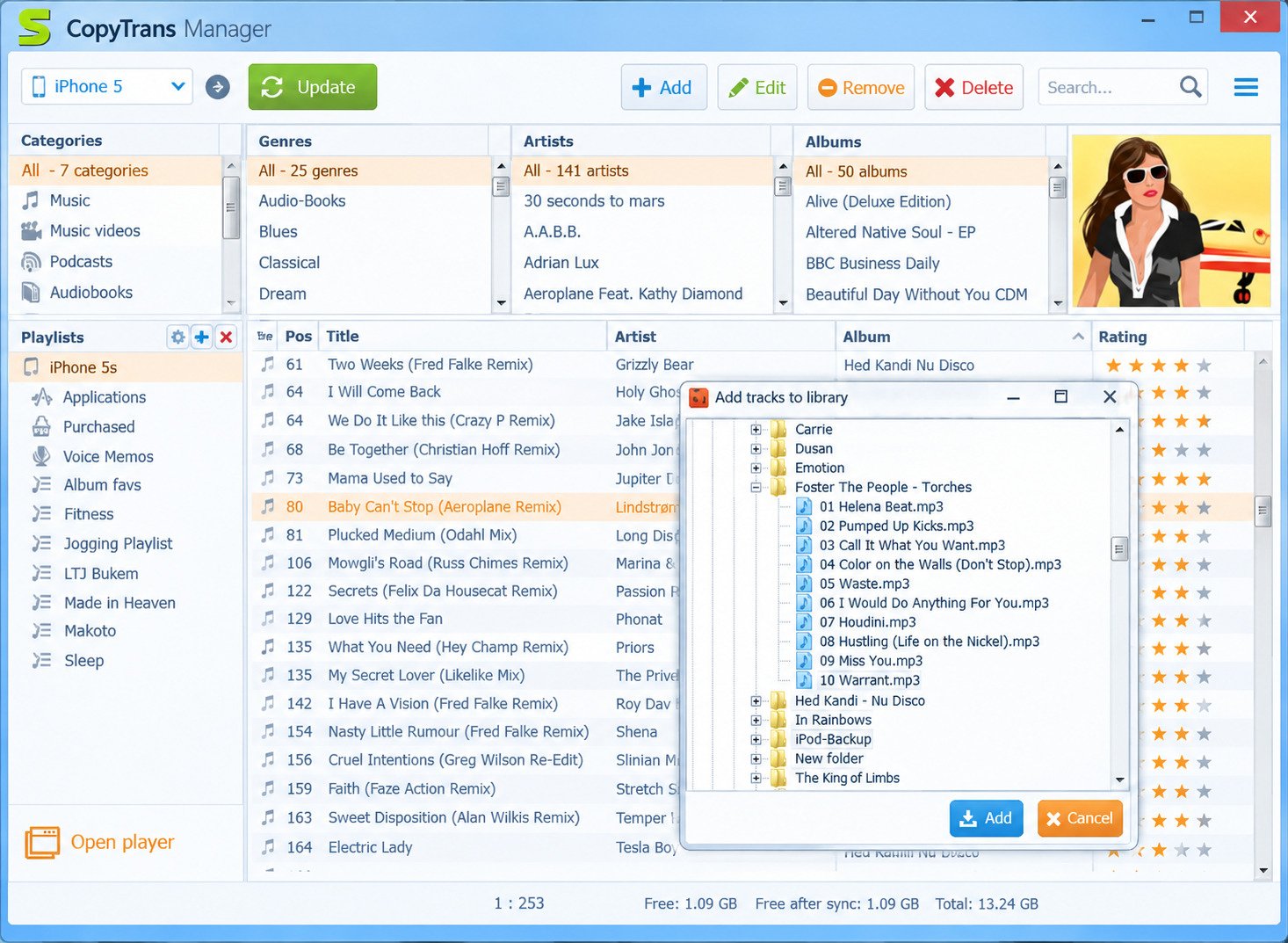
Drag files or whole folders from Windows Explorer into the program window. Then confirm your changes, and the tracks are written to the device.
It also handles common formats. Reviews and the vendor’s own guides mention MP3, AAC, WAV, and M4A, and some reviewers report FLAC support as well.
Playlists and Metadata
You can create playlists, rename them, and add or remove tracks. You can also fix the details behind each song, such as artist name, album, genre, and cover art.
Clean tags matter more than most people think. A well-tagged library is far easier to browse on a small screen.
Ringtones, Podcasts, and Audiobooks
Beyond songs, the app lets you handle podcasts and audiobooks as separate media types. Ringtones depend on the file being in the right format first, so check your file type before you transfer it.
Offline Management and Portability
Because the program works with files directly, you do not need an internet connection for daily use. The one exception is setup, because drivers may need to be downloaded.
Supported Audio Formats
| Format | Common use | Notes |
|---|---|---|
| MP3 | Most music libraries | Works almost everywhere |
| AAC / M4A | Apple purchases, rips | Native Apple format |
| WAV | Uncompressed audio | Large files |
| FLAC | High-quality audio | Reported by some reviewers; test first |
CopyTrans Manager vs. iTunes
| Point | CopyTrans Manager | iTunes |
|---|---|---|
| Price | Free | Free |
| Sync required | No | Often |
| Speed | Light and quick | Heavier |
| Streaming and store | No | Yes |
| App management | No | Varies by version |
| Best for | Manual music control | All-in-one use |
The takeaway is simple. CopyTrans Manager gives you control, while iTunes gives you an ecosystem. Neither is wrong, but they suit different habits.
Tips for a Cleaner Music Library
A little prep makes every transfer smoother. Try these habits before you drag anything in:
- Keep one main music folder on your PC
- Use a clear pattern, such as Artist, then Album, then Track
- Fix tags before transfer, not after
- Remove duplicates so they do not clutter your phone
- Add artwork to albums that show a blank square
Think of your device as a small shelf, not a warehouse. Put on it only what you actually play.
How to Download and Install CopyTrans Manager
Download the installer from the official CopyTrans website, run it, install the iOS drivers if needed, connect your device by USB, and open the program.
Step-by-Step Setup
- Go to the official CopyTrans website and download CopyTrans Manager. The English installer is about 9 MB.
- Run the installer. It sets up CopyTrans Control Center, which launches the tools.
- Open Control Center and click CopyTrans Manager. On first launch it may download the app, so wait a moment.
- Connect your iPhone, iPad, or iPod with a USB cable.
- Unlock the device and tap Trust if asked.
- Close iTunes if it is open.
Drivers and Device Detection
Windows needs iOS drivers to talk to an Apple device. Installing iTunes normally adds them.
If you do not want iTunes on your PC, CopyTrans offers a free utility called CopyTrans Drivers Installer. It downloads the needed drivers and needs an internet connection to do so.
Does CopyTrans Manager Require iTunes?
Not necessarily. It needs the drivers, not the iTunes interface. You can get those drivers from iTunes itself or from CopyTrans Drivers Installer.
One practical rule: do not run iTunes while using CopyTrans Manager.
What to Do Before Your First Transfer
- Back up your device first
- Make sure your cable is original or certified
- Check that your music files are not corrupted
- Free up storage space on the device
Backups are boring until you need one. Before your first session, copy your music folder to an external drive or cloud storage.
Then, if something goes wrong, you can restore your collection in minutes. This one habit protects years of collecting, so do not skip it.
If you also want a full device backup, CopyTrans Shelbee is built for that job, though it is a separate paid tool.
How to Transfer Music to an iPhone With CopyTrans Manager
Connect the iPhone, open CopyTrans Manager, drag your music files into the window, then click Update to save the changes.
Transfer Music From a PC to iPhone
Open the program and wait until it reads your device. The existing songs will appear in the list.
Next, drag tracks from a folder, CD, or USB drive into the window. Added songs are usually shown as pending until you apply them.
Quick Numbered Walkthrough
- Connect the iPhone and unlock it.
- Open CopyTrans Manager and wait for the song list.
- Drag music files or folders into the window.
- Review the pending items.
- Click the update button and wait for completion.
- Safely eject the device.
Apply Changes Safely
Click the update or apply button and let the process finish. Do not unplug the cable early, because that can cause errors or missing tracks.
Wait for the confirmation. Then eject the device from Windows before disconnecting.
Remove Songs From iPhone
Select a song, press Delete, and apply the change. This removes the track from the device, not from your computer or iTunes library.
A Practical Example
Imagine you ripped fifty songs from old CDs. In iTunes, you would add them to the library, set up sync, and hope nothing gets erased.
With CopyTrans Manager, you drop the folder into the window, check the list, and update. It takes minutes.
How to Transfer Music to an iPod
The process is the same as for an iPhone: connect the iPod, open the program, drag files in, and apply the changes.
CopyTrans Manager is especially loved by iPod owners. Older iPod classics and nanos were built around iTunes sync, and many people lost music that way.
Here, you add and delete songs directly. You can also manage playlists and fix tags.
Always keep a backup copy of your music on your PC before you remove anything from an older iPod. Some old devices cannot copy music back easily.
Managing iPhone and iPod Playlists
Right-click in the playlist area to create a new playlist, drag songs into it, rename it, and apply your changes.
Create and Edit Playlists
Start with a clear name, such as “Gym Mix” or “Road Trip.” Then drag songs from the main list into the new playlist.
You can reorder tracks by dragging them up or down. You can also remove songs without deleting them from the device.
CopyTrans notes that playlists you created or edited directly on your iPhone cannot be edited in CopyTrans Manager. Plan your playlists on the PC side if you want full control.
Delete Playlists
Select the playlist and delete it. Your songs usually stay on the device unless you remove them separately.
Videos, Ringtones, and Other Media
CopyTrans Manager can add videos, podcasts, and audiobooks, but files must be in formats your device can play.
Videos
Drag a compatible video file into the window like you would a song. The vendor’s description confirms support for adding songs and videos.
Large or unusual formats may fail. Convert them first if your device refuses to play them.
Podcasts and Audiobooks
Podcasts and audiobooks can be managed as their own categories. This keeps them out of your music list and lets your device remember playback positions.
If you also save streaming videos for offline viewing, our guide to KeepStreams explains another way to build a personal video collection before you move files to your device.
Ringtones
Ringtones need the correct format and length. Prepare the file first, then transfer it, and test it in your device settings.
CopyTrans Manager for Windows
CopyTrans Manager works on Windows 11, 10, 8.1, and 7. It is a Windows-only program.
| System | Supported |
|---|---|
| Windows 11 | Yes |
| Windows 10 | Yes |
| Windows 8.1 | Yes |
| Windows 7 | Yes |
| macOS | No |
| Android | No |
Using It on Windows 10 and 11
The setup is the same on both. Install, connect your device, trust the computer, and open the tool.
If Windows does not recognize your iPhone, the problem is almost always missing or broken drivers.
CopyTrans Manager and Other CopyTrans Tools
CopyTrans Manager handles music and video. Other CopyTrans tools handle photos, contacts, backups, and files.
| Tool | Best for | Cost |
|---|---|---|
| CopyTrans Manager | Music, videos, playlists | Free |
| CopyTrans Photo | Photos and videos | Paid (trial available) |
| CopyTrans Contacts | Contacts, calendars, messages | Paid |
| CopyTrans Shelbee | Full device backup | Paid |
| CopyTrans Filey | Documents, movies, eBooks | Free |
| CopyTrans Drivers Installer | iOS drivers | Free |
| CopyTrans TuneSwift | iTunes library transfer | Paid |
Third-party reviews note that only CopyTrans Manager was free in the past, while others were shareware. The company now lists additional free tools, so check each product page for current terms before you download.
Which One Should You Use?
Want songs on your iPhone? Use Manager. Want photos off your phone? Use Photo. Want a full backup? Use Shelbee.
Is CopyTrans Manager Free and Safe?
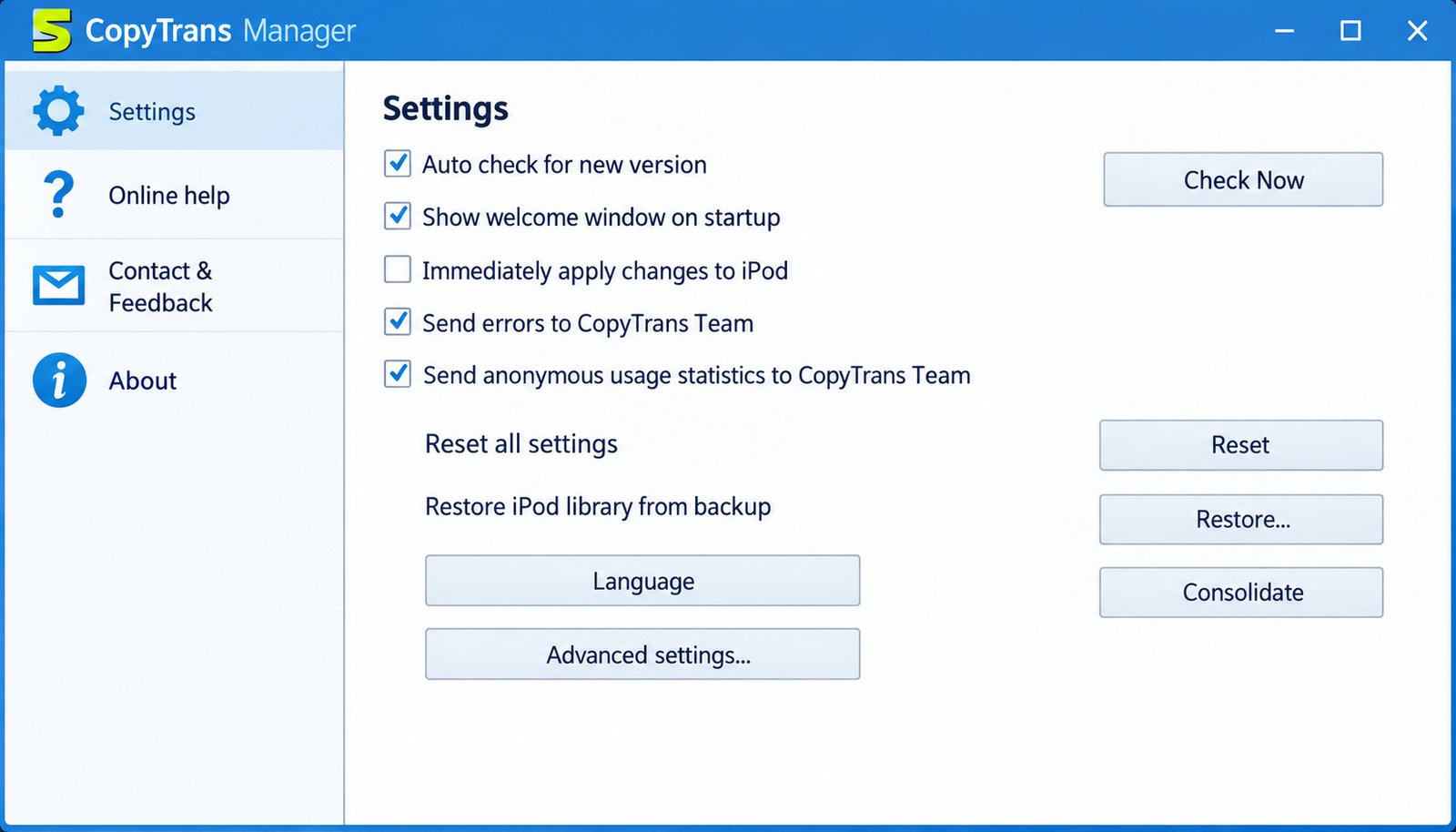
Yes, CopyTrans Manager is free to use, and the official site describes it as free of ads, spyware, and malware.
Is It Free?
The vendor describes it as portable and 100 percent free. One review site says the free version has limitations, but it does not clearly explain what they are, so treat that claim with caution.
Is It Safe?
Safety depends on where you download it. Use the official CopyTrans website or a trusted host. MajorGeeks, for example, lists it as freeware and notes editor testing.
Avoid random “cracked” or repackaged versions. They are not needed, and they are risky.
Protect Your Data
- Back up your music before big changes
- Keep your Windows security software active
- Scan downloads before you run them
- Keep a copy of important files on your PC
For official guidance on managing Apple devices and software, see Apple Support.
Does It Work With Apple Music?
The official site says the latest version is compatible with Apple Music. In practice, treat that as a sign the tool keeps up with current devices, but do not expect it to download streaming tracks for offline use.
It is built for your own files, so plan your library around music you own.
Can You Transfer Wirelessly?
No. A review of the tool notes that it needs a USB connection. If you want wireless transfer, an app like VLC for iOS is a better fit, and the CopyTrans support team lists VLC among free ways to move music to an iPhone.
Mac, Android, and APK: What About Other Platforms?
CopyTrans Manager is for Windows only. There is no Mac version and no official Android APK.
CopyTrans states its software works on Windows only. A review of the tool confirms there is no macOS version.
If you find a site offering a “CopyTrans Manager APK,” skip it. That file is not an official product and may carry malware.
Mac users can use the built-in Music app or Finder to manage devices. Windows is the only home for this tool.
Most transfer problems are not the software’s fault. They come from small habits that are easy to fix.
- Leaving iTunes open. The two programs can clash, so close iTunes first.
- Unplugging too early. Wait until the update finishes.
- Skipping the Trust prompt. Without it, your PC cannot read the device.
- Using a weak cable. Cheap cables often charge but fail to transfer data.
- Ignoring storage. A full device rejects new tracks.
If you avoid these five, you will solve most issues before they start.
CopyTrans Manager Troubleshooting
Most problems come from drivers, locked devices, a running iTunes, or a bad cable. Fix those first.
The Program Does Not Detect Your Device
Try these in order:
- Unlock the device and tap Trust
- Close iTunes completely
- Try another cable or USB port
- Restart both the PC and the device
- Update CopyTrans Manager
- Reinstall drivers with CopyTrans Drivers Installer
Transfers Not Working
Check your free storage first. Then confirm the file is not damaged and plays on your PC.
If one song keeps failing, convert it to MP3 or AAC and try again.
Installation Problems
Run the installer as administrator. Temporarily allow it through your firewall, since some components download on first use.
Device Is Locked or Not Trusted
If the program shows an empty list, your device may be locked. Unlock it, tap Trust, and reopen the program. This simple step fixes more cases than any reinstall.
Using a Different USB Port
Try a rear port on a desktop PC, since front ports sometimes provide weaker power. Avoid USB hubs while troubleshooting.
Playlist or Tag Issues
If edits do not appear, make sure you clicked the apply button. Also remember that playlists made directly on the iPhone cannot be edited in the program.
CopyTrans Manager Review
It is a simple, fast, and free tool that does music transfer well. It is not a full iTunes replacement.
What Works Well
- Easy drag-and-drop workflow
- No forced sync
- Light and portable
- Supports many Apple devices
- Free
Where It Falls Short
- Windows only
- USB connection needed, with no wireless transfer
- Does not manage apps, and reviewers say it lacks lyrics display
- Some playlist edits are limited
Who Should Use It?
Use it if you own your music files and want control. Skip it if you rely on streaming or want an all-in-one iPhone manager.
Final Check: Is It Worth Using Today?
For the right user, yes. The tool is free, small, and does exactly what it says. It has not tried to become a giant suite, and that focus is its strength.
Just remember its edges. It is Windows-only, USB-based, and music-focused. If those limits fit your life, you will likely enjoy it.
Best CopyTrans Manager Alternatives
The best alternatives are iTunes or the Apple Music app, VLC for iOS, and paid tools like AnyTrans and WALTR.
| Option | Best for | Cost | Platform |
|---|---|---|---|
| iTunes / Apple Music | Official sync | Free | Windows, Mac |
| VLC for iOS | Wi-Fi file transfer | Free | iOS |
| SharePod | Simple iPod management | Varies | Windows |
| AnyTrans | All-in-one transfers | Paid | Windows, Mac |
| WALTR | Drag-and-drop media | Paid | Windows, Mac |
How to Choose
Ask yourself three questions. Do you need wireless transfer? Do you need to manage more than music? Are you willing to pay?
If the answer to all three is no, CopyTrans Manager is likely enough.
When Should You Consider an Alternative?
Look elsewhere if you use a Mac, want wireless transfer, or need to manage apps, messages, and photos in one place. In those cases, a broader manager or Apple’s own tools may serve you better.
You might also switch if your device is very new and something fails to sync. Check the official site for updates first, then compare options.
A Simple Decision Guide
| Your situation | Best choice |
|---|---|
| Windows PC, own music files | CopyTrans Manager |
| Mac user | Apple Music app or Finder |
| Wireless transfer | VLC for iOS |
| Everything in one app | Paid all-in-one manager |
Practical Advice From Everyday Use
Start small. Transfer one album, check that it plays, and only then move the rest of your library.
Keep your PC copy as the master. Treat the device as a portable copy that you can rebuild at any time.
Finally, revisit your music every few months. Delete songs you skip, fix new tags, and add fresh favorites. A short monthly clean-up keeps the device fast and your playlists enjoyable.
Frequently Asked Questions About CopyTrans Manager
Is CopyTrans Manager free?
Yes. It is free to download and use, and the official site calls it 100 percent free.
Is CopyTrans Manager safe?
Yes, if you download it from the official site or a trusted host. Avoid cracked or APK versions.
Can it transfer music to an iPhone or iPod without iTunes?
Yes. You only need iOS drivers, which come from iTunes or CopyTrans Drivers Installer.
Does it work on Windows 10 and 11?
Yes. The official site lists Windows 11, 10, 8.1, and 7.
Does it work on Mac?
No. It is a Windows-only program with no macOS version.
Can it edit tags and album artwork?
Yes. You can edit titles, artists, albums, genres, and cover art.
Can it transfer videos?
Yes. It can add compatible videos, as long as the format plays on your device.
Conclusion
CopyTrans Manager does one job well: it puts your music exactly where you want it, without the iTunes headache. For Windows users with a personal music collection, that simple promise feels like a small relief every time.
Start with a backup, install the drivers, and add a small batch of songs first. Once it clicks, you will wonder why moving music ever felt so hard, and your favorite playlist will finally be waiting in your pocket.