AnyToISO Download, Features, Setup, and Alternatives: The Complete Guide
Ever downloaded a disc image, only to find your burning software refuses to open it? It happens all the time. DMG, BIN, NRG, MDF: every format has its own quirks.
That’s where AnyToISO steps in. It is a disk image converter for Windows and Mac that turns many formats into a standard ISO. This guide covers downloads, features, setup, limits, fixes, and alternatives in plain language.
Quick answer: AnyToISO converts, creates, and extracts ISO images. The Lite version is free for files up to 870 MB. Pro removes that limit.
Many people land here after a failed download or a burner error. Others just want to peek inside a Mac installer from a Windows laptop. Either way, the fix is usually a quick conversion, and the sections below show you exactly how.
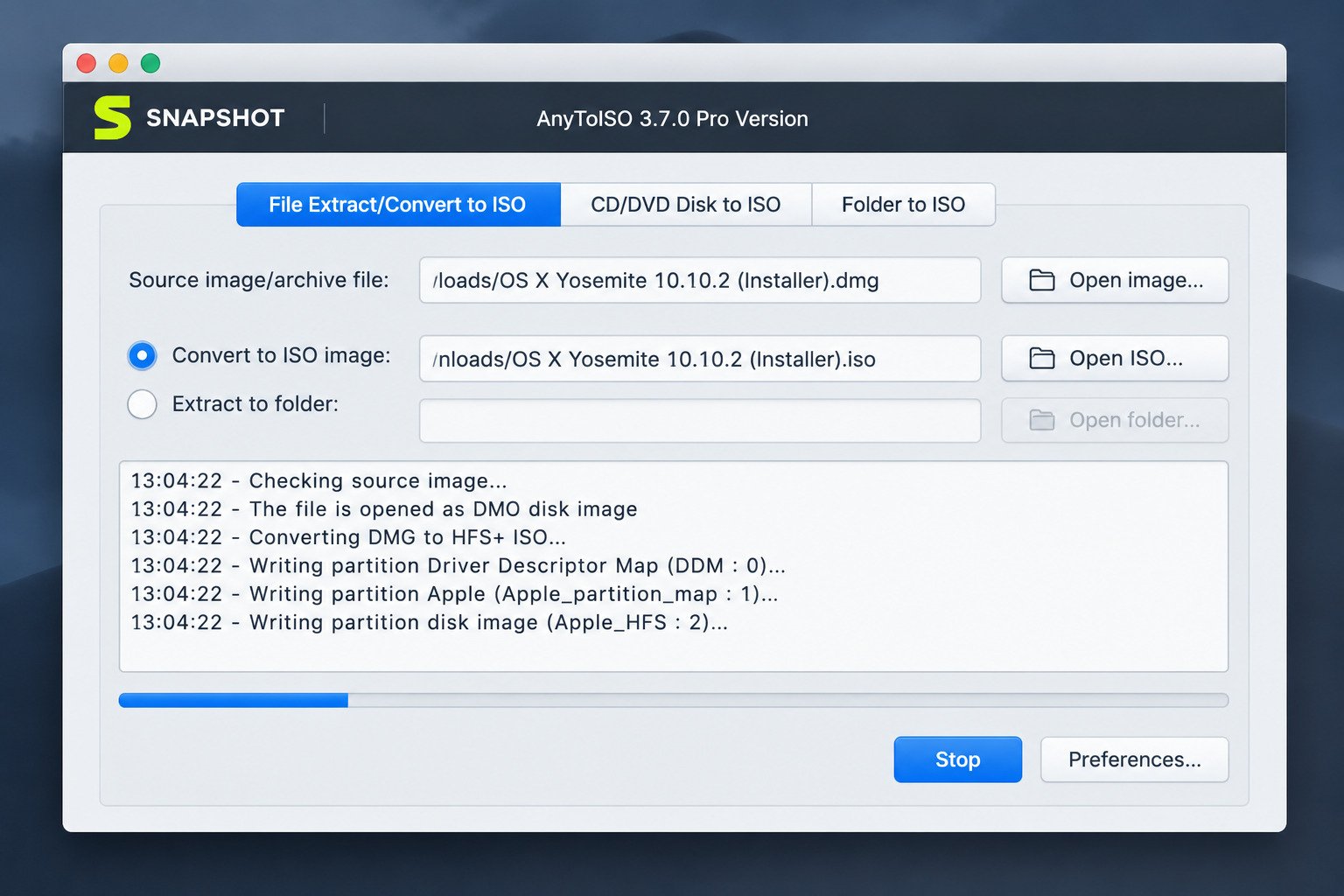
What Is AnyToISO and What Does It Do?
AnyToISO is a disc imaging utility from CrystalIdea Software. It converts CD, DVD, and Blu-ray images into ISO. It also extracts files from images and builds ISOs from folders.
Think of it as a translator. Your file speaks one language, and your burner or virtual drive speaks ISO. AnyToISO bridges the gap.
Here is a real-life example. Imagine you inherit a box of old software discs from a relative. Someone made backups years ago as NRG files, and nothing on your new PC opens them. A quick conversion gives you ISO files that Windows mounts with a double-click.
How Does AnyToISO Work as a Disk Image Converter?
You pick a source file, choose an output folder, and click convert. The app reads the structure inside the image and rewrites it as an ISO file. Your original stays untouched.
What File Types Can AnyToISO Convert to ISO?
According to the developer, it supports 20+ formats. Here are the main ones.
| Format | What It Is |
|---|---|
| DMG | Mac disk image |
| BIN | Raw CD/DVD image |
| NRG | Nero disc image |
| MDF | Alcohol 120% image |
| IMG | Generic disk image |
| ISZ | Compressed UltraISO image |
| PKG | Mac installer package |
| 7Z, RAR, ZIP | Common archives |
| DEB, DAA, XAR, TAR.GZ | Package and archive formats |
Who Should Use AnyToISO?
It suits IT beginners, home users, and technicians. If you restore old software discs, prepare virtual machine media, or open Mac images on Windows, it saves time.
AnyToISO Features
The app does three jobs well: convert, create, and extract. Each one works through a simple window.
Disk Image Conversion and ISO Creation
Conversion changes a disc image into ISO. Creation builds a brand new ISO from files, folders, or even a physical disc.
Convert Files and Folders to ISO Images
Drop a folder on the app, and it packs everything into one ISO. This is handy for backups. A single file is easier to store, copy, and mount than hundreds of loose ones.
Convert Archives and Disk Images to ISO
ZIP, 7Z, and RAR archives can become ISOs too. Disk images such as BIN, NRG, and MDF follow the same steps.
Extract Files From ISO and Other Disk Images
Sometimes you only need one file inside an image. AnyToISO can extract it without burning or mounting anything.
This is faster than the old method of burning a disc just to copy one document. It also works well for pulling drivers or setup files out of a large image.
ISO Creation and File System Options
The resulting ISO can use ISO 9660, Joliet, and UDF file systems. Joliet allows longer file names. UDF suits larger files and DVD-style discs.
Portable AnyToISO and Standalone Conversion Workflows
A portable build exists for Windows, but it needs a special license. The app also offers command-line support and shell integration with Windows Explorer and Apple Finder. Technicians use these for batch work.
AnyToISO Disk Image Converter
Most people search for AnyToISO because of one thing: converting stubborn disc images. Here is how that works in practice.
Convert Disk Images to ISO
- Open AnyToISO.
- Click the Extract/Convert tab.
- Select your image file.
- Choose Convert to ISO.
- Pick a save location and start.
Convert CD and DVD Images to ISO
CD and DVD images follow the same flow. Larger DVD images over 870 MB need the Pro version.
How AnyToISO Handles Different Disk Image Formats
Each format stores data differently. Some are raw copies, while others add compression or a separate index file. AnyToISO reads these details and builds a clean ISO. Protected or encrypted images may not convert.
ISO Image Conversion for Windows and Mac Files
The ISO standard works across platforms. Windows mounts ISO files natively in File Explorer. macOS can open them through Disk Utility or Finder.
This is why ISO is called a universal format. One file can travel between computers, virtual machines, and burners without any special software. That portability is the main reason people convert to it.
AnyToISO DMG to ISO Converter
DMG is the format most Mac users know, and it is the one most Windows users cannot open.
What Is a DMG File?
A DMG is an Apple disk image. Mac developers use it to distribute apps. It acts like a virtual disc that appears on your desktop.
How to Convert DMG to ISO With AnyToISO
- Launch the app.
- Select the DMG file.
- Click Convert to ISO.
- Wait for the progress bar to finish.
Convert a Mac DMG Image to ISO on Windows
This is the most common use. Windows has no built-in DMG support, so the converted ISO lets you read the contents on a PC.
AnyToISO DMG Conversion on macOS
On a Mac, the process feels the same. You can also use the Finder integration to right-click a supported file.
Common DMG to ISO Conversion Problems
- Encrypted DMG: Password-protected images usually will not convert.
- Size limit: Large DMG files need Pro.
- Incomplete downloads: Re-download the file first.
AnyToISO BIN to ISO Converter
BIN files are older, but they still turn up in retro games and legacy software.
What Is a BIN Image?
A BIN file is a raw copy of a disc. It often comes with a small CUE file that describes the track layout.
How to Convert BIN to ISO With AnyToISO
Open the BIN file in AnyToISO, choose Convert to ISO, and save. The steps match any other image.
Convert BIN and CUE Images to ISO
Keep the BIN and CUE files in the same folder. Then open either one. Audio CDs with multiple tracks may not convert well to ISO, since ISO is built for data discs.
If your BIN file holds a game or software disc, conversion usually goes smoothly. For music CDs, a dedicated audio ripper is a better choice.
Check the Converted ISO After BIN Conversion
Right-click the result and choose Mount in Windows. If the files appear, the conversion worked.
AnyToISO NRG to ISO Converter
NRG belongs to Nero Burning ROM. Many old backups still use it.
What Is an NRG File?
It is Nero’s proprietary disc image format. Few modern tools open it directly.
How to Convert NRG to ISO With AnyToISO
Select the NRG file and click Convert to ISO. It takes only a few minutes for a typical CD-sized image.
Check NRG Image Contents Before Conversion
Open the image first. AnyToISO lets you view its contents, so you can confirm the right disc before converting.
This is a smart step when you have a folder full of unlabeled backups. A quick look inside tells you which image is which, and it avoids wasted conversions.
Common NRG to ISO Conversion Issues
Damaged files and oversized images cause most errors. A failed download is the usual culprit.
AnyToISO MDF to ISO Converter
MDF files come from Alcohol 120% and similar tools.
What Is an MDF Disk Image?
MDF holds the disc data. A companion MDS file stores the disc information.
How to Convert MDF to ISO With AnyToISO
Open the MDF file, choose Convert to ISO, and pick a destination.
MDF and MDS Image Conversion
Keep both files together in one folder. This helps the app read the image properly.
Verify the Resulting ISO Image
Mount the ISO and open a few files. Compare the size with the original as a quick sanity check.
AnyToISO Archive to ISO Converter
You can also turn archives into ISOs. This is useful when you want one mountable file instead of a pile of folders.
How to Convert ZIP to ISO With AnyToISO
Open the ZIP file in AnyToISO and click Convert to ISO. The app unpacks the contents and repackages them as an ISO.
How to Convert 7Z to ISO
The steps are identical. Select the 7Z file, convert, and save.
How to Convert RAR to ISO
RAR works the same way, and RAR5 is supported according to the developer.
Convert Archive Files Into Mountable ISO Images
A mountable ISO behaves like a disc. You can open it in File Explorer without extracting anything.
Archive to ISO Conversion Limitations and Considerations
- Password-protected archives may fail.
- Split archives should be complete.
- The ISO will not compress your data. Expect it to be about the same size as the contents.
AnyToISO CISO, IMG, and Other Image Formats
Less common formats raise the most questions.
How to Convert CISO to ISO
CISO is a compressed ISO often used for game backups. Open the file in AnyToISO and try Convert to ISO. If your version does not recognize it, check the official supported formats list or use a dedicated CISO tool.
Are IMG and ISO the Same?
No. ISO follows the ISO 9660 optical disc standard. IMG is a general raw image that may hold a floppy, a hard drive, or a Mac disc. Some IMG files are similar to ISO, but many are not.
Convert IMG to ISO With AnyToISO
Open the IMG file and choose Convert to ISO. If the file is a raw hard drive image, the result may not be useful as a disc.
When an IMG File Can Be Used Without Conversion
Some IMG files already work in virtual machines or with tools such as Rufus. Convert only when your software asks for ISO.
Check Whether an Image File Is Compatible With Your Target Device
Check what your device expects before converting. A game console, a virtual machine, and a burner may each want something different.
How to Create an ISO With AnyToISO
Creating an ISO is the opposite of extracting. You start with files and end with one image.
Create an ISO From Files and Folders
Go to the Folder to ISO option and select your folder. This works well for photo archives or software bundles.
Make an ISO From Multiple Files
Place all the files in one folder first. Then point AnyToISO to that folder.
Give the folder a clear name, because the app may use it as the volume label. Short, simple names also avoid compatibility issues on older devices.
Here is a simple example. Say you want to archive a wedding photo collection. Put the photos in one folder, build the ISO, and store that single file on an external drive. Later, you can mount it like a disc or burn it.
Configure the ISO File System and Image Options
Choose ISO 9660, Joliet, UDF, or a mix. For modern Windows use, Joliet plus UDF is a sensible choice.
Save and Verify the Created ISO Image
Save the ISO, mount it, and check that every file is present. Do this before deleting the originals.
How to Extract and Open ISO Files With AnyToISO
Open an ISO File With AnyToISO
Open the app and select the ISO. You will see the folder structure inside.
Extract Files From an ISO Image
Select the files you want and click Extract. Choose a folder to save them.
Extract an ISO to a Folder
Choose the full extraction option. All contents land in one folder.
View ISO Contents Before Extraction
Browsing first saves time. You can confirm the image is the right one without unpacking gigabytes of data. It also reveals any missing files quickly.
ISO Extraction vs. ISO Conversion
Extraction pulls files out of an image. Conversion rewrites the image as another format. Pick extraction if you only want the files.
AnyToISO and ISO File Formats
What Is an ISO File?
An ISO file is a single-file copy of an entire optical disc. It follows the ISO 9660 standard. The Wikipedia page on optical disc images explains the background well.
ISO vs. IMG: What Is the Difference?
ISO is a disc standard. IMG is a broader raw format. Every ISO is a type of disc image, but not every IMG is an ISO.
ISO Images vs. ZIP and Other Archive Files
| Feature | ISO | ZIP |
|---|---|---|
| Purpose | Mimic a disc | Compress files |
| Compression | None | Yes |
| Mountable | Yes | No |
| Bootable | Can be | No |
ISO Files vs. Other Disk Image Formats
ISO is the most widely supported. That is why converting to ISO is often the easiest fix.
Virtual machine tools, burning programs, and operating system installers all know ISO. Proprietary formats such as NRG or MDF rely on specific software. Converting once frees you from that dependency.
When Should You Convert a File to ISO?
Convert when you need to burn a disc, mount a virtual drive, install a system in a virtual machine, or share one tidy file.
AnyToISO for Windows
AnyToISO for Windows 10 and Windows 11
AnyToISO runs on Windows 10 and Windows 11. It also supports older versions back to Windows XP, in 32-bit and 64-bit. If you are tuning your PC settings, our guide on Windows 10 privacy settings is a useful companion read.
AnyToISO Windows ISO Converter and Disk Image Conversion
The Windows build is about 12.5 MB, which is small. It adds Explorer integration, so you can right-click a file and convert it.
This saves clicks if you convert files often. Right-click the image, choose the AnyToISO option, and the job starts. It feels like a built-in Windows feature.
AnyToISO Portable for Windows
The portable version runs without a full install. It requires a special license, according to the official download page.
Windows Requirements for AnyToISO
No special hardware is needed. Make sure you have free disk space equal to at least the size of your output ISO.
AnyToISO for Mac and macOS
AnyToISO for macOS
The current Mac version needs macOS 10.13 High Sierra or later. Older builds exist for earlier systems. The Mac download is around 22.7 MB.
Convert Mac Disk Images With AnyToISO
DMG and PKG files convert easily. Finder integration lets you right-click a supported file.
Work With DMG and Other Mac Image Formats
Most Mac images work smoothly, while encrypted ones are the main exception.
AnyToISO Mac and Windows Conversion Workflows
A common routine looks like this. Convert a DMG on a Mac, move the ISO to a PC, and mount it there. You can also reverse it for Windows-made images.
How to Download and Install AnyToISO
Where to Download AnyToISO
Always use the official website at crystalidea.com. Third-party sites sometimes bundle extras or offer outdated versions.
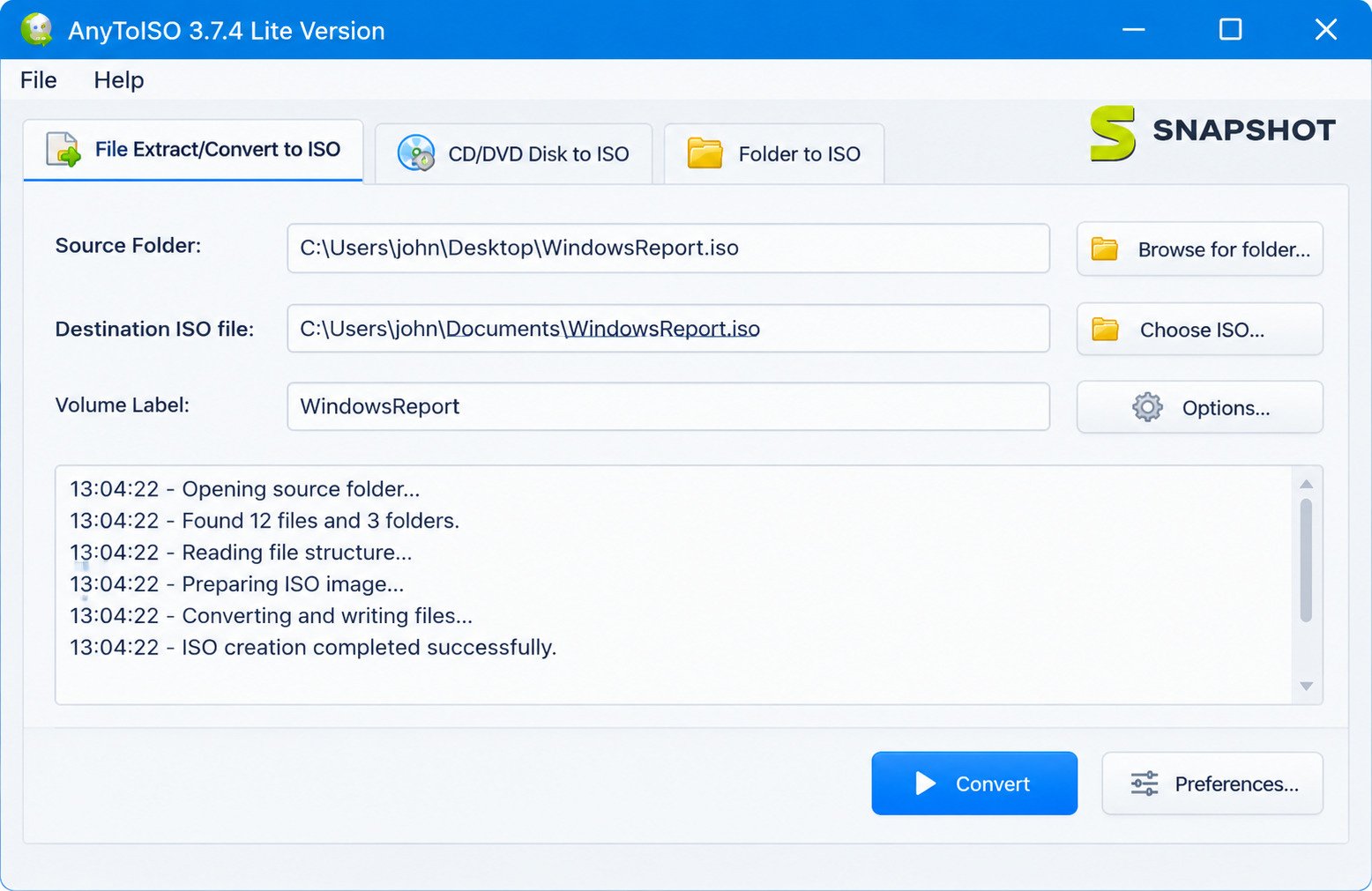
A good habit: after downloading, check the file name and size. A genuine Windows installer should be close to the size listed on the official page. If something looks off, delete it and download again. At the time of writing, the official page lists version 3.9.8, updated in September 2026.
AnyToISO Download for PC
Click Download for Windows. The installer is small and finishes quickly.
Check AnyToISO System Requirements
| Platform | Requirement |
|---|---|
| Windows | XP to 11, 32/64-bit |
| macOS | 10.13 or later (current version) |
| Free space | Enough for output ISO |
How to Install AnyToISO on Windows
- Run the downloaded file.
- Follow the setup prompts.
- Launch the app.
How to Install AnyToISO on Mac
Open the downloaded file and drag the app into your Applications folder. Approve it if macOS asks for permission.
AnyToISO Setup and First-Time Configuration
On first launch, pick your language. The app supports 36 languages. Then check the default output folder.
AnyToISO Portable Version
Use portable mode if you work from a USB drive. Remember it requires a special license.
How to Use AnyToISO
Select a Source File or Disk Image
Click Open and choose your file. You can also drag it into the window.
Choose ISO Conversion or Extraction
Pick Convert to ISO for a new image. Pick Extract if you only want the files.
Configure Conversion Settings
Set the output folder and file name. Leave the defaults if you are unsure.
Pick a name that describes the content, such as Office_Backup_2026. Future you will be grateful when you find that file months later.
Start the ISO Conversion Process
Press the button and watch the progress bar. Large files take longer.
Save and Verify the Output ISO
Check the file size. A tiny result usually signals a problem.
Compare it with the original image. Small differences are normal, but a huge gap means something went wrong, so run the conversion again.
Mount or Open the Converted ISO
Double-click the ISO in Windows 10 or 11 to mount it. On a Mac, use Finder.
Is AnyToISO Free?
Yes and no. The Lite edition is free. Full power needs a paid license.
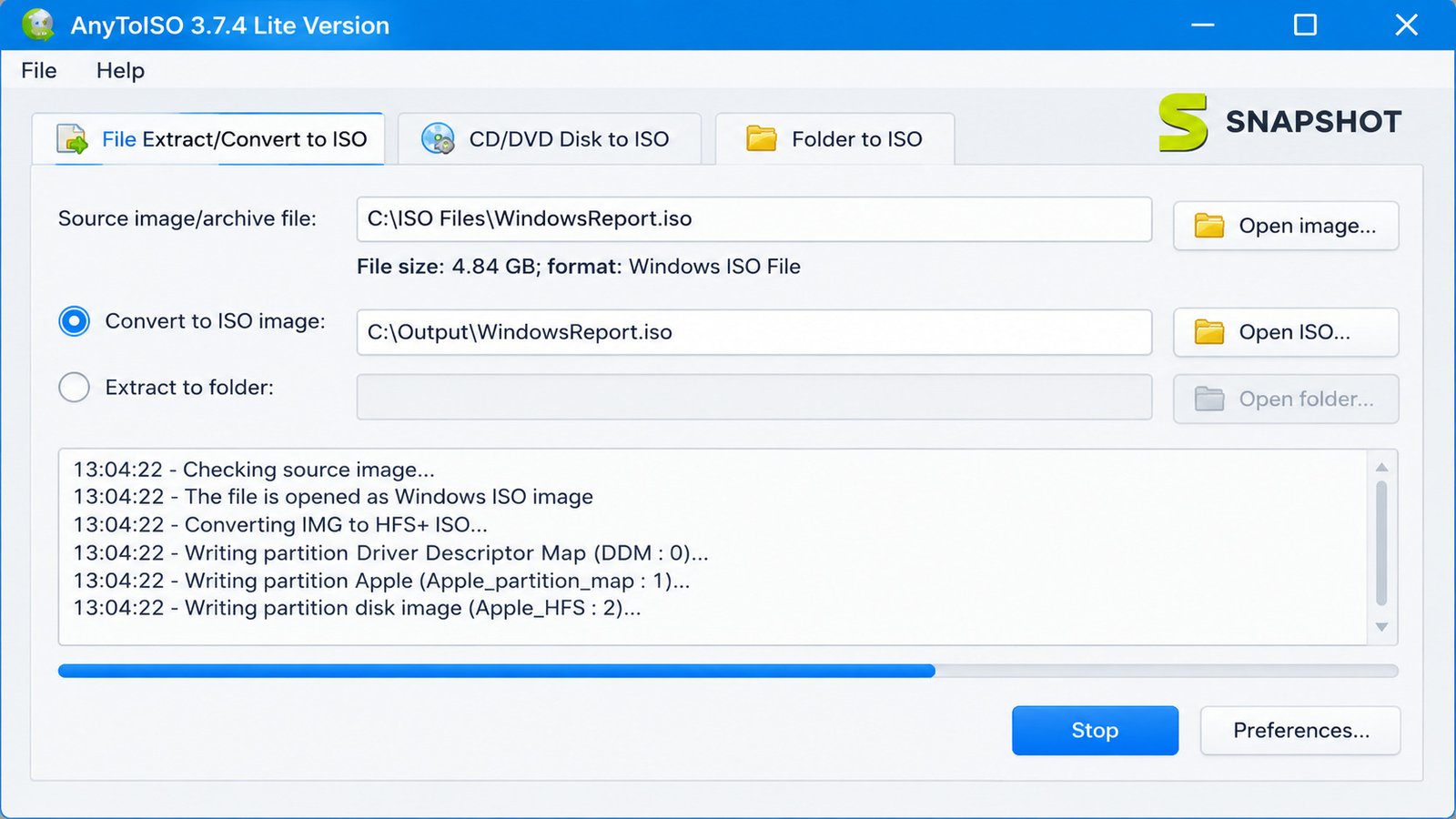
AnyToISO Free Version and Its Limitations
AnyToISO Lite works only with files up to 870 MB, roughly a standard CD. It is fine for small images, but too small for most DVD files.
AnyToISO Free vs. Pro
| Feature | Lite | Pro |
|---|---|---|
| Price | Free | Paid |
| Size limit | 870 MB | None |
| Commercial use | Check the license | Yes |
| Portable build | No | Special license |
AnyToISO Free Trial and Paid Features
Prices change often, so check the official site. The paid version removes the size cap and adds extra options.
What Can You Do With AnyToISO Without a License?
You can convert, create, and extract any file under 870 MB. That covers many CDs, small installers, and archives.
When Is AnyToISO Pro Necessary?
Pro makes sense for DVD images, Blu-ray content, large backups, and regular business use.
If you only convert a disc image once or twice a year, Lite may be all you ever need. If you do it weekly, the license pays for itself in saved time. Always read the license terms on the official site before using it at work.
AnyToISO Settings and Configuration
Configure ISO Creation Settings
Set the volume label and file system before you build. A clear label makes the mounted drive easy to spot.
Choose File System and Volume Options
Use Joliet for long names. Use UDF for large files.
Configure Disk Image Conversion
Most users never change these options. Defaults work for common formats. Change them only when needed.
Manage Extraction and Output Options
Pick a folder with plenty of space. Avoid your system drive if it is nearly full.
Optimize AnyToISO for Large Image Files
Close other heavy programs. Use an internal drive or fast SSD instead of a slow USB stick.
Also keep your PC plugged in during long conversions, and avoid sleep mode. Interrupted jobs often leave broken ISO files behind, and you will have to start over.
AnyToISO Troubleshooting
Why Is AnyToISO Not Working?
Most problems come from one of four causes:
- The file is larger than 870 MB on Lite.
- The download is incomplete.
- The image is encrypted or damaged.
- The format is not supported.
Fix AnyToISO Conversion Errors
Re-download the source file first. Then restart the app and try again.
AnyToISO Failed to Convert a File
Check available disk space. Try saving to a different drive.
AnyToISO Cannot Open a Disk Image or Create an ISO
Confirm the file extension is correct. For BIN and MDF, keep the companion CUE or MDS files nearby.
Fix ISO Conversion and Extraction Problems
Run the app as administrator on Windows. Temporarily pause antivirus only if you trust the file.
Here is a quick example. A reader’s MDF conversion kept failing at 40 percent. The cause was a half-downloaded file. After downloading it again, the conversion finished in two minutes. Always rule out the source file first.
Troubleshoot Large or Unsupported Image Files
For large files, upgrade to Pro. For unsupported formats, look at the alternatives below.
Check AnyToISO Settings and Output Files
Review the output folder, file name, and file system. Small mistakes there cause confusing results.
AnyToISO Review: Features, Conversion, and Usability
AnyToISO Disk Image Conversion Capabilities
It handles a wide range of formats with very little effort. That is its biggest strength.
ISO Creation and Extraction Tools
The tools are simple and reliable. You will not find advanced editing, though.
Supported Image and Archive Formats
More than 20 formats are supported, covering most everyday needs.
Windows and Mac Compatibility
Cross-platform support is rare in this category. It is a real advantage for mixed households and offices.
Our verdict: AnyToISO is best for people who want a dependable converter without a learning curve. It is not the most powerful tool available, but it covers the everyday jobs with very little effort.
Pros
- Handles 20+ image and archive formats
- Works on Windows and Mac
- Simple, three-click workflow
- Free Lite edition for files up to 870 MB
- Folder-to-ISO and extraction built in
Cons
- Lite edition is capped at 870 MB
- Does not edit ISO contents
- Encrypted images may not convert
- Not a full disc authoring suite
Ease of Use and Conversion Workflow
The interface is clean. Most conversions take three clicks.
AnyToISO Limitations and Important Considerations
- The free version has an 870 MB cap.
- It does not edit ISO contents.
- Encrypted images may not convert.
- It is not a full disc authoring suite.
AnyToISO Alternatives
When to Consider an AnyToISO Alternative
Look elsewhere if you need editing, bootable USB creation, or no size limit for free.
Free ISO Converter Alternatives and Disk Image Tools
| Tool | Best For | Platform |
|---|---|---|
| 7-Zip | Extracting images | Windows |
| ImgBurn | Burning and creating | Windows |
| ISO Workshop | General conversion | Windows |
| Rufus | Bootable USB drives | Windows |
| Disk Utility | Mac images | macOS |
ISO Creation and Extraction Alternatives
7-Zip opens many image types for free. ImgBurn builds ISOs from folders.
Free tools often need a bit more technical comfort. AnyToISO feels friendlier, especially if you rarely work with disk images. That said, pairing it with 7-Zip gives you a strong, no-cost toolkit.
Tools for DMG, BIN, NRG, and MDF Conversion
Some single-purpose converters handle one format only. They work, but you need several tools instead of one.
How to Choose an ISO Converter for Your Workflow
Ask three questions. Which formats do you use? How large are your files? Do you need Windows, Mac, or both?
Frequently Asked Questions About AnyToISO
Partly. The Lite version is free for files up to 870 MB. Pro has no size limit.
Yes. It converts DMG files on both Windows and Mac.
Yes. All three formats are supported.
Yes. Open the archive and choose Convert to ISO.
Yes. Use the Folder to ISO option.
Yes. It runs on both Windows versions and on supported macOS releases.
It is a long-running tool from CrystalIdea Software. Download it only from the official site.
Final Thoughts on AnyToISO
AnyToISO takes a messy problem and makes it simple. Whether your file is a DMG, BIN, NRG, or ZIP, a few clicks usually get you a working ISO. That small win saves a lot of frustration.
Start with the free Lite version and test it on a small file. If you outgrow the 870 MB limit, Pro is there when you need it. Either way, you now know exactly what to expect.